Do I Need Chromecast If I Have A Smart Tv For Sure
You might not need a Chromecast if your smart TV already has built-in casting features and streaming apps. Many modern smart TVs come with Google Cast or similar screen-mirroring technology right out of the box. This guide helps you figure out whether adding a Chromecast is worth your money or if your TV can already do everything you need.
Do you already own a smart TV and wonder if buying a Chromecast makes sense? It is a question many people ask, especially with the rising cost of extra gadgets. The short answer is: it depends on what your TV can already do.
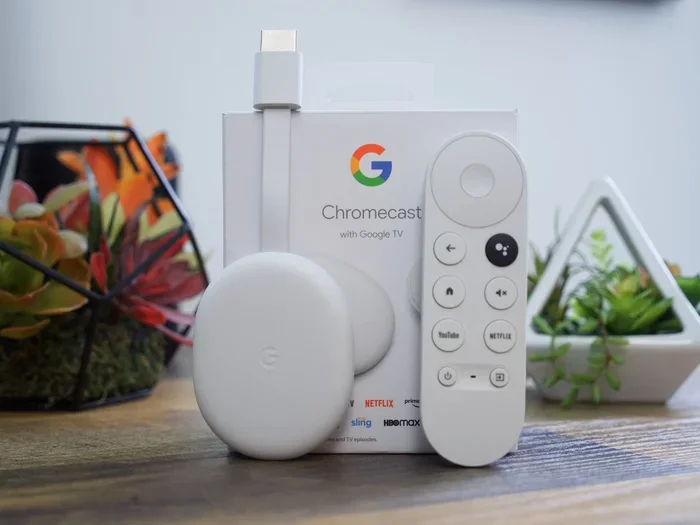
A Chromecast is a small streaming device made by Google. It plugs into your TV’s HDMI port and lets you send content from your phone, tablet, or computer straight to the big screen. But here is the thing — many modern smart TVs already include built-in casting features. So do you really need to buy one? Let us break it all down.
In this article, we will look at what a smart TV can do on its own, when a Chromecast adds real value, and how to decide if the extra device is worth it. By the end, you will know exactly what to do with your setup.
Key Takeaways
- Most smart TVs today include built-in casting: You may already have Chromecast-like features without buying extra hardware.
- A separate Chromecast adds flexibility: It lets you cast from any device and keeps your TV smart even on older models.
- Built-in smart TV apps vary widely: Some brands offer a rich app library while others are limited.
- Screen mirroring works differently: Chromecast uses a dedicated protocol that is often smoother than generic mirroring.
- Price matters: If your TV already streams well, a Chromecast might be an unnecessary expense.
- Check your TV first: Look for the Cast icon in your TV settings before spending money on a streaming device.
📑 Table of Contents
- What Is Chromecast and Why Do People Use It?
- What Can a Smart TV Do on Its Own?
- When Does a Chromecast Make Sense?
- Chromecast vs. Smart TV Built-In Features
- How to Check If Your Smart TV Already Has Chromecast
- Common Mistakes People Make With Chromecast and Smart TVs
- Expert Tips for Getting the Best Streaming Experience
- Final Verdict: Do You Really Need Chromecast?
What Is Chromecast and Why Do People Use It?
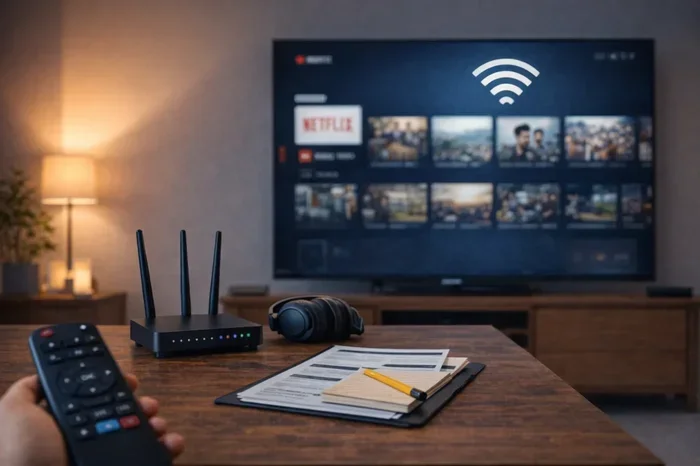
A Chromecast is a tiny streaming stick that connects to your TV through an HDMI port. It uses your home Wi-Fi network to receive content from your devices. You tap the cast icon on your phone or laptop, and the video starts playing on your TV.
People love Chromecast because it is simple and affordable. You do not need a fancy remote control. Your phone becomes the remote. You can cast videos from Netflix, YouTube, Spotify, and many other apps directly to your TV screen.
Here are some reasons people choose a Chromecast:
- Low cost: Chromecast devices are among the cheapest streaming options available.
- Easy setup: You plug it in, connect to Wi-Fi, and you are ready to go.
- Works with many devices: Android phones, iPhones, Chromebooks, and Windows laptops all support casting.
- Voice control: You can use Google Assistant to find and play content hands-free.
- No subscription needed: The device itself does not require a monthly fee.
But the big question remains. If your TV is already smart, do you really need this extra box? That is what we will explore next.
What Can a Smart TV Do on Its Own?
Modern smart TVs are powerful devices on their own. They come with built-in apps for all the major streaming services. You can watch Netflix, Hulu, Disney+, Amazon Prime Video, and YouTube without any extra hardware.
Most smart TVs from brands like Samsung, LG, Sony, and TCL run on operating systems like webOS, Tizen, Android TV, or Roku OS. These platforms give you access to thousands of apps right from your TV home screen.
Here is what a typical smart TV can handle without any add-on device:
- Streaming apps: All major services are available as built-in apps.
- Built-in Wi-Fi: Your TV connects to your home network wirelessly.
- Screen mirroring: Many smart TVs support Miracast or similar protocols for casting your screen.
- Voice assistants: Many models work with Alexa, Google Assistant, or Bixby.
- App stores: You can download new apps directly to your TV.
- Input options: Multiple HDMI ports let you connect game consoles, Blu-ray players, and more.
So if your smart TV already does all of this, adding a Chromecast might feel redundant. But there are some important differences to consider.
Built-in Casting vs. Chromecast
Not all smart TV casting is the same. Some TVs use Google Cast technology natively, which means they work just like a Chromecast. You will see the familiar cast icon in compatible apps on your phone.
Other smart TVs use different casting methods. Samsung uses its own AllShare Cast, and LG uses Screen Share based on Miracast. These work, but they are not always as smooth as native Google Cast. The video might lag, or the audio might not sync perfectly.
If your smart TV has native Google Cast, you basically already have a Chromecast built in. In that case, buying a separate device would not add much value.
When Does a Chromecast Make Sense?
There are several situations where adding a Chromecast to your setup makes real sense. Let us look at when this little device truly earns its place.
Your TV Is Not Very Smart
If you have an older smart TV or a basic model with limited apps, a Chromecast can breathe new life into it. Instead of dealing with a slow TV interface and missing app options, you can rely on your phone or laptop for content and just cast it to the screen.
This is especially helpful if your TV does not support the latest versions of popular apps. Streaming services often update their apps, and older TV models may not keep up.
You Want Better Casting Performance
Even if your smart TV has built-in casting, a dedicated Chromecast often performs better. The hardware in a Chromecast is optimized specifically for streaming and casting. You may notice smoother video playback, faster connection times, and better audio sync.
Many users report that casting from their phone to a Chromecast feels more reliable than using their TV’s built-in mirroring feature. If you cast content often, this difference matters.
You Use Multiple Devices
A Chromecast works beautifully across different devices and platforms. Whether someone in your family is using an Android phone or an iPhone, casting works the same way. You do not need to learn different methods for different devices.
This is a big advantage over some smart TV casting features that work better with certain phone brands. With a Chromecast, everyone in the household can cast easily.
You Want to Cast Non-Streaming Content
One of the best things about a Chromecast is that you can cast more than just videos from streaming apps. You can cast your entire phone screen, presentation slides, photos from Google Photos, and even browser tabs from your computer.
Your smart TV might not handle all of these tasks as smoothly. A Chromecast gives you more flexibility in what you can share on the big screen.
Chromecast vs. Smart TV Built-In Features
Let us compare a Chromecast directly with the built-in features of a modern smart TV. This table should help you see the differences clearly.
| Feature | Smart TV Built-In | Chromecast |
|---|---|---|
| Streaming Apps | Built-in apps for Netflix, YouTube, etc. | Cast from apps on your phone or browser |
| Casting Method | Varies by brand (Miracast, Google Cast, proprietary) | Native Google Cast protocol |
| Setup | Already built into the TV | Plugs into HDMI, connects to Wi-Fi |
| Performance | Depends on TV hardware and software | Optimized for streaming and casting |
| Voice Control | Built-in assistant support varies | Google Assistant integration |
| Cost | Included with TV purchase | $30 to $70 for the device |
| Screen Mirroring | May require third-party app or limited support | Full screen mirroring from any device |
| Updates | Depends on TV manufacturer | Google provides regular updates |
As you can see, both options have strengths. Your choice depends on your specific needs and how you use your TV.
Pros of Using a Smart TV Without Chromecast
- No extra device to manage: Fewer gadgets means less clutter and fewer things to update.
- Built-in remote: You do not need to pull out your phone every time you want to watch something.
- No additional cost: You already paid for the smart features when you bought the TV.
- Cleaner setup: Fewer cables and devices connected to your TV.
Pros of Adding a Chromecast to a Smart TV
- Better casting experience: A dedicated Chromecast often casts more reliably than built-in TV features.
- Access to newer features: Google keeps updating Chromecast with new capabilities.
- Works with older TVs too: If you upgrade your TV later, you can move the Chromecast to the new screen.
- More casting options: You can cast browser tabs, presentations, and your entire screen.
How to Check If Your Smart TV Already Has Chromecast
Before you spend money on a Chromecast, check if your smart TV already supports casting. Here is how to find out.
First, look for the cast icon. Open an app like YouTube or Netflix on your phone and look for the small rectangle with Wi-Fi waves in the corner. If you see it and it connects to your TV, your TV likely supports Google Cast natively.
Second, check your TV settings. Go to your TV’s network or display settings and look for terms like “Screen Mirroring,” “Cast,” or “Google Cast.” If these options are available, your TV has built-in casting support.
Third, check your TV brand and model online. Visit the manufacturer’s website and look up your specific model. The specs page will tell you if it supports Google Cast or Chromecast built-in.
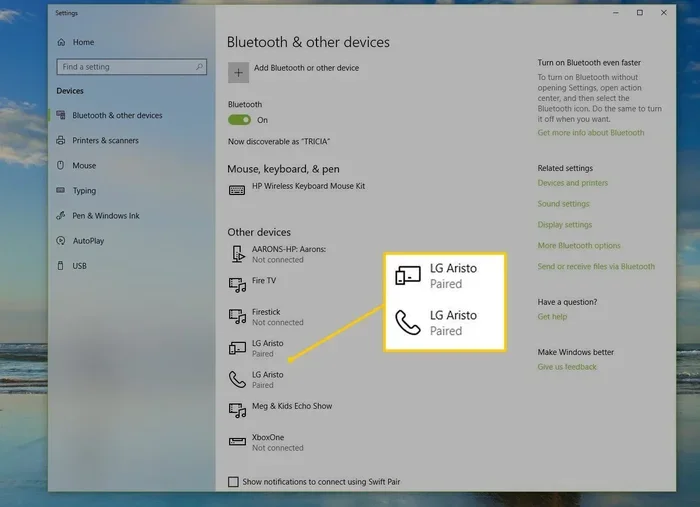
If you find that your TV does not support casting well, then a Chromecast becomes a much more attractive option. You can also explore options like a Bluetooth adapter for TV if wireless connectivity is your main concern, or look into how to connect your phone to your TV using HDMI for a more direct wired solution.
Another great alternative is checking if you can stream content from your devices to your TV using different methods that might already be available to you without buying extra hardware.
Common Mistakes People Make With Chromecast and Smart TVs
There are a few mistakes that many people make when deciding between a Chromecast and their smart TV built-in features. Avoiding these can save you time and money.
Assuming all smart TVs cast the same way. This is not true. Some brands have excellent built-in casting, while others are clunky and unreliable. Always test your TV’s casting before assuming it works well.
Buying a Chromecast when your TV already has Google Cast built-in. This is the most common mistake. Check first, then buy.
Ignoring Wi-Fi quality. Both Chromecast and smart TV casting depend heavily on your Wi-Fi network. A weak signal will cause buffering and lag no matter which method you use.
Not updating your TV software. Manufacturers release updates that improve casting performance. Keep your smart TV firmware up to date for the best experience.
Overlooking the value of a dedicated device. Sometimes paying a small amount for a Chromecast is worth it for the reliability and extra features it provides. Do not assume free is always better.
Expert Tips for Getting the Best Streaming Experience
Whether you use a Chromecast or your smart TV built-in features, these tips will help you get the best experience.
First, make sure your Wi-Fi router is close to your TV. A strong signal makes all the difference in streaming quality. If your router is far away, consider using a Wi-Fi extender or mesh network system.
Second, use a high-speed internet connection. For 4K streaming, you need at least 25 Mbps. For regular HD, 5 Mbps should be enough. Check your internet speed before blaming your TV or Chromecast for buffering issues.
Third, keep your devices updated. Both your smart TV and your phone should run the latest software versions. Updates often include performance improvements for casting and streaming.
Fourth, close unused apps on your phone when casting. This frees up memory and processing power, which can improve the casting experience.
Fifth, if you experience audio or video sync issues, try restarting both your TV and your casting device. A simple reboot often fixes most streaming problems.
Finally, consider the placement of your Chromecast if you use one. Keep it plugged in securely and make sure it has enough ventilation. A poorly placed Chromecast can overheat or lose its Wi-Fi signal.
Final Verdict: Do You Really Need Chromecast?
So, do you need a Chromecast if you have a smart TV? The honest answer is: it depends on your situation.
If your smart TV is relatively new, has built-in Google Cast, and runs streaming apps smoothly, you probably do not need a Chromecast. Your TV already does what the device offers.
However, if your TV is older, has limited app support, or its built-in casting is unreliable, a Chromecast is a great investment. It is affordable, easy to set up, and significantly improves your streaming experience.
Think about how often you cast content. If you do it daily, a dedicated Chromecast will give you a much better experience than relying on your TV’s built-in features. If you only cast occasionally, your smart TV is probably enough.
Also consider whether you want to future-proof your setup. A Chromecast gives you access to the latest Google features and updates, even if your TV is several years old. It is a small device that can make a big difference.
In the end, the choice is yours. Weigh the pros and cons based on your TV model, your streaming habits, and your budget. Both options can give you a great viewing experience when set up correctly.
Remember, technology should make your life easier, not more complicated. Whether you use your smart TV alone or add a Chromecast, the goal is the same: enjoy your favorite content on the big screen with minimal hassle.
Frequently Asked Questions
Can I use my smart TV without a Chromecast?
Yes, absolutely. Most modern smart TVs have built-in streaming apps and casting features. You can watch Netflix, YouTube, and other services directly on your TV without any extra device. Your TV remote and on-screen interface handle everything you need.
Does Chromecast work with all smart TVs?
Chromecast works with any TV that has an HDMI port and a Wi-Fi connection. You do not need a smart TV to use a Chromecast. However, if your TV is already smart and supports Google Cast natively, a separate Chromecast may not add much value.
Is screen mirroring the same as casting with Chromecast?
No, they are different. Casting sends specific content from an app to your TV, while screen mirroring duplicates your entire phone or computer screen. Chromecast supports both methods, but casting generally gives better quality and performance than mirroring.
Can I use Chromecast and my smart TV features at the same time?
Yes, you can use both. Some people keep their smart TV apps for regular watching and use Chromecast for casting specific content from their devices. There is no conflict between the two, and you can switch between them easily.
Will a Chromecast improve my smart TV’s streaming quality?
It can. A dedicated Chromecast often has better hardware for decoding video and handling Wi-Fi connections than a smart TV’s built-in system. If your TV is older or has a weak processor, a Chromecast may deliver smoother, higher-quality streaming.
How much does a Chromecast cost compared to other streaming devices?
Chromecast is one of the most affordable streaming options, typically priced between $30 and $70. It is cheaper than most Roku or Fire TV models. This low price makes it an attractive option if you decide your smart TV needs a streaming boost.