How Can I Play My Xbox On My Laptop Without Console
You can play your Xbox games on your laptop without needing a console by using Xbox app streaming, HDMI connections, or cloud gaming. This guide covers every method, requirement, and tip to get you gaming right away. Whether you want to stream wirelessly or connect via cable, you will find the best approach for your setup.
Have you ever wanted to play your favorite Xbox games but did not have your console nearby? Maybe your console is broken, or you are traveling and want to keep gaming. The good news is that you can play Xbox on your laptop without a console using several simple methods.
Whether you want to stream games wirelessly, connect via HDMI, or use cloud gaming, there is a solution for every situation. This guide walks you through each method step by step. You will learn what you need, what works best, and how to avoid common mistakes.
Gaming on your laptop opens up a whole new world of flexibility. You can game in bed, at a friend’s house, or even on vacation. Let us dive into everything you need to know about Xbox without console gaming.
Key Takeaways
- Xbox App Streaming: The easiest way to play Xbox games on your laptop using Windows 10 or 11.
- HDMI Connection: You can connect certain Xbox models directly to your laptop as a monitor.
- Xbox Cloud Gaming: Play Xbox games in your browser without any console or powerful hardware.
- Controller Setup: You can connect your Xbox controller to your laptop via Bluetooth or USB.
- Network Matters: A strong Wi-Fi connection is essential for smooth wireless streaming.
📑 Table of Contents
- Why Play Xbox on Your Laptop?
- Method 1: Use the Xbox App to Stream Games
- Method 2: Connect Xbox to Laptop via HDMI
- Method 3: Xbox Cloud Gaming (No Console Needed at All)
- Connecting Your Xbox Controller to Your Laptop
- Comparison: Which Method Is Best for You?
- Common Mistakes to Avoid
- Expert Tips for the Best Experience
- Final Thoughts
Why Play Xbox on Your Laptop?
There are many reasons to ditch the console and game on your laptop instead. First, laptops are portable. You can take them anywhere and set up your gaming station in minutes. Second, you might not have space for a big console setup. A laptop takes up much less room.
Third, using your laptop as an Xbox streaming device saves money. You do not need to buy a second monitor or extra cables. Your laptop screen becomes your gaming display. This is especially helpful if your console is broken and you are waiting for a replacement.
Finally, many people already own a laptop. Why buy another device when you can use what you have? Xbox game streaming lets you turn your existing laptop into a powerful gaming machine. You just need the right setup.
Method 1: Use the Xbox App to Stream Games
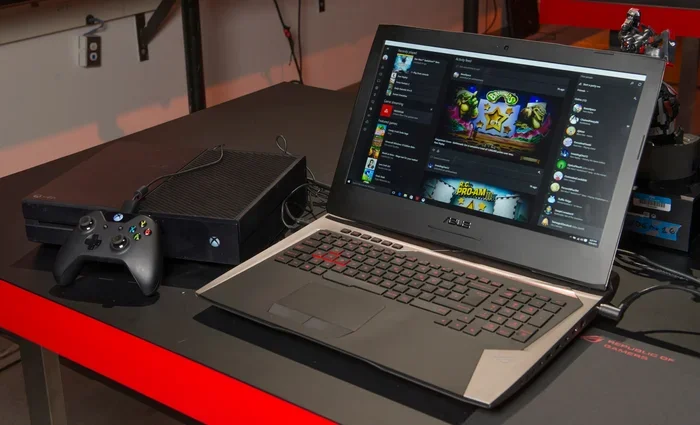
The Xbox app is the most popular way to play Xbox on your laptop without console. It lets you stream games from your Xbox console to your laptop over your home network. Even if your console is in another room, you can keep playing.
What You Need for Xbox App Streaming
Before you start, make sure you have the following:
- A Windows 10 or Windows 11 laptop
- An Xbox console that is turned on and connected to the internet
- Both devices on the same Wi-Fi network
- The Xbox app installed on your laptop
- A controller (Xbox or compatible third-party)
Step-by-Step Setup
Setting up streaming is straightforward. Follow these steps and you will be gaming in no time.
- Download the Xbox app from the Microsoft Store on your laptop.
- Open the app and sign in with your Microsoft account.
- Click the “Connection” icon at the top of the app.
- Select your Xbox console from the list of available devices.
- Click “Stream” to start playing games on your laptop screen.
That is it! Your laptop now acts as a remote screen for your Xbox. You can play any game installed on your console. The stream quality depends on your Wi-Fi speed, so a strong connection makes a big difference.
If you have ever wondered about connecting other devices, you might also want to check how to play Xbox on my laptop using different methods. The Xbox app method is the closest to that experience.
Tips for the Best Streaming Quality
Streaming works best when you follow a few simple tips. Here is what helps:
- Use a 5 GHz Wi-Fi band for faster speeds
- Keep your laptop close to your router
- Close other apps that use bandwidth
- Set your Xbox to “Instant-On” mode for faster connections
- Update the Xbox app to the latest version
With these tips, your Xbox wireless streaming will feel smooth and responsive. You will barely notice a delay between your controller inputs and what happens on screen.
Method 2: Connect Xbox to Laptop via HDMI
Some Xbox models let you connect directly to your laptop using an HDMI cable. This method turns your laptop into a monitor for your Xbox. However, not all laptops support HDMI input, so you need to check first.
Understanding HDMI Input vs. Output
Most laptops only have HDMI output. This means they can send a signal to a TV or external monitor. Very few laptops have HDMI input, which lets them receive a signal from another device. Before trying this method, check your laptop’s specifications online or in the user manual.
If your laptop does have HDMI input, here is how to set it up:
- Connect one end of the HDMI cable to your Xbox
- Connect the other end to your laptop’s HDMI port
- Switch your laptop to the HDMI input source
- Turn on your Xbox
- Your laptop screen should now display your Xbox home screen
This method gives you the lowest latency because it is a direct wired connection. If you want to learn more about HDMI connections with Xbox, you can read about how to connect Xbox 360 using HDMI for additional details.
What If Your Laptop Does Not Have HDMI Input?
Do not worry. You have other options. You can use an HDMI capture card. This small device plugs into your laptop’s USB port and receives the HDMI signal from your Xbox. The capture card displays the Xbox feed on your laptop screen.
Capture cards are affordable and work well. Popular options include the Elgato HD60 and AVerMedia Live Gamer. They add a small bit of delay, but for casual gaming, the experience is excellent.
Method 3: Xbox Cloud Gaming (No Console Needed at All)
This is the best option if you do not own an Xbox console at all. Xbox cloud gaming lets you play Xbox games directly in your web browser. You stream games from Microsoft’s servers, so you need no console, no powerful laptop, and no downloads.
How Xbox Cloud Gaming Works
Microsoft runs Xbox games on powerful servers in data centers. The game video streams to your laptop over the internet. Your controller inputs travel back to the servers. This all happens in milliseconds, so the experience feels like you are playing locally.
You need an Xbox Game Pass Ultimate subscription to use cloud gaming. This subscription gives you access to hundreds of games. You can play them on your laptop, phone, or tablet. The games are not downloaded to your device, so you save storage space.
Setting Up Cloud Gaming on Your Laptop
Getting started is easy and fast:
- Go to xbox.com/play in your web browser
- Sign in with your Microsoft account
- Make sure you have an active Game Pass Ultimate subscription
- Connect your Xbox controller to your laptop
- Browse the game library and click play
You can also download the Xbox app and use the cloud gaming feature from there. The browser method works great and requires no extra software.
Cloud gaming is similar to how you can stream Steam Deck to TV — both use remote streaming to deliver games to a different screen. The concept is the same, just different platforms.
Requirements for Smooth Cloud Gaming
Cloud gaming needs a solid internet connection. Here is what Microsoft recommends:
- Minimum download speed of 10 Mbps
- Stable Wi-Fi connection (Ethernet is better)
- Low latency (under 50 milliseconds)
- A modern web browser (Edge, Chrome, or Firefox)
If your Wi-Fi is weak, cloud gaming might lag or look blurry. Try moving closer to your router or using a wired Ethernet connection for the best results.
Connecting Your Xbox Controller to Your Laptop
You need a controller to play Xbox games on your laptop. The good news is that connecting your controller is simple and works in multiple ways.
Method A: Bluetooth Connection
Most modern Xbox controllers support Bluetooth. This lets you connect wirelessly without any cables.
- Turn on your Xbox controller by pressing the Xbox button
- Press and hold the pairing button on the top of the controller
- On your laptop, go to Settings > Bluetooth & Devices
- Click “Add Bluetooth or other device”
- Select your controller from the list
Once paired, your controller works with most Xbox games and streaming apps. The Bluetooth connection is convenient but may have slightly more input lag than a wired connection.
Method B: USB Cable Connection
For the most responsive experience, plug your controller directly into your laptop with a USB cable. This gives you zero latency and never drops the connection.
- Use a USB-C or micro-USB cable depending on your controller model
- Plug one end into the controller and the other into your laptop
- Press the Xbox button to turn it on
- Your laptop should recognize the controller immediately
USB connection is ideal for competitive gaming where every millisecond counts. It also charges your controller while you play.
Comparison: Which Method Is Best for You?
Each method has its strengths. Here is a quick comparison to help you choose.
| Method | Needs Console? | Internet Required? | Setup Difficulty | Best For |
|---|---|---|---|---|
| Xbox App Streaming | Yes (same network) | Yes (Wi-Fi) | Easy | Console owners who want portability |
| HDMI Connection | Yes | No | Medium | Lowest latency wired setup |
| Cloud Gaming | No | Yes (strong Wi-Fi) | Very Easy | People without a console |
| Capture Card | Yes | No | Medium | Laptops without HDMI input |
As you can see, Xbox cloud gaming is the easiest option if you do not own a console. If you already have an Xbox, the app streaming method gives you the most flexibility. The HDMI method is best for competitive gamers who want zero delay.
Common Mistakes to Avoid
Many people run into problems when setting up Xbox on their laptop. Here are the most common mistakes and how to avoid them.
- Not checking Wi-Fi speed: Slow internet ruins streaming quality. Test your speed before you start. You need at least 10 Mbps for smooth gameplay.
- Using outdated Xbox app: Always keep the app updated. Old versions may have bugs or missing features. Check the Microsoft Store regularly.
- Forgetting to enable game streaming on Xbox: On your Xbox, go to Settings > Preferences > Game Streaming and make sure it is turned on.
- Connecting to 2.4 GHz Wi-Fi: The 5 GHz band is much faster and more stable for streaming. Switch your router to 5 GHz if possible.
- Ignoring controller battery: A low battery causes disconnections. Charge your controller fully before a long gaming session.
- Trying HDMI input on the wrong laptop: Most laptops only support HDMI output. Check your specs before buying an HDMI cable.
Avoiding these mistakes saves you frustration and gets you gaming faster. A little preparation goes a long way.
Expert Tips for the Best Experience
Here are some pro tips that make a real difference in your Xbox laptop gaming experience.
Use a controller charging station. If you game often, a charging station keeps your controller ready to go. You never have to worry about running out of battery mid-game.
Optimize your laptop for gaming. Close background apps before you start streaming. Turn on Game Mode in Windows settings. These small steps free up resources and improve performance.
Invest in a good headset. Gaming sounds better with quality audio. A USB headset connects easily to your laptop and gives you immersive sound without extra equipment.
Set up a dedicated gaming profile on Windows. This minimizes distractions and optimizes your system settings specifically for gaming. You can switch between profiles easily.
Keep your laptop cool. Gaming generates heat. Use a cooling pad or elevate your laptop to improve airflow. Overheating can cause performance drops and lag.
Final Thoughts
Playing Xbox on your laptop without a console is easier than most people think. You have multiple paths to choose from depending on your situation and equipment. The Xbox app streaming method works great if you already own a console. Cloud gaming is perfect if you do not have one at all. HDMI connections offer the lowest latency for serious gamers.
Each method has its advantages. The key is choosing the one that fits your needs best. Start with the Xbox app if you want the simplest setup. Try cloud gaming if you want zero hardware requirements. Use HDMI or a capture card if you want the most responsive experience.
No matter which method you pick, you will be able to enjoy your favorite Xbox games on your laptop. Gaming is more flexible than ever before. Grab your controller, pick your method, and start playing today.
Remember, the goal is to have fun. Do not get bogged down in perfecting every setting. Once you get the basics working, you can fine-tune your setup over time. Happy gaming!
Frequently Asked Questions
Can I play Xbox games on any laptop?
Most laptops can run the Xbox app or use cloud gaming. You need a Windows 10 or 11 laptop for the app. For cloud gaming, any laptop with a modern browser works. You do not need a powerful gaming laptop to stream Xbox games.
Do I need an Xbox Live subscription to play on my laptop?
You need Xbox Game Pass Ultimate for cloud gaming. For app streaming, you need an active Xbox Game Pass subscription. Some games require individual purchase even with Game Pass. Check each game’s requirements before you start.
Is Xbox cloud gaming free?
No, cloud gaming requires an Xbox Game Pass Ultimate subscription. This costs about $14.99 per month. It gives you access to hundreds of games including Xbox Game Pass titles. You can start with a one-month free trial to test it out.
Can I use a PS5 controller with my laptop for Xbox streaming?
Most Xbox-compatible controllers work with the Xbox app. The Xbox wireless controller is the best choice. Some third-party controllers also work but may need extra setup. Check compatibility before you buy a new controller.
Why is my Xbox streaming lagging on my laptop?
Lag usually comes from a weak Wi-Fi connection. Switch to the 5 GHz band for better speeds. Move closer to your router and close other apps using bandwidth. If lag continues, try a wired Ethernet connection for the most stable performance.
Can I play local multiplayer games on my laptop using Xbox streaming?
Yes, but it depends on the game. Some Xbox games support local multiplayer over network streaming. You would need additional controllers and accounts. Check the game’s multiplayer options in its description before you try.