How Can I Reset Bluetooth On Iphone and Fix Connections
Resetting Bluetooth on your iPhone is easier than you think. Whether your headphones won’t connect or your speaker keeps dropping, a simple reset often solves the problem. This guide walks you through every method, from quick toggles to full network resets, so you can get back to listening without frustration.
Nothing is more annoying than trying to connect your Bluetooth headphones to your iPhone and hearing that dreaded error message. Your music stops. Your call drops. And suddenly, wireless freedom feels anything but free. Whether you are trying to pair your AirPods, connect a speaker, or sync your smartwatch, Bluetooth problems on the iPhone happen to everyone.
The good news? You do not need to be a tech expert to fix this. Most Bluetooth issues on the iPhone come from small software glitches that a simple reset can solve. In this guide, we walk you through every way to reset Bluetooth on iPhone and get your connections working again. We keep it simple, practical, and step-by-step so you can get back to your music fast.
Let us start with the quickest fixes and work our way up to the more thorough solutions. By the end, you will know exactly what to do no matter what Bluetooth problem you are facing.
Key Takeaways
- Soft Reset: Toggling Bluetooth off and on fixes most minor connection glitches in seconds.
- Forget and Re-pair: Removing a device and pairing it again solves stubborn pairing problems.
- Network Settings Reset: A full network reset clears all Bluetooth glitches and restores factory connections.
- iOS Updates Matter: Keeping your iPhone updated prevents many Bluetooth issues before they start.
- Restart Your iPhone: A simple reboot can resolve temporary Bluetooth software conflicts.
- Check Your Environment: Distance, interference, and battery levels affect Bluetooth performance more than you think.
📑 Table of Contents
- Why Does Bluetooth on iPhone Stop Working?
- How to Soft Reset Bluetooth on iPhone
- How to Forget a Bluetooth Device and Re-pair It
- How to Reset All Network Settings on iPhone
- Common Mistakes That Cause Bluetooth Problems
- When to Contact Apple Support
- Quick Tips to Prevent Bluetooth Problems in the Future
- Final Thoughts
Why Does Bluetooth on iPhone Stop Working?
Before we jump into the fixes, it helps to understand why Bluetooth connection issues happen in the first place. Bluetooth uses short-range wireless signals to talk between devices. When those signals get interrupted, confused, or blocked, things break. Here are the most common reasons your iPhone Bluetooth might act up.
Software Glitches After Updates
Apple releases iOS updates regularly to fix bugs and add features. But sometimes, these updates can cause temporary Bluetooth problems. Your iPhone might not fully recognize a paired device after an update. This is more common right after installing a new version of iOS.
Too Many Paired Devices
Your iPhone remembers every Bluetooth device you have ever connected to. Over time, this list gets long. When the list grows too large, your iPhone can struggle to manage connections smoothly. Old forgotten devices can also interfere with new pairings.
Interference from Other Devices
Bluetooth operates on the 2.4 GHz frequency. Wi-Fi routers, microwaves, and even other Bluetooth devices share this same frequency. When too many devices crowd the same space, signals get crossed. This causes dropouts, static, or failure to connect.
Low Battery or Distance
Bluetooth needs enough power to send and receive signals. If your iPhone battery is very low or your Bluetooth device is low on charge, the connection weakens. Distance also matters. Most Bluetooth devices work best within 30 feet of your iPhone. Go too far, and the signal drops.
How to Soft Reset Bluetooth on iPhone
A soft reset is the first thing you should try. It takes seconds and fixes the majority of minor Bluetooth problems. Think of it like turning a light off and on again. The connection resets and often works perfectly after that.
Step 1: Turn Bluetooth Off
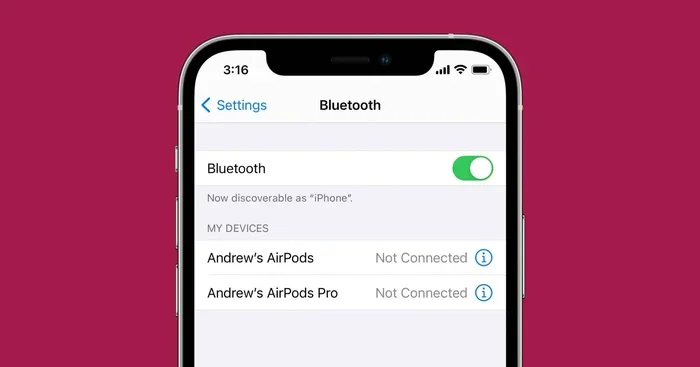
Open your iPhone Settings app. Tap on Bluetooth. You will see a toggle switch at the top. Flip it to the off position. The switch turns gray. Wait about 10 seconds. This gives your iPhone time to fully release the current Bluetooth connection.
Step 2: Turn Bluetooth Back On
Flip the toggle back to on. The switch turns green. Your iPhone starts searching for nearby Bluetooth devices again. Check if your device shows up in the list. Try connecting and see if the problem is gone.
Step 3: Use Control Center for a Quick Toggle
You can also reset Bluetooth faster through Control Center. Swipe down from the top right corner of your screen. Tap the Bluetooth icon to turn it off. Wait a few seconds. Tap it again to turn it back on. This method is great for quick fixes on the go.
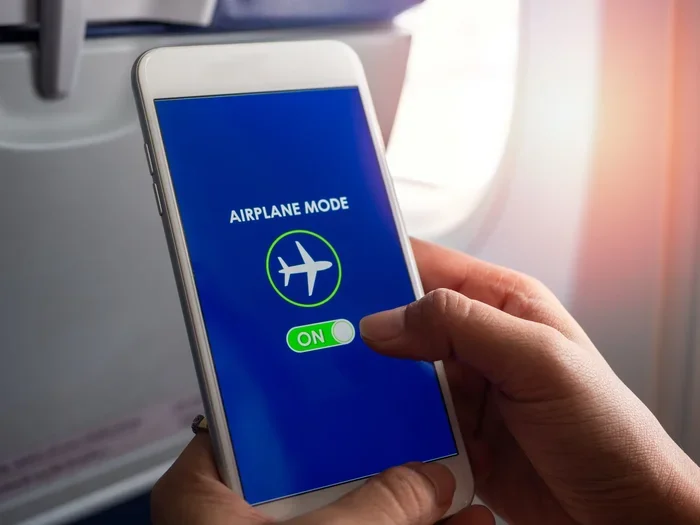
Quick Tip: If toggling Bluetooth does not work immediately, try turning on Airplane Mode, waiting 15 seconds, and then turning Airplane Mode off. This resets all wireless connections at once, including Bluetooth.
How to Forget a Bluetooth Device and Re-pair It
When a soft reset does not fix the problem, the next step is to forget the device and pair it fresh. This clears any corrupted connection data and forces your iPhone to start the pairing process from scratch. This method works wonders for devices that keep disconnecting or will not connect at all.
Step 1: Go to Your Bluetooth Settings
Open Settings and tap Bluetooth. Find the device that is giving you trouble in the list of My Devices or Other Devices. Tap the small blue “i” icon next to the device name.
Step 2: Select Forget This Device
A menu pops up. Scroll down and tap Forget This Device. Confirm your choice. Your iPhone removes the device from its memory completely. This means any saved preferences or pairing codes are deleted too.
Step 3: Put Your Device in Pairing Mode
Now, put your Bluetooth device back into pairing mode. Most devices have a dedicated button or a specific sequence to enter pairing mode. Check your device manual if you are not sure how to do this. The device should now appear as discoverable.
Step 4: Re-pair the Device
Go back to your iPhone Bluetooth settings. Your device should appear under Other Devices. Tap on it to connect. Follow any on-screen prompts if needed. Once paired, test the connection by playing music or making a call.
Expert Insight: If you are dealing with Bluetooth headphones that keep disconnecting, forgetting and re-pairing often fixes the issue. This works the same way whether you are using Apple AirPods, Beats, or third-party headphones. It is one of the most effective troubleshooting steps available.
How to Reset All Network Settings on iPhone
If toggling Bluetooth and forgetting devices do not solve the problem, the next step is a full network settings reset. This is a more thorough fix that clears all saved Wi-Fi passwords, Bluetooth pairings, and cellular settings. Do not worry, your personal data stays safe. But you will need to re-enter Wi-Fi passwords and re-pair Bluetooth devices after the reset.
Step 1: Open Settings and Go to General
Launch the Settings app on your iPhone. Scroll down and tap General. Scroll to the bottom and tap Transfer or Reset iPhone.
Step 2: Tap Reset
On the next screen, tap Reset. You will see a list of reset options. Look for Reset Network Settings and tap it.
Step 3: Enter Your Passcode
Your iPhone will ask for your passcode. Enter it to confirm. Then tap Reset Network Settings again to confirm. Your iPhone restarts automatically.
Step 4: Reconnect After the Reset
Once your iPhone turns back on, go to Settings and connect to your Wi-Fi network again. Then go to Bluetooth and re-pair your devices. Everything should work smoothly now.
Quick Tip: Only use this method as a last resort before trying other fixes. Because it clears all network settings, it can be inconvenient if you have many Wi-Fi networks saved. But for stubborn Bluetooth problems, it works extremely well.
Common Mistakes That Cause Bluetooth Problems
Sometimes the problem is not your iPhone at all. Simple mistakes in how you use your devices can cause Bluetooth issues. Here are the most common ones people make.
Keeping Bluetooth On All the Time
Leaving Bluetooth always on drains your battery and can cause connection conflicts. Your iPhone constantly searches for devices even when you are not using them. This can slow things down and cause glitches. Turn Bluetooth off when you are not actively using it.
Ignoring Software Updates
Apple regularly releases updates that fix known Bluetooth bugs. If you skip updates, you miss these fixes. Go to Settings, tap General, then Software Update. Install any available updates. This alone can fix many Bluetooth problems.
Placing Devices Too Far Away
Bluetooth has a limited range. Walls, furniture, and even your own body can block the signal. Keep your Bluetooth device close to your iPhone, especially during the initial pairing process. Once connected, you can move further away, but stay within 30 feet for best results.
Not Restarting Your iPhone
A simple restart clears temporary software bugs that can interfere with Bluetooth. If nothing else works, restart your iPhone. Hold down the power button, slide to power off, wait a few seconds, and turn it back on. This clears the short-term memory and refreshes all system processes.
Using Devices With Low Battery
Bluetooth devices need enough power to maintain a strong signal. A low battery can cause frequent disconnections or failure to pair. Charge your Bluetooth device fully before troubleshooting connection issues.
When to Contact Apple Support
Most Bluetooth problems on the iPhone are fixable at home. But sometimes, the issue points to a deeper hardware problem. If you have tried every method in this guide and Bluetooth still does not work, it might be time to seek professional help.
Here are signs that your problem needs expert attention. Your iPhone does not detect any Bluetooth devices at all, even after a full reset. Bluetooth connections drop constantly, even when devices are right next to each other. You notice physical damage to your iPhone or your Bluetooth device. Your iPhone overheats when Bluetooth is turned on. These symptoms could indicate a hardware fault that software fixes cannot resolve.
You can contact Apple Support through the Apple Support app, visit an Apple Store, or schedule a call with a technician. They can run diagnostics and determine if your iPhone needs repair or replacement. In most cases, Bluetooth hardware failures are rare, so do not assume the worst before trying the steps above.
It is also worth noting that if you use Bluetooth devices across multiple Apple products, issues on one device do not always mean the iPhone is at fault. Sometimes the problem lies with the Bluetooth device itself. Try connecting the same device to another phone or computer to narrow down the source of the issue.
Quick Tips to Prevent Bluetooth Problems in the Future
Prevention is always better than cure. A few simple habits can keep your iPhone Bluetooth running smoothly for the long term. Here are tips that actually work.
- Restart your iPhone weekly. This clears temporary files and refreshes system connections.
- Keep your iOS updated. Updates patch known bugs and improve Bluetooth stability.
- Remove unused Bluetooth pairings. Go to Settings, Bluetooth, and forget devices you no longer use. This keeps your connection list clean.
- Charge Bluetooth devices regularly. Low battery is one of the top causes of disconnections.
- Avoid placing your iPhone near Wi-Fi routers when pairing. Both use the same frequency and can interfere with each other.
- Reset network settings once a month. A regular reset keeps your connections fresh and prevents buildup of connection errors.
Following these simple habits means you spend less time troubleshooting and more time enjoying your wireless devices. Bluetooth technology is reliable when treated well, and a little maintenance goes a long way.
Final Thoughts
Resetting Bluetooth on iPhone does not have to be complicated. Most of the time, a simple toggle, a forget-and-re-pair, or a network settings reset solves the problem completely. Start with the easiest fix and work your way up. You will find the solution that works for your situation.
Remember that Bluetooth issues are extremely common and almost always temporary. They do not mean your iPhone or your Bluetooth device is broken. With patience and the right steps, you can get everything connected again in minutes. Keep this guide bookmarked for the next time Bluetooth gives you trouble. And if the problem persists beyond all the steps here, Apple Support is always ready to help.
Now go ahead, reset that Bluetooth, and get back to the music, calls, and wireless freedom your iPhone was built to deliver.
Frequently Asked Questions
Why won’t my iPhone find any Bluetooth devices?
This usually happens because Bluetooth is turned off, your device is not in pairing mode, or there is interference from other wireless devices. Try toggling Bluetooth off and on, restarting your iPhone, and making sure your device is discoverable. If the problem persists, resetting your network settings often fixes it.
How do I reset Bluetooth on my iPhone without losing other settings?
You can reset Bluetooth without losing other settings by simply toggling Bluetooth off and on, or by forgetting a specific device and re-pairing it. A full network settings reset will clear Wi-Fi passwords too, so only use that method if the simpler fixes do not work.
Does restarting my iPhone fix Bluetooth problems?
Yes, restarting your iPhone can fix many temporary Bluetooth glitches. A reboot clears the short-term memory and refreshes all wireless connections. It is one of the simplest and most effective first steps when Bluetooth stops working.
Can outdated iOS cause Bluetooth issues on iPhone?
Absolutely. Outdated software can contain bugs that affect Bluetooth connectivity. Apple regularly releases updates that fix known Bluetooth problems. Always check for iOS updates before trying other troubleshooting steps. Go to Settings, General, and Software Update to check.
How do I know if my iPhone Bluetooth hardware is broken?
If you have tried all software fixes including toggling Bluetooth, forgetting devices, and resetting network settings, and Bluetooth still does not work at all, the hardware may be faulty. Contact Apple Support for diagnostics. Hardware failures are rare but can happen, especially after physical damage or liquid exposure.
Is it safe to reset network settings on my iPhone?
Yes, it is completely safe. Resetting network settings does not delete your photos, apps, or personal data. It only clears saved Wi-Fi passwords, Bluetooth pairings, and cellular settings. You will need to reconnect to Wi-Fi and re-pair Bluetooth devices afterward.