Can You Split USB To Two Computers And Share Files
Yes, you can split USB to two computers and share files using USB switches, sharing software, or network-based methods. This guide covers the best ways to connect USB devices like hard drives, printers, and keyboards to two PCs without buying duplicates. Whether you work from home or manage a dual-computer setup, you will find practical solutions that are simple, affordable, and easy to set up.
Have you ever wanted to use one USB drive or printer with two different computers? Maybe you have a desktop and a laptop, or two workstations sitting side by side. The idea of splitting a USB connection between two PCs sounds simple. But the truth is, it is not as straightforward as plugging in a cable and calling it done.
So, can you split USB to two computers and share files? The short answer is yes. But the long answer depends on what you are trying to share, which method you choose, and how much effort you want to put in. In this guide, we walk you through every option. We cover hardware solutions, software tools, and real-world use cases. By the end, you will know exactly what works best for your setup.
Whether you are a home user sharing a single external hard drive or a professional who needs seamless file sharing between computers, this article has you covered. We keep things simple and practical. No jargon. No fluff. Just clear, actionable steps you can follow today.
Key Takeaways
- A standard USB splitter does not let you share a device between two computers simultaneously.
- A USB switch or switcher is the most reliable hardware solution for sharing USB devices between two PCs.
- USB sharing software like USB Network Gate lets you access USB devices over a local network.
- Cloud storage and local network transfer are great software-only alternatives for sharing files between computers.
- Common mistakes include using cheap splitters, ignoring driver conflicts, and not checking compatibility.
- Medical and professional environments often rely on advanced USB sharing setups for critical data transfer between workstations.
- The right method depends on your needs — hardware for peripherals, software for file sharing, or both for maximum flexibility.
📑 Table of Contents
Understanding USB Splitting Basics
What Does It Mean to Split a USB Connection?
When people talk about splitting a USB connection, they usually mean one of two things. First, sharing a single USB device with two computers at the same time. Second, copying files from one computer to another using a USB drive. These are very different tasks, and each requires a different approach.
A USB splitter or hub lets you connect multiple devices to one computer. But it does not let two computers share one device. This is a common misconception. Many people buy a cheap USB hub expecting it to work as a shared bridge between PCs. It does not work that way.
Here is why. USB connections are designed as a one-to-one relationship. One host (your computer) talks to one device (your USB drive). The USB protocol does not support a single device being actively controlled by two hosts at the same time. So if you want to share a USB device between two computers, you need a smarter solution.
How USB Connections Work Between Computers
Every USB connection has a host and a device. Your computer is the host. Your USB flash drive, printer, or external hard drive is the device. The host controls the conversation. It asks the device to send or receive data.
When you plug a USB drive into one computer, that computer becomes the host for that device. The other computer cannot access it at the same time. To share that drive with a second computer, you must physically unplug it and plug it into the other machine. Or you use a tool that makes this process easier and faster.
USB switching and USB sharing solve this problem. They let you move control between computers without constantly unplugging and replugging cables. This saves time and reduces wear on your ports and devices.
Can You Actually Split USB to Two Computers?
The Truth About USB Splitters and Hubs
Let us be clear about something important. A standard USB splitter or hub does not allow two computers to share one USB device. If you see a product online that claims to do this with a simple cable, be very careful. Most of these are misleading or simply do not work as advertised.
Here is what actually happens when you try to use a basic USB splitter between two computers:
- One computer gets the connection. The other computer sees nothing.
- Data corruption can occur. If both computers try to access the device at once, files can get damaged.
- Devices may stop working. Some USB devices can be harmed by improper wiring or power conflicts.
- No file sharing happens automatically. A splitter just divides the physical port. It does not manage data flow between PCs.
So if a simple splitter is not the answer, what is? There are three proven methods. Each has its strengths. Let us look at them one by one.
Why Simple Splitters Fail for Dual-Computer Setups
The USB standard was not designed for multi-host sharing. USB 2.0 and USB 3.0 protocols assume a single host controls the bus. When you try to force two hosts onto one device line, the protocol breaks down. The result is unpredictable behavior, disconnects, and potential data loss.
This is why USB switch devices exist. They act as a smart intermediary. Instead of splitting the signal, they switch control between computers one at a time. This keeps your data safe and your devices functioning properly.
Quick Tip: Never plug a single USB device directly into two computers at the same time using a Y-cable or splitter. This can cause short circuits and permanently damage your device or computer ports.
Methods to Share USB Devices Between Two Computers
Method 1: Using a USB Switch or Switcher
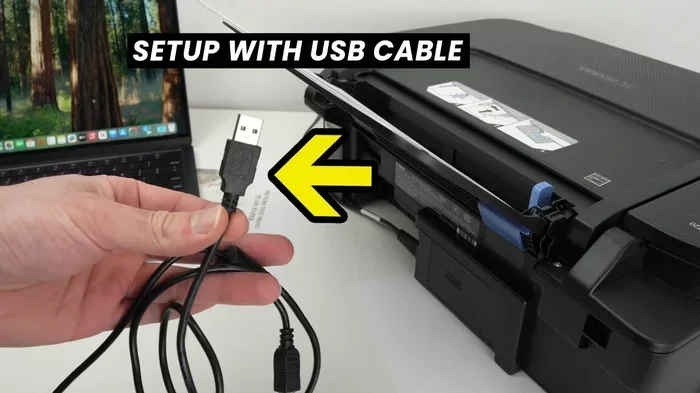
A USB switch is the most popular hardware solution for sharing USB devices between two computers. It is a small box with two USB inputs (for your computers) and one or more USB outputs (for your devices). You press a button or use software to switch control between PCs.
Here is how a typical USB switch setup works:
- Connect the switch to Computer A using a USB cable.
- Connect the switch to Computer B using another USB cable.
- Plug your USB device (like an external hard drive) into the switch.
- Press the button on the switch to select which computer gets access.
- The selected computer recognizes the device and can use it normally.
USB switches are plug-and-play. You do not need to install special drivers in most cases. They work with a wide range of devices including external hard drives, USB printers, scanners, and even gaming controllers.
Some popular USB switch brands include Teword, IOGEAR, and ConnectPRO. Prices range from around $20 to $100 depending on the number of ports and features. They are a one-time purchase that can save you from buying duplicate devices.
For users who need to share peripheral sharing across multiple machines, a USB switch is hands down the easiest and most reliable option. It works with any operating system — Windows, Mac, or Linux — without requiring network setup.
Method 2: Using USB Sharing Software
If you do not want to buy extra hardware, software-based sharing is a great alternative. USB sharing software lets you access a USB device connected to one computer from another computer over a local network or even the internet.
One of the most well-known tools for this is USB Network Gate. It creates a virtual USB bridge between computers. Here is how it works in practice:
- Install the software on both computers.
- Plug the USB device into Computer A.
- Share the device through the software on Computer A.
- On Computer B, browse the shared devices and connect to the one you need.
- Computer B can now use the device as if it were plugged directly into it.
This method is incredibly useful for remote USB access. You can share printers, webcams, USB dongles, and even specialized hardware like medical scanners or lab equipment. The software handles all the data routing behind the scenes.
The main advantage of software sharing is that you do not need any extra cables or hardware. The main disadvantage is that both computers must be on the same network, and performance depends on your network speed. For large file transfers, a wired Ethernet connection works best.
Method 3: Network-Based File Sharing Without USB
Sometimes you do not even need to share a physical USB device. If your goal is simply to transfer files between two computers, you can skip USB entirely and use your local network.
Here are three easy network-based methods:
- Windows File Sharing: Built into Windows, this lets you share folders between PCs on the same network. Just right-click a folder, go to Properties, and enable sharing.
- Mac File Sharing: macOS has built-in sharing through System Settings. You can share folders with other Macs or even Windows PCs.
- Cloud Storage: Services like Google Drive, Dropbox, or OneDrive let you upload files from one computer and download them on another. This works anywhere, not just on the same network.
Network sharing is perfect for regular file transfers. It is faster than repeatedly plugging in and out USB drives, and it does not wear out your USB ports. However, it does require both computers to be connected to the same network.
Best Ways to Share Files Between Two Computers
Comparing Hardware vs. Software Solutions
Not sure which method to choose? Here is a quick comparison to help you decide.
| Feature | USB Switch (Hardware) | USB Sharing Software | Network File Sharing |
|---|---|---|---|
| Cost | $20 – $100 one-time | Free – $50 one-time | Free (built-in) |
| Setup Difficulty | Very Easy | Easy | Easy to Moderate |
| Works Offline | Yes | No (needs network) | No (needs network) |
| Simultaneous Access | No (switches between PCs) | No (one user at a time) | Yes (shared folders) |
| Device Compatibility | Most USB devices | Most USB devices | Files only |
| Speed | Full USB speed | Network speed | Network speed |
As you can see, each method has its place. For sharing physical USB devices like printers or external drives, a hardware USB switch is the best choice. For sharing files across a network, software or built-in sharing tools work great.
Quick Tips for Fast and Safe File Transfers
- Always eject USB devices properly before switching them between computers. This prevents data corruption.
- Use USB 3.0 or higher for faster transfer speeds, especially with large files.
- Label your cables so you always know which computer they are connected to.
- Keep a backup of important files on both computers. Never rely on a single USB drive as your only copy.
- Update your USB drivers regularly to avoid compatibility issues with new devices.
Real-World Use Cases for USB Sharing
Home Office and Dual-Computer Setups
Many professionals now work with two computers at once. They might have a powerful desktop for heavy tasks and a laptop for portability. Sharing a single USB printer, external hard drive, or scanner between both machines saves desk space and money.
A USB switch makes this incredibly easy. You can share your printer with both computers without buying a second one. You can access the same external drive on either machine. It is a clean, organized setup that boosts productivity.
In a home office, you might also want to share a USB webcam or microphone between two computers for video calls. A USB switch handles this seamlessly. Just press the button, and the device switches to the active computer.
Medical and Professional Environments
In healthcare settings, the need to share USB devices between computers is especially critical. Medical professionals often work with multiple workstations that need access to the same peripherals — such as USB medical scanners, diagnostic devices, and patient data drives. Efficient USB device sharing in these environments ensures that doctors and technicians can move quickly between stations without wasting time on cable swaps.
Medical facilities rely on computers for everything from patient record management to imaging and diagnostics. The ability to share specialized USB devices across multiple workstations can streamline workflows significantly. To understand the broader role of computers in healthcare, you can explore how computers are used in medicine to see the full picture of digital health technology.
Similarly, in clinical research labs, scientists often need to transfer large datasets between analysis computers. Using USB sharing solutions in these environments ensures data integrity and reduces the risk of errors caused by manual file transfers. The same principles apply whether you are in a hospital, a research lab, or a busy clinic.
Creative Studios and Media Workstations
Creative professionals often use multiple computers for different stages of production. A video editor might have one workstation for editing and another for rendering. Sharing USB storage devices, audio interfaces, and capture cards between these machines is essential for a smooth workflow.
USB switches and sharing software make this possible without constantly moving cables around. A creative studio can set up a shared USB hub with a switch, allowing any workstation to access the same peripherals on demand.
Common Mistakes to Avoid When Sharing USB Devices
Using Cheap or Unverified USB Splitters
The biggest mistake people make is buying a cheap USB splitter off an unknown brand. These products often use poor wiring, lack proper power regulation, and can damage your devices. Stick with reputable brands and read reviews before purchasing.
Remember, a USB splitter and a USB switch are not the same thing. A splitter divides power and data to multiple devices on one computer. A switch lets you share one device between multiple computers. Make sure you buy the right product for your needs.
Ignoring Driver and Compatibility Issues
Some USB devices require specific drivers to work properly. When you share a device between two computers, both computers need the correct drivers installed. If one computer lacks the driver, the device may not be recognized or may function incorrectly.
To avoid this, install drivers on both computers before switching. Keep a backup of your driver files on a separate drive so you can quickly reinstall them if needed.
Forgetting to Safely Remove Devices
Always use the “Safely Remove Hardware” option before unplugging a USB device. This ensures that all data writes are complete and the connection is properly closed. Pulling a USB drive out without ejecting it can corrupt files on both computers.
Overloading USB Ports with Too Many Devices
USB ports have power limits. If you connect too many devices through a single switch or hub, you may not get enough power. Some devices may disconnect or fail to work. Use a powered USB hub if you are connecting multiple power-hungry devices.
Expert Insight: According to USB implementers, always check the power requirements of your devices before connecting them through a switch or hub. A powered hub with its own wall adapter is the safest choice for sharing multiple devices between computers.
Conclusion
So, can you split USB to two computers and share files? Absolutely. The key is choosing the right method for your specific needs. A USB switch is the best hardware solution for sharing physical devices between two PCs. USB sharing software lets you access devices remotely over a network. And network file sharing is the simplest way to move files without any extra hardware.
Each method has its advantages. A USB switch is reliable, fast, and works offline. Software sharing is flexible and does not require extra cables. Network sharing is free and built into most operating systems. The best approach often combines two or more of these methods.
Start with the method that fits your budget and workflow. Test it with a non-critical device first. Once you are comfortable, expand to sharing more devices and files between your computers. With the right setup, you will save time, reduce clutter, and get more value out of your USB devices.
Remember to always follow best practices. Eject devices safely, use quality hardware, and keep your drivers up to date. Your dual-computer setup can work smoothly and efficiently with the right tools and a little planning.
Frequently Asked Questions
Can I use a regular USB splitter to share a device between two computers?
No, a regular USB splitter only works with one computer. It lets you connect multiple devices to a single PC. To share one device between two computers, you need a USB switch or sharing software. Using a splitter between two computers can damage your devices and ports.
What is the best USB switch for sharing between two computers?
The best USB switch depends on your needs. For basic use, a simple 2-port USB switch like the Teword USB Switch is affordable and reliable. For more devices, look for switches with 4 or more ports from brands like IOGEAR or ConnectPRO. Always check compatibility with your devices before buying.
Can I share a USB printer between two computers?
Yes, you can share a USB printer between two computers using a USB switch. Simply connect the printer to the switch and connect the switch to both computers. Switch between computers as needed. Alternatively, you can share the printer over your local network using Windows or Mac built-in sharing features.
Is USB sharing software safe to use?
Yes, reputable USB sharing software like USB Network Gate is safe and widely used in professional environments. Always download software from the official website to avoid malware. Keep your software updated to benefit from security patches and performance improvements.
Can I share USB devices between a Windows PC and a Mac?
Yes, most USB switches work with both Windows and Mac computers. USB sharing software also supports cross-platform sharing. However, you may need to install specific drivers or software on each operating system. Check the product specifications before purchasing to confirm compatibility.
How fast is file transfer when sharing USB devices over a network?
Network-based USB sharing speed depends on your network connection. A wired Ethernet connection provides the fastest and most stable speeds. Wi-Fi sharing is slower but still usable for most tasks. For large file transfers, a USB switch connected directly to both computers offers the best performance since it runs at full USB speed.
=== INTERNAL LINKS ===
For more information on how computers are used in various fields including healthcare, check out this article on 10 Ways Computers Are Used In Medicine to see how USB sharing and data transfer play a role in medical environments.
If you are interested in learning more about how USB device sharing supports modern workflows, the same guide on 10 Ways Computers Are Used In Medicine provides excellent insights into how medical professionals rely on connected devices and seamless data transfer between systems.
To further explore the world of computer peripherals and how they connect across different setups, the detailed resource 10 Ways Computers Are Used In Medicine also covers the broader landscape of computer connectivity and how shared devices improve efficiency in professional settings.
=== META TITLE ===
Can You Split USB To Two Computers And Share Files
=== URL SLUG ===
split-usb-two-computers-share-files