How Do I Activate Bluetooth on Windows Mac and iPhone
Learning how do I activate Bluetooth is simple once you know the right steps for your device. Whether you are using Windows, Mac, or iPhone, this guide walks you through the process clearly. You will discover how to turn on Bluetooth, pair devices, and fix common issues fast. We also share expert tips to improve your Bluetooth connectivity and wireless connection. By the end, you will feel confident managing all your Bluetooth devices with ease.
Have you ever wanted to connect your headphones, speaker, or keyboard wirelessly but did not know where to start? How do I activate Bluetooth is one of the most common questions people ask when they get a new device. The good news is that turning on Bluetooth is quick and easy on almost every gadget you own.
Whether you are on a Windows laptop, a Mac desktop, or an iPhone, the process is straightforward. You just need to know where to look. This guide gives you clear, step-by-step instructions for every major platform. You will also learn how to pair devices, fix connection problems, and keep your Bluetooth enabled devices running smoothly.
Bluetooth technology lets your devices talk to each other without wires. From Bluetooth headphones to car stereos and speakers, the possibilities are huge. By the time you finish reading, you will have all the knowledge you need to go wireless with confidence.
Key Takeaways
- Windows Bluetooth: You can activate Bluetooth in just a few clicks through Settings or the Quick Action panel.
- Mac Bluetooth: The System Preferences menu makes it easy to turn on and manage Bluetooth on your Mac.
- iPhone Bluetooth: Activating Bluetooth on your iPhone takes seconds from the Control Center or Settings app.
- Pairing Made Simple: Putting your device in discovery mode is the key to successful Bluetooth pairing.
- Troubleshooting Help: We cover the most common Bluetooth issues and how to fix them quickly.
- Pro Tips: Small tweaks can boost your Bluetooth signal and improve wireless connection stability.
📑 Table of Contents
How to Activate Bluetooth on Windows
Turning on Bluetooth on a Windows computer is fast and simple. Windows makes it easy to find and manage your wireless connections. Here is exactly what you need to do.
Method 1: Use the Quick Settings Panel
This is the fastest way to turn on Bluetooth on Windows 10 or Windows 11. Follow these steps:
- Click on the Network, Sound, or Battery icon in the bottom-right corner of your taskbar.
- A small menu will pop up. Look for the Bluetooth icon.
- Click the Bluetooth tile to turn it on. It will light up when active.
- Your PC is now searching for nearby devices.
If you do not see the Bluetooth tile, click the pencil icon or the “Edit” button to add it to your Quick Settings. This is a handy shortcut you can use every time.
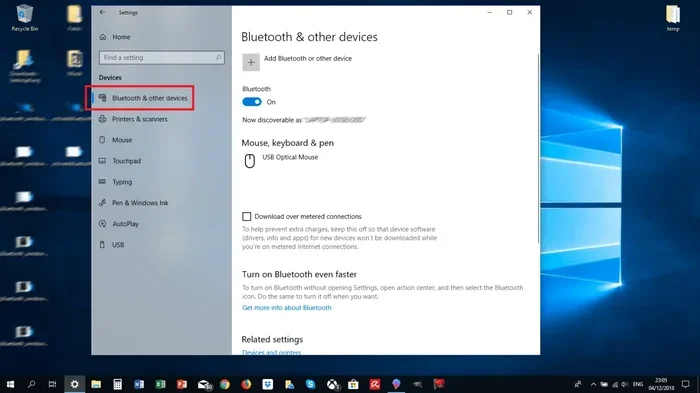
Method 2: Use the Settings App
For more options, the Settings app gives you full control over your Bluetooth settings. Here is how to access it:
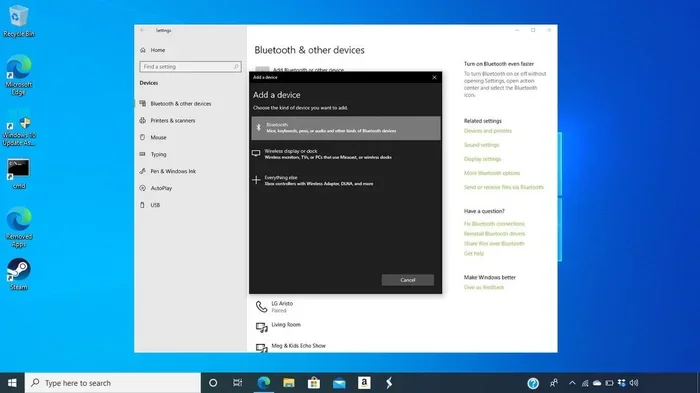
- Press the Windows key plus I to open Settings.
- Click on “Bluetooth and devices” on the left side.
- Toggle the Bluetooth switch to On.
- Click “Add device” to start pairing a new Bluetooth device.
From this menu, you can also remove old paired devices, check battery levels, and manage your connected accessories. It is your central hub for all things wireless.
Method 3: Use the Action Center
Another quick way is through the Action Center:
- Click the speech bubble icon in the bottom-right corner.
- Look for the Bluetooth quick action button.
- Click it to toggle Bluetooth on or off.
Some users prefer this method because it feels like a shortcut right from the desktop. It works well when you are in a hurry.
How to Activate Bluetooth on Mac
Apple makes activating Bluetooth on a Mac very user-friendly. The process is similar whether you use a MacBook laptop or an iMac desktop. Let us walk through it.
Using the Menu Bar
The fastest way to turn on Bluetooth on your Mac is through the menu bar at the top of your screen:
- Look for the Bluetooth icon in the top-right corner of your screen.
- Click it to open the Bluetooth menu.
- If Bluetooth is off, click “Turn Bluetooth On.”
- Your Mac will start scanning for nearby devices.
If you do not see the Bluetooth icon, go to System Settings and make sure it is enabled in the menu bar. You can also hold the Option key and click the Bluetooth icon for more detailed information about your connections.
Using System Settings
For a more detailed view, use the System Settings or System Preferences:
- Click the Apple menu in the top-left corner.
- Select “System Settings” (or “System Preferences” on older Macs).
- Click on “Bluetooth” in the sidebar.
- Toggle Bluetooth to On.
- Click on any available device to start pairing.
The Mac Bluetooth menu shows you all your paired devices, their battery status, and connection strength. It is a clean and organized way to manage your wireless accessories.
How to Activate Bluetooth on iPhone
Your iPhone makes it super easy to turn on Bluetooth. Apple designed the process to be quick and intuitive. Here is how to do it.
Using the Control Center
This is the most popular method for iPhone users:
- Swipe down from the top-right corner of your screen (on iPhone X and newer).
- Or swipe up from the bottom (on iPhone 8 and older).
- Look for the Bluetooth icon, which looks like a stylized “B.”
- Tap it to turn it on. It will turn blue when active.
That is it! Your iPhone is now broadcasting a Bluetooth signal and ready to connect. You can also long-press the Bluetooth icon in Control Center to jump straight to the Bluetooth settings page.
Using the Settings App
For more control, use the Settings app:
- Open the Settings app on your iPhone.
- Tap “Bluetooth” near the top of the list.
- Toggle the switch to turn Bluetooth on.
- Your iPhone will scan for available devices.
The Settings app shows you a list of nearby devices and previously paired ones. You can also rename your iPhone’s Bluetooth name here, which helps other devices find you more easily.
Pairing Your Bluetooth Devices
Once Bluetooth is turned on, the next step is pairing. Bluetooth pairing is the process of connecting two devices so they can communicate wirelessly. Here is how it works on any platform.
Put Your Device in Discovery Mode
Before your phone or computer can find a device, that device needs to be visible. This is called “discovery mode” or “pairing mode.” Most devices do this by holding down a button or following a specific startup sequence.
- Bluetooth headphones: Usually, you hold the power button for 5-7 seconds until a light flashes.
- Bluetooth speakers: Many speakers enter pairing mode the first time you turn them on.
- Bluetooth keyboards and mice: They often pair automatically when turned on near a computer.
Check your device manual if you are unsure. The flashing light or voice prompt tells you the device is ready to be found.
Select and Connect
Once your device is in discovery mode:
- Go to your computer or phone’s Bluetooth settings.
- You will see the device name appear in the list.
- Tap or click on the device name.
- Wait a few seconds for the connection to complete.
Some devices require a PIN or passcode. If prompted, try entering “0000” or “1234.” These are the most common default codes. Once paired, the devices will remember each other and reconnect automatically in the future.
Tips for Better Pairing
- Keep your devices close together during the first pairing. The Bluetooth range is usually about 30 feet.
- Make sure the device you are pairing has enough battery.
- Restart both devices if the pairing fails the first time.
- Remove old or unused pairings to keep your list clean.
Troubleshooting Common Bluetooth Problems
Even when you follow all the steps, sometimes Bluetooth just does not work. Do not worry. Most issues have simple fixes. Here are the most common problems and how to solve them.
Bluetooth Is Not Showing Up
If you cannot find the Bluetooth option, try these steps:
- Restart your device and try again.
- Make sure your operating system is up to date.
- On Windows, run the Bluetooth troubleshooter by going to Settings > System > Troubleshoot.
- On Mac, reset the Bluetooth module by holding Shift and Option and clicking the Bluetooth icon.
Sometimes a simple restart is all it takes to get your Bluetooth enabled settings working again.
Device Keeps Disconnecting
If your connection drops frequently, here are some things to check:
- Move closer to the device. Walls and furniture can block the Bluetooth signal.
- Reduce interference from other wireless devices like Wi-Fi routers.
- Check if the battery of your Bluetooth device is low.
- Forget the device and pair it again from scratch.
Device Not Found During Pairing
If your phone or computer cannot find a device:
- Make sure the other device is in discovery mode.
- Turn Bluetooth off and back on again.
- Check if the device is already connected to another phone or computer.
- Try moving both devices into the same room.
Most pairing issues are temporary and easy to fix. Patience and a few simple steps usually solve the problem.
Can I Use My Bluetooth Headphones With Other Devices?
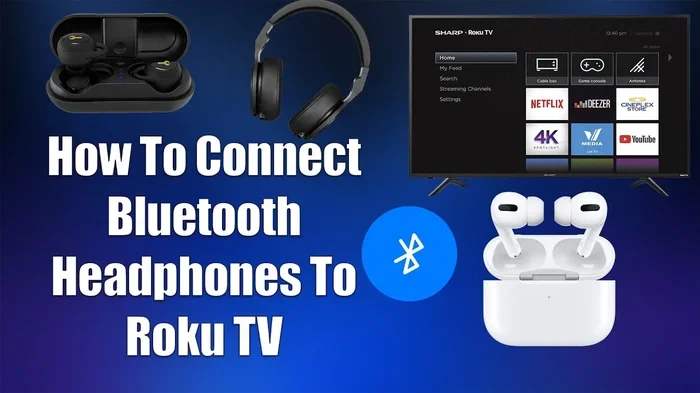
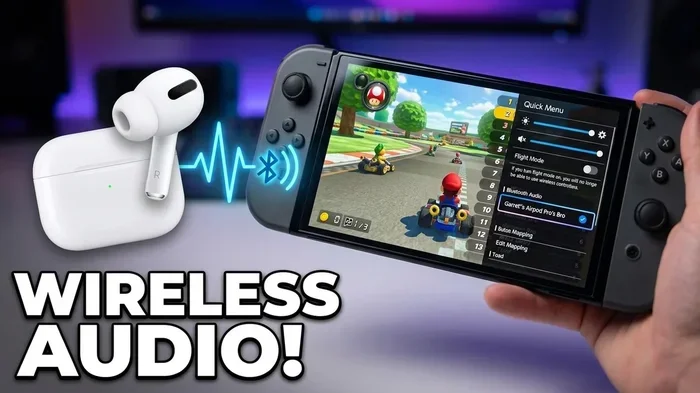
Absolutely! Once you learn how do I activate Bluetooth, you can connect your headphones to many devices. For example, you can use your Bluetooth headphones with your TV, car stereo, or gaming console. Just make sure the other device supports Bluetooth first. If it does not, you may need a Bluetooth adapter or transmitter to add wireless capability.
Many people ask whether they can use their Bluetooth headphones with a PS4 or other gaming systems. The answer depends on the device and its Bluetooth version. Always check compatibility before buying accessories.
Can I Turn My Old Stereo Into a Bluetooth Device?
Yes! If your stereo does not have built-in Bluetooth, you can add it. One popular option is to use a Bluetooth transmitter or adapter. You can also explore options like turning your stereo into Bluetooth with a simple add-on device. This lets you stream music wirelessly from your phone or computer to your existing speakers.
Similarly, if you want to listen to audio from your Samsung TV privately, you can connect Bluetooth headphones to your TV. Many modern TVs support this natively, but older models may need an adapter.
Expert Tips to Improve Your Bluetooth Experience
Once you have Bluetooth up and running, a few smart habits can make a big difference. Here are some expert tips to get the best performance from your wireless connections.
Keep Your Devices Updated
Software updates often include improvements to Bluetooth performance. On Windows, go to Settings > Windows Update. On Mac, click the Apple menu > System Settings > Software Update. On iPhone, go to Settings > General > Software Update. Keeping your devices current ensures the best Bluetooth connectivity.
Manage Your Paired Devices
Over time, your device list can get cluttered with old connections. Go through your Bluetooth settings regularly and remove devices you no longer use. This keeps your connection list clean and can actually improve performance.
Understand Bluetooth Versions
Different devices support different Bluetooth versions. Bluetooth 5.0 and newer offer better range, faster speeds, and lower power consumption. If you are buying new accessories, look for devices that support the latest Bluetooth version for the best experience.
Use Bluetooth for More Than Audio
Bluetooth is not just for music and calls. You can use it for:
- Wireless keyboards and mice
- Game controllers
- Smartwatches and fitness trackers
- File transfers between devices
- Car audio systems
The more you understand your Bluetooth device options, the more you will get out of the technology.
Common Mistakes to Avoid
Even experienced users sometimes make mistakes with Bluetooth. Here are a few to watch out for:
- Leaving Bluetooth on when not in use: This drains battery life on phones and laptops. Turn it off when you are not actively using a wireless connection.
- Pairing in crowded areas: Busy places with many wireless signals can cause interference. Try pairing in a quiet space first.
- Ignoring firmware updates: Your Bluetooth accessories may need firmware updates too. Check the manufacturer’s app or website.
- Forgetting to charge devices: A low battery on your Bluetooth accessory can cause dropped connections and poor performance.
Avoiding these simple mistakes will save you frustration and keep your wireless connections running smoothly.
Final Thoughts
Now you know exactly how do I activate Bluetooth on Windows, Mac, and iPhone. The process is quick and easy on every platform. Whether you are connecting Bluetooth headphones, a wireless speaker, or a keyboard, the steps are similar and straightforward.
Remember to put your device in discovery mode, select it from your Bluetooth settings, and enjoy your wireless connection. If you run into issues, the troubleshooting tips in this guide should help you get back on track fast.
Bluetooth technology makes our lives so much more convenient. No more tangled wires, no more limited movement. Just pure wireless freedom. So go ahead, turn on your Bluetooth, and start connecting. You will wonder how you ever lived without it.
Frequently Asked Questions
Why is Bluetooth not turning on on my Windows PC?
First, try restarting your computer. If that does not work, go to Settings > Bluetooth and devices and make sure Bluetooth is toggled on. You can also run the built-in Bluetooth troubleshooter under Settings > System > Troubleshoot. Sometimes a simple Windows update fixes the issue too.
Can I activate Bluetooth on an iPhone without Wi-Fi?
Yes, absolutely. Bluetooth works independently of Wi-Fi. You can turn on Bluetooth from the Control Center or Settings app even when your phone is in airplane mode. Just make sure airplane mode does not have Bluetooth disabled in its settings.
How do I put my Bluetooth headphones in pairing mode?
Most headphones enter pairing mode when you hold down the power button for 5 to 7 seconds. Look for a flashing LED light or listen for a voice prompt. Check your headphones’ manual for the exact steps, as the process varies by brand and model.
What is the range of a Bluetooth connection?
Most Bluetooth devices work within about 30 feet of each other. However, walls, furniture, and other electronic devices can reduce this range. Bluetooth 5.0 and newer versions offer improved range and stronger signal strength compared to older versions.
Can I connect multiple Bluetooth devices at the same time?
Yes, most modern devices support multiple Bluetooth connections. Your phone, computer, or tablet can usually stay connected to several devices at once. Keep in mind that having too many active connections can sometimes slow down performance or drain battery faster.
Is it safe to use Bluetooth devices every day?
Yes, Bluetooth is considered safe for everyday use. The radiation levels from Bluetooth are very low and far below safety limits set by health organizations. Bluetooth technology has been used safely for over 20 years in billions of devices worldwide.
=== CONCLUSION ===
Activating Bluetooth on your Windows PC, Mac, or iPhone is easier than you might think. With just a few clicks or taps, you can go from wired to wireless in minutes. This guide covered everything from basic activation steps to pairing tips, troubleshooting, and expert advice for getting the best performance.
Now that you know how do I activate Bluetooth, you can connect all your favorite wireless devices with confidence. Whether it is your Bluetooth headphones for a quiet commute, a speaker for a backyard party, or a keyboard for a cleaner desk setup, the possibilities are endless. Start exploring your wireless options today and enjoy the freedom that Bluetooth brings to your everyday life.