How Do I Activate Uconnect And Get It Going Right Now
Activating your Uconnect system is simpler than you think. This guide walks you through every step to get your Uconnect infotainment running right now. Whether you are setting up Bluetooth, connecting your phone, or updating your Uconnect software, you will find clear instructions that work for most Chrysler, Dodge, Jeep, and Ram vehicles.
So you just got a new or newer vehicle and the Uconnect system is staring back at you from the center console. Maybe you are trying to connect your phone, stream music, or use navigation for the first time. Whatever your reason is, you need to know how to activate Uconnect and get things moving. The good news is that the process is straightforward, and this guide will walk you through it step by step.
The Uconnect system is one of the most popular infotainment platforms in modern vehicles. It powers the touchscreen displays in Chrysler, Dodge, Jeep, and Ram trucks and SUVs. From radio and Bluetooth calling to navigation and Wi-Fi hotspots, Uconnect brings a lot of functionality to your dashboard. But before you can enjoy any of it, you need to go through the activation process. This article covers everything you need to know.
We will look at the different ways to activate your Uconnect system, what to do if something goes wrong, and how to get the most out of your setup. By the end of this guide, you will have a fully working Uconnect system and the confidence to troubleshoot minor issues on your own.
Key Takeaways
- Uconnect activation takes just a few minutes once you know the right steps for your vehicle model.
- You can activate Uconnect via the touchscreen menu or through the Uconnect website on your phone or computer.
- Bluetooth pairing and Wi-Fi setup are the most common things people want to do right after activation.
- Keeping your Uconnect software updated ensures you get the latest features and security patches.
- Common activation issues like frozen screens or login errors can usually be fixed with a simple reset or reboot.
- Uconnect compatibility depends on your vehicle year and trim level, so always check before starting.
📑 Table of Contents
- What Is Uconnect And Why Do You Need To Activate It
- How To Activate Uconnect Through The Vehicle Screen
- How To Activate Uconnect Using The Website Or Mobile App
- Setting Up Bluetooth And Phone Connection After Activation
- Updating Your Uconnect Software For Best Performance
- Troubleshooting Common Uconnect Activation Problems
- Getting The Most Out Of Your Uconnect System
- Uconnect Activation By Vehicle Model
- Frequently Asked Questions
- Final Thoughts On Activating Your Uconnect System
What Is Uconnect And Why Do You Need To Activate It
Uconnect is an infotainment platform built into many Fiat Chrysler Automobiles (FCA) vehicles. It replaced older systems like the MyGig radio and brought modern touchscreen interfaces to the dashboard. The system handles audio, phone connectivity, navigation, and even internet access in newer models.
When you first start using a vehicle with Uconnect, the system may not be fully active right away. Activation links the hardware to your account and unlocks features like Bluetooth pairing, Wi-Fi connectivity, and app integration. Without activation, you may only have access to basic radio functions.
What You Need Before Starting
Before you begin the activation process, make sure you have the following ready:
- Your vehicle key or ignition access so you can power on the Uconnect system.
- A smartphone with internet access for the Uconnect Access app or website.
- Your Uconnect account credentials if you already have an account set up.
- The vehicle owner’s manual for model-specific instructions.
- A stable USB cable if your setup requires a direct connection.
Having these items ready will save you time and frustration. Some activation steps require you to be connected to Wi-Fi or a mobile data network, so make sure your phone is nearby and working.
How To Activate Uconnect Through The Vehicle Screen
The most common way to activate Uconnect is directly through the touchscreen in your vehicle. This method works for most models and does not require a computer or phone. Here is how to do it step by step.
Step 1: Turn On Your Vehicle
Start your vehicle and let the engine run. The Uconnect screen should power on automatically. If the screen is dark, press the power button on the head unit or touch the screen to wake it up. You should see the Uconnect home screen with icons for radio, phone, settings, and more.
Step 2: Navigate To The Settings Menu
On the home screen, look for the Settings icon. It usually looks like a gear or wrench symbol. Tap on it to open the system settings menu. From here, you can access account options, network settings, and system preferences.
Step 3: Follow The On-Screen Activation Prompts
The system may prompt you to create or log into a Uconnect account. Follow the on-screen instructions to enter your email address and create a password. If you already have an account, simply log in. The system will then walk you through enabling features like Bluetooth, Wi-Fi, and data services.
Step 4: Complete The Setup
Once you have logged in, the system will configure your preferences. You may be asked to agree to terms of service, set up your language preferences, and choose your notification settings. After this, your Uconnect system is fully active and ready to use.
How To Activate Uconnect Using The Website Or Mobile App
If you prefer to activate Uconnect before you get in the vehicle, you can do so through the Uconnect website or the Uconnect Access app on your phone. This method is especially helpful if you want to have everything ready before your first drive.
Using The Uconnect Website
Go to the official Uconnect website on your computer or phone browser. Look for the activation or sign-up section. Enter your vehicle information, including the VIN (Vehicle Identification Number), and follow the prompts. You will create an account and link it to your vehicle. Once linked, the system is ready to use when you get in the car.
Using The Uconnect Access App
Download the Uconnect Access app from the App Store or Google Play Store. Open the app and create an account or log in. The app will guide you through linking your vehicle to your account. You can also manage features remotely, such as unlocking doors, checking fuel levels, and setting up Wi-Fi hotspots through the app.
Both methods achieve the same result. Choose whichever is more convenient for you. Some users prefer the website because the larger screen makes it easier to read and type, while others like the convenience of the mobile app.
Setting Up Bluetooth And Phone Connection After Activation
One of the main reasons people want to activate Uconnect is to connect their phone wirelessly. Once your Uconnect system is active, you can pair your phone for hands-free calling, music streaming, and more. The process is quick and straightforward.
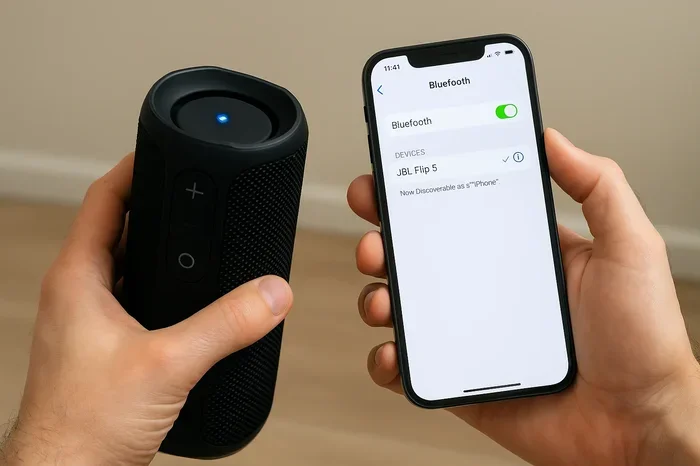
First, make sure Bluetooth is turned on in your Uconnect settings. Then go to your phone’s Bluetooth settings and search for available devices. Your Uconnect system should appear in the list. Select it and enter the PIN if prompted. The pairing process usually takes less than a minute.
After pairing, you can make calls through the Uconnect system, stream music from your phone, and even access your contacts. The system remembers your paired devices, so you only need to set up the connection once.
If you want to use wireless headphones while working on your vehicle or during a road trip, you might wonder if Bluetooth works with other devices too. For example, you can check whether you can use any Bluetooth headphones with your TV for a similar pairing experience outside the car.
Updating Your Uconnect Software For Best Performance
After activation, it is important to keep your Uconnect software up to date. Software updates bring new features, fix bugs, and improve security. Most Uconnect systems support over-the-air updates, but some require a USB connection or a visit to a dealership.
Checking For Updates
Go to the Settings menu on your Uconnect screen and look for a Software Update option. The system will check for available updates and let you know if any are ready to install. If an update is available, follow the prompts to download and install it. Make sure your vehicle is parked and the engine is running during the update process.
What To Do If An Update Fails
Sometimes updates fail due to a weak Wi-Fi connection or low battery. If this happens, try the following steps:
- Check your Wi-Fi connection and make sure it is stable.
- Restart the Uconnect system and try the update again.
- Ensure your vehicle battery has enough charge.
- If the problem persists, visit a dealership for professional help.
Keeping your system updated is one of the best ways to avoid issues and ensure smooth performance. Think of it like updating your phone or laptop. It keeps everything running efficiently.
Troubleshooting Common Uconnect Activation Problems
Even with clear instructions, activation does not always go smoothly. Here are some common problems and how to fix them.
Uconnect Screen Is Frozen Or Unresponsive
A frozen screen is one of the most common issues. This usually happens when the system has been running for a long time or after a software glitch. To fix it, press and hold the power button on the head unit for about 10 seconds. The system will restart and should return to normal operation.
Activation Stuck On The Login Screen
If you get stuck on the login screen, your internet connection may be the problem. Check that your Wi-Fi or mobile data is working properly. You can also try clearing the cache by restarting the system. If you still cannot log in, reset your Uconnect account password through the website.
Bluetooth Pairing Fails After Activation
If Bluetooth pairing does not work after activation, try turning Bluetooth off and back on in both your phone and the Uconnect system. Remove any old paired devices that are no longer in use. If the issue continues, a system reset often resolves the problem.
For more connectivity tips, you might also find it helpful to learn about using a Bluetooth transmitter for your car if your system needs additional wireless capabilities.
Uconnect Does Not Recognize USB Devices
If your Uconnect system does not recognize a USB device, try unplugging the device and plugging it back in. Use a different USB port if available. Make sure the USB device is formatted correctly, as some file systems are not compatible with Uconnect. A quick reset of the system can also help the device get recognized.
Getting The Most Out Of Your Uconnect System
Once you have successfully activated Uconnect, there are several features you should explore to get the full value from your system.
Wi-Fi Hotspot Setup
Many newer Uconnect systems include a built-in Wi-Fi hotspot. This lets you connect tablets, laptops, and other devices to the internet while on the road. To set this up, go to the Wi-Fi settings in your Uconnect menu and follow the prompts to create a hotspot name and password.
Navigation And App Integration
Uconnect supports various navigation and app integrations. You can download apps directly to the system if it supports app store functionality. Popular features include real-time traffic updates, fuel station locators, and music streaming apps. Make sure your system is updated to access the latest app options.
Voice Commands And Controls
Uconnect includes voice command features that let you control the system without taking your hands off the wheel. You can make calls, change the radio station, set navigation destinations, and more using voice prompts. Familiarize yourself with the voice command menu in the settings to use this feature effectively.
Customizing Your Uconnect Display
You can customize the Uconnect home screen to show the features you use most. Rearrange icons, change the theme, and adjust the display brightness to suit your preferences. These small adjustments make a big difference in your daily driving experience.
For users who also work with connectivity adapters and cables, you might be curious about converting between different connection types. For example, learning about going from HDMI to RCA connections can help you understand how different audio and video signals work, which is useful when troubleshooting Uconnect display issues.
Uconnect Activation By Vehicle Model
The activation process can vary slightly depending on your vehicle model and year. Here is a quick overview of what to expect for different models.
| Vehicle Brand | Uconnect Version | Activation Method |
|---|---|---|
| Chrysler | Uconnect 3 or 4 | Touchscreen or website |
| Dodge | Uconnect 3 or 5 | Touchscreen or mobile app |
| Jeep | Uconnect 3, 4, or 5 | Touchscreen, website, or app |
| Ram | Uconnect 3, 4, or 5 | Touchscreen or website |
Always refer to your specific vehicle manual for model-specific instructions. The general process remains the same, but small details like menu names and button locations may differ.
When you are working on your vehicle’s tech setup, it is also good to know about protecting your gear. For instance, you might wonder if you can safely put your laptop in a backpack without a case. Check out our guide on putting your laptop in a backpack without a case for helpful tips on keeping your devices safe during travel.
Frequently Asked Questions
How long does Uconnect activation take?
The activation process typically takes between 5 and 15 minutes. It depends on your internet connection speed and the specific Uconnect model in your vehicle. If you are activating through the website or app, it may be even faster since you can do it before getting in the car.
Do I need a Uconnect account to activate the system?
Yes, you need a Uconnect account to activate most features. The account allows you to pair your phone, access navigation, and use Wi-Fi services. Creating an account is free and only takes a few minutes during the activation process.
Can I activate Uconnect without Wi-Fi?
Some basic activation steps can be completed without Wi-Fi, but full feature access usually requires an internet connection. Bluetooth pairing and USB connections work without Wi-Fi, but app downloads, software updates, and Wi-Fi hotspot setup need a data connection.
What should I do if my Uconnect system will not activate?
Start by restarting the system using the power button. Check your internet connection and make sure your credentials are correct. If the problem persists, try resetting the system to factory settings. If none of these steps work, contact a dealership or Uconnect support for assistance.
Is Uconnect activation free?
Yes, activating Uconnect is free. However, some features like Wi-Fi hotspots and data services may require a subscription plan. Basic Bluetooth and audio features are included at no extra cost with most vehicle purchases.
Can I activate Uconnect on a used vehicle?
Yes, you can activate Uconnect on a used vehicle. You will need to create a new Uconnect account or log in with your existing account. The previous owner’s account will not carry over, so you will set up everything fresh when you activate the system.
Final Thoughts On Activating Your Uconnect System
Activating your Uconnect system is a quick and rewarding process that opens up a world of connectivity and convenience in your vehicle. From the moment you complete activation, you can enjoy hands-free calling, music streaming, navigation, and Wi-Fi connectivity right from your dashboard.
The key is to follow the steps carefully, keep your software updated, and troubleshoot any issues with patience. Most activation problems have simple fixes, and the system is designed to be user-friendly. Whether you activate through the vehicle screen, the website, or the mobile app, the result is the same: a fully functional Uconnect system ready to serve you on every drive.
Take a few minutes today to go through the activation process if you have not already. You will wonder how you ever drove without a fully active Uconnect system. The convenience, safety, and entertainment features it provides make the activation process well worth your time.