How Do I Cast To My TV A Simple Step By Step Guide
Casting to your TV is easier than you think, and this guide walks you through every method step by step. Whether you use Chromecast, AirPlay, a smart TV app, or a streaming stick, you can mirror your phone, laptop, or tablet to the big screen in minutes. We cover setup, troubleshooting, and pro tips to make wireless casting work flawlessly every time.
Key Takeaways
- Multiple casting methods exist: Chromecast, AirPlay, smart TV built-in apps, and streaming sticks all let you cast to your TV wirelessly.
- Setup is simple: Most casting tools require just a Wi-Fi connection and a compatible device to get started.
- Troubleshooting is straightforward: Common issues like lag, no connection, or audio problems have quick fixes you can try at home.
- You do not need expensive equipment: Many modern smart TVs and affordable streaming devices support casting out of the box.
- Screen mirroring and casting are not the same: Mirroring duplicates your screen, while casting streams specific content from an app directly.
- Latency and Wi-Fi quality matter: A strong, stable connection makes all the difference for smooth, buffer-free casting.
📑 Table of Contents
- How Do I Cast To My TV A Simple Step By Step Guide
- What Does It Mean To Cast To Your TV
- How To Cast Using Chromecast
- How To Cast Using AirPlay (For Apple Users)
- How To Cast Using Your Smart TV’s Built-In Features
- How To Cast Using Streaming Devices
- Common Casting Problems And How To Fix Them
- Tips For The Best Casting Experience
- Which Casting Method Is Right For You
- Final Thoughts
How Do I Cast To My TV A Simple Step By Step Guide
So you want to show something on the big screen. Maybe it is a funny video from your phone. Maybe it is a presentation from your laptop. Or maybe you just want to watch your favorite show without hunching over a small tablet. Whatever the reason, casting to your TV is the easiest way to get content from your device onto the television screen.
The good news is that you do not need to be a tech expert. Most casting methods take just a few minutes to set up. And once you get the hang of it, you will wonder how you ever lived without it. This guide covers everything you need to know. We will look at the different ways to cast, the devices you need, and how to fix common problems.
Wireless casting has changed the way we enjoy media at home. No more tangled cables. No more adapters. Just a simple connection and your content appears on the TV. Let us dive in and explore every method so you can pick the one that works best for you.
What Does It Mean To Cast To Your TV
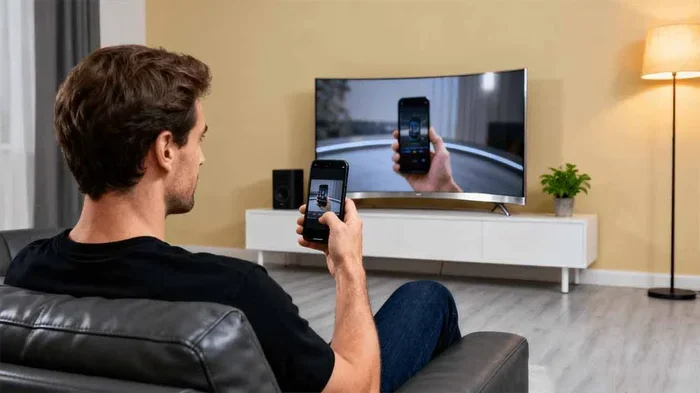
Before we get into the steps, let us clear up what casting actually means. Casting is the process of sending content from one device to another over a Wi-Fi network. Your phone, tablet, or laptop acts as the remote control. The TV receives and displays the content.
There are two main types of casting you should know about:
- Screen mirroring: This duplicates everything on your device screen onto the TV. You see the exact same image on both screens. It is great for sharing photos or showing apps that do not have a built-in cast button.
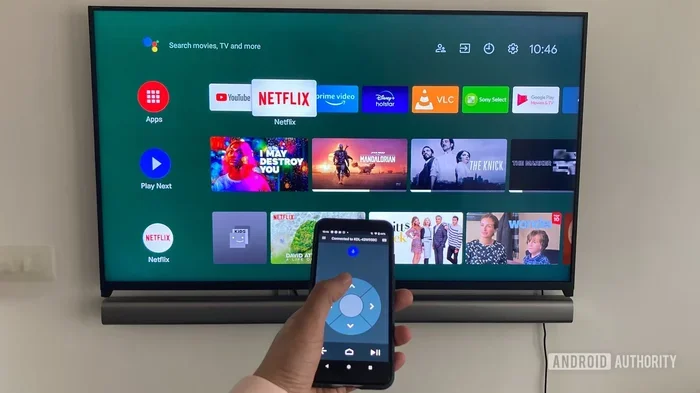
- App casting: This sends specific content from an app directly to the TV. The app runs on the TV itself, not on your device. This means you can use your phone as a remote while the TV plays the video independently.
Understanding the difference matters because it affects your experience. App casting usually gives better performance. Your phone stays free to do other things, and the video plays smoother on the TV. Screen mirroring is more flexible but can sometimes lag or lower in quality.
How To Cast Using Chromecast
Chromecast is one of the most popular and affordable ways to cast to your TV. It is a small device that plugs into your TV’s HDMI port. Once set up, it lets you send content from your phone, tablet, or computer straight to the television.
Step 1: Set Up Your Chromecast
Plug the Chromecast into an available HDMI port on your TV. Switch your TV to the correct input. Download the Google Home app on your phone. Follow the on-screen instructions to connect the Chromecast to your Wi-Fi network. This usually takes less than five minutes.
Step 2: Cast From Your Phone
Make sure your phone and Chromecast are on the same Wi-Fi network. Open an app that supports casting. Look for the little rectangle with Wi-Fi waves in the corner. Tap it. Choose your Chromecast device from the list. Your content starts playing on the TV right away.
You can also cast your entire screen from Android devices. Go to your phone’s quick settings and tap Screen Cast or Smart View. Select your Chromecast, and your whole phone screen appears on the TV.
Step 3: Cast From Your Computer
If you use Chrome on your laptop, you can cast directly from the browser. Click the three dots in the top right corner. Go to Cast. Choose your Chromecast. You can mirror your entire screen or cast a specific tab. This is perfect for sharing presentations or browsing the web on a bigger display.
For those wondering about other devices, you can also connect your phone to an HDMI TV using a cable if you prefer a wired option. This is a great backup when Wi-Fi is not available or stable enough.
How To Cast Using AirPlay (For Apple Users)
If you are in the Apple ecosystem, AirPlay is your go-to casting tool. It works seamlessly between iPhones, iPads, MacBooks, and Apple TVs. The setup is incredibly simple because Apple designed it to just work.
Step 1: Make Sure Both Devices Are Ready
Your TV needs to support AirPlay. Most modern smart TVs do, especially Samsung, LG, and Sony models. If you have an Apple TV, you are all set. Make sure your iPhone or Mac and the TV are on the same Wi-Fi network.
Step 2: Start Casting
On your iPhone, open the Control Center by swiping down from the top right corner. Tap the Screen Mirroring button. It looks like two overlapping rectangles. Choose your TV from the list. Enter the code if prompted. Your screen is now on the TV.
On a MacBook, click the Screen Mirroring icon in the menu bar. Select your TV. Your laptop display mirrors to the big screen instantly.
AirPlay also works with many third-party apps. You will see the AirPlay icon inside apps like YouTube, Netflix, and Spotify. Tap it and pick your TV to stream content directly without mirroring your whole screen.
How To Cast Using Your Smart TV’s Built-In Features
Many modern smart TVs come with casting built right in. You do not need any extra hardware. Brands like Samsung, LG, Sony, and TCL all offer their own casting solutions.
Samsung Smart View
Samsung TVs use a feature called Smart View. Swipe down from the top of your phone to access Quick Settings. Tap Smart View and select your Samsung TV. Your phone screen appears on the TV. You can also cast from the Samsung SmartThings app for more control.
LG Screen Share
LG TVs use Screen Share. Open the Smart Share app on your LG TV. On your phone, pull down the notification shade and tap Screen Share or Cast. Choose your LG TV from the list. Content streams directly to the television.
Google Cast Built Into Smart TVs
Even if you do not have a Chromecast device, many smart TVs have Google Cast built into their operating system. Look for the casting icon in compatible apps. Your TV acts just like a Chromecast dongle, but without the extra hardware.
If you are exploring alternatives to TV casting, you might also consider using a projector. You can use a projector instead of a TV for a similar big-screen experience, especially in rooms where a TV does not fit well.
How To Cast Using Streaming Devices
Streaming devices are another excellent way to get casting capability on any TV. Even older TVs without smart features can become casting-ready with the right device.
Roku
Roku devices support screen mirroring from both Android and iOS devices. Make sure your phone and Roku are on the same Wi-Fi network. Open the app you want to cast from. Look for the cast icon. Select your Roku device. The content streams to your TV.
Amazon Fire TV Stick
Fire TV Stick supports Miracast for Android devices and AirPlay for Apple devices. You can also use the Alexa app to cast content. The Fire TV app lets you send videos, photos, and music from your phone directly to the stick.
Microsoft Wireless Display Adapter
This adapter plugs into your TV’s HDMI port and turns any HDMI display into a wireless display. It works with Windows PCs and Android phones. It uses Miracast technology, so no extra app is needed on most devices. Just connect to the adapter from your device’s wireless display settings.
For users who also game, you might be interested to know that you can stream your Steam Deck to your TV wirelessly using similar casting and streaming technologies.
Common Casting Problems And How To Fix Them
Casting is usually smooth, but sometimes things go wrong. Here are the most common issues and their solutions.
TV Does Not Show Up In The Device List
This is the most common casting problem. First, check that both devices are on the same Wi-Fi network. Some routers create separate networks for 2.4 GHz and 5 GHz. Make sure both devices connect to the same one. Restart your router, TV, and casting device. This fixes the issue more often than you would think.
Video Keeps Buffering Or Lagging
Buffering usually means your Wi-Fi signal is weak. Move your router closer to the TV. Or use a Wi-Fi extender to boost the signal in the room where your TV is. Also, lower the video quality in the app you are casting from. A 1080p stream needs less bandwidth than 4K.
Audio And Video Are Out Of Sync
This happens when the TV takes too long to process the incoming signal. Try reducing the video resolution. You can also adjust the audio delay settings in your TV’s audio menu. Some TVs have a specific “audio sync” or “lip sync” feature that helps.
Screen Mirroring Is Black Or Blank
Some apps block screen mirroring for copyright reasons. Netflix, Disney Plus, and other streaming apps often prevent mirroring. Use the app’s built-in cast button instead. This streams the content directly without mirroring the screen.
Connection Keeps Dropping
Interference from other devices can cause drops. Microwaves, baby monitors, and even Bluetooth devices can interfere with Wi-Fi. Try switching your router to a less crowded channel. You can also use the 5 GHz band for a more stable connection.
Tips For The Best Casting Experience
Want your casting to work perfectly every time? Follow these simple tips.
- Use a strong Wi-Fi connection: The closer your router is to your TV, the better the casting performance. Consider a mesh Wi-Fi system if your home has dead zones.
- Keep your devices updated: Software updates often include fixes for casting bugs. Keep your phone, TV, and streaming device up to date.
- Close unnecessary apps: Too many apps running in the background can slow down casting. Close apps you are not using before you start.
- Use the app’s cast button when possible: App casting gives better results than screen mirroring. The content plays on the TV directly, which saves battery on your phone too.
- Restart before troubleshooting: A simple restart of your router, TV, and casting device solves most problems. It is the first thing you should try.
- Check compatibility first: Not every app supports every casting method. Look for the cast icon before you try to send content.
For users looking to expand their setup, you can also connect a MacBook Air to an HDMI TV for a reliable wired alternative when wireless casting is not an option.
Which Casting Method Is Right For You
Choosing the right method depends on your devices and what you want to do. Here is a quick comparison to help you decide.
- Chromecast: Best for Android users and anyone who wants an affordable, simple setup. Works with most apps and supports computer casting through Chrome.
- AirPlay: Best for Apple users. Seamless integration with iPhones, iPads, and MacBooks. Works beautifully with Apple TV and supported smart TVs.
- Smart TV Built-In: Best if you already own a smart TV. No extra hardware needed. Works well within the same brand ecosystem.
- Streaming Sticks: Best for older TVs without smart features. Roku, Fire TV Stick, and Chromecast all work great as add-ons.
Each method has its strengths. The beauty of modern casting is that you have options. You do not need to limit yourself to just one. Many households use multiple methods depending on the device they are working with.
Final Thoughts
Casting to your TV is one of the most useful tech skills you can learn today. It turns any TV into a smart display for your phone, laptop, or tablet. Whether you use Chromecast, AirPlay, a smart TV’s built-in features, or a streaming stick, the process is simple and rewarding.
Start with the method that matches your devices. Follow the setup steps carefully. And when something goes wrong, remember that a quick restart or Wi-Fi check solves most problems. You will be casting to your TV like a pro in no time.
Enjoy your content on the big screen. Share videos with family. Present work on a larger display. Or just relax and watch your favorite shows without the small screen strain. Wireless casting makes it all possible with just a few taps.
Frequently Asked Questions
Do I Need Wi-Fi To Cast To My TV?
Yes, most casting methods require both your device and your TV to be on the same Wi-Fi network. Wi-Fi is what allows the two devices to communicate wirelessly. Some devices like the Microsoft Wireless Display Adapter use Wi-Fi Direct, which creates its own connection without needing a router.
Can I Cast To My TV From Any Phone?
Most modern phones support casting. Android phones work with Chromecast and Miracast. iPhones work with AirPlay. If your phone is less than five years old, it likely supports at least one casting method. Check your phone’s settings or app store for casting options.
Why Can Not I Find My TV When Trying To Cast?
The most common reason is that your devices are not on the same Wi-Fi network. Make sure both your phone and TV are connected to the same network. Also try restarting your router, TV, and casting device. This resolves the issue in most cases.
Is Casting The Same As Screen Mirroring?
No, they are different. Casting sends specific content from an app to the TV, while screen mirroring duplicates your entire phone screen. Casting usually gives better quality and lets you use your phone for other things while the TV plays content.
Can I Cast To A Non-Smart TV?
Yes, you can. You just need a streaming device like Chromecast, Roku, Fire TV Stick, or a Microsoft Wireless Display Adapter. These devices plug into your TV’s HDMI port and add smart features including casting capability to any TV with an HDMI input.
Does Casting Use A Lot Of Data?
It depends on what you are casting. Streaming video uses the same amount of data as watching on your phone. A one-hour HD video uses about 3 GB. If you are screen mirroring, data usage depends on what is displayed on your screen. For best results, cast over Wi-Fi rather than mobile data.