How Do I Change My Ps2 To Ypbpr for Crystal Clear Video
Changing your PS2 to YPbPr output is the easiest way to upgrade your retro gaming visuals. This guide walks you through everything you need to know about converting your PlayStation 2 signal to component video. You will learn which cables to buy, how to adjust your console settings, and why YPbPr delivers a much sharper picture than standard composite cables.
If you have been gaming on your PlayStation 2 and wondering why the picture looks fuzzy or outdated, the answer might be your cable setup. Changing your PS2 to YPbPr is one of the best upgrades you can make for your retro gaming experience. YPbPr is a component video signal that delivers a much clearer and more vibrant image compared to the standard composite cables that come with most consoles.
Many gamers stick with the default cables that ship with their PS2. But those cables were designed for old CRT televisions from the early 2000s. If you are using a modern display or even just want a better picture on your older TV, switching to component video output makes a huge difference. The colors pop more, the edges look sharper, and the overall image feels much more polished.
This guide will show you exactly how to make the switch. We will cover everything from the cables you need to the settings you must change on your console. Whether you are a casual player or a dedicated retro gaming fan, this process is straightforward and well worth the effort. Let us get into it.
Key Takeaways
- YPbPr is a component video signal that provides much better picture quality than composite or S-Video connections on your PS2.
- You need a specific YPbPr cable or adapter to convert your PlayStation 2’s output to component video for modern displays.
- Setting up YPbPr is simple and only requires a few minutes of adjusting your console and TV settings.
- Progressive scan mode unlocks the full potential of YPbPr on compatible PS2 games and displays.
- Avoid common mistakes like using the wrong cable type or skipping the TV input selection step.
- Retro console video upgrades like this one can breathe new life into older gaming setups without expensive hardware.
📑 Table of Contents
What Is YPbPr and Why Does It Matter?
YPbPr is a type of analog video signal that uses three separate cables to carry color and brightness information. Unlike composite video, which bundles everything into a single yellow cable, YPbPr splits the signal into three distinct channels. This separation is what gives component video its superior picture quality.
How Component Video Works
The Y cable carries the luminance or brightness information. The Pb and Pr cables carry the color difference signals. Together, these three cables reconstruct a full-color image with much more detail and accuracy. This is why changing your PS2 to YPbPr results in such a noticeable improvement.
Most people do not realize how much visual information they are losing with composite cables. The single yellow RCA cable has to carry all the video data at once. This leads to color bleeding, reduced resolution, and a generally muddy picture. Component video solves all of these problems by distributing the workload across three dedicated cables.
YPbPr vs Composite vs S-Video
Here is a quick comparison of the most common video connection types for the PlayStation 2:
- Composite (Yellow RCA): The standard cable that comes with most PS2 units. It offers the lowest quality and is prone to interference and color bleeding.
- S-Video: A step up from composite. It separates chrominance and luminance for a cleaner image but still falls short of component quality.
- RGB SCART: Common in Europe and offers excellent quality. However, it requires a SCART cable and is not compatible with all displays.
- YPbPr (Component): The best analog video option for the PS2. It delivers the sharpest and most accurate picture available through analog connections.
If you want the best possible picture from your PlayStation 2 without jumping through hoops with digital converters, YPbPr is the way to go. It is the gold standard for analog console video output.
What You Need to Change PS2 to YPbPr
Before you start, you need the right equipment. The good news is that you do not need anything exotic or expensive. Here is a simple list of what you will need for your setup.
The YPbPr Cable
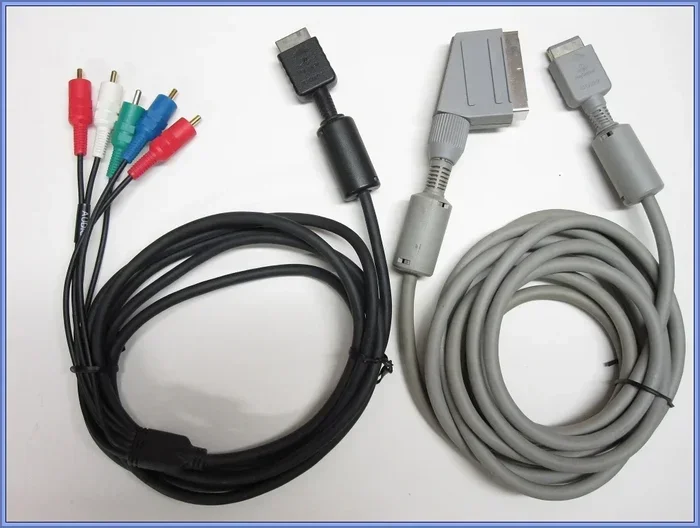
The most important piece of equipment is a YPbPr cable for the PS2. These cables have three RCA plugs colored red, green, and blue for the video signal. They also usually include red and white RCA plugs for the audio channels. You can find official Sony YPbPr cables or third-party alternatives that work just as well.
Make sure you buy a cable specifically designed for the PlayStation 2. Some component cables are made for other devices and may not have the correct pin configuration. A proper PS2 YPbPr cable ensures you get the full progressive scan support that makes the picture so much clearer.
A Compatible Television or Display
Your TV or monitor needs to support component video input. Most modern televisions have component inputs, but some budget models or older sets may not. Check the back of your display for three RCA jacks labeled Y, Pb, and Pr or colored green, blue, and red.
If your TV only has HDMI inputs, you can use an HDMI converter that accepts component input. This adds an extra step but still gets you a much better picture than composite. Some gamers also use VGA converters for alternative setups, though component remains the preferred path for PS2 YPbPr output.
Optional: Progressive Scan Setting
Once you have your YPbPr cable connected, you can enable progressive scan in your PS2 settings. This feature doubles the vertical refresh rate and produces a smoother image. Not all games support progressive scan, but many do, and the difference is striking. You will find this option in the PS2 system settings menu under Video Output Settings.
Step-by-Step Guide to Switching to YPbPr
Now that you have your equipment ready, let us walk through the actual setup process. It takes only a few minutes and does not require any technical expertise.
Step 1: Power Off Your PS2 and TV
Always start by turning off both your PlayStation 2 and your television. Working with cables while the devices are powered on can sometimes cause issues. Unplugging both devices adds an extra layer of safety, though it is not strictly required.
Step 2: Remove Your Current Cables
Unplug the composite cables (the yellow, red, and white RCA plugs) from the back of your PS2. Set them aside so you do not accidentally plug them back in later. If you have other cables connected, leave them alone for now.
Step 3: Connect the YPbPr Cable
Take your YPbPr cable and plug the three video RCA ends into the matching color-coded ports on the back of your PS2. The green plug goes into the green port, the blue into the blue port, and the red into the red port. Then connect the red and white audio plugs into the corresponding audio inputs.
Run the other end of the cable to your television. Plug each connector into the matching component input on your TV. Make sure each plug is fully seated and clicks into place.
Step 4: Select the Correct TV Input
Turn on your TV and use your remote to switch to the component video input. This is usually labeled as AV1, AV2, Component, or something similar depending on your TV brand. If you are not sure which input to use, consult your television manual.
Step 5: Configure PS2 Video Settings
Turn on your PS2 and navigate to the Settings menu. Go to Video Output Settings and select YPbPr as your video format. If you want the best possible image, enable progressive scan at this point as well. Save your settings and exit the menu.
Your screen should now display a much clearer and more vibrant image. If you see a blank screen or an error message, double-check that all cables are firmly connected and that you have selected the correct TV input.
Common Mistakes to Avoid
Switching to YPbPr is simple, but there are a few pitfalls that can cause frustration. Here are the most common mistakes and how to avoid them.
Using the Wrong Cable Type
Not all cables labeled as component are created equal. Some cheap cables do not properly carry the YPbPr signal and may produce a distorted or monochrome image. Always buy cables from reputable brands or sellers. If you end up with a black and white picture, it is usually a sign that the cable is not correctly configured for YPbPr output.
Forgetting to Change the TV Input
This sounds obvious, but it happens more often than you would think. After plugging in your YPbPr cable, you must manually switch your TV to the component input. If your TV is still set to composite or another input, you will see no picture even though everything is connected correctly.
Skipping the PS2 Settings Adjustment
Just plugging in the cable is not enough. You need to tell your PS2 to output in YPbPr format through the system settings. Without this step, the console will continue to output whatever signal it was using before, and you will not see any improvement in picture quality.
Ignoring Progressive Scan Compatibility
Enabling progressive scan is one of the biggest advantages of YPbPr. But some games do not support it and will display a black screen or error message if you force it on. If this happens, simply go back to the settings and disable progressive scan. Most modern titles and many classic PS2 games work perfectly with progressive scan enabled.
Why Retro Gamers Love YPbPr Quality
The retro gaming community has long recognized YPbPr as the best way to experience classic consoles. The crystal clear video that component output provides brings your favorite PS2 games to life in a way that composite cables simply cannot match. Colors are richer, lines are sharper, and the overall image feels much more modern.
Many retro enthusiasts also upgrade other parts of their setup alongside YPbPr. For instance, some gamers explore options like converting their N64 to HDMI to achieve similar quality improvements on other classic consoles. The principle is the same, upgrading the video output to get the best possible picture from older hardware.
Another popular upgrade path involves audio improvements. Once you have your video looking great, you might want to explore turning your stereo into Bluetooth to wirelessly stream game audio. Pairing better audio with superior video creates a complete retro gaming experience that feels modern without losing the charm of classic titles.
YPbPr is not just about nostalgia. It is about respecting the artistry of game developers who designed their visuals with care. When you see those PS2 graphics through a clean component signal, you notice details and colors that you never knew were there. It is a small change that makes a massive difference.
Tips for Getting the Best Picture Quality
Once you have YPbPr working on your PS2, there are a few extra steps you can take to squeeze even more quality out of your setup.
- Use short, high-quality cables: Longer cables can introduce signal degradation. Keep your YPbPr runs as short as possible for the cleanest signal.
- Check your TV’s sharpness settings: Some TVs have sharpness or noise reduction settings that can actually soften the image. Turn these off for the cleanest picture.
- Clean your cable connections: Dust and corrosion on RCA connectors can cause intermittent picture issues. A quick wipe with a dry cloth can make a big difference.
- Update your TV firmware: Some modern TVs have firmware updates that improve compatibility with analog inputs. Check your TV manufacturer’s website for updates.
- Experiment with screen settings: Adjusting brightness, contrast, and color settings on your TV can help you dial in the perfect picture for YPbPr output.
These small tweaks add up over time and help you get the most out of your PS2 YPbPr setup. You will be amazed at how much better your favorite games look with just a few adjustments.
Final Thoughts
Changing your PS2 to YPbPr is one of the simplest and most rewarding upgrades you can make for your retro gaming setup. The improvement in picture quality is immediate and dramatic. Colors are richer, lines are sharper, and the overall image looks years better than what you get from composite cables.
All you need is a YPbPr cable, a compatible TV, and about five minutes of your time. Once you make the switch, you will wonder how you ever played with composite video before. The crisp, clean image that component output delivers truly brings your PlayStation 2 library to life.
Do not let your PS2 look like it belongs in a museum. Take a few minutes to make the change and enjoy your games the way they were meant to be seen. Your eyes will thank you every time you pick up a controller.
Frequently Asked Questions
Can I use YPbPr cables on any PS2 model?
Yes, YPbPr cables work with all PlayStation 2 models including the original, slim, and super slim versions. The setup process is identical across all models. Just make sure you have a component input on your television or display.
Will YPbPr work on a modern flat-screen TV?
Absolutely. Most modern flat-screen TVs have component video inputs. Check the back or side of your TV for three RCA jacks colored green, blue, and red. If your TV only has HDMI, you can use a component-to-HDMI converter to get the same benefits.
What is the difference between YPbPr and RGB?
Both are high-quality analog video signals, but they use different connectors and cables. YPbPr uses three RCA cables while RGB typically uses SCART or VGA connectors. YPbPr is more common in North America and works well with most modern TVs that have component inputs.
Do I need a special cable for progressive scan?
No, the same YPbPr cable supports progressive scan. You just need to enable progressive scan in your PS2 settings menu. Not all PS2 games support progressive scan, but many do, and the result is a noticeably smoother and sharper image.
Can I use YPbPr and audio cables together?
Yes, YPbPr cables typically come with red and white RCA audio cables included. These carry the left and right audio channels separately for better sound quality compared to the single audio channel on composite cables.
Is YPbPr better than HDMI for PS2 gaming?
YPbPr is the best analog option for the PS2, but HDMI offers digital quality that is technically superior. If you want the absolute best picture, you can use an HDMI converter that accepts component input. However, for most gamers, YPbPr provides excellent quality without the extra cost of a converter.