How Can I Update My Wifi and Improve Internet Speed
Updating your wifi router is one of the easiest ways to boost internet speed and keep your wireless network running smoothly. Whether you need a firmware update or a simple router reboot, these steps can transform your internet connection in minutes. This guide walks you through every method to update wifi and improve internet speed at home.
Slow wifi is one of the most frustrating things in modern life. You are trying to stream a show, join a video call, or finish work, and your internet connection just crawls. The good news is that learning how can I update my wifi is simpler than most people think. A quick update can breathe new life into your wireless network and dramatically improve your internet speed.
Many people don’t realize that their wifi router needs regular care just like any other device. Over time, software gets outdated, settings get messy, and performance drops. The steps below will help you update your router, speed up your connection, and keep your home network running at its best. Let’s dive in.
Key Takeaways
- Regular wifi updates keep your network secure and fast: Firmware updates fix bugs, patch security holes, and improve performance.
- A simple reboot can solve many speed issues: Restarting your router clears cached data and refreshes your connection.
- Checking your wifi frequency matters: Switching between 2.4 GHz and 5 GHz bands can noticeably boost speed.
- Placement and signal strength affect everything: Moving your router to a central location improves coverage.
- Older routers may need replacement: If updates don’t help, a new router might be the best solution.
- You don’t need a tech expert: Most wifi updates are simple and can be done at home in under 15 minutes.
📑 Table of Contents
Why Updating Your Wifi Matters
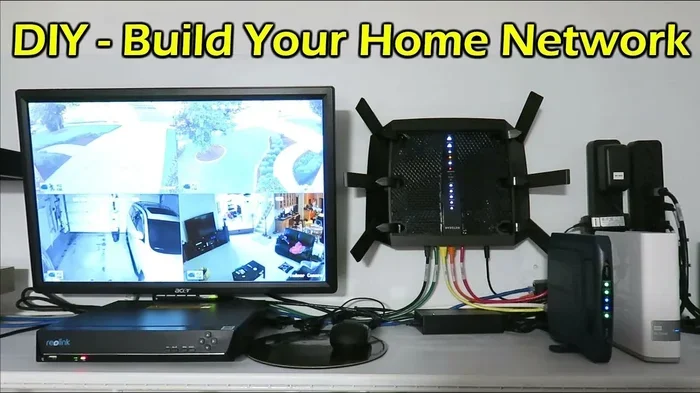
Your wifi router is the brain of your home network. It handles every device that connects to the internet. Just like your phone or computer, routers run on software called firmware. When that software gets old, problems start to pile up.
Security Updates Keep You Safe
Hackers constantly look for weaknesses in older router software. Manufacturers release updates to patch these holes. If you skip updates, your network security could be at risk. A simple firmware update can close these gaps and protect your personal data.
Performance Improvements
Router makers don’t just fix bugs. They also improve how the device handles bandwidth and data traffic. Newer firmware often includes better signal strength management and smarter connections. This means faster downloads, smoother streaming, and fewer disconnections.
New Features and Compatibility
Updates can add support for newer devices and wifi standards. For example, an update might unlock better wifi frequency options or improve how your router handles multiple devices at once. This is especially helpful if you have a smart home setup with many connected gadgets.
How to Update Your Wifi Router Step by Step
Updating your wifi router might sound technical, but it really isn’t. Follow these simple steps and you will be done in no time.
Step 1: Find Your Router’s IP Address
First, you need to access your router’s settings page. Open a web browser on any device connected to your network. Type your router’s IP address into the address bar. Most routers use 192.168.1.1 or 192.168.0.1. You can find the exact address on the sticker on the back of your router.
Step 2: Log In to Your Router
Once you enter the IP address, a login page will appear. Use the default username and password printed on your router. If you changed these before and forgot them, you can reset the router to factory settings. Just press and hold the small reset button on the back for about 10 seconds.
Step 3: Check for Firmware Updates
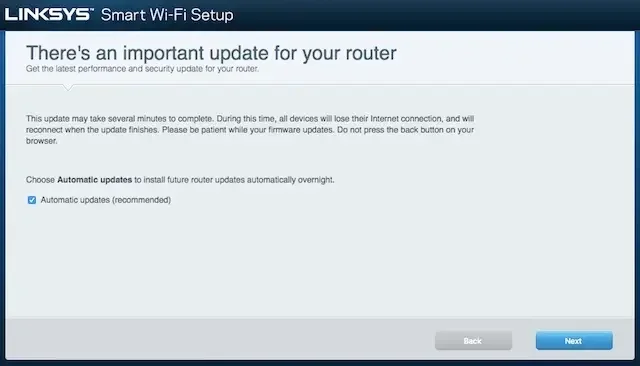
After logging in, look for a section called “Administration,” “Advanced Settings,” or “Firmware Update.” The exact name varies by brand. Click on it and the router will check for available updates. If an update is found, follow the on-screen prompts to install it.
Step 4: Wait for the Update to Finish
This is important. Do not unplug your router during an update. The process can take anywhere from two to ten minutes. Your wifi will likely go offline briefly. Once the light on your router turns solid again, the update is complete.
Step 5: Reboot Your Router
After the update finishes, restart your router. This ensures all new settings take effect. Unplug the power cable, wait 30 seconds, and plug it back in. Give it a minute to fully reconnect, and then test your internet speed.
Easy Ways to Improve Internet Speed After Updating
Updating your router is just the first step. There are many other simple things you can do to boost your broadband speed and get the most out of your wireless network.
Restart Your Router Regularly
A quick router reboot clears out cached data and refreshes your internet connection. Try unplugging your router for 30 seconds once a week. This simple habit can make a big difference in speed and stability.
Check Your Wifi Frequency Band
Most modern routers offer two frequency bands: 2.4 GHz and 5 GHz. The 2.4 GHz band covers a wider area but is slower. The 5 GHz band is faster but has a shorter range. If you want the best speed and your device is close to the router, use the 5 GHz band. You can learn more about switching between these bands by reading Can I Change My Wi Fi From 5Ghz To 2 4 Ghz.
Move Your Router to a Better Spot
Where you place your router matters a lot. Walls, furniture, and electronics can block your signal strength. Keep your router in a central, open area of your home. Avoid hiding it in a closet or behind a TV. Better placement alone can significantly improve your wifi performance.
Reduce Interference from Other Devices
Microwaves, baby monitors, and even Bluetooth devices can interfere with your wireless network. These devices operate on similar frequencies and can slow things down. Try moving your router away from these devices and see if your speed improves.
Limit Devices on Your Network
Every device connected to your router uses a share of your bandwidth. If too many devices are streaming, downloading, or gaming at the same time, speeds will drop. Disconnect devices you are not using and prioritize important tasks like video calls or work downloads.
Consider a Wifi Range Extender
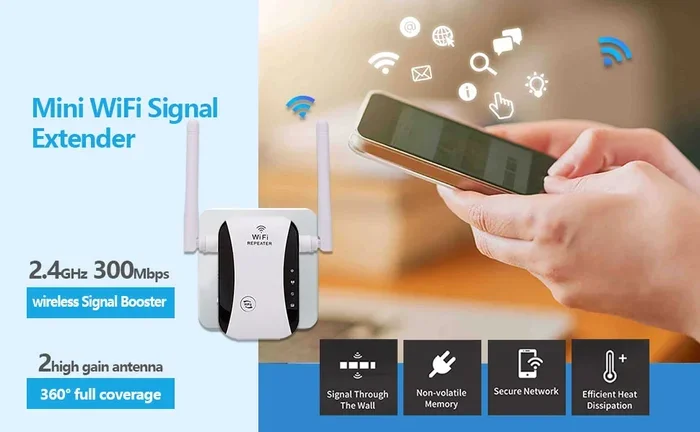
If your wifi signal doesn’t reach every room, a range extender can help. These devices boost your signal and extend your coverage. You can find more information about extending your network by checking out Can I Extend My Wi Fi To 200 Feet Away. This is a great option for larger homes.
Optimize Your DNS Settings
DNS stands for Domain Name System. It translates website names into IP addresses. Your router’s default DNS might be slow. Switching to a faster DNS service like Google DNS (8.8.8.8) or Cloudflare DNS (1.1.1.1) can speed up browsing. You can change DNS settings in your router’s admin panel under “WAN” or “Internet” settings.
Common Wifi Update Problems and How to Fix Them
Sometimes the update process doesn’t go smoothly. Here are common issues and quick fixes.
Update Fails or Gets Stuck
If your router freezes during an update, don’t panic. Wait at least 10 minutes. If it still does not respond, unplug it, wait 30 seconds, and plug it back in. The router should resume the update automatically. If the problem continues, you may need to download the firmware from the manufacturer’s website and install it manually.
Wifi Stops Working After Update
This can happen when a new firmware resets your settings. Log back into your router admin page and re-enter your wifi name and password. Check that your network security settings are correct. Most of the time, this fixes the issue right away.
Internet Speed Drops After Updating
A speed drop after an update is unusual but possible. Try rebooting your router first. If that doesn’t work, check if any new settings were changed. You can also run a network speed test on a website like Speedtest.net to see what your actual speeds are. If speeds remain low, contact your internet service provider for help.
Router Does Not Show Any Available Updates
If your router says it is up to date but you still have slow speeds, your hardware might be outdated. Older routers may not support the latest wifi standards. In that case, you might want to consider upgrading to a newer model. You can also try Can I Increase Wi Fi Signal for tips on boosting performance without buying new equipment.
When Should You Replace Your Router Instead of Updating?
Not all wifi problems can be solved with an update. Sometimes your router has simply reached the end of its life. Here are signs it is time for a replacement.
If your router is more than five years old, it likely does not support the latest wifi standards like Wi-Fi 6 or Wi-Fi 6E. These newer standards offer much faster speeds and handle more devices at once. If you notice that your internet speed is consistently slow even after updating and optimizing settings, the hardware itself may be the problem.
Another sign is frequent disconnections. If your router drops connections multiple times a day, it may have a hardware fault that no update can fix. Similarly, if your router overheats or makes strange noises, it is time to retire it and get a new one.
When shopping for a new router, look for one that supports the latest wifi frequency bands, has strong range, and offers good bandwidth for your household size. A good router can last many years and make a huge difference in your daily internet experience.
Quick Tips for Keeping Your Wifi Running at Its Best
Maintaining your wireless network does not have to be complicated. Here are some quick tips to keep everything running smoothly:
- Update your router firmware every few months. Set a calendar reminder to check for updates regularly.
- Restart your router once a week. A simple reboot clears temporary issues and keeps things running fast.
- Use a strong, unique password for your wifi. This protects your network security and prevents unauthorized users from slowing down your connection.
- Keep your router in a cool, open space. Overheating can reduce performance and shorten the lifespan of your device.
- Monitor connected devices. Check your router settings occasionally to see what devices are using your network. Remove any you do not recognize.
- Consider upgrading your internet plan. Sometimes the issue is not your router but your broadband speed from your provider.
These small habits add up over time and keep your home network fast, secure, and reliable. If you want to learn more about managing your network, check out Can I Boost My Upload Speed for additional tips on improving your connection.
Final Thoughts
Learning how can I update my wifi is one of the most valuable skills for any internet user. A simple firmware update, combined with a few smart optimization steps, can transform your internet speed and make your daily online activities much more enjoyable. You do not need to be a tech expert to do this. Anyone can follow the steps outlined above and see real results.
Remember that your wifi router is the gateway to everything you do online. Treat it well, keep it updated, and it will serve you reliably for years. Start with a router reboot today, check for firmware updates this week, and enjoy the difference a well-maintained wireless network can make.
Frequently Asked Questions
How often should I update my wifi router?
You should check for firmware updates every two to three months. Most modern routers also have an auto-update option you can turn on. Enabling automatic updates ensures your wireless network stays secure and performs its best without any effort from you.
Can I update my wifi router without a computer?
Yes, you can. Many router manufacturers offer mobile apps that let you update firmware directly from your phone. Check your router brand’s app store for their official app. This makes updating your wifi router quick and easy from anywhere in your home.
What happens if I don’t update my wifi router?
Skipping updates leaves your router vulnerable to security threats and bugs. Over time, outdated firmware can cause slower internet speed, connection drops, and compatibility issues with newer devices. Regular updates keep everything running smoothly and safely.
Does updating wifi improve speed?
Yes, it can. Firmware updates often include performance improvements, better bandwidth management, and enhanced signal strength handling. While an update alone may not double your speed, it can fix issues that are slowing down your connection and help you get the most from your internet plan.
Is it safe to update my wifi router?
Absolutely. Firmware updates from the manufacturer are completely safe. They are designed to improve your router’s performance and security. Just make sure you do not unplug the router during the update process, as this can cause software issues.
How do I know if my wifi router needs an update?
Signs that your router needs an update include slow speeds, frequent disconnections, and difficulty connecting new devices. You can also log into your router’s admin panel and check the firmware section. It will tell you if a newer version is available for your wireless network hardware.