Does Ps5 Controller Haptic Feedback Really Work On Pc
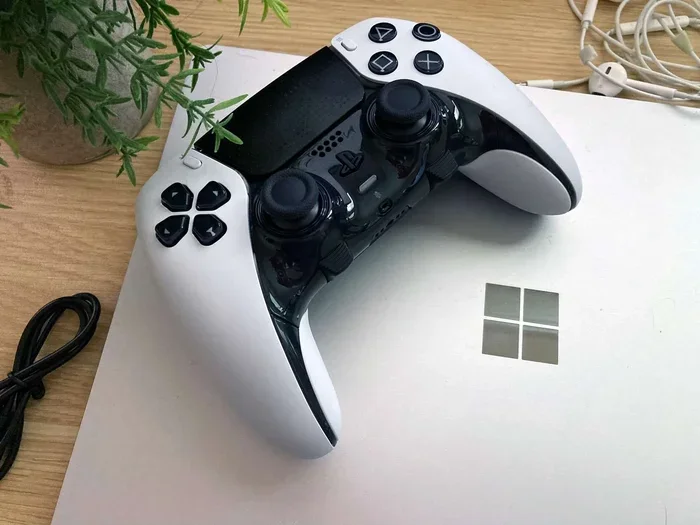
Yes, the PS5 DualSense controller haptic feedback works on PC, but you need the right setup and drivers to get the full experience. Using Bluetooth or a USB cable, you can connect the controller to your computer and enjoy adaptive triggers and immersive vibration effects in supported games. Below, we walk you through everything you need to know about making it work seamlessly.
The PS5 DualSense controller has set a new standard for gaming immersion. Its haptic feedback and adaptive triggers make every in-game action feel incredibly real. But here is the big question: does all that magic translate when you plug it into a PC?
The short answer is yes. PS5 controller haptic feedback does work on PC, but the experience depends on a few factors. Your connection method, the game you are playing, and the software you use all play a role. In this guide, we break down exactly how it works, what you need, and how to get the best results.
Whether you are a casual gamer or a hardcore enthusiast, understanding how the DualSense controller behaves on a PC helps you make the most of your setup. Let us dive in.
Key Takeaways
- Haptic feedback works on PC: The PS5 DualSense controller supports haptic feedback and adaptive triggers when connected properly.
- Steam Input is key: Most PC games recognize the controller through Steam Input, which enables advanced features.
- Wired and wireless options: You can connect via USB-C cable or Bluetooth for a wireless experience.
- Driver support matters: Installing the correct drivers ensures full functionality on Windows 10 and 11.
- Not all games support it: Game developer support determines whether haptic feedback activates in specific titles.
- Bluetooth setup may need a dongle: If your PC lacks built-in Bluetooth, a USB Bluetooth adapter can help.
📑 Table of Contents
- What Is Haptic Feedback on the PS5 Controller
- Connecting the PS5 Controller to Your PC
- Software and Drivers You Need
- Which Games Support PS5 Controller Haptics on PC
- Common Issues and How to Fix Them
- Comparing PS5 Controller Haptics on PC vs. Console
- Expert Tips for the Best Haptic Experience on PC
- The Future of PS5 Controller Support on PC
- Final Thoughts
What Is Haptic Feedback on the PS5 Controller
Haptic feedback is not your old-school rumble motor. The DualSense controller uses advanced voice coil actuators that create precise vibrations. These vibrations match what is happening on screen. Feel the rain hit differently than an explosion. That is the power of haptics.
The adaptive triggers add another layer. They can resist your finger or go soft depending on the in-game action. Pulling a bowstring feels different from pressing a gas pedal. This level of detail is what makes the PS5 controller special.
How Haptics Differ From Traditional Vibration
Traditional rumble motors spin an unbalanced weight inside the controller. It creates a general shaking sensation. Haptic feedback, on the other hand, uses precise electrical signals. This means the controller can simulate textures, surfaces, and specific movements.
On PC, the experience depends on game support. Not every title on Steam or Epic Games takes advantage of this technology. But the ones that do offer an incredible experience.
Connecting the PS5 Controller to Your PC
Before you can enjoy haptic feedback, you need to connect the controller to your computer. There are two main ways to do this: wired and wireless. Each method has its own benefits and limitations.
Wired Connection via USB-C
The simplest way to connect your DualSense controller to a PC is with a USB-C cable. Plug one end into the controller and the other into your computer. Windows 10 and 11 recognize the controller almost instantly.
A wired connection gives you the most reliable experience. There is no pairing hassle, and input lag stays minimal. For competitive gaming, a wired connection is often the better choice.
Wireless Connection via Bluetooth
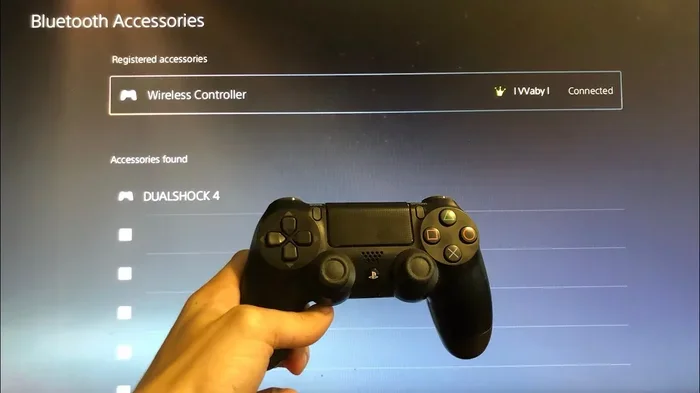
Want to go wireless? Bluetooth is your friend. The DualSense controller supports Bluetooth 5.1, which gives you a stable wireless connection. But here is the catch: not all PCs have built-in Bluetooth.
If your computer lacks Bluetooth, you can use a Bluetooth adapter to add wireless capability. Just plug it into a USB port, install the drivers, and pair the controller. Once connected, you can enjoy haptic feedback wirelessly just like on the PS5.
Some users prefer using a USB Bluetooth dongle for a cleaner setup. These small adapters work well and keep your desk clutter-free. Just make sure the dongle supports the right Bluetooth version for the best performance.
Software and Drivers You Need
Getting the PS5 controller to work on PC is only half the battle. The right software makes all the difference when it comes to haptic feedback.
Steam Input: The Gateway to Full Features
Steam Input is Valve’s built-in controller configuration tool. It supports the DualSense controller and unlocks haptic feedback in compatible games. If you game through Steam, this is your best bet.
To enable Steam Input, open Steam and go to Settings. Find the Controller section and turn on Steam Input. From there, you can customize how the controller behaves in each game.
Steam Input also lets you map buttons, adjust trigger sensitivity, and tweak haptic intensity. This level of customization is a huge plus for PC gamers.
DS4Windows and Third-Party Tools
If you do not use Steam, DS4Windows is another popular option. It emulates an Xbox controller, which makes it compatible with most PC games. However, DS4Windows has limited support for haptic feedback compared to Steam Input.
Some third-party tools like ViGEm Bus Driver also help with controller emulation. These tools can fill in the gaps when Steam Input does not cover your needs.
Windows 10 and 11 Built-In Support
Modern versions of Windows have native support for the DualSense controller. Plug it in, and Windows should recognize it without needing extra drivers. However, native support often only provides basic rumble, not full haptic feedback.
For the complete experience, Steam Input or a dedicated driver is still the way to go. Always keep your Windows updated to ensure the best compatibility.
Which Games Support PS5 Controller Haptics on PC
This is where things get interesting. Not every PC game supports the DualSense haptic features. But the list of compatible titles is growing.
Some of the most notable games that support haptic feedback include:
- Astro Bot Rescue Mission – A perfect showcase for haptic technology
- Returnal – Adaptive triggers and haptics work beautifully
- God of War Ragnarok – Rich haptic textures during combat
- Horizon Forbidden West – Immersive environmental feedback
- Helldivers 2 – Improved controller support with haptics
Developers are slowly adding DualSense support to more titles. When a game does support it, the difference is night and day. You feel every footstep, every shot, and every environmental effect.
How to Check if a Game Supports Haptics
Before buying a game, check the Steam store page. Look for controller compatibility details in the system requirements section. Steam also labels games that support advanced controller features.
You can also visit community forums or the game’s official website. Developers often list supported controller features in their patch notes.
Common Issues and How to Fix Them
Even with the right setup, you might run into problems. Here are the most common issues and how to solve them.
Haptic Feedback Not Working
If your controller vibrates but does not feel the precise haptic effects, check your connection method. Bluetooth connections sometimes reduce haptic quality compared to wired connections. Try plugging in the USB-C cable to see if the feedback improves.
Also, make sure Steam Input is enabled for the specific game. Right-click the game in your Steam library, go to Properties, and check the Controller settings.
Controller Not Recognized by PC
If your PC does not detect the controller, try a different USB port or cable. Faulty cables are a common culprit. You should also check if your Bluetooth adapter is working properly.
Restarting your computer after connecting the controller can also help. Windows sometimes needs a fresh detection cycle to recognize new devices.
Adaptive Triggers Feel Weak
Adaptive triggers need game support to function properly. If a game does not use them, they will feel like regular triggers. Check the game’s settings to see if adaptive trigger support is enabled.
Some players also notice that the triggers feel different depending on whether they use Bluetooth or USB. A wired connection typically provides stronger trigger resistance.
Comparing PS5 Controller Haptics on PC vs. Console
How does the haptic experience on PC compare to the PS5 console? Let us look at the key differences.
| Feature | PS5 Console | PC (Wired) | PC (Bluetooth) |
|---|---|---|---|
| Haptic Feedback | Full Support | Full Support | Mostly Full Support |
| Adaptive Triggers | Full Support | Full Support | Partial Support |
| Connection Stability | N/A (Native) | Excellent | Good |
| Input Lag | N/A (Native) | Minimal | Slightly Higher |
| Game Compatibility | Full Library | Growing | Growing |
As you can see, wired connections on PC come closest to the console experience. Bluetooth is convenient but may have slight compromises in trigger response and stability.
For the best of both worlds, consider keeping a USB-C cable nearby. You can switch to wired when you want the full experience and use Bluetooth for casual gaming.
Expert Tips for the Best Haptic Experience on PC
Want to get the most out of your DualSense controller on PC? Follow these tips from experienced PC gamers.
- Always use the latest Steam version. Valve constantly updates Steam Input to improve controller support.
- Keep your controller firmware updated. Connect the controller to a PS5 or PC and check for firmware updates in the settings.
- Use a quality USB-C cable. Cheap cables can cause connection drops and reduce haptic quality.
- Experiment with Steam Input settings. Adjust haptic intensity and trigger resistance for each game individually.
- Check for game-specific patches. Developers often add or improve controller support in updates.
- Consider a dedicated Bluetooth adapter. If your PC has weak Bluetooth, a quality adapter improves the wireless experience.
These small adjustments make a big difference in how the controller feels during gameplay. Taking a few extra minutes to configure your setup pays off in the long run.
The Future of PS5 Controller Support on PC
The future looks bright for DualSense controller support on PC. More developers are recognizing the value of haptic feedback in gaming. As technology evolves, we can expect wider adoption across the PC gaming ecosystem.
Steam and other platforms continue to improve their controller frameworks. Windows updates also bring better native support for gaming peripherals. The gap between console and PC gaming experiences keeps shrinking.
For now, the PS5 controller remains one of the best options for PC gamers who want an immersive experience. Its haptic feedback and adaptive triggers set it apart from standard controllers.
Final Thoughts
So, does PS5 controller haptic feedback really work on PC? The answer is a resounding yes. With the right setup, you can enjoy the same immersive feedback that makes the PS5 so special. Whether you connect via USB-C or Bluetooth, the DualSense controller brings a new level of immersion to PC gaming.
Steam Input is your best friend in this journey. It unlocks the full potential of the controller and gives you customization options that are hard to beat. Just remember that game support plays a big role in your experience.
Get your controller connected, tweak your settings, and get ready to feel your games like never before. The PS5 DualSense controller on PC is a game-changer, and it is only going to get better from here.
Frequently Asked Questions
Can I use the PS5 controller on PC without Steam?
Yes, you can use the PS5 controller on PC without Steam. Tools like DS4Windows and ViGEm Bus Driver allow you to emulate an Xbox controller. However, Steam Input provides the best haptic feedback support. Without Steam, you may get basic rumble but not the full haptic experience.
Does Bluetooth reduce haptic feedback quality on PC?
Bluetooth connections can slightly reduce haptic feedback quality compared to a wired USB-C connection. The wireless signal may introduce minor input lag or reduce trigger resistance accuracy. For the best experience, use a wired connection when precision matters.
Do all PC games support PS5 controller haptics?
No, not all PC games support PS5 controller haptics. Game developers must specifically implement DualSense support in their titles. Popular titles like Returnal and God of War Ragnarok support it, but many other games only offer basic rumble. Check the game’s specifications before expecting full haptic feedback.
How do I update the PS5 controller firmware on PC?
You can update the PS5 controller firmware through Steam. Connect the controller via USB-C, open Steam, go to Settings, and select Controller. Click on the controller firmware update option if available. You can also connect the controller to a PS5 for firmware updates.
Is the PS5 controller better than Xbox controllers for PC gaming?
The PS5 controller offers unique haptic feedback and adaptive triggers that Xbox controllers do not have. This makes it superior for immersion in supported games. However, Xbox controllers have broader native compatibility on PC. The best choice depends on your gaming preferences and the titles you play.
Can I use a USB Bluetooth dongle to connect the PS5 controller to PC?
Yes, you can use a USB Bluetooth dongle to connect the PS5 controller wirelessly to a PC. Make sure the dongle supports Bluetooth 5.0 or higher for the best performance. A quality dongle provides a stable connection and maintains good haptic feedback quality during gameplay.