How Do I Connect My Computer To A Projector Without HDMI
You can easily connect your computer to a projector without HDMI using several alternative methods, including VGA cables, USB-C adapters, and wireless streaming. This guide walks you through every option with clear, step-by-step instructions so you can set up your projector connection quickly and confidently. Whether you are using a laptop or desktop, you will find the right solution for your presentation setup and display needs.
There is nothing worse than standing in front of a room ready to present, only to realize your cable does not fit the projector. Maybe your laptop lacks an HDMI port, or the projector is older and only has VGA inputs. Whatever the reason, you can still connect your computer to a projector without HDMI and get great results.
This guide covers every practical method you can use today. From wired options like VGA and USB-C adapters to wireless streaming solutions, you will find the right approach for your setup. Each method includes simple steps, helpful tips, and common mistakes to avoid. By the end, you will feel confident hooking up any computer to any projector.
Before diving in, it helps to know what ports your devices have. Most older projectors use VGA inputs. Newer models may offer USB-C, DisplayPort, or even wireless capabilities. Your computer likely has at least one of these ports too. Once you know what you are working with, choosing the right cable or adapter becomes much easier.
Key Takeaways
- VGA cables remain the most common HDMI alternative for connecting computers to older projectors.
- USB-C and DisplayPort adapters offer modern solutions for newer laptops and computers.
- Wireless screen mirroring lets you connect without any cables at all.
- Audio may need a separate connection when using non-HDMI cables.
- Checking your projector ports first saves time and prevents buying the wrong adapter.
- Resolution settings matter for a clear and sharp projected image.
📑 Table of Contents
- Why Connect Without HDMI?
- Option 1: Using a VGA Cable
- Option 2: USB-C and DisplayPort Adapters
- Option 3: Wireless Connection Methods
- Option 4: Composite and S-Video Connections
- Setting Up Audio with Non-HDMI Connections
- Troubleshooting Common Connection Issues
- Comparison Table: Connection Methods
- Expert Tips for a Perfect Setup
- Final Thoughts
Why Connect Without HDMI?
HDMI is the most common way to link a computer and a projector. But it is not the only way. Several situations make non-HDMI connections necessary or even preferable.
Older projectors often lack HDMI ports entirely. Many classroom projectors, office presentation screens, and home theater setups from the 2000s only support VGA or composite inputs. If you are using one of these projectors, you need an alternative connection method.
Some newer laptops have dropped HDMI ports in favor of USB-C or Thunderbolt. This means even if your projector has HDMI, you may need an adapter. In these cases, knowing how to use a USB-C to HDMI adapter or a different cable type entirely becomes essential.
Wireless options are also gaining popularity. People who frequently move between meeting rooms or teach in multiple classrooms prefer cable-free setups. These methods let you connect your computer to a projector without fumbling with cables at all.
Common Reasons You Need Non-HDMI Connections
- Older projector models only have VGA or composite ports.
- Newer laptops lack HDMI or USB-A ports.
- Cable length limitations make wireless a better choice.
- Port availability is limited when connecting multiple devices.
- Wireless setups reduce cable clutter in presentation spaces.
Option 1: Using a VGA Cable
VGA is the most widely available alternative to HDMI for projectors. Almost every older projector has a VGA port, and many computers still support it too. This makes VGA the go-to option for most people looking to connect their computer to a projector without HDMI.
A VGA cable carries video signals only. This means you will need a separate audio connection if your projector has built-in speakers. You can use a 3.5mm audio cable from your computer’s headphone jack to the projector’s audio input.
Step-by-Step VGA Connection
- Check both devices for VGA ports. They look like trapezoidal openings with many small pins.
- Plug the VGA cable into your computer’s VGA port and the projector’s VGA port.
- Connect audio using a separate cable from your computer to the projector.
- Turn on both devices and select the correct input source on the projector.
- Adjust display settings on your computer to mirror or extend the screen.
VGA supports resolutions up to 1080p on good cables. However, the image quality will not match HDMI. You may notice slight blurriness or color differences. For most presentations and classroom use, VGA works perfectly well.
If you need to convert VGA to HDMI in the other direction, adapters are available. But for connecting a computer to a projector, a direct VGA cable is the simplest path.
Option 2: USB-C and DisplayPort Adapters
Modern computers increasingly rely on USB-C and DisplayPort connections. These ports can carry both video and audio signals, making them excellent alternatives to HDMI. Using the right adapter, you can easily connect your computer to a projector through these modern ports.
USB-C adapters come in several varieties. Some convert USB-C to VGA, others to HDMI, and some to DisplayPort. Choose the adapter that matches your projector’s input. If your projector has HDMI but your computer only has USB-C, a USB-C to HDMI adapter works perfectly.
Best USB-C Adapter Types
- USB-C to VGA adapter for older projectors with VGA inputs.
- USB-C to HDMI adapter for projectors with HDMI ports.
- USB-C to DisplayPort adapter for projectors with DisplayPort inputs.
- USB-C docking stations that offer multiple output options in one device.
When choosing an adapter, make sure it supports your computer’s video output standard. Not all USB-C ports support video output. Thunderbolt 3 and 4 ports always do, but standard USB-C ports may or may not. Check your computer’s specifications before buying.
One major advantage of USB-C adapters is that they can carry audio alongside video. This eliminates the need for a separate audio cable. You get a clean, single-cable connection from your computer to the projector.
For those wondering about using phones or tablets, you can also connect your phone to a projector using USB-C cables and adapters. This works great for mobile presentations and informal sharing sessions.
Option 3: Wireless Connection Methods
Wireless projection is the most convenient way to connect your computer to a projector without HDMI. No cables means no clutter and no adapter hunting. Several technologies make wireless projector connections possible today.
Many modern projectors come with built-in Wi-Fi and screen mirroring features. Brands like Epson, BenQ, and Optoma offer projectors that support wireless display protocols. You can mirror your computer screen directly to the projector over your local network.
Popular Wireless Projection Methods
- Miracast works on Windows PCs and many Android devices. It creates a direct wireless connection between your computer and projector.
- AirPlay is Apple’s wireless protocol. It works with MacBooks, iPhones, and iPads when projecting to compatible displays.
- Chromecast lets you cast content from Chrome browsers or supported apps to a projector with a Chromecast dongle plugged in.
- Proprietary apps from projector manufacturers often offer dedicated wireless streaming with additional features like annotation.
To use wireless projection, both your computer and projector need to be on the same Wi-Fi network. Some systems work without a network by creating a direct peer-to-peer connection. Check your projector’s manual for specific wireless setup instructions.
Wireless methods work well for sharing slides, videos, and web content. However, they may introduce slight latency. For fast-moving content or gaming, a wired connection is usually better. For most presentations and classroom use, wireless projection delivers a smooth experience.
Some users also explore using devices like a Roku with a projector to add wireless streaming capability to older models. This is a great workaround if your projector does not support built-in wireless features.
Option 4: Composite and S-Video Connections
Composite and S-Video are older connection types that still appear on some projectors. These are less common today but remain viable options in certain situations. If your projector only has these inputs, you can still connect your computer using the right adapter.
Composite cables use a single RCA plug (the yellow one for video). S-Video uses a round connector with multiple pins. Both deliver lower resolution than VGA or HDMI, but they work for basic presentations and static content.
To use these connections, you will need a converter box. A VGA-to-composite or VGA-to-S-Video converter takes the signal from your computer and translates it for the projector. These converter boxes are affordable and widely available online.
When to Use Composite or S-Video
- Very old projectors that lack VGA or HDMI ports.
- Temporary setups where you need a quick and simple connection.
- Low-resolution needs like displaying text slides or static images.
- Backup options when your primary cable or adapter is unavailable.
Keep in mind that composite and S-Video will not deliver sharp, high-definition images. Text may appear slightly fuzzy, and colors may not be as vibrant. For anything requiring clear detail, consider upgrading to a VGA or wireless solution instead.
Setting Up Audio with Non-HDMI Connections
One thing many people overlook is audio. HDMI carries both video and audio through a single cable. When you use VGA, composite, or S-Video, you only get video. You must set up audio separately for your projector to produce sound.
The simplest audio solution is a 3.5mm auxiliary cable. Plug one end into your computer’s headphone jack and the other into the projector’s audio input. Most projectors have a standard 3.5mm audio jack or RCA audio inputs (red and white).
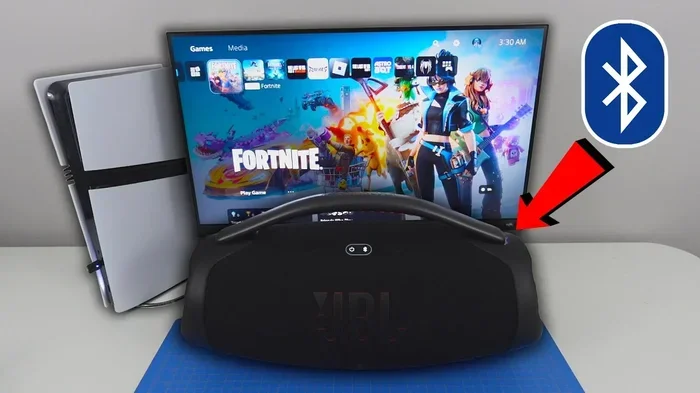
If your projector does not have built-in speakers, you can connect external speakers instead. Bluetooth speakers work well for this purpose. You can connect your Bluetooth speaker to your computer and play audio while the projector handles the visual display.
Some USB-C adapters and docking stations include audio output. This can simplify your setup by combining video and audio through a single adapter. Check the specifications of your adapter to confirm it supports audio passthrough.
Quick Audio Setup Tips
- Test audio before your presentation to avoid surprises.
- Adjust volume levels on both your computer and the projector.
- Use external speakers for larger rooms where projector speakers may not be loud enough.
- Mute your computer if you want all audio to come through the projector speakers.
Troubleshooting Common Connection Issues
Even with the right cable or adapter, you may run into issues when setting up your projector connection. Most problems have simple solutions. Here are the most common issues and how to fix them.
No signal on the projector. This is the most frequent problem. First, check that both devices are powered on. Then verify the correct input source is selected on the projector. Finally, ensure your computer is set to output to an external display. On Windows, press Windows + P to access display options. On Mac, go to System Preferences and select Displays.
Image appears blurry or distorted. This often happens with VGA cables. Try adjusting the resolution on your computer to match the projector’s native resolution. Also check that the VGA cable is fully seated in both ports. A loose connection can cause a poor image.
No sound. If you are using a non-HDMI connection, audio needs a separate cable. Make sure the audio cable is plugged in correctly. Also check your computer’s sound output settings to ensure it is set to the projector or external speakers rather than internal speakers.
Wireless connection keeps dropping. Wireless projection depends on a stable Wi-Fi signal. Move closer to the router if possible. Reduce interference from other wireless devices. Some projectors work better with a dedicated 5GHz network rather than a crowded 2.4GHz one.
Adapter not recognized. Try unplugging the adapter and plugging it back in. Use a different USB port if you are using a USB-C adapter. Make sure the adapter is compatible with your computer’s operating system. Some adapters require driver installation for full functionality.
When to Seek Professional Help
If you have tried all the troubleshooting steps and still cannot get a connection, it may be a hardware issue. Your projector’s input port could be damaged, or your computer’s video output may not be working. In these cases, testing with a different cable or device can help identify the problem.
Comparison Table: Connection Methods
| Method | Best For | Video Quality | Audio Included | Setup Difficulty |
|---|---|---|---|---|
| VGA Cable | Older projectors | Good (up to 1080p) | No (separate cable needed) | Easy |
| USB-C Adapter | Modern laptops | Excellent (up to 4K) | Yes (on most adapters) | Easy |
| Wireless Mirroring | Cable-free setups | Good (depends on Wi-Fi) | Yes (via speakers) | Medium |
| Composite/S-Video | Very old projectors | Fair (standard definition) | No (separate cable needed) | Medium |
| DisplayPort Adapter | Desktops with DisplayPort | Excellent (up to 4K) | Yes (on most adapters) | Easy |
Each method has its strengths. VGA is the most universal for older equipment. USB-C adapters offer the best quality for modern computers. Wireless methods provide the most convenience. Choose the one that fits your projector, your computer, and your situation.
Expert Tips for a Perfect Setup
Experienced presenters and IT professionals follow a few habits that make their setups seamless every time. Here are some expert insights to help you get the best results.
Always test your setup before the actual event. Even if you have used the same projector and computer before, ports can change, settings can reset, and cables can fail. A quick test 30 minutes before your presentation saves a lot of stress.
Carry backup cables and adapters. A spare VGA cable, a USB-C adapter, and a 3.5mm audio cable take up very little space. They can save your presentation if something goes wrong with your primary setup.
Label your cables. If you use multiple cables and adapters, label them with colored tape or tags. This makes it easy to grab the right one quickly and avoid confusion during setup.
Know your projector’s resolution. Setting your computer’s output resolution to match the projector’s native resolution produces the sharpest image. Most projectors list their native resolution in the manual or on a sticker on the device.
Close unnecessary applications. When projecting, your computer works harder to render the display output. Closing background apps improves performance and prevents lag or stuttering during your presentation.
Final Thoughts
Connecting your computer to a projector without HDMI is easier than most people think. Whether you use a VGA cable, a USB-C adapter, or wireless mirroring, each method works well for different situations. The key is knowing what ports your devices have and choosing the right connection method accordingly.
VGA remains the most reliable option for older projectors. USB-C adapters offer the best quality for modern computers. Wireless methods provide unmatched convenience for everyday use. And composite or S-Video connections serve as a fallback when nothing else works.
Do not let a missing HDMI port stop you from sharing your screen. With the right cable, adapter, or wireless setup, you can connect your computer to any projector and deliver a great presentation. Keep this guide handy for your next setup, and you will always be prepared.
Start by checking your devices’ ports, pick the method that works best for you, and test everything before you need it. A little preparation goes a long way toward a smooth and successful presentation every time.
Frequently Asked Questions
Can I connect my laptop to a projector without HDMI using just a USB cable?
In most cases, a standard USB cable alone cannot carry a video signal from your laptop to a projector. You will need a specific adapter or converter, such as a USB-C to VGA adapter or a USB-C to HDMI adapter. Some projectors also support USB display adapters that act as a video input bridge. Check your projector’s manual to see if it supports USB video input directly.
Do I need special software to connect my computer to a projector wirelessly?
It depends on your projector and computer. Many modern projectors support built-in wireless standards like Miracast or AirPlay without requiring extra software. For projectors without native wireless support, you can use a wireless display adapter or dongle plugged into the projector. Some manufacturers also offer their own apps for wireless streaming, which you can download for free.
What is the best cable for connecting a computer to a projector?
HDMI is the best overall cable because it carries both high-quality video and audio in one connection. However, if HDMI is not an option, VGA is the best wired alternative for video, and USB-C adapters offer excellent quality for modern laptops. For wireless setups, Miracast and AirPlay are the most reliable options depending on your devices.
Why is there no sound when I connect my computer to a projector with VGA?
VGA cables only carry video signals. They do not transmit audio. To get sound, you need to connect a separate audio cable from your computer’s headphone jack to the projector’s audio input, or route audio to external speakers. Make sure your computer’s sound output is set to the correct device in your sound settings.
Can I use a USB-C to VGA adapter to connect my computer to a projector?
Yes, a USB-C to VGA adapter works well for connecting modern laptops to older projectors that only have VGA inputs. Make sure your computer’s USB-C port supports video output. Thunderbolt 3 and 4 ports always support video, but some standard USB-C ports may not. Check your laptop’s specifications before purchasing the adapter.
Is wireless projection as good as a wired connection?
Wireless projection is very convenient and works well for most presentations, slides, and video content. However, it may have slight latency compared to a wired connection. For gaming or fast-motion video, a wired connection is usually better. For everyday presentations and classroom use, wireless projection delivers a smooth and reliable experience in most cases.
=== CONCLUSION ===
Connecting your computer to a projector without HDMI is straightforward once you know your options. VGA cables, USB-C adapters, wireless mirroring, and composite connections all provide reliable paths to get your screen on the big display. Pick the method that matches your equipment and situation, test it beforehand, and you will be ready for any presentation. With the right setup, you can share your content clearly and confidently every single time.