Can I Connect My Tv To The Internet Wirelessly Yes You Can
Yes, you can easily connect my TV to the internet wirelessly using built-in Wi-Fi, streaming devices, or wireless adapters. This guide walks you through every method, from smart TV setup to screen mirroring and troubleshooting common connection issues. Whether you have a new smart TV or an older model, you will find practical steps to get online without a single cable.
Key Takeaways
- Smart TVs have built-in Wi-Fi: Most modern TVs connect to the internet wirelessly right out of the box through their network settings.
- Streaming devices offer flexible options: Roku, Chromecast, Amazon Fire Stick, and Apple TV all enable wireless internet connectivity for any TV.
- Screen mirroring and casting work well: You can mirror your phone or laptop screen to your TV wirelessly using Wi-Fi Direct or built-in casting features.
- Older TVs can go wireless too: Wireless HDMI transmitters and streaming boxes can add internet capability to non-smart TVs.
- Troubleshooting is straightforward: Most connection issues stem from weak signals, outdated software, or incorrect network settings.
- Wi-Fi speed matters for streaming: A stable 5GHz connection delivers the best quality for HD and 4K content.
📑 Table of Contents
- Can I Connect My Tv To The Internet Wirelessly? Yes You Can
- Why Connecting Your TV Wirelessly Matters
- Methods to Connect My TV to the Internet Wirelessly
- Setting Up Your Smart TV Internet Connection
- Streaming Apps and Content Options
- Troubleshooting Wireless TV Connection Issues
- Comparing Connection Methods
- Quick Tips for the Best Wireless TV Experience
- Expert Insights on Wireless TV Connectivity
- Common Mistakes to Avoid
- Conclusion
Can I Connect My Tv To The Internet Wirelessly? Yes You Can
Getting your TV online without cables is simpler than most people think. The answer to whether you can connect my TV to the internet wirelessly is a clear and confident yes. Modern technology gives you multiple ways to stream content, cast videos, and browse the web right from your living room. You do not need a computer science degree or a tangle of wires to make it happen.
Whether you just bought a brand-new smart TV or have an older model sitting in the corner, there is a wireless solution that fits your setup. From built-in Wi-Fi to external streaming devices, this article covers everything you need to know. Let us walk through every option so you can pick the best one for your home entertainment system.
Why Connecting Your TV Wirelessly Matters
Cutting the cord is no longer just a trend. It has become the standard way millions of people enjoy entertainment at home. When you connect my TV to the internet wirelessly, you unlock a world of streaming services, apps, and on-demand content. You can watch movies, sports, news, and kids shows without relying on cable or satellite subscriptions.
Wireless connectivity also means fewer cables cluttering your space. You eliminate the need for long HDMI cables running across the floor or behind furniture. It makes your setup cleaner, safer, and easier to manage. Plus, wireless connections allow you to place your TV anywhere in the room without worrying about outlet or router proximity.
The Rise of Smart TVs
Smart TVs have changed the entertainment landscape completely. Over 60% of TVs sold today come with built-in internet capabilities. These WiFi enabled TVs connect directly to your home network and give you instant access to apps like Netflix, YouTube, Hulu, and Disney+. The days of buying a separate box just to go online are fading fast.
Even if you have an older TV, you can still enjoy wireless internet. Streaming devices and adapters bridge the gap between old and new technology. The key is finding the right method for your specific TV model and home setup.
Methods to Connect My TV to the Internet Wirelessly
There are several ways to get your TV online. Each method suits different TV types and user needs. Here we break down the most popular options so you can choose the best one.
Method 1: Built-in Wi-Fi on Smart TVs
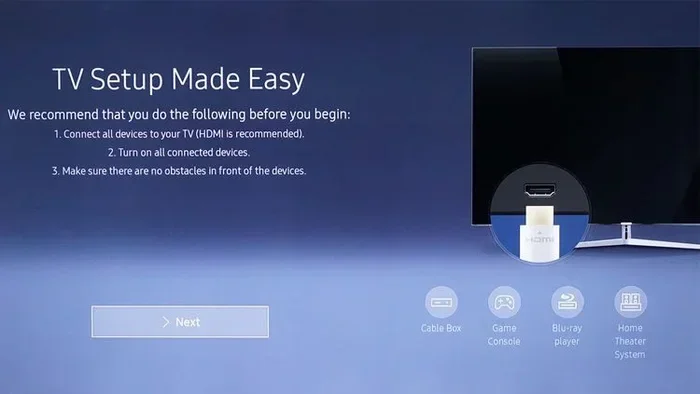
Most modern smart TV setup processes start with connecting to your Wi-Fi network. This is the easiest and most direct method. Almost every smart TV from Samsung, LG, Sony, TCL, and Vizio comes with built-in wireless capability.
Here is how it typically works:
- Press the Home or Settings button on your remote.
- Navigate to Network Settings or Connections.
- Select your Wi-Fi network from the available list.
- Enter your Wi-Fi password using the on-screen keyboard.
- Wait for the TV to connect and confirm the status.
Once connected, your TV stays on the network automatically. You can check the connection strength in the settings menu. Most smart TVs show signal bars just like your phone does. This method works best when your TV is within reasonable range of your router.
Method 2: Streaming Devices
If your TV does not have built-in Wi-Fi or you want more features, streaming devices are an excellent choice. These small boxes or sticks plug into your TV and turn it into a smart TV. They handle all the internet connectivity for TV wirelessly.
Popular options include:
- Amazon Fire TV Stick: Affordable and packed with Amazon features.
- Google Chromecast: Works great with Android devices and Google Home.
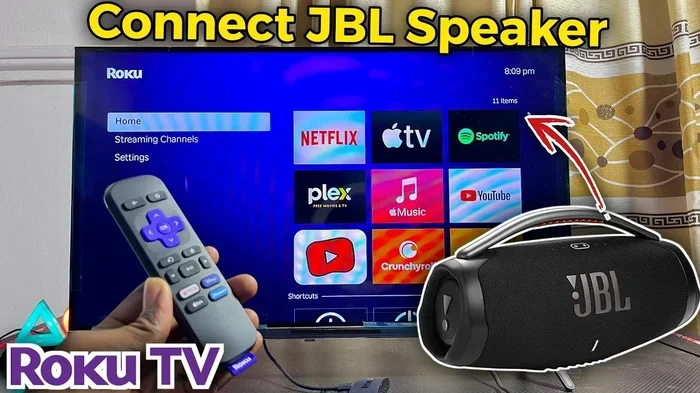
- Roku Streaming Stick: Simple interface with wide app support.
- Apple TV: Premium option for Apple ecosystem users.
Setting up a streaming device is straightforward. You plug it into an HDMI port, connect it to power, and follow the on-screen prompts. The device connects to your Wi-Fi during setup. After that, you download apps and start streaming. Most of these devices support screen mirroring and casting too.
Method 3: Wi-Fi Direct and Screen Mirroring
Wi-Fi Direct lets you connect your phone, tablet, or laptop directly to your TV without a separate network. This is perfect for sharing photos, presentations, or videos from your device to the big screen. Many smart TVs support this feature natively.
Screen mirroring works similarly but may require a third-party app depending on your TV brand. Samsung uses Smart View, LG uses Screen Share, and Sony uses Screen Mirroring. For devices that do not have built-in support, apps like AllConnect or LetsView fill the gap.
Here are quick tips for successful screen mirroring:
- Make sure your device and TV are on the same network.
- Enable screen mirroring in your TV settings first.
- Check that your phone or laptop has the latest software updates.
- Keep both devices close to the router for stable performance.
Method 4: Wireless HDMI Adapters
For older TVs with no smart features, wireless HDMI transmitters are a game-changer. These kits include a transmitter that connects to your source device and a receiver that plugs into your TV. They transmit audio and video wirelessly over your home network.
Wireless HDMI works well for home theater setups, gaming consoles, and laptops. Brands like Actiontec, IOGEAR, and Wireless HD offer reliable options. The setup takes just a few minutes and delivers solid picture quality for most content.
Setting Up Your Smart TV Internet Connection
Once you have chosen your method, the next step is proper setup. A good smart TV internet setup ensures smooth streaming without buffering or disconnects. Let us walk through the key steps for a reliable connection.
Step-by-Step Smart TV Setup
Start by checking your TV specifications. Look at the user manual or the packaging to confirm whether your TV has built-in Wi-Fi. Most TVs made after 2018 include this feature. Then follow these steps:
- Turn on your TV and go to the Settings menu.
- Find the Network or Connection section.
- Select Wireless or Wi-Fi as your connection type.
- Choose your home network from the list.
- Enter your password carefully and confirm.
- Run a connection test if your TV offers this option.
After completing these steps, your TV should be fully online. Test it by opening a streaming app and playing a show. If the video runs smoothly, you are all set. If not, move on to the troubleshooting section below.
Optimizing Your Home Network for TV Streaming
Your home network setup plays a big role in how well your TV performs online. A weak or congested Wi-Fi signal causes buffering, lag, and poor picture quality. Here are some ways to improve your network for TV streaming:
- Place your router in a central location in your home.
- Use the 5GHz band for faster speeds and less interference.
- Reduce the number of devices competing for bandwidth during streaming hours.
- Update your router firmware regularly.
- Consider a mesh Wi-Fi system for larger homes.
These small changes make a big difference. You may also want to set your TV as a priority device in your router settings. Many modern routers allow Quality of Service (QoS) settings that give more bandwidth to specific devices.
Streaming Apps and Content Options
Once your TV is connected, the real fun begins. Streaming apps transform your TV into a personal entertainment hub. Most smart TVs support the major platforms right away. You can download apps directly from your TV app store.
Popular Streaming Services
- Netflix: Movies, series, and documentaries in HD and 4K.
- YouTube: Free videos, music, and premium content.
- Hulu: Current TV shows and original series.
- Disney+: Family-friendly content and Marvel, Star Wars, and Pixar libraries.
- HBO Max: Premium series and blockbuster movies.
- Tubi and Pluto TV: Free ad-supported streaming options.
Many of these apps work even better with casting to TV from your phone. You can start browsing on your phone and send the video to your TV with one tap. This gives you a larger screen and a comfortable viewing experience.
Troubleshooting Wireless TV Connection Issues
Even with the best setup, you might run into problems. Knowing how to fix common issues saves time and frustration. Here are the most frequent TV Wi-Fi troubleshooting scenarios and their solutions.
TV Won Connect to Wi-Fi
This is the most common complaint. Try these fixes:
- Restart your TV and router.
- Double-check your Wi-Fi password for typos.
- Move your TV closer to the router.
- Forget the network and reconnect.
- Check for TV software updates.
Buffering and Slow Streaming
Buffering usually points to a weak internet connection. Try these steps:
- Test your internet speed using a browser on your TV.
- Switch from 2.4GHz to 5GHz on your router.
- Disconnect unused devices from the network.
- Lower the streaming quality temporarily to test stability.
Intermittent Disconnects
If your TV keeps losing connection, the issue may be signal interference. Microwave ovens, baby monitors, and Bluetooth devices can disrupt Wi-Fi. Move your router away from these appliances. You can also try changing the Wi-Fi channel on your router to reduce interference.
When to Use a Wired Connection Instead
Sometimes wireless is just not enough. If you have a wireless display adapter that keeps dropping signals, consider using an Ethernet cable as a backup. Many smart TVs have hidden Ethernet ports. A direct connection guarantees stability for gaming and 4K streaming.
Comparing Connection Methods
Choosing the right method depends on your TV model, budget, and needs. Here is a comparison table to help you decide.
| Method | Best For | Cost | Ease of Setup | Speed |
|---|---|---|---|---|
| Built-in Wi-Fi | Smart TVs (2018+) | Free | Very Easy | Fast |
| Streaming Devices | Any TV with HDMI | $30-$150 | Easy | Fast |
| Wi-Fi Direct | Smart TVs with casting | Free | Easy | Moderate |
| Wireless HDMI | Older non-smart TVs | $50-$150 | Moderate | Good |
Quick Tips for the Best Wireless TV Experience
A few habits go a long way in keeping your wireless TV connection strong and reliable.
- Keep your TV firmware updated: Manufacturers release updates that improve Wi-Fi performance and fix bugs.
- Restart your TV monthly: This clears cache and refreshes network connections.
- Use a strong Wi-Fi password: Protect your network from unauthorized users who slow down your connection.
- Position your router wisely: Walls, floors, and metal objects weaken signals. Place your router in an open area.
- Check your internet plan: For 4K streaming, you need at least 25 Mbps. HD streaming needs around 10 Mbps.
Expert Insights on Wireless TV Connectivity
Industry experts recommend starting with your router placement when setting up any internet TV box or smart TV. A weak signal at the source will cause problems no matter how good your device is. Tech reviewers also suggest investing in a dual-band router that supports both 2.4GHz and 5GHz bands. This gives you flexibility to balance range and speed.
Another pro tip is to dedicate one band for streaming and another for general browsing. This prevents smart home devices and phones from eating your streaming bandwidth. Some routers now feature automatic band steering, which handles this intelligently in the background.
Common Mistakes to Avoid
Avoid these pitfalls when setting up your wireless TV connection:
- Placing the router too far from the TV without a signal booster.
- Ignoring software and firmware updates that fix connectivity bugs.
- Using outdated streaming devices that no longer receive app support.
- Connecting too many devices to one network during peak hours.
- Choosing a cheap streaming stick with limited storage and slow performance.
Conclusion
So, can you connect my TV to the internet wirelessly? Absolutely yes. You have more options than ever to go online without running a single cable. Whether your TV has built-in Wi-Fi, you use a streaming device, or you rely on screen mirroring, the process is designed to be user-friendly. Connect my TV to the internet wirelessly and open up a world of entertainment on demand. Follow the steps in this guide, avoid common mistakes, and optimize your network for the best results. Start streaming today and enjoy a cleaner, smarter, and more flexible viewing experience.
Frequently Asked Questions
Can I connect my TV to Wi-Fi without a smart TV?
Yes, you can. You simply need a streaming device like a Roku, Chromecast, or Amazon Fire Stick. These plug into any TV with an HDMI port and connect to your Wi-Fi during setup. Wireless HDMI transmitters also work for older models without HDMI, using composite or component inputs instead.
What is the best way to connect my TV to the internet wirelessly?
For most modern smart TVs, using the built-in Wi-Fi is the easiest and most cost-effective option. If your TV does not have built-in Wi-Fi, a streaming device like a Chromecast or Fire Stick offers a simple plug-and-play solution. The best method depends on your TV model and budget.
Why does my TV keep disconnecting from Wi-Fi?
Frequent disconnects usually happen because of a weak signal, outdated TV software, or network congestion. Try moving your TV closer to the router, updating your TV firmware, or switching to the 5GHz Wi-Fi band. Restarting both your TV and router often resolves the issue quickly.
Can I use Bluetooth to connect my TV to the internet?
Bluetooth does not provide internet access directly. It can connect accessories like soundbars, game controllers, and keyboards to your TV. For internet connectivity, you need Wi-Fi. However, some Bluetooth adapters can pair with Wi-Fi bridges to enable internet on TVs that lack built-in wireless support.
How fast does my internet need to be for wireless TV streaming?
For HD streaming, you need at least 10 Mbps. For 4K streaming, aim for 25 Mbps or higher. If multiple devices share the same network, you may need even more speed. A stable connection matters just as much as raw speed for smooth playback.
Are wireless HDMI adapters better than streaming devices?
It depends on your needs. Streaming devices like Roku and Chromecast are easier to set up and offer app stores with hundreds of channels. Wireless HDMI adapters are better for mirroring laptops, gaming consoles, or presentations where you need a direct, low-latency connection. Both have their strengths.