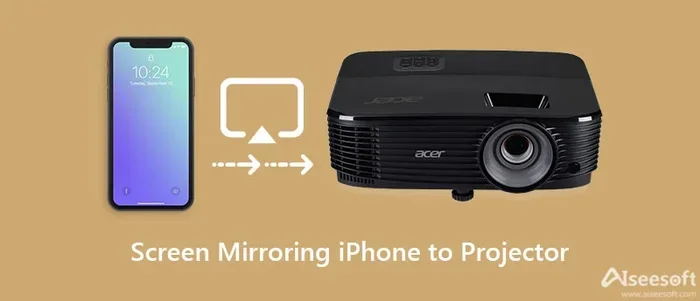
Can I Mirror My Iphone To A Projector Without Any Hassle
Yes, you can mirror your iPhone to a projector without any hassle. Whether you want a wireless connection using AirPlay or a wired setup with an HDMI adapter, this guide covers every method you need. You will learn the best equipment, top apps, and simple fixes for common problems. Screen mirroring your iPhone to a projector opens up big possibilities for movie nights, presentations, and gaming on a huge display.
Have you ever wanted to show something from your iPhone on a big screen? Maybe it is a movie night with friends, a work presentation, or sharing photos at a party. The good news is that you can mirror your iPhone to a projector without any hassle. It is simpler than most people think, and there are several ways to do it.
Whether you prefer going wireless or using a cable, this guide walks you through everything. You will find clear steps, helpful tips, and answers to common questions. By the end, you will feel confident setting up your own iPhone to projector connection in minutes.
Key Takeaways
- Wireless mirroring is easy: Use AirPlay or a compatible app to cast your iPhone screen to a projector without cables.
- Wired connections work too: A Lightning to HDMI adapter gives you a stable, lag-free projection every time.
- Apple TV is a great bridge: It lets you mirror wirelessly to most modern projectors with HDMI input.
- Third-party apps add flexibility: Apps like AirScreen and Reflector help when your projector does not support AirPlay natively.
- Common issues have simple fixes: Most mirroring problems come from Wi-Fi, compatibility, or settings you can adjust quickly.
- Know your equipment: Checking projector inputs and iPhone model compatibility saves time and frustration.
- Quick tips make a big difference: Small tweaks like closing background apps and updating software improve your experience.
📑 Table of Contents
- Why Mirror Your iPhone to a Projector
- What You Need to Mirror iPhone to a Projector
- How to Mirror iPhone to a Projector Wirelessly
- How to Mirror iPhone to a Projector with a Cable
- Best Apps for iPhone Screen Mirroring to Projector
- Common Problems and How to Fix Them
- Tips for the Best Mirroring Experience
- Wireless vs Wired: Which Is Better for You?
- Frequently Asked Questions
- Conclusion
Why Mirror Your iPhone to a Projector
Mirroring your iPhone screen to a projector changes how you share content. A small phone screen just does not compare to a big projection. Here are some great reasons to try it.
Movie Nights Become Better
Streaming a movie on your iPhone is okay. But projecting it on a wall or screen makes it feel like a real theater. You can watch Netflix, YouTube, or any app with a much bigger picture. Friends and family will love the upgrade.
Presentations Look More Professional
If you use your iPhone for work or school, projecting your screen adds a polished touch. You can display slides, documents, or apps directly from your device. It saves time and keeps things looking clean and organized.
Gaming on a Big Screen Is Fun
Mobile games are great, but playing them on a projector takes the fun to the next level. Games look more immersive and exciting when they fill a whole wall. It is a perfect setup for game nights with friends.
Sharing Photos and Videos
Got a trip full of memories? Projecting your photos and videos makes sharing more enjoyable. Everyone can see the pictures clearly without crowding around a tiny screen. It brings people together in a way a phone simply cannot.
What You Need to Mirror iPhone to a Projector
Before you start, you need the right tools. The equipment you need depends on whether you want a wireless or wired connection. Let us look at what works best for each method.
For Wireless Mirroring
Wireless setup is the easiest and most convenient option. Here is what you typically need:
- A projector with Wi-Fi or AirPlay support: Many modern projectors have built-in smart features. Check your projector manual for AirPlay or screen mirroring compatibility.
- An Apple TV (optional but helpful): If your projector has an HDMI port but no Wi-Fi, an Apple TV acts as a bridge. You mirror your iPhone to the Apple TV, and the Apple TV sends the signal to the projector.
- A stable Wi-Fi network: Both your iPhone and the projector (or Apple TV) need to be on the same Wi-Fi network for smooth mirroring.
- A compatible mirroring app: Some projectors need a third-party app like AirScreen or Reflector to accept AirPlay connections.
For Wired Mirroring
A cable connection gives you reliability and no lag. Here is what you need:
- A Lightning to HDMI adapter: This is also called a digital AV adapter. Apple makes an official one, and many third-party options work well too.
- An HDMI cable: You need a standard HDMI cable to connect the adapter to the projector. Most projectors come with one, but you may need to buy one separately.
- A projector with an HDMI input: Nearly all modern projectors have at least one HDMI port. This is the most common and easiest input to use.
How to Mirror iPhone to a Projector Wirelessly
Wireless mirroring is the most popular method. It is clean, simple, and does not require any cables. Here is how to do it step by step.
Step 1: Connect to the Same Wi-Fi Network
Make sure your iPhone and your projector (or Apple TV) are on the same Wi-Fi network. This is the most important step. If they are on different networks, mirroring will not work.
Step 2: Open the Control Center
Swipe down from the top-right corner of your iPhone screen. On older models with a Home button, swipe up from the bottom. This opens your Control Center.
Step 3: Tap Screen Mirroring
Look for the Screen Mirroring icon. It looks like two overlapping rectangles. Tap it, and a list of available devices will appear.
Step 4: Select Your Projector or Apple TV
Choose your projector or Apple TV from the list. If you need a code, enter it on your iPhone. Your screen should now appear on the projector.
Step 5: Start Sharing Content
Open any app on your iPhone. Photos, videos, games, or presentations will now show on the big screen. You can even play audio through the projector’s speakers if it has them.
Quick Tip: If your projector does not show up in the list, restart both devices and make sure they are on the same network. This fixes most wireless mirroring issues.
How to Mirror iPhone to a Projector with a Cable
Sometimes a cable connection is better. It gives you a stable signal with no lag or interruptions. Here is how to set up a wired iPhone to projector connection.
Step 1: Get the Right Adapter
Plug a Lightning to HDMI adapter into the bottom of your iPhone. Make sure the adapter is compatible with your iPhone model. Newer iPhones with USB-C need a USB-C to HDMI adapter instead.
Step 2: Connect the HDMI Cable
Attach one end of the HDMI cable to the adapter and the other end to the projector’s HDMI port. You will hear a click when it connects properly.
Step 3: Switch the Projector Input
Use the projector’s remote or buttons to switch to the correct HDMI input. Most projectors label their inputs as HDMI 1, HDMI 2, and so on. Select the port where you plugged in the cable.
Step 4: Trust the Connection
Your iPhone may ask if you trust the connected device. Tap Trust and enter your passcode if needed. Your iPhone screen should now display on the projector.
Step 5: Adjust the Display Settings
Go to Settings > Display & Brightness on your iPhone. You can adjust the resolution and orientation here. Some projectors work best in landscape mode for videos or portrait mode for photos.
Quick Tip: Keep your iPhone plugged into a charger during long mirroring sessions. Screen projection drains battery faster than normal use.
Best Apps for iPhone Screen Mirroring to Projector
Not all projectors support AirPlay natively. In those cases, a good mirroring app saves the day. Here are some of the best options for iPhone screen mirroring to projector.
AirScreen
AirScreen is a popular app that adds AirPlay support to almost any projector. It works with both wireless and wired setups. The free version covers most basic needs, and the paid version adds extra features.
Reflector
Reflector turns any projector into an AirPlay receiver. It works on Windows, Mac, Android, and Chrome OS. It is a great choice if you want flexibility across different devices and platforms.
Epson iProjection
If you use an Epson projector, this app is a must-have. It lets you mirror your iPhone screen directly to Epson projectors. It also allows you to project documents and images from your phone.
BenQ Projector App
BenQ projectors pair well with their dedicated app. You can control the projector, adjust settings, and mirror your iPhone screen all from one place. It is simple and reliable.
Quick Tip: Always download apps from the official App Store. Third-party apps from unknown sources can cause security issues or poor performance.
Common Problems and How to Fix Them
Even with the simplest setup, you might run into issues. Here are the most common problems people face when trying to mirror iPhone to projector and how to solve them.
No Signal on the Projector
This is the most common issue. First, check that all cables are securely connected. If you are going wireless, confirm both devices are on the same Wi-Fi network. Restarting both devices often fixes this problem immediately.
Lag or Delay During Mirroring
Wireless mirroring can sometimes lag, especially if the Wi-Fi signal is weak. Move closer to your router or switch to a 5GHz network for better speed. A wired connection eliminates lag completely.
Black Screen on the Projector
A black screen usually means the projector is not on the right input. Use the projector remote to cycle through the HDMI inputs. Also, make sure your iPhone is not locked or dimmed during the process.
Audio Does Not Play Through the Projector
Sometimes the video shows but there is no sound. Check your iPhone volume and make sure it is not muted. In some cases, you need to go to Settings > Sounds & Haptics and adjust the output device.
iPhone Does Not Detect the Projector
This happens when the projector is not AirPlay-compatible or the app is not running. Make sure your mirroring app is open and active on the receiving end. Updating both your iPhone software and the app can also help.
Quick Tip: Keep your iPhone and projector firmware updated. Software updates often fix compatibility issues and improve performance.
Tips for the Best Mirroring Experience
Want your screen mirroring to look amazing every time? Follow these simple tips for the best results.
- Use a high-quality HDMI cable: Cheap cables can cause signal drops and poor picture quality. A certified HDMI cable makes a noticeable difference.
- Close background apps on your iPhone: This frees up memory and processing power. Your mirroring will run smoother and faster.
- Turn off auto-lock: Go to Settings > Display & Brightness > Auto-Lock and set it to Never. This prevents your iPhone from sleeping mid-presentation.
- Adjust projector focus and keystone: Before you start mirroring, make sure the projector image is sharp and properly aligned. A blurry image ruins the experience.
- Use a dark room for best picture quality: Projectors work best in dim lighting. A darker room gives you brighter, more vibrant colors on the screen.
- Keep your iPhone cool: Extended mirroring can cause your iPhone to heat up. Take short breaks if you notice it getting warm.
- Test before the big moment: Always do a quick test run before an important presentation or movie night. This gives you time to fix any issues.
Wireless vs Wired: Which Is Better for You?
Both wireless and wired mirroring have their strengths. Here is a quick comparison to help you decide.
| Feature | Wireless Mirroring | Wired Mirroring |
|---|---|---|
| Setup Ease | Very easy, no cables needed | Requires adapter and cable |
| Connection Stability | Depends on Wi-Fi quality | Very stable and reliable |
| Lag or Delay | Slight delay possible | Near zero lag |
| Mobility | Full freedom to move around | Limited by cable length |
| Compatibility | Needs AirPlay or app support | Works with almost any projector |
| Best For | Casual use, movie nights | Presentations, gaming, critical use |
For most everyday uses, wireless mirroring works great. But if you need a perfect, lag-free connection for something important, a wired setup is the way to go. Many people keep both options available and choose based on the situation.
Frequently Asked Questions
Can I mirror my iPhone to any projector?
Most modern projectors can accept an iPhone connection, but the method depends on the projector’s features. Projectors with built-in Wi-Fi and AirPlay support make wireless mirroring easy. For projectors without smart features, you can use an HDMI adapter or a streaming device like Apple TV to bridge the connection.
Do I need an Apple TV to mirror my iPhone to a projector?
No, you do not need an Apple TV if your projector supports AirPlay directly. However, if your projector only has HDMI input and no Wi-Fi, an Apple TV or a similar device acts as a helpful bridge. It receives the AirPlay signal from your iPhone and sends it to the projector through the HDMI cable.
Why is my iPhone screen mirroring lagging?
Lag usually happens because of a weak or congested Wi-Fi network. Try moving closer to your router or switching to a less crowded frequency band. Using a wired HDMI connection eliminates lag completely. Also, closing other apps on your iPhone can improve performance.
Can I mirror my iPhone to a projector without Wi-Fi?
Yes, you can. A wired connection using a Lightning to HDMI adapter does not need Wi-Fi at all. You simply plug the adapter into your iPhone, connect an HDMI cable to the projector, and your screen appears immediately. This is the best option when Wi-Fi is unavailable or unreliable.
What is the best app for mirroring iPhone to projector?
AirScreen and Reflector are two of the most popular and reliable apps. AirScreen is free and works well for basic mirroring needs. Reflector offers more advanced features and works across multiple platforms. If you use a specific brand projector, check for its dedicated app for the best experience.
Will mirroring drain my iPhone battery quickly?
Yes, screen mirroring uses more battery than normal iPhone use. The process requires constant data transmission and screen rendering. To extend battery life, keep your iPhone plugged into a charger during long mirroring sessions. You can also lower your screen brightness on the iPhone to reduce power consumption.
Conclusion
Mirroring your iPhone to a projector is easier than you think, and there is no single right way to do it. Whether you choose a wireless setup with AirPlay or go the wired route with an HDMI adapter, both methods work great. The key is knowing your equipment and picking the right approach for your situation.
Wireless mirroring gives you freedom and convenience. Wired mirroring gives you reliability and zero lag. With the right apps, cables, and a little patience, you can turn any projector into an extension of your iPhone screen.
Now that you know how to mirror your iPhone to a projector without any hassle, it is time to try it. Set up your equipment, follow the steps in this guide, and enjoy your content on a big screen. Once you experience the difference, you will wonder how you ever managed without it.
Start today. Grab your iPhone, find your projector, and give it a try. You will be amazed at how simple and satisfying it can be.