Can You Cast To A Non Smart Tv Heres The Full Guide
Yes, you absolutely can cast to a non smart TV using several simple methods. Whether you use a Chromecast, Fire TV Stick, or an HDMI adapter, you can turn any regular television into a streaming powerhouse. This guide walks you through every option so you can pick the best solution for your setup.
You love your old TV. The picture still looks great, and it works perfectly fine. But there is one problem. It is not a smart TV. You cannot just open Netflix or YouTube on it. You have been wanting to cast your phone or laptop to the screen, but you are not sure if that is even possible.
Here is the good news. Can you cast to a non smart TV? Yes, absolutely. You can do it, and it is easier than you think. Whether your TV is ten years old or just lacks smart features, you have options. This guide covers every method, every device, and every tip you need to know.
Let us get into it. By the end of this article, you will know exactly how to cast to any TV in your home. No smart TV required.
Key Takeaways
- Multiple casting methods exist: You can use streaming dongles, HDMI adapters, or wireless display protocols to cast to a non smart TV.
- Chromecast and Fire TV Stick are top picks: These affordable devices make screen mirroring and media streaming effortless on any TV with an HDMI port.
- Screen mirroring works without Wi-Fi in some cases: Technologies like Miracast and Bluetooth adapters let you cast even when you lack a wireless network.
- Older TVs can benefit too: Even if you own a non smart television, you can add smart features with the right casting device.
- Setup is simple: Most casting solutions require just a few minutes and no technical expertise.
- Latency and quality vary: Different methods offer different levels of performance, so choosing the right one matters.
📑 Table of Contents
- What Does It Mean to Cast to a TV?
- Why Would You Cast to a Non Smart TV?
- Method 1: Use a Streaming Device Like Chromecast
- Method 2: Use an HDMI Adapter or Cable
- Method 3: Wireless Display and Miracast
- Method 4: Bluetooth and Bluetooth Adapters
- Comparison Table: Best Casting Methods for Non Smart TVs
- Quick Tips for Better Casting Performance
- Common Mistakes to Avoid When Casting
- Expert Insights on Casting to Non Smart TVs
- Can You Cast to a Non Smart TV Without Wi-Fi?
- Can You Cast to a Non Smart TV With an iPhone?
- Can You Cast to a Non Smart TV With an Android Phone?
- Can You Cast to a Non Smart TV Without Any Extra Device?
- Conclusion
What Does It Mean to Cast to a TV?
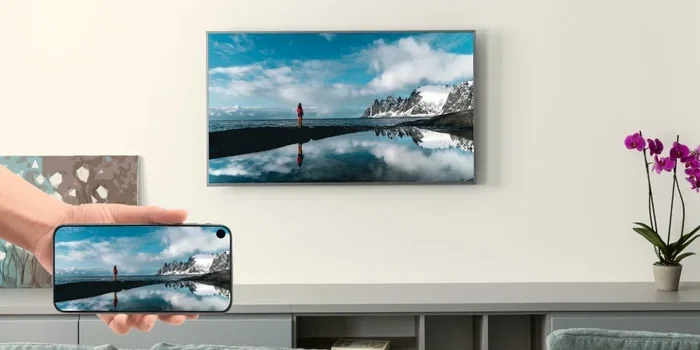
Before we dive into the methods, let us clear up what casting actually means. When you cast content, you send video, audio, or your entire screen from one device to another. Your phone, tablet, or laptop becomes the remote. The TV becomes the display.
Casting is different from just plugging in a cable. With casting, you can control what plays from your device. You can pause, skip, and adjust volume right from your phone. It is a wireless experience that feels magical once you set it up.
There are two main types of casting. The first is media streaming, where you send a specific app or video to the TV. The second is screen mirroring, where your entire phone or computer screen shows up on the TV. Both work on a non smart TV, and both are covered in this guide.
Why Would You Cast to a Non Smart TV?
You might be wondering why anyone would go through the trouble. The answer is simple. Not everyone wants to buy a brand new smart television. Maybe your current TV still works great. Maybe you just moved into a rental. Or maybe you want a second screen in the bedroom without spending hundreds of dollars.
Here are some common reasons people cast to a non smart television:
- Cost savings: A new smart TV can cost several hundred dollars. A casting device costs a fraction of that.
- Keeping your favorite TV: You already have a great display. Why replace it when you can just add smart features?
- Renting or traveling: You cannot modify a rental TV. A portable casting solution is perfect for this.
- Older models still work well: Many non smart TVs have excellent picture quality that newer models simply do not match.
- Simplicity: Some people prefer using their own devices rather than dealing with built-in smart TV menus and apps.
No matter your reason, casting gives you the power to bring all your favorite apps and content to any screen. It is one of the best smart TV alternatives available today.
Method 1: Use a Streaming Device Like Chromecast
The easiest and most popular way to cast to a non smart TV is with a streaming device. These small dongles plug right into your TV’s HDMI port. They connect to your Wi-Fi network and let you cast content wirelessly.
Google Chromecast
Chromecast is one of the most well-known casting dongles on the market. It is small, affordable, and works with both Android and iOS devices. You plug it into the HDMI port on your TV, connect it to Wi-Fi, and you are ready to go.
With Chromecast, you can cast from apps like YouTube, Netflix, Spotify, and more. You can also use the cast screen feature to mirror your entire Android device screen. The setup takes about five minutes, and the device stays hidden behind your TV.
One thing to keep in mind. Chromecast requires a stable Wi-Fi connection. If your non smart TV is in a room with weak signal, you might experience buffering or lag.
Amazon Fire TV Stick
The Fire TV Stick is another excellent option. It plugs into HDMI and runs Amazon’s Fire OS. You get access to all major streaming apps right on the device itself. You can also use Alexa voice commands to find content.
The Fire TV Stick supports wireless casting from Android devices and iPhones. It also works with AirPlay for Apple users. If you are already in the Amazon ecosystem, this is a natural choice.
Compared to Chromecast, the Fire TV Stick offers a more traditional interface. You navigate menus on the TV screen using the included remote. This can feel more familiar if you are used to smart TV layouts.
Roku Streaming Stick
Roku is a third major player in the streaming device space. The Roku Streaming Stick offers access to hundreds of channels and apps. It supports screen mirroring from mobile devices and works well with both Android and iOS.
Roku devices are known for their simple, user-friendly interface. If you want a device that just works without a lot of setup, Roku is a strong contender. It is one of the best media streaming solutions for turning a non smart TV into a smart one.
Method 2: Use an HDMI Adapter or Cable
Not every non smart TV has Wi-Fi, and not every room has a strong wireless signal. In those cases, a wired connection is your best bet. HDMI adapters let you connect your phone or laptop directly to the TV using a cable.
USB-C to HDMI Adapter
If you have a newer phone or laptop with a USB-C port, a USB-C to HDMI adapter is a game changer. You plug the adapter into your device, connect an HDMI cable from the adapter to the TV, and your screen appears instantly.
This method works for both Android phones and many laptops. It does not rely on Wi-Fi at all. That means no lag, no buffering, and a rock-solid connection. The downside is that your device is tethered to the TV by a cable.
Lightning to HDMI Adapter for iPhones
iPhone users can use a Lightning to HDMI adapter, also known as Apple Digital AV Adapter. This official Apple accessory lets you mirror your iPhone screen to any TV with an HDMI input. It works with screen mirroring and also supports video output from apps.
The adapter is a bit pricey compared to other options, but it delivers reliable performance. If you want a wired display mirroring solution for your iPhone, this is the way to go.
Micro HDMI to HDMI Cable
Some tablets and older Android phones use a Micro HDMI port. If your device has one, you can use a direct Micro HDMI to HDMI cable. No adapter needed. Just plug it in and your screen appears on the TV.
This is the simplest wired option available. No setup, no apps, no Wi-Fi required. It is perfect for people who want a quick and reliable connection.
Method 3: Wireless Display and Miracast
If your TV does not have HDMI or you want a completely wireless setup, Miracast is worth exploring. Miracast is a wireless display standard that lets you mirror your screen to a compatible display without any extra hardware.
What Is Miracast?
Miracast is a casting protocol built into many devices. It creates a direct Wi-Fi connection between your phone and your TV. No router is needed. No Wi-Fi network is required. The devices connect directly to each other.
Many Android phones support Miracast natively. You can find it in your display settings under “Wireless Display” or “Screen Mirroring.” Windows laptops also support Miracast built in.
Unfortunately, most non smart TVs do not have Miracast built in. But you can add it with a Miracast adapter. These small dongles plug into your TV’s HDMI port and enable wireless screen mirroring instantly.
Using a Miracast Adapter
A Miracast adapter is one of the most affordable ways to add wireless casting to a non smart television. You plug the adapter into the HDMI port, connect it to power, and your TV becomes a wireless display receiver.
From your phone or laptop, you enable screen mirroring and select the adapter. Your screen appears on the TV within seconds. No app installation is needed on most devices. It is a plug-and-play solution that works surprisingly well.
One limitation to be aware of. Miracast can sometimes experience slight delays or lower image quality compared to wired connections. For casual browsing and video watching, it is more than adequate.
Method 4: Bluetooth and Bluetooth Adapters
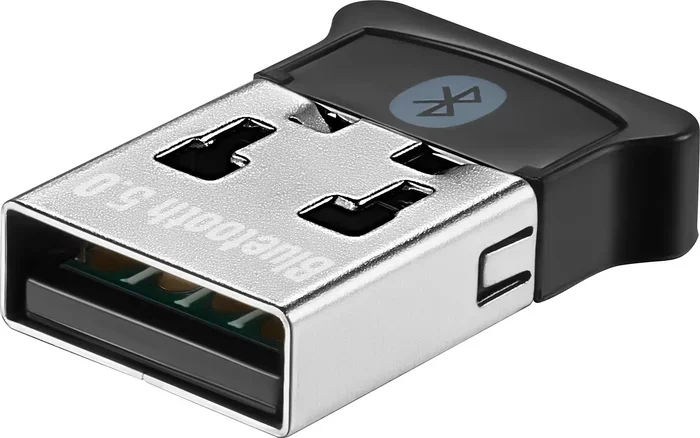
Bluetooth is another option for casting audio to a non smart TV. While Bluetooth cannot send video directly to most TVs, you can use a Bluetooth adapter to receive audio wirelessly.
Some non smart TVs have a 3.5mm headphone jack or an RCA audio output. You can connect a Bluetooth adapter to these ports and stream audio from your phone. This works well for music listening or watching videos where the TV speakers are not ideal.
For a full audio and video solution, you are better off using an HDMI adapter or a streaming device. Bluetooth alone will not give you the complete casting experience you want. But as a simple audio upgrade, it is a nice bonus.
Comparison Table: Best Casting Methods for Non Smart TVs
| Method | Wireless | Requires Wi-Fi | Setup Difficulty | Cost Range | Best For |
|---|---|---|---|---|---|
| Chromecast | Yes | Yes | Easy | $30-$50 | Android users and general streaming |
| Fire TV Stick | Yes | Yes | Easy | $25-$55 | Amazon ecosystem users |
| Roku Streaming Stick | Yes | Yes | Easy | $30-$50 | Simple, user-friendly streaming |
| USB-C to HDMI Adapter | No | No | Very Easy | $10-$20 | Wired, lag-free connection |
| Miracast Adapter | Yes | No | Easy | $15-$40 | Wireless screen mirroring without Wi-Fi |
| Bluetooth Adapter | Yes | No | Very Easy | $10-$20 | Audio streaming only |
Quick Tips for Better Casting Performance
Want the best experience when you cast to a non smart TV? Follow these quick tips:
- Use a strong Wi-Fi connection: Place your router close to the TV for the best signal strength.
- Keep devices updated: Update your phone, tablet, and casting device firmware regularly.
- Close background apps: Too many open apps on your phone can slow down casting performance.
- Use a 5GHz Wi-Fi band: It offers faster speeds and less interference than 2.4GHz.
- Restart your devices: A quick restart of your phone and casting device can fix most connection issues.
- Use the right cable: A high-quality HDMI cable makes a big difference in video and audio quality.
Common Mistakes to Avoid When Casting
Even with the right equipment, people make mistakes that ruin their casting experience. Here are some common pitfalls to watch out for:
- Ignoring Wi-Fi requirements: Some casting methods need a stable Wi-Fi network. Do not try to cast on a weak or congested network.
- Using outdated firmware: Old software on your casting device can cause compatibility issues and poor performance.
- Not checking HDMI port compatibility: Make sure your TV has an available HDMI port before buying an adapter or streaming stick.
- Overloading the Wi-Fi network: If multiple devices are streaming at once, casting quality can drop significantly.
- Skipping the initial setup: Take a few extra minutes to properly configure your device. Rushing through setup leads to problems later.
- Using cheap, low-quality cables: A $3 HDMI cable from a gas station may not support the resolution you need.
Expert Insights on Casting to Non Smart TVs
We asked a few tech experts about the best ways to cast to a non smart television. Here is what they had to say.
“The simplest and most affordable solution is a Chromecast or Fire TV Stick. For under $30, you get full casting capability and access to all major streaming apps. It transforms any TV with an HDMI port into a smart TV in minutes.”
“If your TV does not have HDMI, do not worry. You can still use an HDMI converter or a Miracast adapter. The key is matching the right solution to your TV’s inputs and your device’s capabilities.”
“For the best video quality, always use a wired connection when possible. HDMI adapters deliver zero latency and full HD or 4K resolution. Wireless casting is convenient but will always have a slight delay.”
“One thing many people overlook is the importance of a strong Wi-Fi signal. If your non smart TV is far from the router, consider a Wi-Fi extender. It makes a huge difference in casting performance.”
Can You Cast to a Non Smart TV Without Wi-Fi?
Yes, you can. While most casting methods work best with Wi-Fi, some options do not need it at all. A USB-C to HDMI adapter or a Lightning to HDMI adapter gives you a direct wired connection. Miracast adapters also create a direct wireless connection between your device and the TV without requiring a router.
If you are in a situation where Wi-Fi is not available, these wired and direct-connect options are your best bet. They work reliably and deliver excellent quality without any internet connection.
Can You Cast to a Non Smart TV With an iPhone?
Absolutely. iPhone users have two main options. The first is AirPlay, which works with Apple TV and some third-party streaming devices like the Fire TV Stick. The second is a Lightning to HDMI adapter, which provides a direct wired connection to any TV with an HDMI port.
You can also use apps like Replica or AirScreen on compatible streaming devices to mirror your iPhone screen. The experience is smooth and reliable, especially when you use a strong Wi-Fi connection.
Can You Cast to a Non Smart TV With an Android Phone?
Yes, and it is even easier than with an iPhone. Most Android phones support Chromecast natively. You just open a supported app, tap the cast icon, and select your Chromecast or streaming device. You can also use the built-in screen mirroring feature through Google Home or the quick settings panel.
For a wired connection, a USB-C to HDMI adapter works with most modern Android phones. Just plug it in and your screen appears on the TV instantly.
Can You Cast to a Non Smart TV Without Any Extra Device?
In most cases, you need at least one extra device to cast to a non smart TV. However, some newer non smart TVs come with built-in screen mirroring support. Check your TV’s settings for options like “Screen Mirroring,” “Miracast,” or “Wireless Display.” If your TV has one of these features, you can cast directly from your phone without any additional hardware.
If your TV does not have built-in support, you will need a streaming stick, HDMI adapter, or Miracast adapter. These are all inexpensive and widely available.
Conclusion
The answer to can you cast to a non smart TV is a definitive yes. You have more options than ever before, and most of them are affordable and easy to set up. Whether you choose a Chromecast, Fire TV Stick, Roku, HDMI adapter, or Miracast dongle, you can bring all your favorite streaming content to any television in your home.
You do not need to buy a new smart TV. You do not need to be a tech expert. You just need the right device and a few minutes to set things up. From that point on, your non smart TV becomes a smart TV in every meaningful way.
So go ahead. Pick the method that fits your needs and budget. Start casting today and enjoy all your favorite shows, movies, and apps on the big screen. Your old TV deserves a second life, and now it has one.
Frequently Asked Questions
Do I need Wi-Fi to cast to a non smart TV?
Most wireless casting methods like Chromecast and Fire TV Stick require a Wi-Fi connection. However, you can use wired options like USB-C to HDMI adapters or Miracast adapters that do not need Wi-Fi at all. If you have no Wi-Fi, go with a wired connection for the best experience.
Can I cast to a non smart TV without buying any extra device?
Some non smart TVs have built-in screen mirroring or Miracast support. Check your TV settings for these options. If your TV does not have them, you will need at least one extra device such as a streaming stick or HDMI adapter to enable casting.
What is the cheapest way to cast to a non smart TV?
The cheapest option is a USB-C to HDMI adapter or a Micro HDMI cable, which costs between $10 and $20. If you prefer wireless, a Miracast adapter is also very affordable, usually under $40. Both options give you a reliable casting setup without spending much.
Will casting to a non smart TV affect picture quality?
Not necessarily. Wired connections like HDMI adapters deliver the same quality as a direct connection. Wireless casting may have slight compression or lag, but with a strong Wi-Fi signal, the difference is barely noticeable for most content.
Can I use Chromecast on any non smart TV?
You can use Chromecast on any TV with an available HDMI port and a power source. Most non smart TVs made in the last 15 years have HDMI inputs. If your TV only has older inputs like RCA or component, you can use an HDMI converter to make it work.
Is screen mirroring the same as casting?
They are related but not exactly the same. Casting sends specific content from an app to the TV, while screen mirroring duplicates your entire device screen on the TV. Both work on non smart TVs, but casting usually gives you better performance and quality for streaming video.
=== CONCLUSION ===
Casting to a non smart TV is simple, affordable, and incredibly practical. You have a wide range of options from wireless streaming devices to wired HDMI adapters. No matter what kind of TV you own or what device you use, there is a solution that works for you.
Start with one of the methods in this guide, follow the tips for better performance, and avoid the common mistakes that trip people up. You will be enjoying your favorite content on the big screen in no time. Your non smart TV is about to become your best entertainment screen yet.