Can You Connect To Echo Dot Via Bluetooth Easy Steps
Yes, you can connect to Echo Dot via Bluetooth, and it’s simpler than you think. Can You Connect To Echo Dot Via Bluetooth with just a few taps or a voice command. This guide walks you through the Bluetooth pairing process, troubleshooting tips, and the best Bluetooth speakers to use. Whether you want to stream music, take calls, or boost your audio, Echo Dot Bluetooth makes it possible.
Can You Connect To Echo Dot Via Bluetooth? Absolutely! The Echo Dot is a tiny smart speaker packed with Alexa, and adding Bluetooth opens up a world of wireless audio. You can pair your phone, tablet, or laptop to the Echo Dot and play music, podcasts, or audiobooks through its speaker. Echo Dot Bluetooth works with nearly every modern device, making it a versatile hub for your home audio. In this article, you’ll discover the exact steps to connect a Bluetooth device to Echo Dot, how to troubleshoot if it won’t pair, and which Bluetooth speakers work best.
Many people wonder about Bluetooth connectivity Echo Dot because they want to use the Echo Dot as a wireless speaker. Maybe you want to listen to Spotify on a bigger speaker or take a call through the Echo Dot. Whatever your reason, the process is simple. I’ll guide you through every step, from the first pairing to advanced tips. You’ll learn how to use Alexa Bluetooth connection features, fix common problems, and get the best sound quality. Let’s dive in and make your Echo Dot work exactly how you want.
By the end of this guide, you’ll know everything about Echo Dot Bluetooth pairing. You’ll understand the settings, the common pitfalls, and the best devices to connect. The goal is to give you a smooth, hassle-free experience. So, grab your Echo Dot and your phone, and let’s get started. This guide covers all generations of Echo Dot, so the steps apply whether you have the 3rd, 4th, or 5th generation.
Key Takeaways
- Echo Dot supports Bluetooth: You can pair any Bluetooth device, from phones to speakers, for wireless audio.
- Pairing is easy: Just enable Bluetooth on your phone, put Echo Dot in pairing mode, and select it from the list.
- Troubleshooting is straightforward: Reset Bluetooth, update firmware, and check distance to fix most connection issues.
- Use the best Bluetooth speakers: Pair a compatible Bluetooth speaker with Echo Dot for richer sound.
- Voice commands work: Say “Alexa, pair my Bluetooth device” to start the process hands-free.
- Avoid common mistakes: Don’t skip the pairing code, keep devices close, and turn off Bluetooth on other devices to reduce interference.
📑 Table of Contents
- Can You Connect To Echo Dot Via Bluetooth? Here’s How It Works
- Easy Steps to Pair a Bluetooth Device with Echo Dot
- Troubleshooting: Echo Dot Bluetooth Connection Issues
- Best Bluetooth Speakers to Pair with Echo Dot
- Using Bluetooth for Music, Calls, and More with Alexa
- Expert Tips and Common Mistakes to Avoid
- Final Thoughts on Echo Dot Bluetooth
Can You Connect To Echo Dot Via Bluetooth? Here’s How It Works
The short answer is yes. Can You Connect To Echo Dot Via Bluetooth with any device that supports Bluetooth. Echo Dot uses standard Bluetooth technology to communicate with other devices. It can act as a Bluetooth speaker, receiving audio from your phone or computer. It can also act as a Bluetooth source, sending audio to a Bluetooth speaker or headphones. This dual role makes the Echo Dot very flexible.
What Bluetooth Modes Does Echo Dot Support?
Echo Dot supports two main Bluetooth modes. The first is the Bluetooth speaker mode, where the Echo Dot receives audio from another device. The second is the Bluetooth source mode, where the Echo Dot sends audio to another Bluetooth speaker. Not all Echo Dot models support both modes equally. Newer models, like the Echo Dot 5th generation, have improved Bluetooth range and stability. They also support Bluetooth multipoint, which lets you connect two devices at once. This means you can stream music from your phone while still receiving notifications from your tablet.
Which Echo Dot Generations Support Bluetooth?
Every Echo Dot from the 1st generation onward includes Bluetooth. However, the performance improves with each generation. The Echo Dot 3rd and 4th generations are the most popular for Bluetooth use. They offer a strong signal and clear audio. The 5th generation adds even better range and lower latency. If you have an older Echo Dot, you can still use Bluetooth, but you might notice a shorter range or occasional drops. Updating the device firmware can help improve Bluetooth connectivity Echo Dot on older models.
Easy Steps to Pair a Bluetooth Device with Echo Dot
Pairing a Bluetooth device to your Echo Dot takes less than a minute. Follow these simple steps to get your Bluetooth pairing Echo Dot working right away. I’ll walk you through the process using both the Alexa app and voice commands.
Step 1: Turn on Your Echo Dot and Put It in Pairing Mode
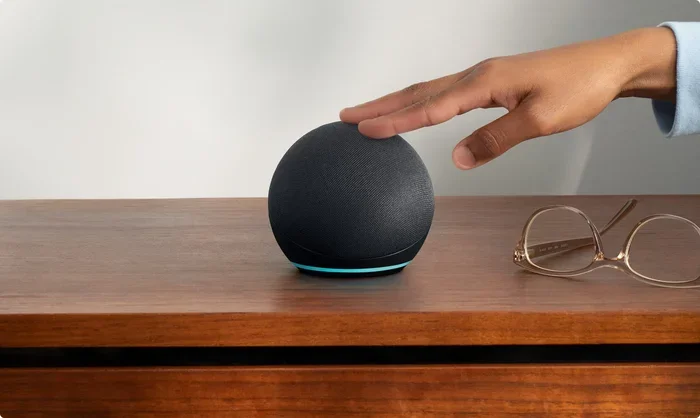
First, make sure your Echo Dot is powered on and connected to Wi-Fi. To put it in pairing mode, you can use a voice command. Just say, “Alexa, pair my Bluetooth device.” You’ll hear a tone, and the light ring on the Echo Dot will turn blue, then spin. This spinning blue light means the Echo Dot is ready to be found. If you prefer the app method, open the Alexa app on your phone. Go to Devices, select your Echo Dot, and tap the Bluetooth icon. Then choose “Pair a New Device.”
Step 2: Enable Bluetooth on Your Phone or Tablet
On your phone or tablet, go to the Settings menu. Turn on Bluetooth if it’s not already on. Your device will start scanning for nearby Bluetooth devices. Make sure your phone is within a few feet of the Echo Dot for the best results. This is a key part of Bluetooth device Echo Dot setup. If your phone doesn’t find the Echo Dot, move closer and try again.
Step 3: Select Echo Dot from the Device List
Look at the list of available Bluetooth devices on your phone. You should see a name like “Echo Dot-XXX” or “Alexa.” Tap on that name to initiate the connection. Your phone will send a pairing request to the Echo Dot. On the Echo Dot, you’ll hear a short tone, and the light ring will turn solid blue. This confirms the Echo Dot Bluetooth pairing is successful.
Step 4: Confirm the Pairing Code
For security, some devices show a pairing code. Check the screen of your phone and the Echo Dot. The code should match. If it does, tap “Pair” or “Connect” on your phone. Once paired, the Echo Dot will appear as a connected Bluetooth device. You can now play music or any audio from your phone, and it will come out of the Echo Dot. Can You Connect To Echo Dot Via Bluetooth this easily, and yes, you can.
Using Voice Commands to Pair
One of the easiest ways to start Alexa Bluetooth connection is by voice. Just say, “Alexa, pair my Bluetooth device.” Alexa will put the Echo Dot into pairing mode. Then, go to your phone and select the Echo Dot from the Bluetooth list. This hands-free method is perfect when your hands are busy. You can also use voice commands to connect to a specific device. Say, “Alexa, connect to [device name].” This works if you’ve paired the device before.
Troubleshooting: Echo Dot Bluetooth Connection Issues
Sometimes, Echo Dot Bluetooth not working can be frustrating. You might hear static, experience drops in audio, or find that the Echo Dot won’t pair at all. Don’t worry. Most Bluetooth issues are easy to fix. Here are the most common problems and their solutions.
Why Won’t My Echo Dot Find My Bluetooth Device?
If your Echo Dot can’t find your phone, the first thing to check is the distance. Bluetooth has a range of about 30 feet. Walls and other electronics can weaken the signal. Move your phone closer to the Echo Dot and try again. Also, make sure your phone’s Bluetooth is turned on and not connected to another device. Another tip is to toggle Bluetooth off and on on your phone. This simple refresh often fixes the issue. If the Echo Dot still doesn’t appear, restart the Echo Dot by unplugging it for 30 seconds.
Echo Dot Bluetooth Not Working After Pairing
If the Echo Dot was paired but the audio cuts out or sounds choppy, you might have interference. Wi-Fi routers, microwaves, and even USB 3.0 ports can disrupt Bluetooth signals. Move the Echo Dot away from these devices. Also, check if other Bluetooth devices are connected to the Echo Dot. The Echo Dot can only maintain one active Bluetooth connection at a time (unless it supports multipoint). If another device is connected, disconnect it first. You can also try unpairing and then re-pairing the devices to refresh the Bluetooth connectivity Echo Dot.
How to Reset Bluetooth on Echo Dot
A soft reset often fixes Bluetooth glitches. Say, “Alexa, disconnect Bluetooth” to unpair the current device. Then say, “Alexa, pair my Bluetooth device” to start fresh. If that doesn’t work, you can factory reset the Echo Dot’s Bluetooth settings. Go to the Alexa app, select your Echo Dot, and choose “Factory Reset.” This will erase all Bluetooth pairings. You’ll need to re-pair your devices, but it clears out any stubborn errors. After resetting, follow the pairing steps again to restore your Echo Dot Bluetooth pairing.
- Not putting the Echo Dot in pairing mode before scanning.
- Keeping the Bluetooth device too far away during the initial pairing.
- Ignoring the pairing code confirmation on both devices.
- Trying to pair while the Echo Dot is connected to another device.
- Forgetting to turn on Bluetooth on the source device.
Best Bluetooth Speakers to Pair with Echo Dot
While the Echo Dot has a built-in speaker, many users want richer sound. Pairing a Bluetooth speaker Echo Dot is a great way to upgrade your audio. You can use the Echo Dot as a Bluetooth source and send music to a larger speaker. Here are some of the best options for wireless audio Echo Dot setups.
| Speaker | Bluetooth Range | Battery Life | Price Range | Best For |
|---|---|---|---|---|
| JBL Flip 6 | 33 feet | 12 hours | $100-$130 | Portable outdoor use |
| Ultimate Ears Hyperboom | 50 feet | 24 hours | $300-$400 | Deep bass and large rooms |
| Sony SRS-XB43 | 30 feet | 24 hours | $150-$180 | Extra bass and party lights |
| Bose SoundLink Flex | 30 feet | 12 hours | $150-$180 | Durability and clear sound |
| Anker Soundcore Motion+ | 30 feet | 12 hours | $80-$100 | Budget-friendly high quality |
When choosing a Bluetooth speaker with Echo Dot, consider the range and battery life. The JBL Flip 6 is a popular choice because it’s compact and delivers great sound. The Ultimate Ears Hyperboom is perfect for big gatherings. All these speakers connect easily to the Echo Dot via Bluetooth. Just put the speaker in pairing mode and follow the steps above. You can also use the Echo Dot as a Bluetooth speaker for your TV, sending the audio to a Bluetooth speaker in another room.
How to Use Echo Dot as a Bluetooth Source
To send audio from Echo Dot to a Bluetooth speaker, you need to put the Echo Dot in Bluetooth source mode. Say, “Alexa, Bluetooth disconnect” to disconnect the current connection. Then say, “Alexa, Bluetooth connect.” The Echo Dot will start searching for a Bluetooth speaker. On your speaker, enable pairing mode. Once the Echo Dot finds the speaker, it will connect automatically. This is a great way to use Echo Dot Bluetooth to extend your audio setup without extra cables.
Using Bluetooth for Music, Calls, and More with Alexa
Can You Connect To Echo Dot Via Bluetooth for more than just music? Yes! The Echo Dot’s Bluetooth capabilities go beyond streaming songs. You can use it for phone calls, video calls, and even as a speaker for your TV or laptop. This flexibility makes the Echo Dot a powerful tool in your home.
Stream Music from Any App
Once your phone is paired to the Echo Dot via Bluetooth, any audio from your phone plays through the Echo Dot. Open Spotify, Apple Music, YouTube, or a podcast app. The sound will come out of the Echo Dot. You can control the volume with your phone or by voice. Just say, “Alexa, turn up the volume.” This is a simple way to share music with friends in a room. The Bluetooth audio streaming Echo Dot quality is clear and loud enough for most spaces.
Make and Receive Phone Calls
You can also use the Echo Dot for calls. If you pair your phone via Bluetooth, you can take calls through the Echo Dot. When a call comes in, the Echo Dot will ring. Say “Answer” to pick up the call. The person on the other end will hear your voice through the Echo Dot. This works well for speakerphone mode. Just remember that the call audio streams over the Bluetooth connection, so keep your phone nearby.
Use Echo Dot as a Bluetooth Speaker for TV or Laptop
Want better sound from your TV or laptop? Pair the Echo Dot with your TV using Bluetooth. Note that not all TVs support Bluetooth natively. You might need a Bluetooth transmitter plugged into the TV’s audio out port. Once paired, the TV audio streams to the Echo Dot. This is a cheap way to add sound to a TV without buying a soundbar. For a laptop, the process is the same. Go to Bluetooth settings, pair the Echo Dot, and select it as the audio output device. You’ll get wireless audio Echo Dot from your laptop in seconds.
Bluetooth Multipoint: Connect Two Devices at Once
Some newer Echo Dot models support Bluetooth multipoint. This feature allows the Echo Dot to stay connected to two Bluetooth devices simultaneously. You can stream music from your phone while your tablet sends notifications. The Echo Dot will pause the music when a call comes in on the tablet. This is a game-changer for busy households. Check your Echo Dot model to see if it supports multipoint. The Echo Dot 4th and 5th generations have this feature.
Expert Tips and Common Mistakes to Avoid
To get the most out of your Echo Dot Bluetooth setup, follow these expert tips. Avoiding common mistakes will save you time and frustration. I’ve seen many people struggle with Bluetooth, and a few simple adjustments make a huge difference.
Expert Tips for Better Bluetooth Performance
- Keep devices close: Bluetooth works best within 15 to 30 feet. Walls and furniture can weaken the signal. Place the Echo Dot in a central location for the best Bluetooth range Echo Dot.
- Reduce interference: Move the Echo Dot away from Wi-Fi routers, microwaves, and USB 3.0 hubs. These devices operate on the same 2.4 GHz frequency and can cause dropouts.
- Use the Alexa app to manage connections: The app shows all paired Bluetooth devices. You can unpair old devices to free up slots and improve stability.
- Turn off Bluetooth on unused devices: If your phone, tablet, and laptop all have Bluetooth on, they might fight for the connection. Turn off Bluetooth on devices you’re not using.
- Update firmware regularly: Amazon releases updates that improve Bluetooth connectivity Echo Dot. Check for updates in the Alexa app under Device Settings.
Common Mistakes That Break Your Bluetooth Connection
- Skipping the pairing code: Always confirm the pairing code on both devices. This ensures a secure connection and prevents unauthorized devices from connecting.
- Pairing in a crowded Bluetooth environment: If you’re at a coffee shop or office with many Bluetooth devices, the Echo Dot might connect to the wrong one. Pair in a quiet environment first.
- Forgetting to unpair before moving: If you take your phone to another room, the Echo Dot might try to hold the connection and drop audio. Unpair or turn off Bluetooth on your phone when you leave the room.
- Using an old Bluetooth version: Very old Bluetooth devices (like Bluetooth 2.0) may not work well with Echo Dot. Ensure your source device supports Bluetooth 4.0 or higher for the best experience.
- Ignoring the Echo Dot’s audio output setting: In the Alexa app, check that the audio output is set to Bluetooth. Sometimes the Echo Dot defaults to its built-in speaker even after pairing.
Final Thoughts on Echo Dot Bluetooth
Can You Connect To Echo Dot Via Bluetooth easily? Yes, and it’s one of the best features of the Echo Dot. Whether you want to stream music, take calls, or use the Echo Dot as a Bluetooth source for a bigger speaker, the process is simple and reliable. I’ve covered the easy pairing steps, the troubleshooting fixes, and the best Bluetooth speakers to pair with your Echo Dot. You now have the knowledge to set up a strong wireless audio Echo Dot system in your home.
Remember to keep your devices updated, reduce interference, and use the Alexa app to manage your connections. With these tips, your Echo Dot Bluetooth will work flawlessly every time. Start by pairing your phone today and enjoy the freedom of wireless audio. The Echo Dot becomes even more powerful when you unlock its Bluetooth potential. Happy listening!
Frequently Asked Questions
Can You Connect To Echo Dot Via Bluetooth without the Alexa app?
Yes, you can. You can use voice commands to put the Echo Dot in pairing mode. Just say “Alexa, pair my Bluetooth device.” Then, go to your phone’s Bluetooth settings and select the Echo Dot. The app is optional, but it makes managing paired devices easier.
How many Bluetooth devices can Echo Dot remember?
Echo Dot can store multiple paired Bluetooth devices. You can pair up to 10 devices, but it can only maintain an active connection with one at a time (unless it supports multipoint). To switch devices, say “Alexa, disconnect Bluetooth” and then “Alexa, connect to [device name].”
Why does my Echo Dot Bluetooth keep disconnecting?
Common reasons include distance, interference from Wi-Fi routers, and outdated firmware. Move the Echo Dot closer to the source device and reduce the number of active Bluetooth devices nearby. Also, check for Echo Dot software updates in the Alexa app to fix Bluetooth connectivity Echo Dot issues.
Can I use Echo Dot as a Bluetooth speaker for my TV?
Yes, you can. Put the Echo Dot in Bluetooth source mode and pair it with a Bluetooth transmitter connected to your TV. The TV audio will stream to the Echo Dot. This works well for adding sound to a TV without a soundbar. Just ensure the Bluetooth transmitter supports the audio codec your TV uses.
What is Bluetooth multipoint on Echo Dot?
Bluetooth multipoint allows the Echo Dot to stay connected to two Bluetooth devices at once. You can stream music from your phone while receiving notifications from your tablet. The Echo Dot 4th and 5th generations support this feature. It is very useful for households with multiple devices.
How do I unpair a Bluetooth device from Echo Dot?
You can unpair by saying “Alexa, disconnect Bluetooth.” To remove a device from the list, open the Alexa app, go to Devices, select your Echo Dot, tap Bluetooth, and choose the device you want to unpair. Then tap “Forget Device.” This clears the pairing and frees up a slot for a new connection.