Are Usb C And Thunderbolt The Same What You Need To Know
USB C and Thunderbolt are not the same thing. While they share the same connector shape, Thunderbolt is a much faster protocol that uses the USB C port. If you want the best speeds for data, video, and charging, you need to know which one you are buying. This guide breaks it all down in simple terms so you never buy the wrong cable again.
This is a comprehensive guide about Are Usb C And Thunderbolt The Same.
Key Takeaways
- USB C is a connector type: It describes the shape of the plug, not the speed or capability of the connection.
- Thunderbolt is a protocol: It uses the USB C connector but offers much faster data and display performance.
- Not all USB C ports support Thunderbolt: You must check your device specifications carefully before assuming compatibility.
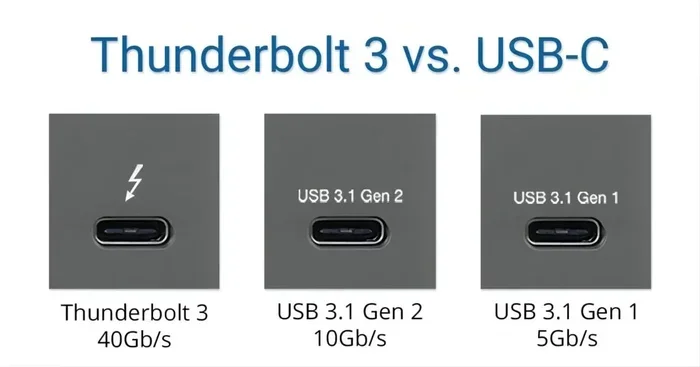
- Thunderbolt 3 and 4 offer up to 40Gbps speeds: Standard USB C typically maxes out at 10Gbps or less.
- Thunderbolt cables cost more: They deliver superior performance but are not always necessary for everyday tasks.
- Check the lightning bolt icon: This symbol on your device or cable confirms Thunderbolt support.
- Backward compatibility exists: Thunderbolt works with USB C devices, but you will not get Thunderbolt speeds from a standard USB C cable.
[FEATURED_IMAGE_PLACEHOLDER]
Are USB C and Thunderbolt the Same? Here Is the Truth
Let us clear this up right away. USB C and Thunderbolt are not the same. They look similar, and they often live inside the same port. But they do very different jobs. Think of USB C as the shape of a door and Thunderbolt as a high speed highway that runs through that door. You can walk through any door, but only some doors lead to the express lane.
People get confused because both use the same small, oval shaped connector. You plug one in, and it works. But the experience changes a lot depending on whether your port supports Thunderbolt 3, Thunderbolt 4, or just basic USB C. The difference matters when you are moving large files, connecting external monitors, or charging your laptop quickly.
This article will walk you through everything you need to know. We will compare speeds, explain compatibility, and help you pick the right cable for your needs. By the end, you will never mix these up again.
Inside your computer, you will find various ports and components. If you want to learn more about the physical parts inside your machine, check out our guide on the 5 Components That Are Found On The Motherboard to understand how ports fit into the bigger picture.
What Is USB C?
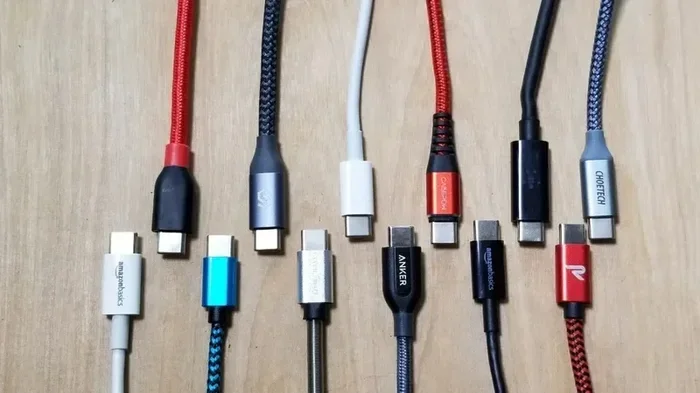
USB C stands for Universal Serial Bus Type C. It is a connector standard. That is it. It tells you the shape and size of the plug. It does not tell you how fast data moves or how much power it can carry.
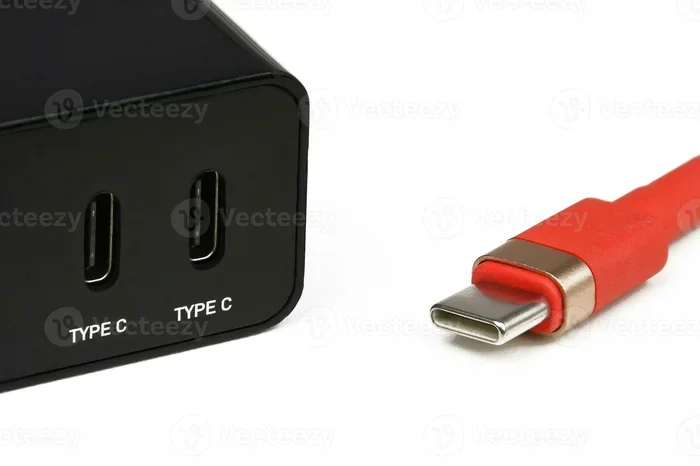
The USB C connector is small and reversible. You can flip it either way when plugging it in. This alone made it a huge upgrade over older USB ports. You no longer flip the cable three times trying to get the right orientation.
What Makes USB C Special
USB C has become the universal connector on most modern devices. Laptops, phones, tablets, and even gaming consoles now use it. Here is what makes it stand out:
- Reversible design: Plug it in either direction with no frustration.
- Compact size: Smaller than older USB connectors, perfect for thin devices.
- Power delivery: USB C can carry up to 100 watts of power through USB Power Delivery.
- Data transfer: Standard USB C supports speeds up to 10Gbps with USB 3.1 or USB 3.2.
- Video output: Some USB C ports support DisplayPort or HDMI Alt Mode for external monitors.
However, not every USB C port is created equal. A basic USB C port on a budget device may only support 5Gbps or even 480Mbps. The capabilities depend on the controller chip inside the device, not the connector itself.
Common Devices With USB C
You will find USB C ports on a wide range of gear. Android smartphones like Samsung Galaxy and Google Pixel use it. Apple switched entirely to USB C with the MacBook line. Many modern tablets, headphones, and portable hard drives also rely on USB C connectivity. Even some gaming controllers and e-readers now use this compact connector.
What Is Thunderbolt?
Thunderbolt is a completely different beast. It is a high speed protocol developed by Intel in partnership with Apple. Thunderbolt uses the USB C connector, but it packs a much more powerful engine underneath the hood.
Think of Thunderbolt as a Swiss Army knife of connectivity. It combines data transfer, video output, and power delivery into one single cable. And it does all of this at incredibly fast speeds.
The Evolution of Thunderbolt
Thunderbolt has gone through several versions. Each one brought faster speeds and better capabilities:
- Thunderbolt 1 (2011): Introduced the original protocol with 10Gbps speeds. Used a Mini DisplayPort connector.
- Thunderbolt 2 (2013): Doubled the bandwidth to 20Gbps. Still used the Mini DisplayPort shape.
- Thunderbolt 3 (2015): Made the big switch to the USB C connector. Offered 40Gbps speeds and revolutionized docking stations.
- Thunderbolt 4 (2020): Maintained 40Gbps speeds but added stricter compatibility and security requirements.
- Thunderbolt 5 (2024): The newest version pushes up to 80Gbps and 120Gbps with optimized cables.
Today, Thunderbolt 3 and Thunderbolt 4 are the most common versions you will encounter. Thunderbolt 5 is still rolling out on newer high end laptops and motherboards.
What Thunderbolt Can Do That USB C Cannot
Thunderbolt gives you capabilities that standard USB C simply cannot match. Here are the key advantages:
- 40Gbps data transfer: Move a 4K video file in seconds, not minutes.
- Dual 4K display support: Connect two external monitors at high resolution.
- PCIe tunneling: Connect external GPUs and high speed storage enclosures.
- Power delivery up to 100W: Charge your laptop while transferring data and driving displays.
- Daisy chaining: Connect up to six devices in a chain from a single port.
These features make Thunderbolt ideal for professionals. Video editors, musicians, and engineers rely on Thunderbolt docking stations and external drives every day.
Key Differences Between USB C and Thunderbolt
Now that you understand what each one is, let us compare them side by side. The table below makes the differences crystal clear.
| Feature | USB C | Thunderbolt 3/4 |
|---|---|---|
| Connector Shape | Small oval | Small oval (same shape) |
| Max Data Speed | 10Gbps (USB 3.2) | 40Gbps |
| Video Output | Single 4K or dual 1080p | Dual 4K or single 8K |
| Power Delivery | Up to 100W | Up to 100W |
| Daisy Chaining | No | Yes (up to 6 devices) |
| PCIe Tunneling | No | Yes |
| Cable Cost | $5 to $20 | $15 to $50+ |
| Identification | USB symbol | Lightning bolt icon |
| Backward Compatible | N/A | Yes with USB C devices |
The most important thing to remember is that Thunderbolt uses the USB C connector. This means a Thunderbolt cable works in any USB C port. But a standard USB C cable will not give you Thunderbolt speeds. You get what the port supports.
Speed Comparison in Real Life
Let us talk about what these speeds mean for you. A standard USB C cable with USB 3.2 Gen 2 transfers data at 10Gbps. That is fast enough to move a 100GB file in about 25 seconds. A Thunderbolt 3 or 4 cable does the same transfer in roughly 6 seconds. That is a huge difference when you are working with large video projects or massive photo libraries.
If you are curious about how these high speed connections impact overall computer performance, you might enjoy our article on 10 Ways Computers Are Used In Medicine to see how powerful connectivity transforms critical fields like healthcare.
How to Tell If Your Port Supports Thunderbolt
This is the question most people get wrong. You cannot tell just by looking at the port. Both USB C and Thunderbolt use the exact same shape. But there are a few ways to find out for sure.
Look for the Lightning Bolt Icon
The easiest way to identify a Thunderbolt port is the small lightning bolt symbol next to or near the port. This icon appears on laptops, desktops, and docking stations. If you see it, your port supports Thunderbolt. If you do not see it, it is likely just a standard USB C port.
Check Your Device Specifications
Go to the manufacturer website and look up your exact model number. The specifications page will clearly state whether the port supports Thunderbolt and which version. Do not rely on marketing materials alone. Some brands use confusing naming that makes standard USB C sound like Thunderbolt.
Use System Information Tools
On Windows, open Device Manager and look at your USB controllers. On Mac, click the Apple menu and choose About This Mac, then System Report. Both operating systems will tell you exactly what your ports support.
Quick Tips for Identifying Your Ports
- Always look for the lightning bolt symbol first.
- Check the product manual or spec sheet online.
- Do not trust the port color alone, as it varies by manufacturer.
- When in doubt, contact the manufacturer directly.
Common Mistakes People Make
Even tech savvy people make mistakes with USB C and Thunderbolt. Here are the most common errors and how to avoid them.
Assuming All USB C Cables Are Thunderbolt Cables
This is the number one mistake. You buy a USB C cable and assume it will deliver Thunderbolt speeds. It will not. Thunderbolt cables have special chips and wiring inside them. They are certified to handle the higher bandwidth. Using a standard cable with a Thunderbolt port will limit your speeds to standard USB C levels.
Buying Cheap Cables for High Speed Transfers
You get what you pay for with cables. A $3 USB C cable from a gas station might charge your phone fine, but it probably cannot handle 40Gbps data transfer. Invest in certified cables from reputable brands. Look for cables that are Thunderbolt certified or USB IF certified.
Ignoring Cable Length Limitations
Thunderbolt cables have strict length rules. Active Thunderbolt cables can reach up to 2 meters at full speed. Passive cables longer than 0.5 meters may not maintain 40Gbps speeds. If you need a longer run, buy an active Thunderbolt cable or use a docking station as a middle point.
Not Checking Display Compatibility
Some people buy a Thunderbolt dock expecting to drive two 4K monitors. But their laptop only supports one external display over USB C. Always check your device specs for display output capabilities before buying accessories.
Expert Insights: Which One Do You Actually Need?
Here is the honest answer. Most everyday users do not need Thunderbolt. If you are browsing the web, checking email, streaming videos, and doing basic office work, a standard USB C connection handles everything you need. A good USB C cable and a simple charging block will serve you well.
However, if you fall into any of these categories, Thunderbolt is worth the investment:
- Video editors: You need fast transfer speeds for large raw video files.
- Photographers: Moving thousands of high resolution photos quickly matters.
- Music producers: Low latency audio interfaces rely on Thunderbolt performance.
- Multi monitor users: Driving two or more external displays requires Thunderbolt bandwidth.
- Gamers: External GPU enclosures work best with Thunderbolt for maximum performance.
- Professionals on the go: A single Thunderbolt docking station replaces multiple cables and adapters.
For the average person, a quality USB C cable with USB Power Delivery and 10Gbps data speeds is more than enough. Save your money and skip Thunderbolt unless you specifically need its advanced features.
Final Thoughts: Making the Right Choice
So are USB C and Thunderbolt the same? No, they are not. They share a connector shape, but they offer very different performance levels. USB C is the universal standard that works on almost everything. Thunderbolt is the premium option built for speed and versatility.
The next time you shop for cables, docks, or adapters, take a moment to check what your device actually supports. Look for the lightning bolt icon. Read the specifications. And never assume that a USB C port means Thunderbolt speeds.
Getting this right can save you money, frustration, and wasted time. A simple five minute check before you buy can make a huge difference in your daily workflow. Whether you are a casual user or a professional, understanding the difference between USB C and Thunderbolt puts you in control of your setup.
Stay curious, keep learning, and always check your ports before plugging in. Your devices will thank you for it.
FAQs
Can I use a Thunderbolt cable with a USB C port?
Yes, you can. Thunderbolt cables are backward compatible with standard USB C ports. However, you will only get USB C speeds, not Thunderbolt speeds. The connection will work, but it will not unlock the full performance that Thunderbolt offers.
Is Thunderbolt 4 better than Thunderbolt 3?
Thunderbolt 4 and Thunderbolt 3 both offer 40Gbps speeds. But Thunderbolt 4 has stricter requirements for compatibility, security, and features. Thunderbolt 4 guarantees support for dual 4K displays and wake from sleep features. It is essentially a more refined and reliable version of Thunderbolt 3.
Do I need a Thunderbolt cable to connect an external monitor?
Not necessarily. Many external monitors work perfectly fine with a standard USB C cable that supports DisplayPort Alt Mode. You only need Thunderbolt if you are connecting multiple high resolution displays or using advanced docking stations that require the extra bandwidth.
Why are Thunderbolt cables more expensive?
Thunderbolt cables contain specialized chips and higher quality wiring to handle 40Gbps speeds. The manufacturing process is more complex. These cables also undergo strict certification testing, which adds to the cost. You are paying for performance and reliability.
Can I charge my laptop with a USB C cable?
Yes, most modern laptops charge through USB C using USB Power Delivery. You do not need Thunderbolt for charging. Just make sure your cable supports the wattage your laptop requires. Most laptops need at least 65W, while some gaming models require 100W or more.
How do I know if my USB C cable supports fast charging?
Look for cables rated for USB Power Delivery and check the amperage and wattage ratings. A cable that supports 3A or 5A at 20V will deliver fast charging. Cheaper cables often only support 2A or less, which will charge your device much more slowly.
Frequently Asked Questions
What is Are Usb C And Thunderbolt The Same?
Are Usb C And Thunderbolt The Same is an important topic with many practical applications.