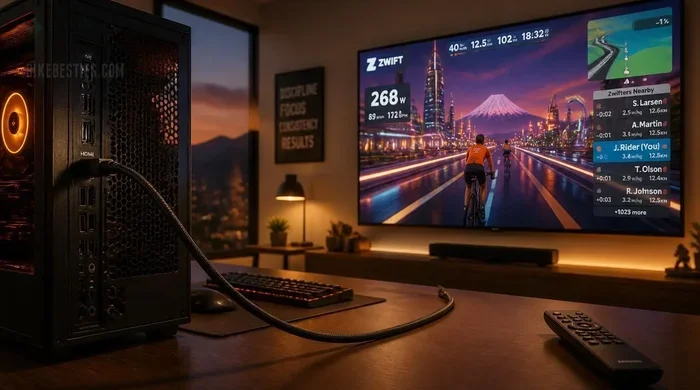
Can I Add HDMI To My PC And See A Huge Display Upgrade
Yes, you can add HDMI to your PC even if it lacks a native HDMI port. Whether you use a desktop or a laptop, adding an HDMI connection is simple and affordable. You just need the right adapter, cable, or graphics card upgrade. This guide walks you through every option so you can enjoy a huge display upgrade in minutes.
Have you ever looked at your PC and thought, “I wish I could just plug in an HDMI cable and get a better screen?” You are not alone. Many people buy a new monitor or TV only to realize their computer does not have the right port. The good news is that adding HDMI to your PC is absolutely possible. And the result? A huge display upgrade that makes everything look sharper, bigger, and better.
Whether you are working from home, gaming, or just watching movies, HDMI makes a world of difference. It carries both video and audio through one single cable. No more tangled wires or missing connections. In this guide, we will show you exactly how to add HDMI to your PC, what options you have, and how to pick the best one for your needs. Let us get into it.
Key Takeaways
- HDMI is easy to add: You can use adapters, USB-to-HDMI converters, or upgrade your graphics card to get HDMI output on any PC.
- Multiple options exist: From budget-friendly adapters to premium graphics cards, there is a solution for every PC setup and budget.
- Check your ports first: Before buying anything, look at what video outputs your PC already has to find the best matching solution.
- Display quality improves: HDMI delivers high-definition video and audio through a single cable, making it superior to many older connection types.
- Setup is simple: Most HDMI additions require no technical skills — just plug in, install drivers if needed, and adjust display settings.
- You can link to our snipping tool guide: Once your display is set up, you can use tools like Add Snipping Tool Tool Bar to capture your upgraded screen easily.
📑 Table of Contents
- What Is HDMI and Why Does It Matter for Your PC?
- How to Check if Your PC Already Supports HDMI
- How to Add HDMI to Your PC: Step-by-Step Options
- Choosing the Right HDMI Cable and Adapter
- Setting Up Your HDMI Display on Windows and Mac
- Common HDMI Problems and How to Fix Them
- Expert Insights: Making the Most of Your HDMI Setup
- Is Adding HDMI Worth It?
- Conclusion
What Is HDMI and Why Does It Matter for Your PC?
HDMI stands for High-Definition Multimedia Interface. It is a standard connection that sends both high-quality video and sound from one device to another. Think of it as a one-stop shop for your audio and video needs. Instead of using separate cables for sound and picture, HDMI handles it all in one go.
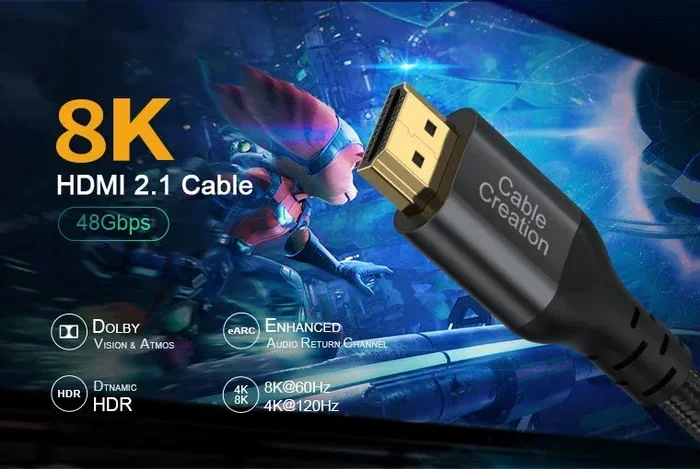
Most modern TVs, monitors, and projectors use HDMI. It supports high resolutions like 4K and even 8K on newer versions. The latest HDMI 2.1 standard can handle refresh rates up to 120Hz or higher. This makes it perfect for gaming and fast-moving content.
Here is why HDMI matters for your PC setup:
- Single cable solution: One cable handles both video and audio.
- High resolution support: HDMI supports 1080p, 4K, and beyond depending on the version.
- Widely compatible: Almost every modern TV and monitor has HDMI ports.
- Easy to use: Plug and play with no extra software in most cases.
- Better picture quality: HDMI delivers a cleaner, sharper image than older connection types like VGA or composite cables.
If your PC does not have an HDMI port, do not worry. There are several ways to add one. Let us explore them.
How to Check if Your PC Already Supports HDMI
Before you buy anything, it is smart to check what your PC already has. Many newer computers come with HDMI built right in. You just need to look at the back of your desktop or the sides of your laptop.
Here is how to check:
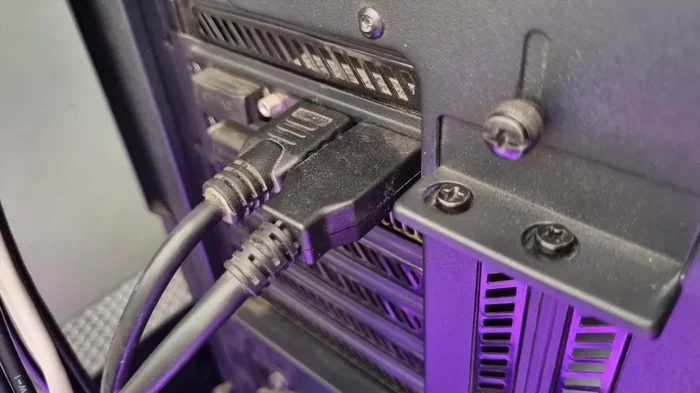
- Look at the back of your desktop tower. You are searching for a rectangular port with 19 pins inside. It is flat and slightly tapered. If you see it, your PC has native HDMI output.
- Check the sides of your laptop. Laptops often have HDMI on one of the sides. Look for the same rectangular shape.
- Open your display settings. On Windows, right-click the desktop and select Display Settings. Scroll down to see what display connections are detected.
- Check your graphics card. If you have a dedicated GPU from NVIDIA or AMD, it likely has HDMI ports on the back of your PC.
If you find an HDMI port already, you are in great shape. Just grab an HDMI cable and connect your monitor or TV. If you do not see any HDMI port, keep reading. We have plenty of solutions for you.
How to Add HDMI to Your PC: Step-by-Step Options
There are several ways to add HDMI output to a PC that lacks it. The right choice depends on your budget, your PC model, and what you want to achieve. Let us break down each option so you can pick the best one.
Option 1: Use a USB-to-HDMI Adapter
This is the most popular and affordable way to add HDMI to a PC. A USB-to-HDMI adapter plugs into any available USB port on your computer. It then acts as a video output device, letting you connect an HDMI cable to your monitor or TV.
Here is how to set it up:
- Plug the USB adapter into an available USB port on your PC.
- Wait for Windows to recognize the device. You may need to install drivers from the manufacturer’s website.
- Connect an HDMI cable from the adapter to your monitor or TV.
- Go to Display Settings and choose how you want to use the new display.
USB-to-HDMI adapters work well for basic tasks like office work, browsing, and watching videos. They are plug-and-play in most cases. Just make sure you buy one that matches your USB type — USB-A or USB-C.
Option 2: Upgrade Your Graphics Card
If you have a desktop PC and want the best possible HDMI experience, upgrading your graphics card is a great move. Modern GPUs from NVIDIA and AMD come with multiple HDMI ports built in. This gives you a direct, high-quality HDMI connection with no adapters needed.
Here is what to consider:
- Check your power supply: Make sure it can handle the power requirements of a new graphics card.
- Check your case size: Make sure the card will physically fit inside your PC tower.
- Match the port: Choose a card with HDMI 2.0 or higher for 4K support.
- Install the drivers: After installing the card, download the latest drivers from the manufacturer.
A graphics card upgrade does more than just add HDMI. It also boosts your overall PC performance for gaming, video editing, and other demanding tasks.
Option 3: Use a DisplayPort-to-HDMI Adapter
Many PCs have DisplayPort outputs but not HDMI. A DisplayPort-to-HDMI adapter solves this problem easily. You plug one end into your PC’s DisplayPort and the other end accepts an HDMI cable.
This option is great because DisplayPort supports high resolutions and refresh rates. The adapter passes these signals through to your HDMI monitor without any loss in quality. It is a simple and reliable solution.
Option 4: Use an HDMI Splitter or Hub
An HDMI splitter or USB hub with HDMI output can also add HDMI capability to your PC. These devices connect to your PC through USB and provide an HDMI output port. They work well if you need to connect multiple displays or want a simple all-in-one solution.
Some hubs even add extra USB ports, SD card readers, and Ethernet connections. They are a great all-around upgrade for laptops that lack ports.
Choosing the Right HDMI Cable and Adapter
Not all HDMI cables are the same. Choosing the right one can make a big difference in your display quality. Here is a quick guide to help you decide.
Understanding HDMI Cable Versions
HDMI cables come in different versions. Each version supports different features. Here is a simple comparison:
| HDMI Version | Max Resolution | Max Refresh Rate | Best For |
|---|---|---|---|
| HDMI 1.4 | 4K @ 30Hz | 30Hz | Basic 4K video |
| HDMI 2.0 | 4K @ 60Hz | 60Hz | Gaming and smooth video |
| HDMI 2.1 | 8K @ 60Hz or 4K @ 120Hz | 120Hz+ | High-end gaming and future-proofing |
For most users, an HDMI 2.0 cable is more than enough. It supports 4K at 60Hz, which is perfect for work and entertainment. If you are a serious gamer, look for HDMI 2.1 cables to get the smoothest experience.
Quick Tips for Buying the Right Adapter
- Match your port types: Check what video outputs your PC has before buying an adapter.
- Go for branded products: Cheap no-name adapters can cause signal issues and lag.
- Check for audio support: Some adapters only carry video. Make sure yours handles audio too.
- Read reviews: Other users can tell you if an adapter works well with their setup.
- Consider cable length: A longer cable gives you more flexibility in placing your monitor.
Once you have the right adapter and cable, your setup will feel like a whole new PC. The image will be crisp, the colors will be vibrant, and the audio will come through clearly.
Setting Up Your HDMI Display on Windows and Mac
After you connect your HDMI cable, you need to configure your display settings. This process is different depending on whether you use Windows or macOS.
Setting Up HDMI on Windows
Windows makes it easy to add a new HDMI display. Once you plug in the cable, follow these steps:
- Right-click on your desktop and select Display Settings.
- Scroll down to the Multiple Displays section.
- Click the Detect button if your new display does not appear automatically.
- Choose how you want to use the display — Duplicate, Extend, or Show Only on the Second Screen.
- Click Apply and then Keep Changes.
If the display looks blurry, go to Display Settings and adjust the resolution. Set it to the native resolution of your monitor for the sharpest picture. You can also adjust the scale and layout to make text and icons easier to read.
Setting Up HDMI on Mac
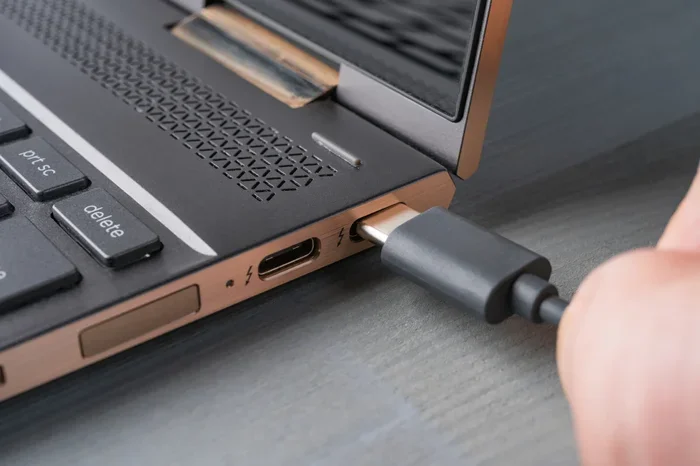
Mac users can also add HDMI displays with the right adapter. Apple MacBooks often use USB-C or Thunderbolt ports, so you will need a USB-C to HDMI adapter or a Thunderbolt to HDMI adapter.
After connecting:
- Go to System Settings and click Displays.
- Your external display should appear automatically.
- Choose whether to mirror or extend your desktop.
- Adjust the resolution and refresh rate to match your monitor.
Macs support HDMI output through adapters very well. You will get excellent picture quality and smooth performance for everyday tasks and creative work.
Common HDMI Problems and How to Fix Them
Sometimes things do not go smoothly when you add HDMI to your PC. Here are the most common issues and simple fixes.
No Signal on the HDMI Display
If your monitor or TV shows no signal, try these steps:
- Check that the HDMI cable is firmly connected on both ends.
- Make sure your PC is outputting to the correct display in Display Settings.
- Try a different HDMI cable. Cables can fail over time.
- Restart your PC and the display device.
- Update your graphics card drivers through Device Manager.
No Audio Through HDMI
HDMI carries audio, but sometimes Windows does not send sound through it. To fix this:
- Right-click the speaker icon in your taskbar.
- Select Open Sound Settings.
- Choose your HDMI display as the output device.
- If it does not appear, go to Sound Control Panel and set it as the default.
Flickering or Poor Image Quality
A flickering screen usually means a cable or adapter issue. Try these fixes:
- Replace the HDMI cable with a higher-quality one.
- Lower the resolution or refresh rate in Display Settings.
- Try a different USB port if you are using a USB-to-HDMI adapter.
- Make sure your adapter drivers are up to date.
Most HDMI problems have simple solutions. Do not give up if things do not work perfectly the first time. A little troubleshooting goes a long way.
Expert Insights: Making the Most of Your HDMI Setup
Adding HDMI to your PC opens up a world of possibilities. But to really get the most out of it, consider these expert tips.
First, always match your cable to your display’s capabilities. If you have a 4K monitor, use an HDMI 2.0 or 2.1 cable to unlock the full resolution. A cheaper HDMI 1.4 cable will limit you to 4K at 30Hz, which feels choppy for everyday use.
Second, keep your display drivers updated. Graphics card manufacturers release regular updates that improve HDMI compatibility and performance. A simple driver update can fix many display issues.
Third, think about your workspace setup. Position your monitor at eye level and at the right distance to reduce eye strain. A bigger HDMI display can make a huge difference in comfort during long work sessions.
Finally, do not forget about audio. HDMI gives you a seamless audio-video experience. Make sure your sound settings are configured correctly so you get both video and audio through the same cable. Once everything is set up, you can even use handy tools to capture and organize your screen content — for example, you can refer to our guide on Add Snipping Tool Tool Bar to quickly capture screenshots from your new HDMI display, or check out the same guide again for tips on managing your screen captures efficiently.
With the right setup, your PC will feel like a completely new machine. The image will be sharper, the colors will pop, and the experience will be smoother than ever before.
Is Adding HDMI Worth It?
The short answer is yes. Adding HDMI to your PC is one of the easiest and most affordable upgrades you can make. A single adapter costs as little as $10 to $20. A new graphics card costs more but delivers a massive boost in performance and connectivity.
Think about how much you use your PC every day. If you spend hours working, gaming, or streaming content, a better display setup will improve your experience significantly. HDMI gives you a clean, reliable connection with support for the latest display technologies.
Whether you choose a USB-to-HDMI adapter for a quick fix or invest in a graphics card upgrade for long-term performance, you will enjoy a huge display upgrade. The process is straightforward, the cost is low, and the results are immediate.
Conclusion
So, can you add HDMI to your PC? Absolutely. You have multiple options ranging from simple adapters to full graphics card upgrades. The key is to identify what your PC currently has and choose the right solution for your needs.
Adding HDMI transforms your PC experience. You get better picture quality, simpler connections, and a more versatile setup. Whether you are connecting to a big TV in the living room or a 4K monitor at your desk, HDMI makes it all possible.
Start by checking your PC’s ports. Then pick the option that fits your budget and skill level. Follow the setup steps in this guide, and you will be enjoying your new HDMI display in no time. The upgrade is worth every penny, and once you make the switch, you will wonder how you ever lived without it.
Take action today. Grab the right adapter or cable, connect your display, and experience the difference for yourself. Your PC is ready for a huge display upgrade — all it needs is HDMI.
Frequently Asked Questions
Can I add HDMI to a laptop that only has USB-C ports?
Yes, absolutely. You can use a USB-C to HDMI adapter or a USB-C docking station with HDMI output. These devices plug directly into your laptop’s USB-C port and provide a full HDMI output for connecting monitors and TVs. Most options are plug-and-play and do not require any extra software.
Do I need to install drivers for a USB-to-HDMI adapter?
In most cases, Windows will recognize the adapter automatically. However, some adapters require you to download and install drivers from the manufacturer’s website. It is always a good idea to check the product manual or the manufacturer’s support page for driver instructions before setting up your display.
Can I use HDMI to connect my PC to a TV for screen mirroring?
Yes, HDMI is perfect for mirroring your PC screen to a TV. Simply connect an HDMI cable from your PC’s output to the TV’s HDMI input. Then go to your display settings and choose to duplicate or extend your display. This works great for presentations, movie nights, or extending your workspace.
What is the difference between HDMI and DisplayPort for PC use?
Both HDMI and DisplayPort carry high-quality video and audio. HDMI is more common on TVs and consumer monitors, while DisplayPort is often found on PC monitors and graphics cards. DisplayPort tends to support higher refresh rates at 4K resolution, making it popular for gaming. You can use adapters to convert between the two formats easily.
Will adding HDMI slow down my PC’s performance?
No, adding HDMI will not slow down your PC. Using an adapter or converter adds a very small amount of processing overhead, but it is negligible for everyday tasks. If you are using a USB-to-HDMI adapter for basic office work or media consumption, you will not notice any performance difference at all.
Can I connect multiple HDMI displays to my PC?
Yes, you can connect multiple HDMI displays. If your PC has limited HDMI ports, you can use a USB-to-HDMI adapter for each additional monitor. Windows supports multi-monitor setups natively, allowing you to extend your desktop across several screens. Just make sure your graphics card or adapter can handle the resolution and refresh rate of all connected displays.