Can I Connect A Monitor Via Usb C Or Hdmi Full Guide
You can absolutely connect a monitor via USB C or HDMI, and both options offer great performance for most setups. USB C provides versatility with video, data, and power delivery through a single cable, while HDMI remains a reliable universal standard for audio and video. This full guide covers everything you need to know to choose the right connection and get your external display running smoothly.
So you want to know if you can connect a monitor via USB C or HDMI. The short answer is yes, you absolutely can. Both connection types work great for hooking up an external display to your laptop, desktop, or even your tablet. But the details matter a lot, and that is exactly what this guide covers.
Whether you are setting up a home office, upgrading your workspace, or just trying to get a second screen going, understanding your connection options makes all the difference. In this full guide, we walk you through everything you need to know about connecting a monitor via USB C or HDMI. You will learn how each port works, which cables to use, and how to avoid common setup mistakes.
We also compare USB C and HDMI side by side so you can make the best choice for your setup. By the end, you will feel confident picking the right cable and getting your external display up and running in minutes.
Key Takeaways
- USB C and HDMI both work: You can connect a monitor via USB C or HDMI depending on your devices and needs.
- USB C offers more versatility: It carries video, data, and power through one cable, making it ideal for clean desk setups.
- HDMI is universally compatible: Almost every monitor and laptop supports HDMI, making it a reliable fallback option.
- Check your port capabilities: Not all USB C ports support video output. Look for USB C Alt Mode or Thunderbolt support.
- Use the right cable: A high-speed HDMI cable or a quality USB C cable ensures the best resolution and refresh rate.
- Adapters solve compatibility issues: USB C to HDMI adapters are affordable and widely available for mixed setups.
- Thunderbolt 3 and 4 are the gold standard: They offer the highest bandwidth for 4K and even 8K external displays.
📑 Table of Contents
Understanding Your Connection Options
Before you grab any cable, it helps to understand what you are working with. Not all USB C ports are the same. And not all HDMI ports support the same features. Let us break down the basics so you know exactly what your device can do.
What Is USB C?
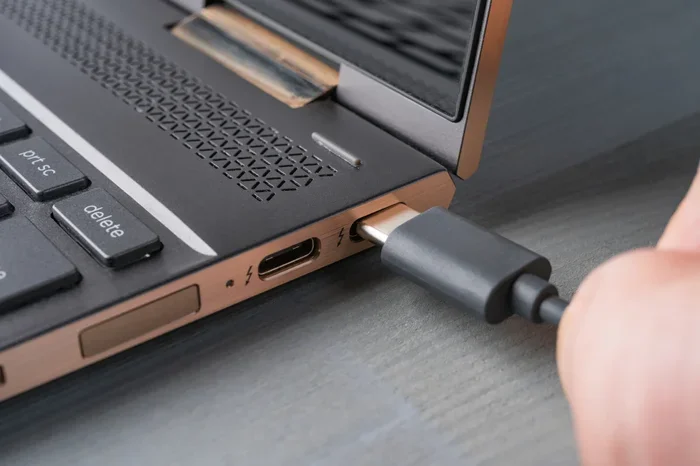
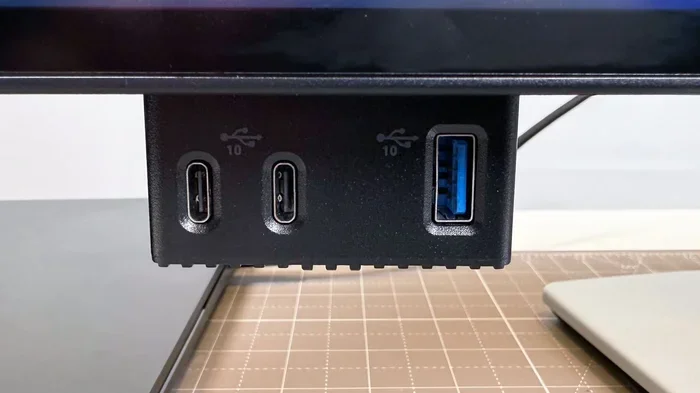
USB C is a small, reversible connector that has become the standard on most modern laptops and tablets. One of the biggest advantages of USB C is that it can carry data, power, and video signals all through a single cable. This makes it incredibly convenient for a clean, clutter-free desk setup.
However, not every USB C port supports video output. Some ports only handle charging and data transfer. To output video, your device needs USB C Alt Mode or a Thunderbolt connection. Both of these technologies allow the USB C port to send a video signal to an external monitor. Thunderbolt 3 and Thunderbolt 4 are the most capable versions, offering up to 40Gbps of bandwidth for stunning 4K resolution and even 8K displays.
What Is HDMI?
HDMI has been around for a long time and remains one of the most reliable ways to connect a display. It is found on monitors, TVs, laptops, and desktop computers. HDMI cables carry both audio and video through a single cable, which is a huge plus for entertainment setups and external display use.
There are different versions of HDMI, including HDMI 1.4, HDMI 2.0, and HDMI 2.1. The version you have determines your resolution support and refresh rate. For example, HDMI 2.0 supports 4K at 60Hz, while HDMI 2.1 can handle 4K at 120Hz or even higher. If you have a gaming monitor or a high-performance setup, checking your HDMI version is essential.
How To Connect A Monitor Via USB C
Connecting a monitor through USB C is straightforward once you know what to look for. Here is a step-by-step look at the process for connecting a monitor via USB C or HDMI using the USB C route.
Check If Your Device Supports Video Output
First, check your laptop or computer specs. Look for terms like “USB C with DisplayPort Alt Mode” or “Thunderbolt 3” or “Thunderbolt 4.” These terms confirm that your USB C port can send video to an external display.
If you are not sure, check the manufacturer website or your device manual. Most modern laptops from Dell, HP, Lenovo, and Apple support video output over USB C. But older or budget models might not. You can also look for a little lightning bolt or display icon next to the USB C port on your device, which indicates video support.
Choose the Right Cable or Adapter
Once you confirm your port supports video, you need the right cable. You can use a direct USB C to USB C cable if your monitor has a USB C input. Many modern monitors do, especially those designed for laptop screen extension and dual monitor setups.
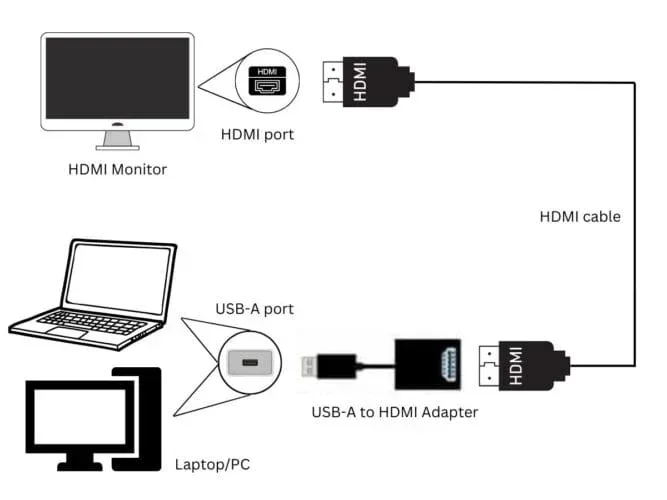
If your monitor only has HDMI input, you will need a USB C to HDMI adapter or a cable with a USB C connector on one end and an HDMI connector on the other. These adapters are affordable and widely available. Make sure the adapter supports the resolution you need. A basic adapter may only support 1080p, while a premium one handles 4K.
Plug In and Configure
After connecting the cable, your monitor should detect the signal automatically on most systems. On Windows, go to Settings > Display to adjust resolution and display mode. On Mac, go to System Settings > Displays. You can choose to mirror your screen or extend it for a dual monitor setup.
One great benefit of USB C is that many cables also provide power delivery. This means you can charge your laptop while using the external monitor with a single cable. It keeps your desk tidy and reduces cable clutter. Look for cables that support USB Power Delivery (PD) of at least 60W for most laptops, or 100W for power-hungry machines.
How To Connect A Monitor Via HDMI
HDMI connections are simple and reliable. They have been the go-to choice for monitor setups for many years. Here is how to get started with an HDMI cable connection.
Pick the Right HDMI Cable
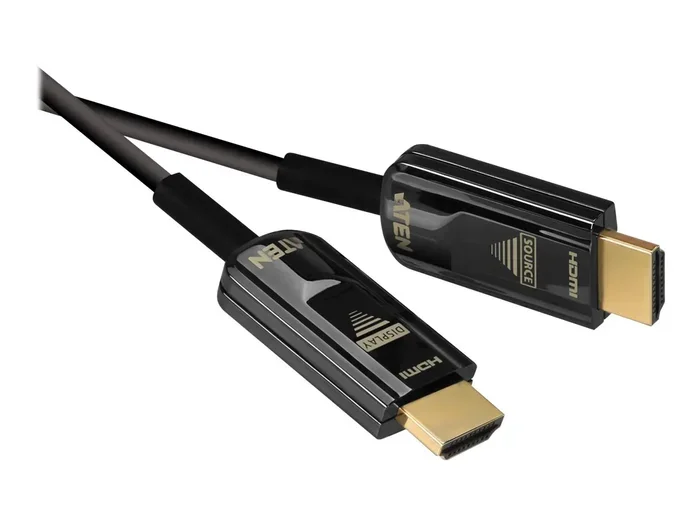
Not all HDMI cables are created equal. A standard HDMI cable works fine for 1080p displays. But if you want 4K resolution, you need a high-speed HDMI cable. Look for cables labeled “High Speed HDMI” or “Premium High Speed HDMI” to ensure they support higher bandwidth.
For the best results with a 4K monitor at 60Hz or higher, choose an HDMI 2.0 or HDMI 2.1 cable. These cables handle the video signal bandwidth needed for crisp, clear images at higher resolutions. Cheap, low-quality cables may cause flickering or no signal at all, so it is worth investing in a reputable brand.
Connect and Set Up
Plug one end of the HDMI cable into your computer and the other into the monitor. Most systems will automatically detect the new display. If not, you can usually fix this by going into your display settings and clicking “Detect” or “Identify Displays.”
HDMI also supports audio pass-through, which means you do not need a separate audio cable. Your monitor speakers or connected audio system will play sound along with the video. This is a nice convenience for media watching and video calls. You can also adjust audio settings in your operating system to choose which device outputs sound.
USB C vs HDMI: Which Is Better?
Both connection types have strengths. The right choice depends on your specific needs and devices. Let us compare them directly so you can make an informed decision.
Speed and Bandwidth
Thunderbolt 3 and Thunderbolt 4 over USB C offer incredible bandwidth of up to 40Gbps. This supports high-resolution displays and fast data transfer at the same time. Standard USB C with Alt Mode typically offers up to 10Gbps or 20Gbps depending on the version. For most users, either option is more than enough for a smooth 4K resolution experience.
HDMI 2.1 supports up to 48Gbps, which is excellent for the latest 4K and even 8K displays. HDMI 2.0 maxes out at 18Gbps, which is still plenty for most 4K setups at 60Hz. If you are pushing the limits with high refresh rates or multiple monitors, bandwidth becomes a critical factor in your cable compatibility decision.
Convenience and Versatility
USB C wins in versatility. A single cable can handle video, data, and power delivery. This is especially useful for people who use a docking station or USB C hub at their desk. One cable connection to the dock powers everything and connects all your peripherals.
HDMI is more limited in this regard. It carries video and audio but does not carry power or data. You will need separate cables for charging and peripherals. However, HDMI is universally supported across devices, which makes it a reliable fallback option. Almost every monitor, TV, and projector has an HDMI input, so you will never have trouble finding a compatible display.
Compatibility With Your Devices
Most modern devices support both USB C and HDMI in some form. But compatibility can vary. Some older monitors only have HDMI inputs, which means you need an adapter for USB C. Similarly, some older laptops only have HDMI outputs and need an adapter to connect to a USB C monitor.
The good news is that adapters and cables are inexpensive and easy to find. You can pick one up at most electronics stores or online. Just make sure the adapter supports the resolution support and refresh rate you need. A cheap adapter that only supports 1080p will bottleneck a 4K monitor.
| Feature | USB C | HDMI |
|---|---|---|
| Video Support | Yes (with Alt Mode or Thunderbolt) | Yes |
| Max Resolution | 4K or 8K (depending on version) | 4K or 8K (HDMI 2.1) |
| Power Delivery | Yes (up to 100W) | No |
| Data Transfer | Yes | No |
| Audio Support | Yes | Yes |
| Cable Reversibility | Yes | No |
| Common Use | Laptops, docks, modern monitors | Monitors, TVs, projectors |
| Cable Compatibility | Varies by version | Varies by version |
| Setup Complexity | Simple with compatible devices | Very simple and universal |
Common Problems and How To Fix Them
Even with the right cable, you might run into issues. Here are the most common problems people face when connecting a monitor via USB C or HDMI and how to solve them.
No Signal on the Monitor
This is the most common issue. First, check that both ends of the cable are firmly plugged in. A loose connection is the culprit more often than you would think. If the connection is secure, try a different cable or adapter to rule out a faulty cable.
On Windows, press Windows Key + P to open the projection menu. Make sure the display mode is set to “Extend” or “Duplicate.” On Mac, go to System Settings > Displays and check that the external monitor is detected. Sometimes restarting your computer also fixes detection issues.
Low Resolution or Blurry Display
If your monitor looks blurry or stuck at a low resolution, your cable might not support the display’s native resolution. Make sure you are using the correct cable type. For 4K monitors, use a high-speed HDMI cable or a USB C cable that supports the needed bandwidth.
You can also check your display settings and manually set the resolution to the monitor’s native resolution. Right-click your desktop on Windows and select Display Settings. On Mac, go to System Settings > Displays. If the resolution option for your monitor is missing, your cable or adapter may not support the required bandwidth.
No Audio Over HDMI or USB C
Sometimes the video works but there is no sound. On Windows, right-click the speaker icon in your taskbar and select “Open Sound Settings.” Make sure your external monitor or display is set as the audio output device. On Mac, go to System Settings > Sound and select the monitor under Output.
This issue is especially common when using a USB C to HDMI adapter. Some adapters do not pass through audio. If this happens, you may need to purchase an adapter that specifically supports audio output or use a separate audio cable.
Flickering or Intermittent Signal
A flickering screen often points to a cable quality issue or a loose connection. Try a different HDMI cable or USB C cable. Also check that your cable is rated for the bandwidth your setup requires. A 4K monitor needs a cable rated for at least 18Gbps, and a 4K at 120Hz setup needs 48Gbps.
Another cause can be a faulty port. Try plugging the cable into a different port on your device if available. Dust or debris in the port can also cause intermittent connections, so give the port a gentle clean with compressed air.
Expert Tips for the Best Monitor Setup
Getting the right connection is only half the battle. Here are some expert tips to help you get the most out of your external display setup.
Use a Docking Station for the Cleanest Setup
A docking station is a game-changer for anyone who connects a monitor regularly. You plug one cable into your laptop and instantly get video output, USB ports, Ethernet, and charging. It eliminates cable clutter and makes it easy to connect and disconnect your setup.
Look for a docking station that supports the resolution and refresh rate you need. Most modern docks support 4K at 60Hz over USB C or HDMI. Popular brands include CalDigit, Anker, and Belkin. If you frequently switch between a laptop screen and an external monitor, a docking station makes the transition seamless.
Check Your Cable Length
Longer cables can sometimes cause signal degradation. For most setups, a 3 to 6 foot cable is perfect. If you need a longer run, consider an active cable or a signal booster to maintain quality.
This is especially important for HDMI cables over 15 feet. Beyond that length, you may notice flickering or a dropped signal. USB C cables are generally more forgiving over longer distances, but it is still best to keep them under 6 feet for optimal performance. Always buy from reputable brands to ensure cable compatibility with your devices.
Match Your Monitor Refresh Rate
If you have a gaming monitor or a high-refresh-rate display, make sure your cable and port support it. HDMI 2.1 and Thunderbolt 4 both support high refresh rates up to 120Hz or more. Older HDMI versions or basic USB C connections may be limited to 60Hz.
Check your monitor specs and your cable specs to make sure they align. A mismatch here can leave you with a lower refresh rate than your monitor is capable of. For competitive gaming or fast-paced video editing, every hertz counts, so do not let a cheap cable hold you back.
Update Your Graphics Drivers
Sometimes display issues are not about cables at all. Outdated graphics drivers can cause resolution problems, flickering, or failure to detect an external display. Make sure your graphics card drivers are up to date. On Windows, use the Device Manager or visit your GPU manufacturer’s website. On Mac, updates come through System Settings > Software Update.
This simple step resolves a surprising number of monitor connection issues and is often overlooked. A quick driver update can make the difference between a smooth setup and a frustrating one.
Final Thoughts
So, can you connect a monitor via USB C or HDMI? Absolutely. Both options work well and each has its own strengths. USB C offers versatility, power delivery, and a clean single-cable setup. HDMI provides reliable, universal compatibility with solid video and audio support.
The best choice depends on your devices, your monitor, and what you need from your setup. If your laptop and monitor both support USB C, go for it. The convenience of a single cable for video, data, and charging is hard to beat. If you need a simple, dependable connection, HDMI is a proven choice that works with virtually every display.
Now that you know the ins and outs of connecting a monitor via USB C or HDMI, you can set up your external display with confidence. Pick the right cable, check your settings, and enjoy your expanded screen space. Your productivity and workflow will thank you.
Frequently Asked Questions
Can I use a USB C to HDMI adapter for 4K resolution?
Yes, you can, but you need to make sure the adapter supports 4K. Look for adapters labeled “4K” or “4K at 60Hz” to ensure they handle the bandwidth. Cheap adapters may only support 1080p or 4K at 30Hz, which can cause a laggy or blurry picture. Always check the product specs before buying.
Do I need a special cable for Thunderbolt 3 or Thunderbolt 4?
Thunderbolt 3 and Thunderbolt 4 use the USB C connector, so any USB C cable will physically fit. However, for the best performance and full bandwidth, use a Thunderbolt-certified cable. A standard USB C cable may limit your speed or resolution. Thunderbolt cables are clearly labeled and offer the full 40Gbps bandwidth.
Can I connect two monitors using USB C?
Yes, you can connect a dual monitor setup using USB C. You can either use two USB C ports on your laptop or use a docking station with multiple video outputs. Some USB C docks even support two 4K monitors at the same time. Just make sure your laptop’s graphics card can handle driving two external displays.
Why does my monitor flicker when connected via USB C?
Flickering usually means the cable or adapter does not support the required bandwidth for your resolution and refresh rate. Try using a higher-quality cable or a different adapter. Also check that your USB C port supports video output. A loose connection or a faulty port can also cause flickering.
Is HDMI better than USB C for gaming?
For gaming, HDMI 2.1 is excellent because it supports high refresh rates and resolutions like 4K at 120Hz. USB C with Thunderbolt 4 is also great for gaming and offers the added benefit of connecting peripherals and charging through one cable. The best choice depends on your GPU, monitor, and setup.
Can I charge my laptop and connect a monitor using the same USB C cable?
Yes, you can. Many USB C cables support power delivery while also transmitting video. This is one of the biggest advantages of USB C over HDMI. You only need one cable to charge your laptop and connect your external display, which keeps your workspace neat and organized.
=== CONCLUSION ===
Connecting a monitor via USB C or HDMI is straightforward once you understand your options. Both connection types deliver excellent performance for work, gaming, and entertainment. The key is knowing what your devices support and choosing the right cable or adapter. With the tips in this guide, you are ready to set up your external display with confidence and enjoy a more productive workspace.