Can I Connect A USB To iPhone And What You Need To Know
Yes, you can connect a USB to iPhone, but you need the right adapter or cable to make it work. Whether you want to charge your phone, transfer files, or sync data, understanding USB-to-iPhone compatibility saves time and frustration. This guide covers everything you need to know about connecting USB devices to your iPhone safely and effectively.
Have you ever sat down at your desk, plugged in a USB cable, and wondered why your iPhone does not recognize it? You are not alone. Can I connect a USB to iPhone is one of the most searched questions by iPhone users every single day. The short answer is yes. But the full answer involves a few adapters, cable types, and compatibility details that can make all the difference.
iPhones do not have standard USB ports. They use either a Lightning connector or a USB-C port, depending on the model. This means you cannot just plug a regular USB-A cable directly into your iPhone. You need the right adapter, the correct cable, and sometimes a little patience. This guide walks you through every step of the process.
Whether you want to charge your iPhone from a USB port, transfer photos to a computer, or connect USB accessories like keyboards and flash drives, this article has you covered. We will break down exactly what you need, what works, and what does not. No fluff. Just practical, honest advice you can use right away.
Key Takeaways
- You need an adapter: iPhones use Lightning or USB-C ports, so a direct USB connection requires a USB adapter or USB-C to Lightning cable.
- Charging is straightforward: With the right cable, you can charge your iPhone from any standard USB port or power bank.
- Data transfer is possible: You can sync photos, files, and backups between your iPhone and a computer using a USB connection.
- Not all USB devices work: Some USB accessories like keyboards and flash drives need specific apps or adapters to function with an iPhone.
- iPhone model matters: Newer iPhones use USB-C while older models use Lightning, so compatibility depends on your device.
- Quick tips prevent problems: Using certified cables and keeping your iPhone updated avoids most connection issues.
📑 Table of Contents
- Understanding USB Connections and iPhone Compatibility
- What You Need to Connect USB to iPhone
- How to Connect USB to iPhone Step by Step
- Common Uses for USB-to-iPhone Connections
- Troubleshooting USB Connection Issues
- Expert Tips for Getting the Most from Your USB-iPhone Setup
- Common Mistakes to Avoid When Connecting USB to iPhone
- Conclusion
Understanding USB Connections and iPhone Compatibility
Before you grab any cable or adapter, it helps to understand how USB and iPhone connections actually work. The world of wired connections for iPhone can feel confusing at first, but it becomes simple once you know the basics.
What Type of Port Does Your iPhone Have?
iPhones come in two main port types right now. Older models, from the iPhone 5 all the way up to the iPhone 14 series, use the Lightning connector. This is Apple’s proprietary small, flat connector that has been around since 2012. Newer models, starting with the iPhone 15, switched to USB-C. This is a more universal connector that many Android phones, laptops, and tablets also use.
Knowing which port your iPhone has is the first step. If you have a Lightning iPhone, you need a USB-C to Lightning cable or a USB-A to Lightning cable. If you have a USB-C iPhone, you can use a standard USB-C cable directly with most USB sources.
USB-A vs. USB-C vs. Lightning
These three connector types cause the most confusion. Here is a quick look at each one.
- USB-A: This is the classic rectangular USB plug you see on computers, wall chargers, and power banks. It is the most common USB type but does not plug directly into any iPhone.
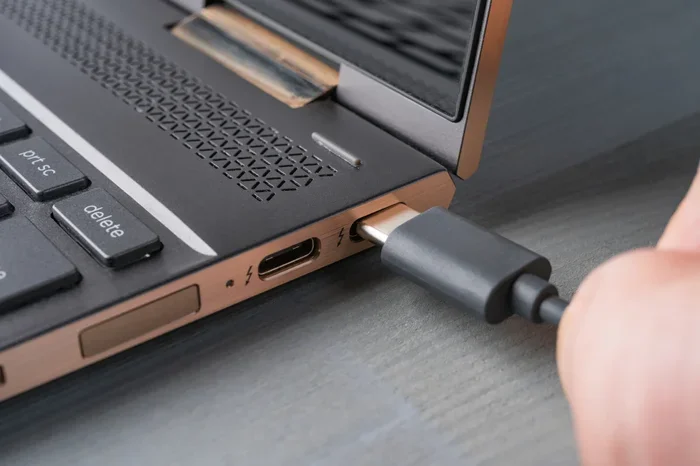
- USB-C: This is a small, oval-shaped connector that supports faster data transfer and higher power delivery. iPhones 15 and newer use this port. Many modern accessories also use USB-C.
- Lightning: Apple’s proprietary connector used on iPhones from 2012 to 2023. It is smaller than USB-C and only works with Apple devices or certified accessories.
When you ask yourself can I connect a USB to iPhone, the real question is which type of USB you are working with and which iPhone model you own. Once you match those two things, the rest falls into place.
What You Need to Connect USB to iPhone
Connecting a USB device to your iPhone requires a few specific items. You do not need much, but you do need the right pieces. Here is a clear list of what you will need.
The Right Cable
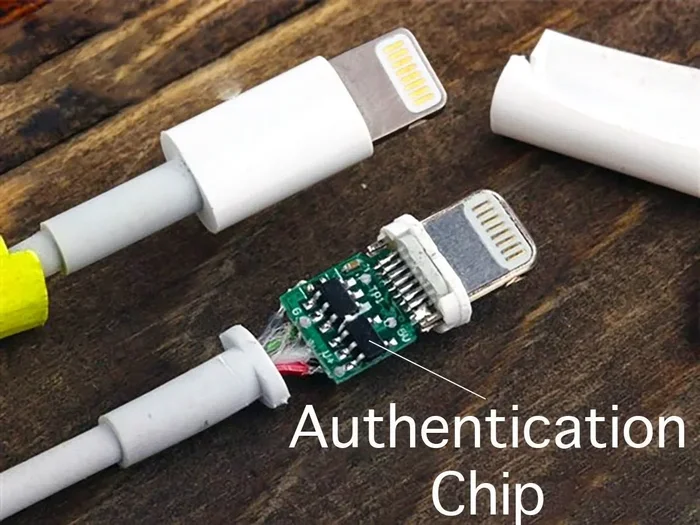
The cable is the most important piece. For Lightning iPhones, you need either a USB-A to Lightning cable or a USB-C to Lightning cable. For USB-C iPhones, a simple USB-C to USB-C cable works perfectly. Apple sells its own cables, but many third-party brands also make excellent options. Look for cables that are MFi certified, which means Apple has approved them for safe use with iPhones.
The Correct Adapter
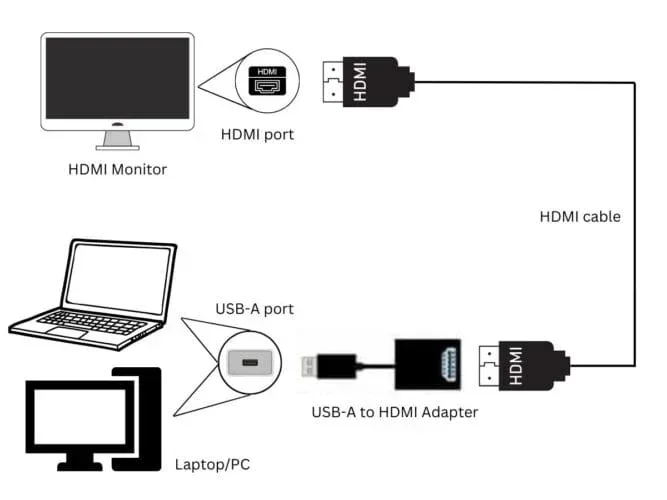
If you want to plug a standard USB-A device into your iPhone, you need an adapter. A USB-A to Lightning adapter or a USB-A to USB-C adapter does the job. These small dongles let you connect USB flash drives, keyboards, and other USB accessories directly to your iPhone.
A Reliable Power Source
For charging, you need a USB power source. This can be a wall charger, a portable power bank, or even a laptop USB port. Make sure the power source delivers enough wattage. Most iPhones charge well with a standard 5-watt to 20-watt USB charger. Fast-charging iPhones 15 and newer work best with USB-C power delivery adapters of 20 watts or higher.
Optional Accessories
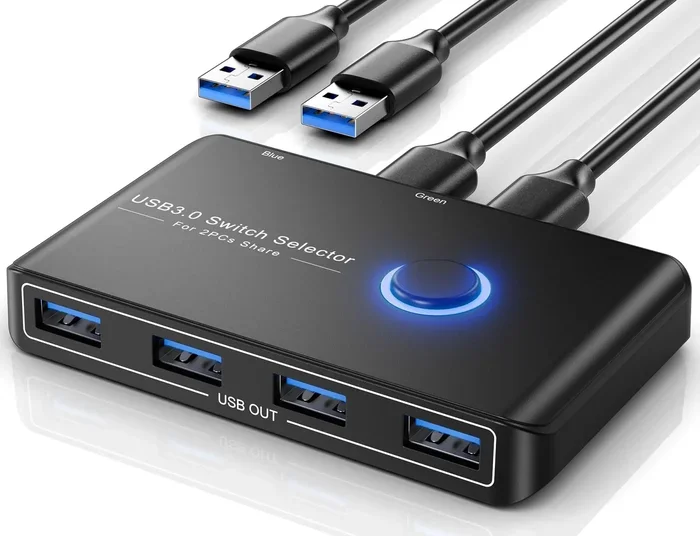
Depending on what you want to do, you might also need a few extras. A USB hub lets you connect multiple USB devices at once. A flash drive with Lightning or USB-C connector makes file storage easy. And if you want to connect your iPhone to a car’s USB port for music or charging, a USB car adapter works great.
| Item | Needed For | Works With |
|---|---|---|
| USB-A to Lightning Cable | Charging, syncing | iPhone 5 to iPhone 14 |
| USB-C to Lightning Cable | Charging, syncing | iPhone 5 to iPhone 14 |
| USB-C to USB-C Cable | Charging, data transfer | iPhone 15 and newer |
| USB-A to Lightning Adapter | Connecting USB-A devices | iPhone 5 to iPhone 14 |
| USB-A to USB-C Adapter | Connecting USB-A devices | iPhone 15 and newer |
| USB Hub | Multiple USB connections | All iPhone models |
How to Connect USB to iPhone Step by Step
Now that you have the right gear, let us walk through the actual connection process. It is simpler than you might think.
Step 1: Identify Your iPhone Port
Look at the bottom of your iPhone. Is it a small flat port? That is Lightning. Is it a small oval port? That is USB-C. This determines which cable and adapter you need.
Step 2: Choose the Right Cable
Pick the cable that matches your setup. If you are plugging into a computer, most desktops and laptops have USB-A ports. Use a USB-A to Lightning cable for older iPhones or a USB-A to USB-C cable for newer ones. If you are using a modern laptop or wall charger with USB-C ports, a USB-C cable works directly.
Step 3: Make the Connection
Plug the USB end into your power source or computer. Plug the iPhone end into your iPhone. You should see a brief flash on the screen or a notification that says USB Connected or a charging icon appears.
Step 4: Trust the Device
If you are connecting to a computer, your iPhone will display a prompt that says “Trust this computer?” Tap Trust and enter your passcode. This allows your computer to access your iPhone for data transfer and syncing.
Step 5: Verify the Connection
Check your iPhone screen. You should see a battery icon if charging, or a file management prompt if transferring data. On a computer, open iTunes (Windows) or Finder (Mac) to see your iPhone listed as a connected device.
Following these five steps ensures a safe and reliable USB connection every time. If something does not work, do not worry. We will cover troubleshooting next.
Common Uses for USB-to-iPhone Connections
Once you know how to connect USB to iPhone, you can do a lot more than just charge your phone. Let us explore the most common and useful applications.
Charging Your iPhone
This is the most basic use. You can charge your iPhone from any USB port, whether it is on a computer, a wall charger, a car console, or a portable power bank. A USB power delivery connection keeps your iPhone powered throughout the day. For fastest charging, use a USB-C cable with a 20-watt or higher adapter.
Transferring Photos and Files
Need to move photos from your iPhone to a computer? A USB data connection makes this easy. Plug your iPhone in, open iTunes on Windows or Finder on Mac, and navigate to your photos or files. You can also use the Files app on your iPhone to access USB flash drives directly when connected with the right adapter.
Syncing Music and Media
You can sync your entire music library from your computer to your iPhone using a USB cable. This works through iTunes or Finder. It is a great way to load up playlists without relying on cloud streaming or Wi-Fi syncing.
Connecting USB Accessories
Want to plug a USB keyboard, mouse, or game controller into your iPhone? You can do this with a USB OTG adapter (On-The-Go). This is especially helpful for people who type a lot on their iPhone or who want a better gaming experience. Some people even connect USB microphones for higher-quality audio recording.
Using External Storage
With a compatible USB flash drive or external hard drive, you can expand your iPhone’s storage. This is incredibly useful for people who work with large files, videos, or lots of photos. Just plug in the drive, open the Files app, and move files back and forth.
Troubleshooting USB Connection Issues
Sometimes things do not go as planned. Your iPhone might not recognize the USB connection, or it might disconnect randomly. Here are the most common problems and how to fix them.
iPhone Does Not Recognize the USB Device
Start with the basics. Try a different cable. Try a different USB port. Make sure your cable is not damaged. Often, a loose or worn cable is the culprit. Also, check that your adapter is fully plugged in. Sometimes adapters feel secure but are not making proper contact.
iPhone Shows “Not Charging” Warning
This happens when the USB port does not provide enough power. A computer USB port often delivers less power than a wall charger. Try plugging your iPhone directly into a wall outlet instead. If you are using a USB hub, make sure it has its own power supply. Hubs without power can drain your iPhone instead of charging it.
Slow Data Transfer Speeds
If file transfers are crawling, check a few things. Use a USB 3.0 cable if your computer supports it. Avoid using long or cheap cables. Make sure your iPhone is unlocked and on the home screen during transfers. Also, closing background apps on your iPhone can free up resources and speed things up.
Intermittent Disconnections
A connection that keeps dropping usually points to a hardware issue. Inspect your cable for fraying or bent connectors. Clean the iPhone port gently with a soft, dry brush to remove dust or lint. Dust buildup in the port is a surprisingly common cause of connection problems.
iPhone Does Not Show Up on Computer
Make sure you have the latest version of iTunes or the latest macOS. Restart both your iPhone and your computer. Try a different USB cable and a different port. If you are on Windows, you may need to install the Apple Mobile Device Support driver. On Mac, make sure you have macOS Catalina or later, since Finder handles iPhone connections now.
Expert Insight
According to Apple support guidelines, always use MFi-certified cables and adapters. Non-certified accessories can cause connection failures, slow charging, and even damage your iPhone’s port over time. Investing in quality iPhone accessories from the start saves money and headaches later.
Expert Tips for Getting the Most from Your USB-iPhone Setup
Once you have your USB connection working smoothly, a few expert tips can help you get even more out of it.
Invest in Quality Cables
Cheap cables might work at first, but they degrade fast. A durable USB cable with braided shielding lasts much longer and delivers more consistent performance. Look for brands that offer warranty or satisfaction guarantees.
Keep Your iPhone Updated
Apple regularly releases iOS updates that improve USB connectivity and fix bugs. Keeping your iPhone on the latest version ensures the best compatibility with USB devices and adapters.
Use a USB Hub for Versatility
A small USB-C hub adds multiple ports to your iPhone setup. You can connect a flash drive, a keyboard, and a charger all at once. This turns your iPhone into a portable workstation.
Organize Your Cables
Tangled cables lead to damaged connectors. Use a simple cable organizer or wrap your cables with Velcro ties. Keeping your iPhone charging setup neat extends the life of your cables and adapters.
Backup Before Transferring
Before moving files between your iPhone and a USB device, always back up your data. Use iCloud backup or connect to iTunes/Finder and create a local backup. This protects your photos, contacts, and messages in case anything goes wrong during the transfer.
Common Mistakes to Avoid When Connecting USB to iPhone
Even experienced iPhone users make mistakes with USB connections. Here are the ones to watch out for.
- Using non-certified cables: These can cause slow charging, data errors, or even safety hazards. Always look for MFi certification.
- Forcing a connector: If a cable or adapter does not fit easily, do not force it. You might damage the port or the connector.
- Ignoring software updates: Outdated iOS versions can cause USB compatibility issues that are easily fixed with a simple update.
- Using damaged cables: Frayed or bent cables should be replaced immediately. They can cause inconsistent connections and even short circuits.
- Plugging into the wrong port: Not all USB ports are equal. A USB 2.0 port on an older computer will be much slower than a USB 3.0 port for data transfer.
Avoiding these simple mistakes keeps your USB-iPhone setup running smoothly for years.
Conclusion
So, can I connect a USB to iPhone? Absolutely yes. With the right cable, the correct adapter, and a basic understanding of your iPhone’s port type, you can charge your device, transfer files, sync media, and connect a wide range of USB accessories. The key is matching your iPhone model to the right USB connection type and using certified, high-quality equipment.
Whether you have a Lightning iPhone or a newer USB-C iPhone, the process is straightforward once you know what you are doing. Start with the basics, follow the troubleshooting tips if something goes wrong, and invest in good cables and adapters. A solid USB-to-iPhone setup makes your daily routine smoother and more productive.
Now that you have all the information you need, go ahead and try it. Connect your iPhone to a USB source, transfer some files, or just enjoy the convenience of charging from any available port. You will wonder how you ever managed without it.
Frequently Asked Questions
Can I plug a regular USB flash drive directly into my iPhone?
Not directly. iPhones do not have standard USB-A ports. You need a USB adapter that matches your iPhone’s port type. For Lightning iPhones, use a USB-A to Lightning adapter or a flash drive with a built-in Lightning connector. For USB-C iPhones, a standard USB-C flash drive works directly.
Why does my iPhone say “USB Device Not Supported”?
This message usually means the connected device is not compatible with iOS, or you are using an uncertified cable or adapter. Try using an MFi-certified cable, disconnect the device, and reconnect it. If the problem persists, the accessory may simply not work with iPhones.
Can I transfer photos from my iPhone to a USB drive?
Yes, you can. Connect a compatible USB flash drive to your iPhone using the right adapter. Open the Files app on your iPhone, locate your photos, and move them to the USB drive. This works on both Lightning and USB-C iPhones with the proper setup.
Is it safe to connect USB devices to my iPhone?
Yes, it is safe as long as you use certified accessories and follow basic precautions. Avoid cheap, uncertified cables and adapters. Keep your iPhone updated to the latest iOS version. If a device feels hot or your iPhone behaves strangely, disconnect it immediately.
Can I use a USB hub with my iPhone?
Yes, a USB hub works with iPhones when you use the right adapter. A USB-C hub connects directly to USB-C iPhones. For Lightning iPhones, you need a USB hub with a Lightning input or a USB-A hub with an adapter. Keep in mind that powered hubs work better than unpowered ones.
What is the difference between USB-A and USB-C for iPhone connections?
USB-A is the older, rectangular connector found on most computers and wall chargers. USB-C is a newer, smaller, oval-shaped connector that supports faster data speeds and higher power delivery. iPhones 15 and newer use USB-C, while older models use Lightning and require a USB-A to Lightning cable to connect to USB-A sources.