Can I Connect Rode Nt Usb Mini To Iphone Right Here
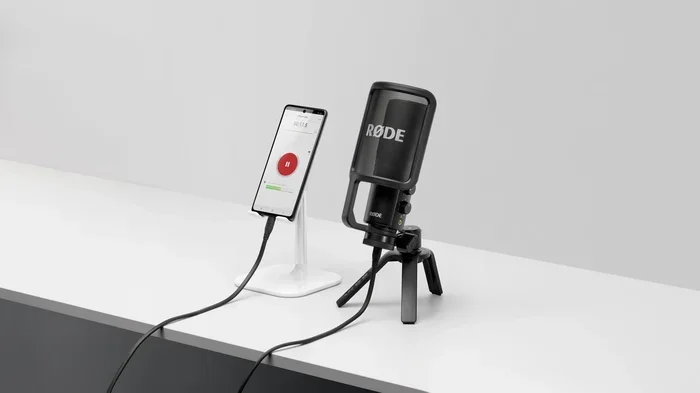
Yes, you can connect the Rode NT USB Mini to iPhone using the right adapter and a few simple steps. This compact condenser microphone works as a portable audio interface for mobile podcasting and voiceover recording. With a USB-C to Lightning cable or Apple Camera Connection Kit, your iPhone becomes a full recording studio on the go. Let us walk you through every step right here.
Can I connect Rode NT USB Mini to iPhone? The short answer is yes. But the full answer involves a few adapters, the right apps, and a little know-how. If you are a podcaster, voiceover artist, or content creator, you already know how important portable recording is. The Rode NT USB Mini is a compact condenser microphone that delivers studio-grade sound. And now, you can use it with your iPhone for mobile recording on the go.
This guide covers everything you need to know. We will walk you through the connection process, the gear you need, the best apps, and common problems you might face. Whether you are recording a podcast episode on a train or laying down voiceovers at a coffee shop, this setup gives you serious recording power in your pocket.
The Rode NT USB Mini is a USB microphone that doubles as a small audio interface. It has a built-in headphone jack, volume control, and mute button. All of this makes it one of the most versatile USB microphones for phone use today. Let us dive into how you can make this work with your iPhone.
Key Takeaways
- Direct Connection Is Possible: You can connect the Rode NT USB Mini to iPhone with a USB-C to Lightning adapter or the Apple Camera Connection Kit.
- It Works as a Portable Audio Interface: The Rode NT USB Mini acts as a USB audio class compliant device, giving you studio-quality sound on your phone.
- The Right Apps Make All the Difference: iOS audio apps like GarageBand, Ferrite, and Rode Connect unlock full recording potential on iPhone.
- Watch Out for Power Limits: iPhones may not supply enough power for long sessions, so a powered USB hub can help.
- TRRS and TRS Adapters Serve Different Needs: Know which adapter you need based on your recording setup and headphone type.
- Mobile Podcasting Becomes Easy: The Rode NT USB Mini is one of the best USB microphones for phone-based content creators.
- Troubleshooting Is Simple: Most connection issues stem from adapter compatibility, cable quality, or app permissions.
📑 Table of Contents
What Is the Rode NT-USB Mini?
The Rode NT-USB Mini is a premium USB condenser microphone designed for podcasting, streaming, and voiceover work. It connects directly to computers via USB. But what about mobile devices like iPhone? That is where things get interesting. The microphone uses a standard USB output, which means you need an adapter to connect it to an iPhone.
This microphone features a cardioid pickup pattern. That means it captures sound from the front and rejects noise from the sides and back. It also has a built-in pop filter and shock mount compatibility. The Rode NT USB Mini is USB audio class compliant, which means it does not need special drivers on most devices. This is great news for iPhone users because iOS supports USB audio class compliant devices natively.
The microphone also includes a built-in headphone amplifier. You can monitor your audio in real time without any latency. This feature is especially useful when you are recording on your iPhone and need to hear exactly what the microphone is picking up. The Rode NT USB Mini has a frequency response of 20 Hz to 20 kHz, which covers the full range of human hearing.
Why Choose the Rode NT-USB Mini for Mobile Recording?
There are many reasons to use this microphone for iPhone recording. First, it is lightweight and portable. You can toss it in a bag and take it anywhere. Second, it sounds amazing for its size. The built-in DSP (Digital Signal Processing) handles gain staging and EQ right inside the microphone. Third, it works with multiple devices, not just iPhone. You can use it with iPad, Android phones, laptops, and desktops.
For mobile podcasting, the Rode NT USB Mini is a game changer. You no longer need a full desktop setup to get professional sound. Your iPhone plus this microphone gives you a complete recording rig that fits in a small bag.
Can You Connect Rode NT-USB Mini to iPhone?
Yes, you can connect the Rode NT USB Mini to iPhone. But you cannot plug it in directly. iPhones do not have full-size USB ports. You need an adapter or a special cable to bridge the connection. The good news is that Apple and other companies make reliable adapters that work perfectly with the Rode NT USB Mini.
The iPhone uses a Lightning port (on older models) or a USB-C port (on newer models like iPhone 15 and 16). Depending on your iPhone model, you will need a different adapter. This is the key to making the Rode NT USB Mini work with your phone.
How the Connection Works
When you connect the Rode NT USB Mini to iPhone, the phone recognizes the microphone as an external audio device. iOS treats it like a portable audio interface. This means your iPhone can send audio to the microphone and receive audio back through the headphone jack on the Rode NT USB Mini itself.
The connection supports real-time monitoring. You plug headphones into the Rode NT USB Mini and hear your voice as you record. There is no delay or lag. This makes the experience feel natural and professional. Many content creators use this exact setup for interview recording, voiceover work, and live streaming from their iPhones.
What You Need to Connect Rode NT-USB Mini to iPhone
Before you start, gather the right equipment. Having the correct gear saves time and prevents frustration. Here is everything you need for a successful Rode NT USB Mini iPhone connection.
Adapter Options
Your adapter choice depends on your iPhone model. Here are the main options:
- USB-C to Lightning Adapter: If you have an iPhone 15 or newer, this is your best bet. Apple sells a official USB-C to Lightning adapter that works reliably with the Rode NT USB Mini.
- USB-C to USB-C Cable: For iPhone 15 and 16 models with USB-C ports, a simple USB-C to USB-C cable can work directly.
- Apple Camera Connection Kit: This is a classic option. It includes a USB adapter that connects to the Lightning port on older iPhones. Many podcasters swear by this kit for mobile recording setups.
- powered USB Hub: If you plan to record for long periods, a small powered USB hub ensures your iPhone supplies enough power. iPhones can sometimes limit power output, which causes connection drops.
Headphones for Monitoring
You will need a pair of headphones to monitor your audio. Plug them into the 3.5mm headphone jack on the Rode NT USB Mini. Use any standard headphones or earbuds with a 3.5mm plug. Avoid wireless Bluetooth headphones for monitoring because they add latency. Latency means you hear your voice a fraction of a second late, which throws off your timing.
Cables and Extras
Make sure you have a reliable USB cable. A high-quality USB-C cable ensures a stable connection. Cheap cables can cause audio dropouts or buzzing. Also, consider getting a microphone stand or desk mount for the Rode NT USB Mini. This keeps the microphone steady during your recording sessions. A pop filter is also helpful for reducing plosive sounds like “p” and “b” words.
Step-by-Step Setup Guide
Now that you have your gear ready, let us walk through the setup process. Follow these steps to get your Rode NT USB Mini connected to iPhone.
Step 1: Prepare Your iPhone
Start by updating your iPhone to the latest iOS version. Apple regularly improves USB audio support with each update. Go to Settings, then General, then Software Update. Also, check that your iPhone has enough storage space for recording. Voice files can take up more space than you expect, especially for long podcast episodes.
Step 2: Connect the Adapter
Plug the appropriate adapter into your iPhone. If you are using a USB-C to Lightning adapter, connect the Lightning end to your iPhone first. Then connect the USB-C end to the Rode NT USB Mini. If you are using a USB-C to USB-C cable, plug one end into the iPhone and the other into the microphone.
Step 3: Plug in Your Headphones
Insert your headphones into the 3.5mm jack on the Rode NT USB Mini. This allows you to monitor your audio in real time. Make sure your headphones are plugged in before you open any recording app. Some iOS audio apps detect the headphone connection and adjust their audio routing automatically.
Step 4: Open a Recording App
Launch your preferred iOS audio app. The app should recognize the Rode NT USB Mini as an input device. You may need to go into the app’s settings and select the microphone manually. Look for an audio settings or input options menu within the app.
Step 5: Test Your Audio
Before you start recording, do a quick test. Speak into the microphone and listen through your headphones. Check the volume level and make sure there is no buzzing or distortion. Adjust the gain knob on the Rode NT USB Mini if needed. The gain control lets you set the input level perfectly for your voice.
Step 6: Start Recording
Once everything sounds good, you are ready to record. Start your app, hit record, and begin speaking. The Rode NT USB Mini captures clear, detailed audio that rivals much more expensive setups. Save your files and back them up regularly.
Best Apps for Mobile Recording with Rode NT-USB Mini
The right app makes a huge difference in your recording quality. iOS offers many excellent audio apps that work great with the Rode NT USB Mini. Here are the top options for mobile podcasting and voiceover recording.
GarageBand
GarageBand is Apple’s free music and audio recording app. It comes pre-installed on most iPhones. GarageBand supports external USB microphones, including the Rode NT USB Mini. You can record multiple tracks, add effects, and mix your audio right on your phone. It is perfect for beginners and pros alike.
Ferrite Recording Studio
Ferrite is a favorite among podcasters. It is designed specifically for voice recording and editing on iOS. The app supports external USB audio devices, so the Rode NT USB Mini works seamlessly. Ferrite offers multi-track editing, noise reduction, and export options for all major podcast platforms. It is a powerful tool for anyone serious about mobile podcasting.
Rode Connect App
Rode offers its own free app called Rode Connect. This app gives you control over the Rode NT USB Mini’s settings. You can adjust gain, monitor levels, and access the built-in DSP features. The app also lets you update the microphone’s firmware. Using Rode Connect with your iPhone gives you the most control over your recording setup.
Voice Record Pro
Voice Record Pro is a simple, no-fuss recording app. It supports external microphones and records in multiple formats including WAV and MP3. This app is great for quick voiceover sessions or interview recording on the go. Its interface is clean and easy to navigate.
Anchor (Spotify for Podcasters)
Anchor is a free podcasting app that lets you record, edit, and publish episodes directly from your iPhone. It supports external microphones and is a great option if you want to publish your podcast right after recording. The Rode NT USB Mini delivers excellent sound through the Anchor app.
Troubleshooting and Pro Tips for iPhone Recording
Even with the right gear, you might run into occasional issues. Here are the most common problems and how to fix them. Plus, some pro tips to get the best sound from your Rode NT USB Mini on iPhone.
Common Connection Issues
If your iPhone does not recognize the Rode NT USB Mini, try these fixes:
- Check the adapter: Make sure your adapter is compatible with your iPhone model. A USB-C to Lightning adapter will not work with a USB-C iPhone and vice versa.
- Try a different cable: Faulty cables are the most common cause of connection problems. Use a high-quality, certified USB-C cable.
- Restart your iPhone: Sometimes a simple restart fixes USB recognition issues. Power off your iPhone completely, then turn it back on.
- Check app permissions: Make sure your recording app has permission to access the microphone. Go to Settings, then Privacy, then Microphone, and enable access for your app.
- Use a powered hub: If your iPhone keeps disconnecting, it may not be supplying enough power. A small powered USB hub solves this problem easily.
Pro Tips for Better Sound
Want to get the most out of your Rode NT USB Mini on iPhone? Follow these tips:
- Record in a quiet space: The Rode NT USB Mini is sensitive. It picks up background noise like a pro. Find a quiet room or use a blanket to reduce echo.
- Position the microphone correctly: Place the mic about 6 to 8 inches from your mouth. Angle it slightly so your breath does not hit the diaphragm directly.
- Use the mute button wisely: The Rode NT USB Mini has a built-in mute button. Use it between takes to avoid capturing unwanted noise.
- Monitor your levels: Keep an eye on your input levels while recording. Aim for peaks around -6 dB to -3 dB. This gives you clean audio without clipping.
- Back up your files: Always save your recordings to iCloud or another backup service. iPhone storage fills up fast, especially with audio files.
Comparison: Rode NT-USB Mini vs. Other Options for iPhone Recording
How does the Rode NT USB Mini stack up against other options for recording on iPhone? Here is a quick comparison.
| Feature | Rode NT-USB Mini | Lavalier Microphone | iPhone Built-in Mic |
|---|---|---|---|
| Audio Quality | Studio-grade | Good | Average |
| Portability | Excellent | Excellent | N/A |
| Price Range | $$ | $ – $$ | Free |
| Requires Adapter | Yes | Sometimes | No |
| Monitoring | Built-in headphone jack | Limited | No |
| Best For | Podcasting, voiceover | Interview, vlogging | Quick notes, casual |
The Rode NT USB Mini offers the best audio quality of any option on this list. It is the clear winner for anyone who takes mobile recording seriously. A lavalier microphone is more convenient for some situations, but it cannot match the sound quality of the Rode NT USB Mini. The iPhone built-in mic works in a pinch, but it lacks the clarity and detail that the Rode NT USB Mini provides.
Final Thoughts
So, can you connect the Rode NT USB Mini to iPhone? Absolutely yes. With the right adapter, a good recording app, and a bit of practice, you can create professional-quality audio right from your phone. The Rode NT USB Mini transforms your iPhone into a powerful mobile recording studio.
This setup is perfect for podcasters, voiceover artists, journalists, and anyone who needs high-quality audio on the go. The Rode NT USB Mini is USB audio class compliant, works with iOS natively, and delivers studio-grade sound in a compact package. It is one of the best investments you can make for mobile recording.
Start with the setup steps in this guide. Try out the recommended apps. Experiment with different recording environments. You will be amazed at what your iPhone and the Rode NT USB Mini can do together. Mobile recording has never been easier or more professional. Grab your gear, connect everything, and start creating today.
Frequently Asked Questions
Do I need a special cable to connect Rode NT USB Mini to iPhone?
Yes, you need an adapter. If you have an iPhone 15 or newer with USB-C, a USB-C to USB-C cable works directly. For older iPhones with Lightning, you need a USB-C to Lightning adapter or the Apple Camera Connection Kit.
Can I use the Rode NT USB Mini with iPhone for live streaming?
Absolutely. The Rode NT USB Mini works as an external microphone for live streaming apps on iPhone. Apps like StreamYard, OBS, and Instagram Live all support external USB microphones when connected through the right adapter.
Does the Rode NT USB Mini need phantom power when connected to iPhone?
The Rode NT USB Mini has its own built-in phantom power for condenser capsules. You do not need an external phantom power source. The microphone draws power from the USB connection, and iPhones can supply enough power for normal use.
Why does my iPhone keep disconnecting from the Rode NT USB Mini?
This usually happens because the iPhone is not supplying enough power. Try using a powered USB hub or a different adapter. Also, make sure your cable is high quality and not damaged. Restarting your iPhone often fixes temporary connection issues.
Can I use Bluetooth headphones with the Rode NT USB Mini when connected to iPhone?
You can use Bluetooth headphones for playback, but not for real-time monitoring. Bluetooth adds latency, which means you hear your voice with a delay. For monitoring while recording, always use wired headphones plugged into the Rode NT USB Mini’s headphone jack.
Is the Rode NT USB Mini the best USB microphone for iPhone recording?
It is one of the best. The Rode NT USB Mini offers excellent audio quality, portability, and ease of use. It works as a full audio interface for iPhone and supports real-time monitoring. For mobile podcasting and voiceover work, it is a top choice among content creators.
=== CONCLUSION ===
Connecting the Rode NT USB Mini to iPhone opens up a world of recording possibilities. You get studio-quality audio in a portable package that fits in your bag. With the right adapter, a solid recording app, and the tips from this guide, you are ready to create professional content from anywhere. The Rode NT USB Mini is more than just a microphone. It is a complete mobile recording solution that works seamlessly with your iPhone. Start experimenting today, and you will hear the difference in every recording.