Can I Convert Hdmi To Analog Audio With Simple Adapters
Yes, you can convert HDMI to analog audio with simple adapters and extractors. This process lets you connect modern HDMI devices to older speakers, sound systems, and analog equipment. You will learn the different adapter types, setup steps, and common mistakes to avoid. HDMI to analog audio conversion is easier than most people think, and it saves money on new gear.
You have a modern device with an HDMI port, but your speaker system or sound setup only accepts analog audio. Maybe you have an old stereo, a vintage receiver, or a simple pair of powered speakers with RCA inputs. Whatever the case, you are not alone. Many people face this exact problem every day. The good news is that converting HDMI to analog audio is totally doable. You do not need to be a tech expert. A simple adapter or extractor can bridge the gap between your new device and your old audio setup. In this guide, we will walk you through everything you need to know. We will cover the types of adapters available, how to set them up, and what mistakes to avoid. By the end, you will feel confident making the connection yourself.
The world of audio connections can feel confusing at first. There are so many cables, ports, and formats to keep track of. But the basics are really straightforward. Digital HDMI carries both video and audio in one cable. Analog audio uses separate cables for left and right channels, or a single 3.5mm jack. Your job is to extract the audio from the HDMI signal and convert it into a format your analog gear can read. This is called digital to analog conversion. It sounds technical, but the actual process is simple. A small box or adapter does all the heavy lifting for you. Let us dive into the details and make this easy for you.
Key Takeaways
- Simple adapters work: HDMI audio extractors and converters make the job easy and affordable.
- Multiple options exist: You can choose from RCA, 3.5mm, coaxial, and optical output types depending on your setup.
- No special skills needed: The process is plug-and-play for most users.
- Watch out for common mistakes: Wrong cable choices and ignoring audio format settings cause most problems.
- Quality varies by adapter: Investing in a good converter gives you much better sound.
- Legacy systems still matter: Many people have older audio gear that works fine with the right adapter.
📑 Table of Contents
- What Is HDMI to Analog Audio Conversion?
- Why You Might Need to Convert HDMI to Analog Audio
- Types of Adapters and Converters for HDMI to Analog Audio
- Step-by-Step Guide to Converting HDMI to Analog Audio
- Common Mistakes to Avoid When Converting HDMI Audio
- Expert Tips for the Best Audio Quality
- Frequently Asked Questions
- Conclusion
What Is HDMI to Analog Audio Conversion?
HDMI carries a digital audio signal along with video. This is great for modern TVs, Blu-ray players, and game consoles. But many older audio systems only understand analog signals. Analog audio is the older style of sound transmission. It uses continuous electrical waves to represent sound. Your speakers and amplifiers were built for this type of signal. So when you want to connect a modern HDMI source to an analog display or speaker system, you need a converter. The converter takes the digital signal from HDMI and turns it into an analog audio signal. This process is called digital to analog conversion. It is the key step that makes everything work.
The most common output types from these converters include RCA stereo cables, 3.5mm audio jacks, and coaxial digital audio. Some converters also pass through the HDMI video signal to a display while extracting just the audio. This is known as HDMI pass-through. It lets you use one HDMI cable for video and a separate analog cable for audio. Understanding this basic concept helps you choose the right adapter for your needs.
How Digital and Analog Audio Differ
Digital audio stores sound as ones and zeros. It is precise and resistant to interference. Analog audio is a continuous electrical wave that mimics the original sound. Over long cable runs, analog signals can pick up noise or degrade. Digital signals stay clean until they reach the converter. Once converted to analog, the signal is ready for your speakers, headphones, or amplifier. This difference matters when you are choosing cables and setting up your system.
Why You Might Need to Convert HDMI to Analog Audio
There are many real-world reasons you might need to do this conversion. Let us look at the most common scenarios. Maybe you bought a new streaming stick or game console. Your TV has HDMI inputs, but your living room stereo only has RCA connections. You do not want to throw away a perfectly good sound system. An adapter solves this problem instantly. Or perhaps you have a home theater receiver that is older but still sounds great. New devices like Apple TV, Roku, or PlayStation all use HDMI. Your receiver may only have analog inputs. A HDMI audio extractor bridges this gap perfectly.
Another common situation involves soundbars and older TVs. Some older TVs do not have HDMI ARC or optical audio outputs. But your soundbar needs an audio connection. Converting HDMI to analog audio gives you flexibility. You can use your soundbar or powered speakers with almost any modern device. This is especially helpful in bedrooms, kitchens, or workshop setups where you just need simple audio output. Legacy audio systems still deliver great sound. With the right adapter, you can keep using them with modern equipment.
Situations Where HDMI to Analog Conversion Is Essential
- Old stereo systems with RCA inputs: Connect a modern streaming device to your favorite vintage stereo.
- Powered computer speakers: Use a game console or media player with speakers that only have a 3.5mm input.
- Car audio systems: Some car stereos accept analog input through a 3.5mm or RCA adapter.
- Workshop or garage speakers: Simple analog setups for background music from a modern source.
- Projector setups: Older projectors may only have analog audio outputs and need an HDMI extractor.
- Bar or restaurant audio: Commercial sound systems often use analog connections.
Types of Adapters and Converters for HDMI to Analog Audio
Not all adapters are the same. Different setups need different types of converters. Let us break down the main options so you can pick the right one. Knowing what is available helps you make a smart purchase.
HDMI Audio Extractors
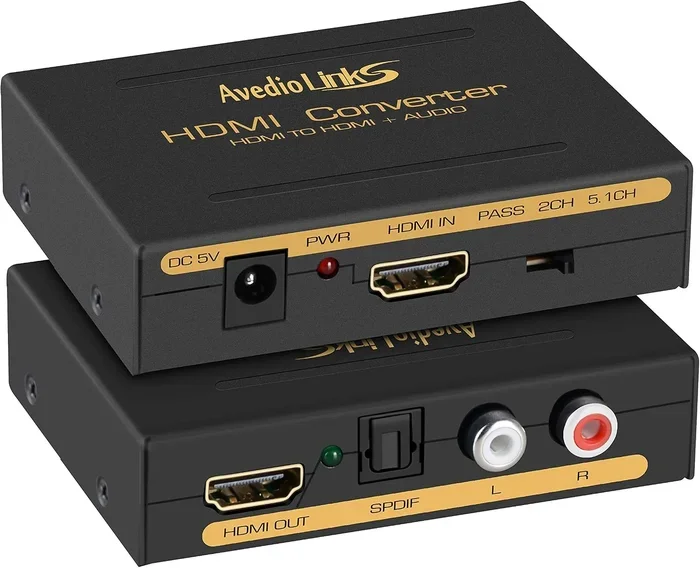
An HDMI audio extractor is a small box that splits the HDMI signal. It sends video to your display through one HDMI port. At the same time, it extracts the audio and outputs it through analog ports. Most extractors offer RCA stereo output or a 3.5mm headphone jack. Some models also include optical or coaxial digital audio output. These boxes are powered by USB or a wall adapter. They are the most popular choice for home setups. A good HDMI audio extractor preserves sound quality while making the connection simple.
HDMI to RCA Adapters
An HDMI to RCA adapter is a simpler option. It connects directly from your HDMI source to RCA cables. These adapters usually handle stereo audio only. They work well for basic setups where you just need left and right channels. They are compact and easy to use. However, they may not support surround sound or advanced audio formats. If you only need standard stereo sound, an RCA adapter is a great budget choice.
HDMI to 3.5mm Audio Adapters
A 3.5mm audio jack is the standard headphone-style connection. Many speakers, earbuds, and portable audio devices use this type of input. An HDMI to 3.5mm adapter converts the digital audio to a 3.5mm analog signal. These adapters are small and portable. They work well for personal listening or connecting to powered speakers. They are a popular choice for desk setups and travel use.
HDMI Splitters with Audio Extraction
An HDMI splitter copies the HDMI signal to multiple displays. Some splitters also extract analog audio. This is useful when you need video on two screens and audio on a separate analog system. These devices are more versatile but also more expensive. If you need both video distribution and audio extraction, a splitter with audio output is a smart choice.
Comparison Table: Types of HDMI to Analog Audio Adapters
| Adapter Type | Audio Output | Best For | Price Range |
|---|---|---|---|
| HDMI Audio Extractor | RCA, 3.5mm, optical | Home theater and stereo setups | $15 – $50 |
| HDMI to RCA Adapter | RCA stereo | Simple stereo connections | $5 – $20 |
| HDMI to 3.5mm Adapter | 3.5mm headphone jack | Personal listening and powered speakers | $8 – $25 |
| HDMI Splitter with Audio | RCA, 3.5mm, optical | Multi-display setups with audio extraction | $20 – $60 |
Step-by-Step Guide to Converting HDMI to Analog Audio
Setting up your HDMI to analog audio conversion is easier than you might think. Follow these steps and you will have sound flowing to your analog system in minutes. No technical skills are required. Just a few simple connections.
Step 1: Identify Your Audio Output Needs
Look at your analog audio system. What type of input does it have? Most older systems use RCA red and white inputs. Some use a single 3.5mm jack. Others might have coaxial or optical inputs. Knowing your output type tells you which adapter to buy. Check the back panel of your speaker, receiver, or amplifier. Take a photo if it helps you remember the connections.
Step 2: Choose the Right Adapter
Based on your output type, pick the right converter. If you have RCA inputs, get an HDMI audio extractor with RCA output. If you need a 3.5mm connection, choose an HDMI to 3.5mm adapter. Make sure the adapter supports the audio format you need. Most standard stereo setups work with any basic extractor. If you want surround sound, look for a model that supports 5.1 or 7.1 audio channels.
Step 3: Connect the HDMI Cable
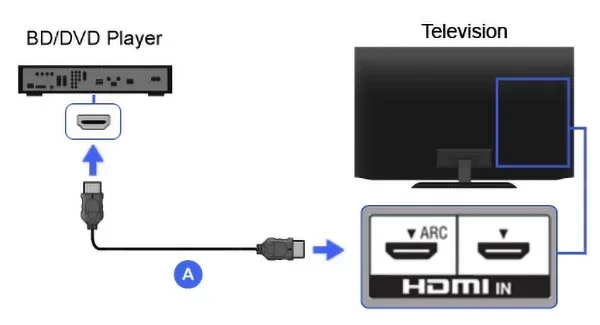
Plug one end of your HDMI cable into your source device. This could be a streaming stick, game console, Blu-ray player, or computer. Plug the other end into the HDMI input on your extractor or adapter. Make sure the connection is firm and secure. A loose cable causes no sound or intermittent audio issues.
Step 4: Connect the Analog Audio Output
Take the analog cable that matches your adapter output. If you are using RCA, plug the red cable into the red port and the white cable into the white port. If you are using a 3.5mm cable, plug it into the headphone-style jack on your speaker or receiver. Use the shortest cable length you can for the best sound quality. Longer cables can introduce noise or signal loss.
Step 5: Power On and Test
Turn on your source device and your audio system. Set your audio system to the correct input channel. Play some audio or video content. You should hear sound through your analog speakers. If you do not hear anything, check each connection point. Make sure the volume is turned up on both the source device and the audio system. Try a different cable if the first one does not work.
Quick Tips for a Smooth Setup
- Use short cables: Keep analog audio cables under six feet for the clearest signal.
- Check audio settings: On your source device, make sure audio output is set to HDMI or PCM.
- Match cable colors: Red goes to red, white goes to white for RCA connections.
- Test with known content: Play a familiar song or video to confirm the audio sounds right.
- Update firmware: Some extractors and adapters have firmware updates that improve performance.
Common Mistakes to Avoid When Converting HDMI Audio
Even with a simple setup, people make mistakes that cause frustration. Learning what to avoid saves you time and money. Here are the most common errors and how to prevent them.
Buying the Wrong Adapter Type
This is the number one mistake. Not all adapters do the same thing. Some only carry video. Some only carry audio. You need a device that extracts audio from HDMI and outputs it in analog form. Always check the product description before you buy. Look for terms like “audio extractor” or “HDMI to analog audio converter.” If you are unsure, contact the seller and ask. A quick question saves a lot of hassle.
Ignoring Audio Format Compatibility
Not all adapters handle every audio format. Some support only stereo PCM. Others can handle Dolby Digital or DTS surround sound. If your source device outputs audio in a format your adapter does not support, you will get no sound or distorted sound. Check the specifications of your adapter. Make sure it supports the audio format your device uses. For most basic setups, stereo PCM is all you need.
Using Low-Quality Cables
Cheap cables can cause static, buzzing, or intermittent audio. This is especially true for analog connections. Analog signals are more sensitive to interference than digital signals. Invest in decent quality cables with good shielding. A $10 cable set is worth it compared to dealing with annoying audio noise every day.
Forgetting to Set the Correct Input on Your Audio System
This sounds obvious, but it happens all the time. You plug everything in but forget to switch your receiver or speaker system to the right input channel. If you are using RCA inputs labeled “AUX” or “CD,” make sure your system is set to that source. Most audio systems have a source or input button on the remote or front panel. Press it and cycle through until you find the right one.
Overlooking Power Requirements
Some HDMI audio extractors need external power. They come with a USB cable for power or a wall adapter. If you plug in the HDMI and analog cables but the device has no power, it will not work. Always check if your extractor needs a power source. Many can be powered by a USB port on your TV or a phone charger.
Expert Tips for the Best Audio Quality
Getting the best sound from your HDMI to analog audio conversion comes down to a few smart choices. These tips from audio professionals help you squeeze the most quality out of your setup.
Choose a Converter with DAC Support
A DAC, or digital to analog converter, is the heart of any audio extractor. Better DACs produce cleaner, more detailed sound. Look for extractors that mention high-quality DAC chips in their specifications. Brands like Sabre, ESS, and Burr-Brown are well-regarded in the audio world. A converter with a good DAC makes a noticeable difference in sound clarity and depth.
Set Your Source Device to PCM Output
PCM, or Pulse Code Modulation, is the most universally compatible audio format. When you set your HDMI source to output PCM, it sends uncompressed stereo audio. This format works with virtually every analog adapter and extractor. On most devices, you can find this setting in the audio or sound menu. Look for “Audio Output Format” or “Digital Audio Output” in your settings. Select PCM for the best compatibility.
Keep Your Analog Cables Away from Power Cables
Analog audio cables can pick up electromagnetic interference from power cords and power bricks. This interference causes a humming or buzzing sound in your audio. Keep your RCA or 3.5mm audio cables away from power cables. Run them on different sides of your entertainment center if possible. This simple step reduces noise and improves sound quality significantly.
Use an Audio Amplifier for Weak Signals
If your analog output sounds quiet or thin, the signal might need amplification. A small inline amplifier or a powered speaker system can boost the signal. Some audio extractors have a volume control built in. If yours does not, you can adjust volume on the source device or use your speaker system’s volume knob. For best results, set the source volume to about 75 percent and adjust from the speaker system.
Check for Firmware Updates
Many modern extractors and adapters receive firmware updates from the manufacturer. These updates can fix audio bugs, improve format support, and enhance overall performance. Check the manufacturer’s website or app for updates. A quick firmware update can solve problems you did not even know you had.
Consider Audio Format Needs for Your Setup
If you want surround sound through your analog system, you need an extractor that supports multi-channel audio. Not all analog setups support surround sound. Most basic stereo systems only handle two channels. But if you have a multi-channel amplifier or a surround sound receiver, look for an extractor that passes through 5.1 or 7.1 audio. Keep in mind that analog surround sound uses special configurations like 5.1 RCA or multi-channel 3.5mm. Make sure your cables and system support the format you want.
Frequently Asked Questions
Do I need a special adapter to convert HDMI to analog audio?
Yes, you need either an HDMI audio extractor or an HDMI to analog adapter. Standard HDMI cables carry digital signals only. They cannot connect directly to analog audio inputs. An extractor or converter bridges this gap by taking the digital signal and turning it into analog audio. Choose the type that matches your audio system’s inputs, whether that is RCA, 3.5mm, or coaxial.
Will converting HDMI to analog audio reduce sound quality?
There can be a slight difference in quality because you are converting from digital to analog. However, a good quality extractor with a solid DAC preserves excellent sound. Most people cannot tell the difference in everyday listening. The biggest factors that affect quality are the adapter itself and the cables you use. Stick with well-reviewed products and decent cables for the best results.
Can I get surround sound through analog audio output?
It depends on your adapter and your audio system. Some extractors support multi-channel analog output. Your analog system must also support surround sound, which most basic stereo systems do not. If you have a multi-channel amplifier with multiple RCA inputs, you can get surround sound through a compatible extractor. Check the product specs carefully to confirm surround sound support.
What is the difference between an HDMI audio extractor and an HDMI splitter?
An HDMI audio extractor splits the HDMI signal into audio and video. It outputs video through HDMI and audio through analog or optical ports. An HDMI splitter copies the entire HDMI signal to multiple displays. Some splitters also include audio extraction, but that is not their main purpose. If you only need audio output, choose an extractor. If you need to display the same video on two screens, choose a splitter.
Can I use an HDMI to analog adapter with a PC or laptop?
Yes, most HDMI audio extractors work with any HDMI source, including PCs and laptops. Just plug the HDMI cable from your computer into the extractor, then connect your speakers or headphones to the analog output. Make sure your PC audio settings are configured to output through HDMI. Some PCs require you to select the HDMI audio device in your sound settings before audio will play through the extractor.
Are expensive HDMI to analog converters worth the money?
For most users, a mid-range extractor in the $20 to $40 range works perfectly well. Very expensive models offer better DAC chips and build quality, but the difference is subtle. If you are an audiophile or use your setup for critical listening, investing in a higher-end model makes sense. For casual listening, streaming, or gaming, a reasonably priced adapter delivers great results. Focus on reviews and brand reputation rather than just price.
Conclusion
Converting HDMI to analog audio is a simple and affordable solution for connecting modern devices to older sound systems. Whether you use an HDMI audio extractor, an HDMI to RCA adapter, or an HDMI to 3.5mm converter, the process is straightforward. You do not need technical skills or expensive equipment. A basic adapter solves the problem in minutes. Just remember to match your adapter to your audio system’s inputs, use quality cables, and avoid the common mistakes we covered. With the right setup, your analog speakers and sound systems work beautifully with modern HDMI sources. The world of audio connections does not have to be confusing. Now that you know how HDMI to analog audio conversion works, you can set up your system with confidence. Try it today and enjoy your favorite content through your trusted audio gear.