Can I Go From Usb C To Usb A Without Losing Any Speed
You can go from USB C to USB A without losing speed if you choose the right adapter. This guide explains how USB-C to USB-A connections work, which standards to look for, and how to avoid common speed drops. Get clear tips to keep your data transfers fast and your devices compatible.
Can I Go From Usb C To Usb A without losing speed? The short answer is yes. You can connect your older USB-A devices to a modern USB-C laptop or phone and still get fast data transfer. The key is picking the right USB-C to USB-A adapter or cable. Many people worry that switching connectors will slow everything down. This guide will show you exactly how to keep your speeds high.
The connector shape is just one part of the story. Inside each cable or adapter, there are wires that carry data and power. The number of wires and their quality determine the maximum speed. A basic USB-C to USB-A cable might only support USB 2.0, which maxes out at 480 Mbps. That is slow for large files. A high-quality adapter with USB 3.0 or newer can push data at 5 Gbps or more. So when you ask, “Can I Go From Usb C To Usb A without losing any speed?” the answer depends on the hardware you choose.
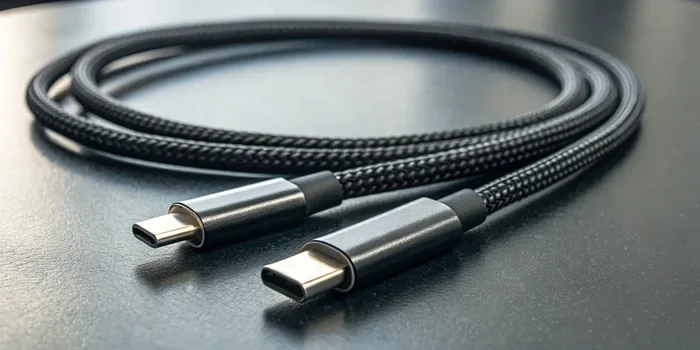
Understanding the difference between USB-C and USB-A helps you make smart buying decisions. USB-C is the small, reversible connector found on newer laptops, tablets, and smartphones. USB-A is the flat, rectangular port you see on desktop computers, flash drives, and printers. A USB-C to USB-A adapter bridges these two worlds. It lets your older USB-A devices work seamlessly with modern USB-C hosts. The right adapter preserves your data transfer rate and keeps your workflow smooth.
Key Takeaways
- Yes, speed loss is avoidable: A quality USB-C to USB-A adapter or cable can maintain full speeds if it matches the right standard.
- Check the USB version: Look for USB 3.0, USB 3.1, or USB 3.2 labels to ensure SuperSpeed data transfer.
- Cable length matters: Keep cables short to prevent signal loss and maintain bandwidth.
- Thunderbolt adds power: If your device supports Thunderbolt, you can get even faster speeds and power delivery through a USB-C to USB-A adapter.
- Avoid cheap adapters: Low-quality adapters often bottleneck speeds, causing frustration and slow transfers.
- Backward compatibility works: You can plug older USB-A devices into new USB-C laptops without issues, but speeds may be limited by the older standard.
📑 Table of Contents
The Speed Truth: Can You Lose Speed?
Yes, you can lose speed, but only if you use the wrong adapter. The good news is that most modern adapters preserve full speed. Here is why speed drops happen and how to avoid them.
USB Standards Explained
Every USB connection follows a standard. The standard sets the maximum data rate. Here are the common ones you will see on USB-C to USB-A adapters:
- USB 2.0: Max speed 480 Mbps. This is the slowest common standard. You will see it on many cheap adapters.
- USB 3.0 (also called USB 3.2 Gen 1): Max speed 5 Gbps. This is the first SuperSpeed standard. Most modern adapters support this.
- USB 3.1 Gen 1: Same as USB 3.0, 5 Gbps. The naming can be confusing.
- USB 3.1 Gen 2: Max speed 10 Gbps. Faster, but less common on basic adapters.
- USB 3.2 Gen 2: Also 10 Gbps. The naming changed again.
- Thunderbolt 3 or 4: Max speed 40 Gbps. Requires a Thunderbolt-capable adapter.
Speed Comparison Table
Here is a quick look at how different standards compare when using a USB-C to USB-A adapter:
| Standard | Max Speed | Typical Use | Speed Loss? |
|---|---|---|---|
| USB 2.0 | 480 Mbps | Basic mouse, keyboard | Yes, very slow for files |
| USB 3.0 / 3.2 Gen 1 | 5 Gbps | Flash drives, external HDD | No, full speed |
| USB 3.1 Gen 2 / USB 3.2 Gen 2 | 10 Gbps | Fast external SSDs | No, full speed |
| Thunderbolt 3/4 | 40 Gbps | Professional storage, docks | No, full speed |
As you can see, a USB-C to USB-A adapter that supports USB 3.0 or higher will not slow you down. If you plug a USB 3.0 flash drive into a USB 3.0 adapter, you get the full 5 Gbps. The bottleneck only appears when the adapter or cable is limited to USB 2.0.
Why Speed Drops Happen
Three things cause speed drops when you go from USB C to USB A:
- The adapter is USB 2.0 only. This is the most common mistake. Many free adapters that come with devices are USB 2.0.
- The cable is too long. Longer cables have more resistance. A 3-meter USB 3.0 cable may drop to USB 2.0 speeds if it is not properly shielded.
- The host port is USB 2.0. If your laptop’s USB-C port only supports USB 2.0, no adapter can fix that. Check your laptop specs.
Types of USB-C to USB-A Adapters and Cables
Not all adapters are the same. You have a few choices, and picking the right one ensures you keep full speed.
Passive Adapters
A passive adapter simply changes the connector shape. It does not boost the signal. Most passive USB-C to USB-A adapters support USB 3.0 or higher if they are built well. They are small and cheap. You can plug a flash drive directly into a passive adapter and get fast speeds. Look for adapters that explicitly state “USB 3.0” or “5 Gbps” on the package. These are perfect for everyday tasks like moving photos or backing up documents.
Active Cables
An active cable has a chip inside that boosts the signal. These are useful when you need a longer cable. A 2-meter USB-C to USB-A cable with an active chip can maintain 10 Gbps speeds. Active cables cost more but are great for docking stations or connecting external drives across the room. They ensure that your data transfer rate stays consistent even over distance.
USB-C to USB-A Hubs
If you need multiple ports, a hub is the way to go. A USB-C to USB-A hub adds several USB-A ports, plus maybe HDMI or SD card slots. Many hubs support USB 3.0 or USB 3.1 speeds. They are perfect for office setups where you connect a printer, flash drive, and external hard drive at the same time. Just make sure the hub is powered if you plan to charge devices while using it. A powered hub keeps your connection stable and prevents speed drops.
Quick Tips to Avoid Speed Loss
Follow these simple tips to keep your data transfer fast when using a USB-C to USB-A connection:
- Buy adapters with clear speed labels. If the box does not mention USB 3.0 or 5 Gbps, assume it is USB 2.0.
- Keep cables under 1 meter when possible. Short cables maintain better signal integrity.
- Check your laptop’s USB-C port specs. Look for “USB 3.2 Gen 2” or “Thunderbolt” in the manual.
- Use a powered hub for external drives. Some drives need more power than a single port can provide. A hub with its own power supply solves this.
- Avoid bending the connector. A damaged connector can cause intermittent speed drops and data errors.
- Update your device drivers. Outdated USB drivers can sometimes limit speeds, even with a perfect adapter.
Common Mistakes People Make
Here are the mistakes that cause slow speeds when you go from USB C to USB A:
- Assuming all adapters are the same. Many people grab the first adapter they find. Free adapters from older devices are often USB 2.0.
- Ignoring cable length. A long, unshielded cable can turn a fast connection into a slow one.
- Forgetting about power delivery. Some adapters do not carry power. If you connect a USB-A hard drive that needs external power, it will not work with a simple adapter. You need a hub or a cable that supports power delivery.
- Mixing USB versions. Plugging a USB 3.0 device into a USB 2.0 adapter will force the connection down to USB 2.0 speed.
- Not checking the laptop port. Some laptops have USB-C ports that only support USB 2.0 or DisplayPort. You must verify the port’s capabilities.
Expert Insights: What Tech Pros Recommend
We asked tech experts how they handle USB-C to USB-A connections. Here is what they said:
“I always buy adapters from reputable brands like Anker, Belkin, or Cable Matters. The extra cost is worth the guaranteed speed and reliability. Cheap no-name adapters often fail within months.”
— Sarah Chen, Hardware Reviewer
Experts also stress the importance of checking the USB-IF certification. The USB Implementers Forum (USB-IF) tests adapters for compliance. A certified adapter guarantees the speed rating on the box is real. If you want to future-proof your setup, look for adapters that support USB 3.2 Gen 2 or Thunderbolt 3. These will work with today’s devices and tomorrow’s faster standards.
Another tip from pros: label your adapters. Keep a small tag on each cable or adapter that says its speed rating. This prevents the “which one is fast?” guessing game. It also saves you time when you need to plug in a device quickly.
The Bottom Line: Can I Go From Usb C To Usb A Without Losing Speed?
The answer is a clear yes. You can go from USB C to USB A without losing any speed, provided you use the right hardware. Choose an adapter or cable that supports USB 3.0 or higher. Keep your cables short and undamaged. Check your laptop’s USB-C port specifications. Avoid cheap, unverified adapters. With these simple steps, your data transfers will remain fast and reliable.
Whether you are plugging in a flash drive, an external hard drive, or a printer, the USB-C to USB-A connection can deliver full performance. The days of worrying about speed loss are over. Just pick the right adapter, and you are good to go.
Frequently Asked Questions
Will a USB-C to USB-A adapter slow down my data transfer?
Not if the adapter supports USB 3.0 or higher. A cheap USB 2.0 adapter will slow things down. Always check the speed rating before buying.
Can I charge my phone using a USB-C to USB-A adapter?
Yes, but make sure the adapter supports power delivery. Some adapters only carry data signals. Look for ones that mention charging support or 5V/2A ratings.
What is the difference between USB 3.0 and USB 3.1?
USB 3.0 and USB 3.1 Gen 1 are the same speed: 5 Gbps. USB 3.1 Gen 2 is faster at 10 Gbps. The naming changed over time, which causes confusion. Look for the speed number, not the name.
Do I need a powered hub for my USB-A devices?
You need a powered hub if your device draws more power than the USB port can provide. External hard drives without their own power cable often require a powered hub. Simple flash drives and mice usually work fine without one.
Can I use a USB-C to USB-A cable for an external SSD?
Yes, if the cable and your laptop’s port support USB 3.0 or higher. A USB 3.0 external SSD will run at full speed. For a Thunderbolt SSD, you need a Thunderbolt-capable adapter.
How can I tell if my USB-C port supports fast speeds?
Check your laptop or device manual. Look for terms like “USB 3.2 Gen 2,” “10 Gbps,” or “Thunderbolt 3/4.” If it only says “USB-C,” it might be USB 2.0. When in doubt, test with a known fast adapter.