Can I Plug Usb C Into Thunderbolt And Is It Compatible
Yes, you can plug USB-C into a Thunderbolt port because Thunderbolt 3 and Thunderbolt 4 use the same USB-C connector shape. However, not all USB-C cables deliver Thunderbolt speeds, so compatibility depends on the cable and device. Understanding the difference ensures you get the best performance for charging, data transfer, and display output.
You have a Thunderbolt port on your laptop or desktop. You also have a USB-C cable in your bag. The question is simple: can you plug USB-C into Thunderbolt? The short answer is yes. But the full story has some important details that can save you from frustration, slow speeds, and wasted money.
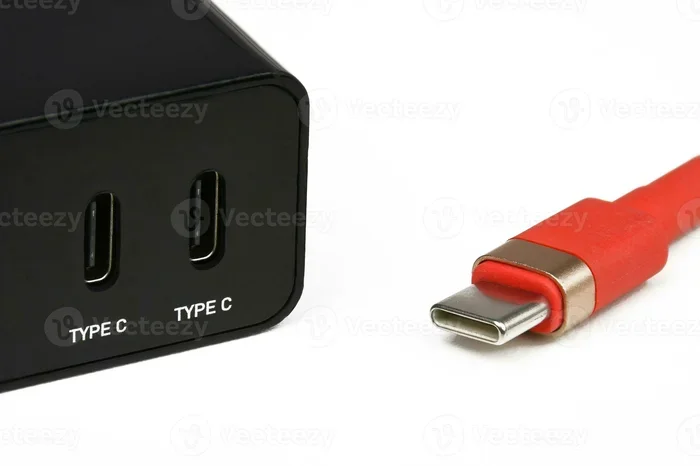
Many people assume that because USB-C and Thunderbolt share the same connector shape, they are the same thing. They are not. USB-C is a connector type, while Thunderbolt is a technology that uses the USB-C connector. This distinction matters a lot when you are trying to get the best performance from your devices.
In this guide, we will walk through everything you need to know about plugging USB-C into Thunderbolt ports. We will cover compatibility, speed differences, cable choices, and common mistakes. By the end, you will know exactly what to expect and how to get the most out of your setup.
Key Takeaways
- USB-C and Thunderbolt share the same connector: You can physically plug a USB-C cable into a Thunderbolt port, but performance may vary.
- Thunderbolt 3 and Thunderbolt 4 use USB-C form factor: Both generations use the same oval-shaped USB-C connector.
- Not all USB-C cables support Thunderbolt speeds: Standard USB-C cables may cap data transfer at 10 Gbps, while Thunderbolt cables reach 40 Gbps.
- Thunderbolt ports are fully backward compatible: They work with USB-C devices, USB 3.x devices, and even older USB-A adapters.
- Cable quality matters for performance: Using a certified Thunderbolt cable unlocks full speed, charging, and display capabilities.
- USB4 also uses the USB-C connector: USB4 devices offer Thunderbolt-like speeds and share similar compatibility.
- Always check the lightning bolt icon: This symbol on your port or cable confirms Thunderbolt capability.
📑 Table of Contents
- What Is the Difference Between USB-C and Thunderbolt?
- Can You Plug USB-C Into a Thunderbolt Port?
- Thunderbolt 3 vs Thunderbolt 4 vs USB-C: A Comparison
- How to Tell If Your USB-C Cable Supports Thunderbolt
- What Devices Are Compatible with Thunderbolt USB-C?
- Common Mistakes When Using USB-C with Thunderbolt
- Expert Tips for Getting the Best USB-C Thunderbolt Experience
- Is USB4 the Same as Thunderbolt?
- Key Takeaways
- Conclusion
What Is the Difference Between USB-C and Thunderbolt?
Understanding USB-C
USB-C is a connector standard developed by the USB Implementers Forum. It is a small, oval-shaped plug that can carry data, power, and video signals. USB-C is not a single protocol. It is a physical shape that many different technologies use.
You will find USB-C on phones, tablets, laptops, monitors, and docking stations. A standard USB-C cable can support USB 2.0, USB 3.1, USB 3.2, or USB4, depending on the cable quality and the devices involved.
Here are the key facts about USB-C:
- Connector shape: Small and oval, reversible plug
- Data speeds: Up to 10 Gbps (USB 3.1/3.2) or 20 Gbps (USB4)
- Power delivery: Up to 100W with USB Power Delivery
- Video output: Supports DisplayPort and HDMI alt modes
- Cost: Generally affordable and widely available
Understanding Thunderbolt
Thunderbolt is a hardware interface developed by Intel in collaboration with Apple. It combines PCI Express and DisplayPort into a single connection. Thunderbolt uses the USB-C connector shape, which is why the two are often confused.
There are three main generations of Thunderbolt that use USB-C:
- Thunderbolt 3: Released in 2018, supports 40 Gbps data transfer, dual 4K displays, and 100W charging
- Thunderbolt 4: Released in 2020, maintains 40 Gbps but adds stricter minimum requirements for video, data, and charging
- Thunderbolt 5: Announced in 2024, supports up to 80 Gbps and 240W power delivery
The key takeaway is that Thunderbolt is a superset of USB-C. Every Thunderbolt port accepts USB-C cables, but not every USB-C port supports Thunderbolt features.
Can You Plug USB-C Into a Thunderbolt Port?
The direct answer is yes, you can plug USB-C into a Thunderbolt port. The physical connector is identical. A standard USB-C cable will fit into a Thunderbolt 3 or Thunderbolt 4 port without any issues.
However, what happens after you plug it in depends on several factors. Let us break this down.
What Works When You Plug USB-C Into Thunderbolt
When you connect a USB-C device to a Thunderbolt port, the port will negotiate the best common protocol between the two devices. Here is what typically works:
- Charging: Your device will charge normally through USB Power Delivery
- Data transfer: Files will transfer at USB speeds, which may be 5 Gbps or 10 Gbps
- Display output: If the USB-C device supports video alt mode, you can connect a monitor
- Peripheral connections: Keyboards, mice, external drives, and webcams all work fine
What You Lose When Using USB-C Instead of Thunderbolt
While basic functions work, you will miss out on Thunderbolt-specific features when using a standard USB-C cable or device:
- 40 Gbps data speeds: Standard USB-C caps at 10 Gbps
- Daisy chaining: Thunderbolt allows you to connect up to six devices in a chain
- External GPU support: Thunderbolt enables eGPU enclosures for desktop-level graphics
- Lower latency: Thunderbolt provides a direct PCIe connection for reduced lag
So if you are using a Thunderbolt docking station with a regular USB-C cable, you might not get the full 40 Gbps speed. Always check whether your cable is Thunderbolt-certified to unlock the full potential.
Thunderbolt 3 vs Thunderbolt 4 vs USB-C: A Comparison
It helps to see the differences side by side. The table below compares the three technologies that share the USB-C connector.
| Feature | USB-C (Standard) | Thunderbolt 3 | Thunderbolt 4 |
|---|---|---|---|
| Connector Shape | USB-C | USB-C | USB-C |
| Max Data Speed | 10 Gbps | 40 Gbps | 40 Gbps |
| Min Data Speed | Varies | 40 Gbps | 32 Gbps (for peripherals) |
| Video Support | Single 4K or dual 1080p | Dual 4K or single 8K | Dual 4K or single 8K |
| Power Delivery | Up to 100W | Up to 100W | Up to 100W |
| Daisy Chaining | No | Yes (up to 6 devices) | Yes (up to 6 devices) |
| Security Features | Basic | Intel VT-d | Intel VT-d + Direct Memory Access |
| Cable Length | Up to 2m | Up to 2m (active) | Up to 2m (active) |
| Price Range | $5 – $25 | $15 – $50 | $15 – $50 |
As you can see, Thunderbolt 3 and Thunderbolt 4 are far more capable than standard USB-C. But they all share the same connector, which is why compatibility is not a problem. The question is really about performance, not fit.
How to Tell If Your USB-C Cable Supports Thunderbolt
Not all USB-C cables are created equal. Some are designed only for charging and basic data. Others are built to handle Thunderbolt speeds. Here is how you can tell the difference.
Look for the Lightning Bolt Symbol
The easiest way to identify a Thunderbolt cable is the lightning bolt icon next to the USB-C plug. If you see this symbol on your cable or port, it supports Thunderbolt technology.
Some cables also have “Thunderbolt” text printed on the connector or the cable itself. Always check for these markings before purchasing.
Check the Cable Specs
If there is no visible marking, look up the cable specifications online. A Thunderbolt-certified cable will list the following:
- Thunderbolt 3 or Thunderbolt 4 certification
- 40 Gbps data transfer rate
- Intel or Apple branding (for official cables)
- Active cable design for lengths over 0.8 meters
Quick Tip
If you plug a Thunderbolt cable into a USB-C port, it will still work. It just will not deliver Thunderbolt speeds. The connection will fall back to the USB protocol supported by the port.
What Devices Are Compatible with Thunderbolt USB-C?
Thunderbolt compatibility spans a wide range of devices and accessories. Let us look at the most common ones.
Laptops and Desktops
Most modern laptops from Apple, Dell, HP, Lenovo, and Microsoft feature Thunderbolt 3 or Thunderbolt 4 ports. Apple MacBooks have used Thunderbolt since 2016. Many Windows laptops now include Thunderbolt 4 as a standard feature.
Desktop PCs with Thunderbolt add-in cards or motherboards with built-in Thunderbolt headers also support USB-C Thunderbolt devices.
Docking Stations and Hubs
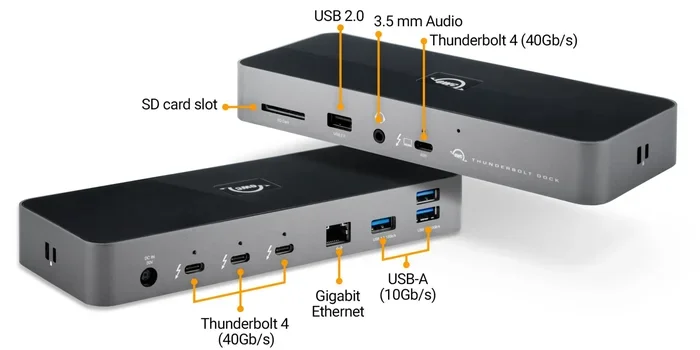
Thunderbolt docking stations are one of the most popular use cases. They let you connect a single cable to your laptop and expand to multiple monitors, wired internet, external storage, and peripherals.
Popular Thunderbolt docks include:
- CalDigit TS4: 18 ports, 96W charging, dual 8K display support
- Belkin Thunderbolt 4 Dock: 10 ports, 100W power delivery
- Anker 777 Thunderbolt Dock: Budget-friendly option with solid performance
External Storage and GPUs
Thunderbolt speeds make it ideal for external SSDs and hard drives. A Thunderbolt-connected NVMe enclosure can reach read speeds of 2,000 MB/s or more. For creative professionals, external GPUs (eGPUs) connected via Thunderbolt provide desktop-level graphics performance.
Monitors and Displays
Many modern monitors now include Thunderbolt 3 or Thunderbolt 4 ports. This allows you to daisy chain multiple displays from a single Thunderbolt port on your laptop. You also get video, data, and charging through one cable.
Common Mistakes When Using USB-C with Thunderbolt
Assuming All USB-C Cables Are Thunderbolt Cables
This is the most common mistake. A standard USB-C cable will work in a Thunderbolt port, but it will not deliver Thunderbolt speeds. Always use a Thunderbolt-certified cable for full performance.
Using Long Passive Cables for Thunderbolt
Passive Thunderbolt cables longer than 0.8 meters will not sustain 40 Gbps speeds. For cable lengths over 1 meter, you need an active Thunderbolt cable, which has built-in circuitry to boost the signal.
Ignoring the Daisy Chain Limitation
Thunderbolt supports daisy chaining up to six devices. However, each device in the chain reduces the available bandwidth. If you connect too many high-bandwidth devices, performance will drop.
Not Checking Display Compatibility
Thunderbolt 4 requires support for at least two 4K displays or one 8K display. Thunderbolt 3 supports dual 4K as well. But some older USB-C monitors may only support a single 4K display at lower refresh rates.
Expert Tips for Getting the Best USB-C Thunderbolt Experience
Buy Certified Cables
Look for the Thunderbolt 3 or Thunderbolt 4 certification mark on the cable packaging. Certified cables have been tested to meet Intel’s strict performance and safety standards.
Use the Right Port
If your device has both USB-C and Thunderbolt ports, make sure you are using the Thunderbolt port for Thunderbolt devices. Some laptops have multiple USB-C ports where only one supports Thunderbolt. Look for the lightning bolt icon next to the port.
Update Your Firmware
Thunderbolt compatibility can improve with firmware updates. Check your laptop manufacturer’s website for Thunderbolt controller updates. These often fix connection issues and improve stability.
Use a Docking Station for Maximum Flexibility
A Thunderbolt docking station is the easiest way to connect all your peripherals. It gives you multiple ports, fast charging, and reliable display output from a single Thunderbolt connection.
Is USB4 the Same as Thunderbolt?
USB4 is the latest USB standard, and it uses the USB-C connector. USB4 was developed based on the Thunderbolt 3 protocol, which means there is significant overlap.
Here is what you need to know:
- USB4 supports up to 40 Gbps (USB4 Pro supports 80 Gbps and 120 Gbps)
- USB4 is compatible with Thunderbolt 3 and Thunderbolt 4 devices
- Not all USB4 is Thunderbolt, but all Thunderbolt 3 and 4 are USB4 compatible
- Thunderbolt 4 certification requires USB4 compliance
So if you have a USB4 device and a Thunderbolt port, they will work together. The connection will negotiate the best shared protocol and speed.
Key Takeaways
- USB-C and Thunderbolt share the same connector: You can plug USB-C into Thunderbolt ports without any physical issues.
- Thunderbolt 3 and Thunderbolt 4 use USB-C form factor: Both generations use the same oval-shaped USB-C connector.
- Not all USB-C cables support Thunderbolt speeds: Standard USB-C cables may cap data transfer at 10 Gbps, while Thunderbolt cables reach 40 Gbps.
- Thunderbolt ports are fully backward compatible: They work with USB-C devices, USB 3.x devices, and even older USB-A adapters.
- Cable quality matters for performance: Using a certified Thunderbolt cable unlocks full speed, charging, and display capabilities.
- USB4 also uses the USB-C connector: USB4 devices offer Thunderbolt-like speeds and share similar compatibility.
- Always check the lightning bolt icon: This symbol on your port or cable confirms Thunderbolt capability.
Conclusion
Can you plug USB-C into Thunderbolt? Absolutely. The USB-C connector and Thunderbolt technology work together seamlessly. Thunderbolt 3 and Thunderbolt 4 both use the USB-C form factor, which means any USB-C cable will physically fit into a Thunderbolt port.
But the real question is not about fit. It is about performance. If you want full 40 Gbps speeds, daisy chaining, and external GPU support, you need a Thunderbolt-certified cable and Thunderbolt-compatible devices. A standard USB-C cable will handle charging and basic data just fine, but it will not unlock Thunderbolt’s full power.
The good news is that backward compatibility is excellent. Thunderbolt ports work with all USB-C devices, older USB standards, and even adapters. You rarely run into compatibility issues. Just pay attention to the cable you are using and the devices you are connecting.
Take a moment right now to check your cables. Look for the lightning bolt symbol. Read the specs. Make sure you are getting the performance you paid for. A small investment in the right Thunderbolt cable can make a huge difference in your daily workflow.
Whether you are a creative professional, a student, or a casual user, understanding USB-C and Thunderbolt compatibility gives you more control over your setup. You will make better purchasing decisions, avoid frustrating bottlenecks, and get the most out of every device you own.
Can I Use Any USB-C Cable With a Thunderbolt Port?
Yes, you can use any USB-C cable with a Thunderbolt port because they share the same connector shape. However, a standard USB-C cable will not deliver Thunderbolt speeds. It will fall back to USB data speeds, which max out at 10 Gbps for USB 3.x. For full 40 Gbps performance, you need a Thunderbolt-certified cable.
What Is the Difference Between Thunderbolt 3 and Thunderbolt 4?
Both Thunderbolt 3 and Thunderbolt 4 use the USB-C connector and support 40 Gbps data speeds. The main difference is that Thunderbolt 4 has stricter minimum requirements for video output, security, and peripheral compatibility. Thunderbolt 4 also guarantees support for a single 8K display or dual 4K displays, while Thunderbolt 3 has more flexible display requirements.
Will a Thunderbolt Cable Work in a Regular USB-C Port?
Yes, a Thunderbolt cable will work in a regular USB-C port. It will simply operate at USB speeds rather than Thunderbolt speeds. The connection is fully backward compatible. You can charge devices, transfer files, and connect peripherals just like you would with any USB-C cable.
Do I Need a Thunderbolt Cable for a Thunderbolt Docking Station?
Yes, if you want to take full advantage of a Thunderbolt docking station, you should use a Thunderbolt-certified cable. A standard USB-C cable may work for basic charging and data, but it will limit your speeds and may not support all features like dual displays or daisy chaining.
Can I Connect an External GPU to a Thunderbolt Port Using a USB-C Cable?
You can, but only if the cable is Thunderbolt-certified. External GPUs require high bandwidth and low latency, which standard USB-C cables cannot reliably provide. A Thunderbolt cable ensures the 40 Gbps bandwidth needed for a smooth eGPU experience without bottlenecks.
How Can I Tell if My Laptop Has Thunderbolt Ports?
Look for the lightning bolt icon next to the port on your laptop. You can also check your laptop’s specifications on the manufacturer’s website. Most modern laptops from Apple, Dell, HP, Lenovo, and Microsoft released after 2019 include Thunderbolt 3 or Thunderbolt 4 ports.
Frequently Asked Questions
What is Can I Plug Usb C Into Thunderbolt?
Can I Plug Usb C Into Thunderbolt is an important topic with many practical applications.