Can You Extend Wifi Using A Router For Better Coverage
Yes, you can extend wifi using a router as a repeater, access point, or mesh node. This guide walks you through every method to boost your wireless signal and eliminate dead zones. You will learn step-by-step setup tips, common mistakes to avoid, and expert recommendations for better network coverage at home or in the office.
Have you ever walked into a room and suddenly lost your wifi connection? Maybe your bedroom, basement, or backyard becomes a dead zone every single time. It is one of the most frustrating experiences in modern life. You are not alone. Millions of people struggle with weak wireless signals in parts of their homes or offices.
The good news is that you do not need to buy expensive new equipment to fix this. In many cases, you can extend your wifi using a router you already own. This guide will show you exactly how. We will cover every method, every tip, and every mistake to avoid. By the end, you will know everything you need to boost your network coverage and say goodbye to slow, spotty connections.
Key Takeaways
- Router as Repeater: You can repurpose an old router to extend your existing wifi signal without buying new gear.
- Access Point Mode: Setting a second router in access point mode gives you a wired backhaul for stable, fast coverage.
- Mesh Compatibility: Some routers work as mesh nodes, offering seamless roaming across large homes.
- Placement Matters: Where you put your router has a huge impact on signal strength and network coverage.
- Common Mistakes: Avoid placing routers near thick walls, microwaves, or metal objects that block wireless signals.
- Dual Band Advantage: Using dual-band routers helps reduce interference and improves internet speed across extended ranges.
📑 Table of Contents
- Can You Extend Wifi Using A Router? The Short Answer
- Why Do You Need to Extend Your Wifi Signal?
- Methods to Extend Wifi Using A Router
- How to Choose the Right Router for Extending Wifi
- Best Practices for Router Placement
- Common Mistakes When Extending Wifi with a Router
- Expert Tips to Maximize Your Extended Wifi Network
- Extending Wifi vs Buying a Dedicated Extender
- Final Thoughts
Can You Extend Wifi Using A Router? The Short Answer
The short answer is yes. Can you extend wifi using a router? Absolutely. A second router can act as a signal booster, a repeater, or even an access point. You do not need a special wifi extender or wifi booster device. Any compatible wireless router can do the job.
But here is the catch. How you set it up matters a lot. Simply plugging in a second router will not magically fix your coverage problems. You need to choose the right method, place the router correctly, and configure it properly. This article will walk you through all of that, step by step.
Whether you live in a small apartment or a large two-story house, extending your wireless coverage with a router is possible. Let us dive into the details.
Why Do You Need to Extend Your Wifi Signal?
Before we get into the how, let us talk about the why. Understanding the problem helps you pick the right solution.
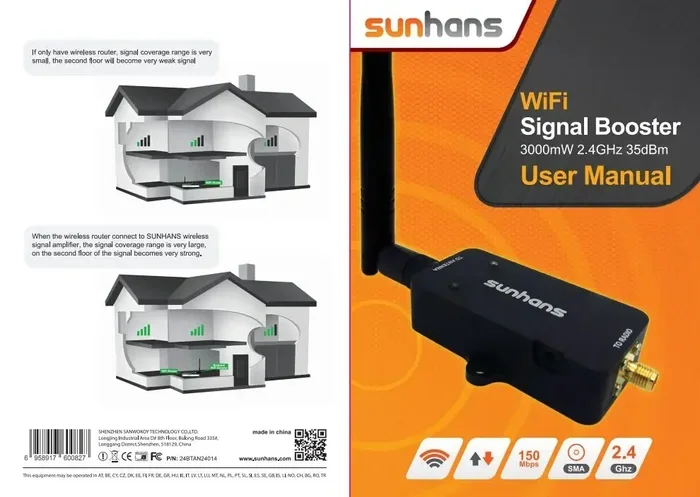
Most home routers have a limited wifi range. They send signals outward in all directions, like a light bulb glowing in the center of a room. But walls, floors, furniture, and even appliances can block or weaken those signals. The further you move from the router, the weaker your signal strength becomes.
Common Reasons for Weak Wifi Coverage
- Large home size: Houses over 2,000 square feet often have areas the router cannot reach.
- Thick walls and floors: Concrete, brick, and metal studs block wireless signals effectively.
- Router placement: A router tucked in a closet or behind a TV will struggle to reach every room.
- Too many devices: Multiple phones, tablets, smart TVs, and smart home gadgets compete for bandwidth.
- Older router technology: Routers using older wifi standards like 802.11n have shorter ranges than modern ones.
- Interference from other devices: Microwaves, baby monitors, and cordless phones can disrupt your wireless signal.
When your network coverage has gaps, you experience slow speeds, buffering videos, dropped calls, and frustration. Extending your wifi solves all of these problems.
Methods to Extend Wifi Using A Router
There are several ways to use a second router to extend your wireless network. Each method has its pros and cons. Let us explore them all.
Method 1: Using the Router as a Wireless Repeater
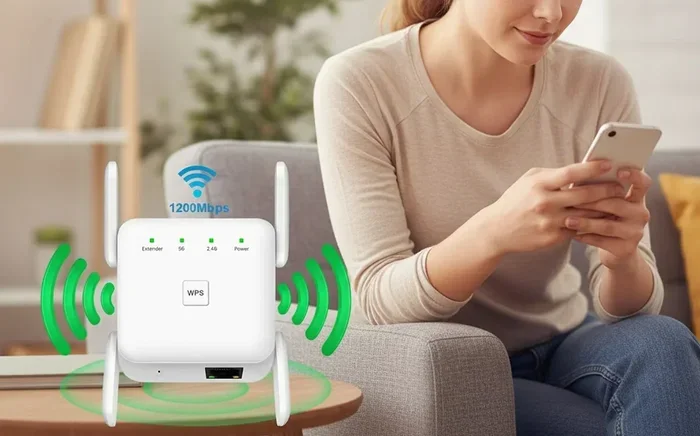
A wireless repeater picks up your existing wifi signal and rebroadcasts it to areas that need better coverage. Many routers have a built-in repeater or range extender mode. This is the easiest method because it requires no cables.
How to set it up:
- Place your second router in the area where your signal starts to weaken.
- Log into the router’s admin panel using a browser.
- Look for a setting called “Repeater Mode,” “Range Extender Mode,” or “Bridge Mode.”
- Select your main network and enter the password.
- Save the settings and reboot the router.
This method works well for quick fixes. But there is a trade-off. A repeater cuts your bandwidth in half because it uses the same radio to receive and send data. For light browsing and email, this is fine. For streaming or gaming, you might notice a slowdown.
Method 2: Setting Up the Router as an Access Point
An access point connects to your main router through an ethernet cable and creates a new wireless access point. This is the most reliable method for extending wifi range because you get full speed on the extended network.
How to set it up:
- Run an ethernet cable from your main router to the second router.
- Log into the second router’s admin panel.
- Disable DHCP on the second router. This prevents IP address conflicts.
- Assign a static IP address to the second router within the same subnet.
- Set the wireless name and password to match your main network (optional but recommended).
- Enable access point mode if your router supports it.
This setup gives you the best performance. The wired connection ensures zero speed loss. However, it requires running a cable, which may not be convenient in every home.
Method 3: Using the Router as a Mesh Node
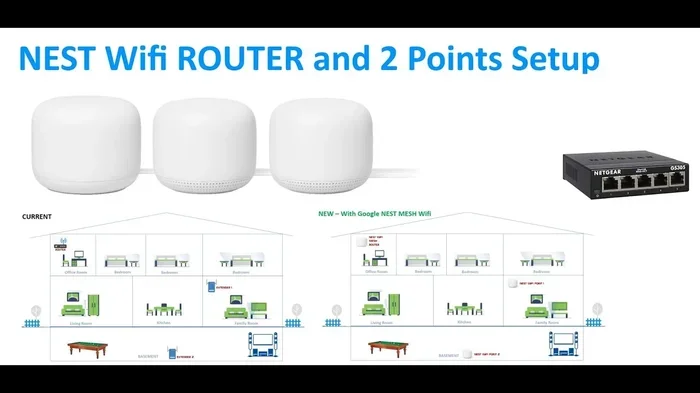
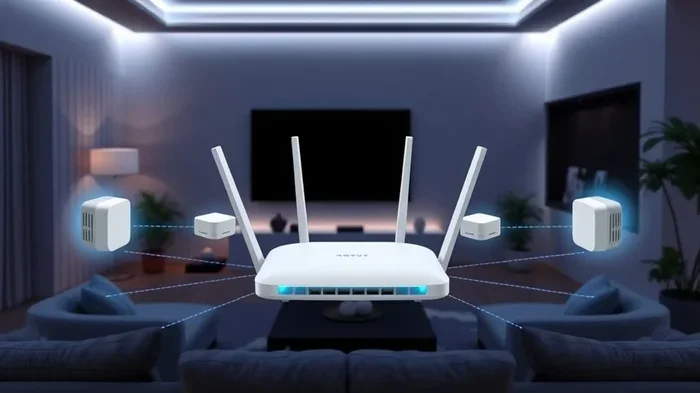
Some modern routers can work together as a mesh network. A mesh system uses multiple nodes to create a single, seamless wireless network. Your devices automatically switch to the strongest signal as you move around.
If your router supports mesh functionality, you can add it as a node to your existing mesh system. Check your router’s manual or manufacturer website for compatibility. Brands like TP-Link, ASUS, and Netgear offer routers that double as mesh nodes.
The benefit of a mesh setup is seamless roaming. You do not need to manually switch between networks. Your phone, laptop, and smart devices stay connected as you walk from room to room.
How to Choose the Right Router for Extending Wifi
Not all routers are created equal. If you are buying a second router specifically to extend your network coverage, you need to pick the right one.
Key Features to Look For
- Dual-band or tri-band support: Dual-band routers operate on 2.4 GHz and 5 GHz frequencies. Tri-band adds a second 5 GHz band. More bands mean less congestion and better internet speed.
- Wifi standard: Look for routers that support Wifi 5 (802.11ac) or Wifi 6 (802.11ax). These offer faster speeds and better range than older standards.
- Multiple antennas: Routers with external antennas tend to have stronger signal strength and wider coverage.
- Access point and repeater modes: Make sure the router supports these modes before you buy.
- Ethernet ports: If you plan to use a wired backhaul, make sure the router has enough LAN ports.
- MU-MIMO technology: This allows the router to communicate with multiple devices at the same time, improving performance in busy households.
Budget vs Premium Routers for Extension
| Feature | Budget Router | Premium Router |
|---|---|---|
| Price Range | $40 – $80 | $150 – $300 |
| Wifi Standard | Wifi 5 (802.11ac) | Wifi 6 or 6E (802.11ax) |
| Bands | Dual-band | Tri-band |
| Range | Good for small to medium homes | Excellent for large homes |
| Mesh Support | Limited or none | Full mesh compatibility |
| Best For | Basic extension needs | Heavy usage and large coverage |
You do not need to spend a fortune. A budget router in access point mode can do an excellent job extending your wireless network. But if you have a large home with many devices, investing in a premium router pays off.
Best Practices for Router Placement
Even the best router will struggle if you place it in the wrong spot. Router placement is one of the most overlooked factors in network coverage. Here is what you need to know.
Where to Place Your Main Router
- Center of the home: Place your main router in a central location so the signal reaches every room more evenly.
- Elevated position: Put the router on a shelf or mount it on a wall. Signals spread downward and outward better than from the floor.
- Open space: Keep the router away from cabinets, closets, and furniture. Signals need room to travel.
- Away from interference: Stay away from microwaves, cordless phones, baby monitors, and metal objects.
- Near the center of activity: If most of your internet use happens in the living room, place the router nearby.
Where to Place Your Secondary Router
When using a second router to extend your wifi range, placement is equally important.
- Halfway between the main router and the dead zone: This ensures the second router gets a strong enough signal to rebroadcast.
- In a line of sight: If possible, place the second router where it can “see” the main router without thick walls in between.
- Not too far from the main router: A repeater needs at least 50% of the original signal strength to work effectively.
Good placement alone can dramatically improve your wireless coverage. Before buying any new equipment, try moving your existing router to a better spot. You might be surprised by the results.
Common Mistakes When Extending Wifi with a Router
Many people make avoidable mistakes when trying to boost their wifi signal. Here are the most common ones and how to prevent them.
Mistake 1: Using the Same Channel on Both Routers
If both routers broadcast on the same channel, they can interfere with each other. This causes slowdowns and connectivity issues. Set the secondary router to a different channel than the main router to avoid this problem.
Mistake 2: Forgetting to Disable DHCP
DHCP assigns IP addresses to devices on your network. If both routers have DHCP enabled, they will conflict. This leads to devices losing connection randomly. Always disable DHCP on the secondary router when setting it up as an access point or repeater.
Mistake 3: Using an Old or Incompatible Router
An old router using the 802.11b or 802.11g standard will bottleneck your entire network. Make sure your secondary router supports at least the same wifi standard as your main router.
Mistake 4: Ignoring the 2.4 GHz vs 5 GHz Split
The 2.4 GHz band has a longer range but slower speeds. The 5 GHz band has shorter range but faster speeds. If you extend only on 2.4 GHz, devices far from the router will get slower speeds. Consider extending on both bands for the best balance of range and speed.
Mistake 5: Overlooking Firmware Updates
Router manufacturers release firmware updates that fix bugs and improve performance. Before setting up your secondary router, check for and install the latest firmware. This ensures the best network performance and security.
Expert Tips to Maximize Your Extended Wifi Network
Want to get the most out of your extended wireless network? Here are some expert tips that make a real difference.
- Use an ethernet cable for backhaul whenever possible. Wired connections are always faster and more stable than wireless ones.
- Give each router a unique name if you use repeater mode. This helps you troubleshoot which router your device is connected to.
- Restart your routers regularly. A simple reboot can fix many connectivity issues and improve performance.
- Use a wifi analyzer app. These free apps show you which channels are least congested, helping you optimize your signal strength.
- Consider powerline adapters as an alternative. If running ethernet cables is impossible, powerline adapters use your home’s electrical wiring to carry network signals. They pair well with a secondary router set as an access point.
- Upgrade your main router if it is more than five years old. Modern routers with wifi 6 technology offer vastly better range and speed than older models.
Quick Tip: If you are unsure whether your setup is working optimally, test your internet speed in every room using a speed test app. Compare results before and after extending your network. The numbers will tell you exactly how much improvement you have gained.
Extending Wifi vs Buying a Dedicated Extender
You might wonder whether using a second router is better than buying a dedicated wifi extender or wifi booster. Here is a quick comparison.
| Factor | Second Router | Dedicated Extender |
|---|---|---|
| Cost | Free (if you have an old router) | $20 – $100 |
| Setup Complexity | Moderate | Easy |
| Performance | Excellent (especially in AP mode) | Good to moderate |
| Flexibility | High (can switch between modes) | Limited |
| Features | Full router features | Basic extension only |
| Best For | Users who want full control | Users who want a simple plug-and-play solution |
Using a second router gives you more flexibility and better performance. A dedicated extender is simpler to set up but offers fewer features. For most people, repurposing an old router is the best value.
Final Thoughts
Can you extend wifi using a router for better coverage? Without a doubt, yes. Whether you use repeater mode, access point mode, or mesh node mode, a second router can transform your home network. You get stronger signals, faster speeds, and fewer dead zones.
The key is to choose the right method for your situation, place your routers strategically, and avoid the common mistakes we covered. With a little effort, you can enjoy seamless wireless coverage in every corner of your home.
Do not let weak wifi hold you back any longer. Grab that old router sitting in a drawer, follow the steps in this guide, and experience the difference. Your network coverage and internet speed will thank you.
Frequently Asked Questions
Can any router be used to extend wifi?
Most routers can be used to extend a wifi signal. You need to check if your router supports repeater mode, access point mode, or bridge mode. Older routers may have limited compatibility, so check the manual or manufacturer website before setting it up.
Does extending wifi with a router slow down the internet?
It can, but only if you use wireless repeater mode. A repeater shares the same radio for receiving and sending, which cuts bandwidth in half. Using access point mode with an ethernet cable backhaul eliminates this speed loss completely.
Do I need a special router to extend my wifi network?
No, you do not need a special router. Any compatible wireless router can extend your network coverage. However, routers that support dual-band or tri-band frequencies and modern wifi standards like wifi 6 will give you better results.
How far can I place the second router from the main router?
The second router should be placed where it still receives at least 50% of the main router’s signal strength. This is usually halfway between the main router and the dead zone. Too far away, and the extended network will be slow and unreliable.
Can I use two different brand routers to extend wifi?
Yes, you can use two different brand routers. However, using the same brand makes setup easier because the admin interfaces are more similar. You will need to manually configure the second router to match your main network settings for seamless coverage.
Is a mesh system better than extending with a second router?
A mesh system is designed specifically for whole-home coverage and offers seamless roaming. However, using a second router as a mesh node or access point can achieve similar results at a lower cost. If you already have a compatible router, extending with it is a smart and budget-friendly choice.