Can I Use A Usb Cable On A Wireless Printer For Sure
Yes, you can use a USB cable on a wireless printer for setup, troubleshooting, and direct printing. A USB connection offers a stable, reliable link between your computer and printer, even if the printer is designed for wireless printing. This guide walks you through every step, from cable types to driver installation, so you can get your wireless printer working with a wired USB connection in no time.
Key Takeaways
- Wireless printers support USB cables: You can connect a wireless printer to a computer using a USB cable for setup or direct printing.
- USB cables come in different types: USB-A to USB-B and USB-C are the most common printer cable options.
- Drivers are essential: You need the correct printer driver installed on your computer for the USB connection to work properly.
- USB offers a stable connection: A wired USB link avoids Wi-Fi dropouts and interference issues common with wireless printing.
- You can switch between wireless and USB: Most wireless printers let you toggle between wireless and USB modes easily.
- Troubleshooting is simple: Most USB connection problems can be fixed with basic steps like checking cable seating and updating drivers.
📑 Table of Contents
- Can I Use A USB Cable On A Wireless Printer?
- Types of USB Cables for Printers
- How to Connect a USB Cable to a Wireless Printer
- USB vs Wireless: Which Connection Is Better?
- Common Problems When Using USB with a Wireless Printer
- Quick Tips for the Best USB Printing Experience
- Can You Use USB and Wireless at the Same Time?
- Expert Insights on USB Printing
- Common Mistakes to Avoid
- Final Thoughts
Can I Use A USB Cable On A Wireless Printer?
The short answer is yes. You absolutely can use a USB cable on a wireless printer. Many people are surprised to learn that wireless printers still come with USB ports. These ports serve a very important purpose, even when you are not using the wireless connection. Whether you are setting up a new printer, fixing a connection problem, or simply prefer a wired connection, a USB cable can be a lifesaver.
Think of the USB port as a backup plan. Your printer might be built for wireless printing, but it still needs a way to talk to your computer directly. That is where the USB cable steps in. It creates a simple, fast, and reliable link between your device and the printer. You do not need to worry about Wi-Fi signals, router issues, or network settings. You just plug it in and print.
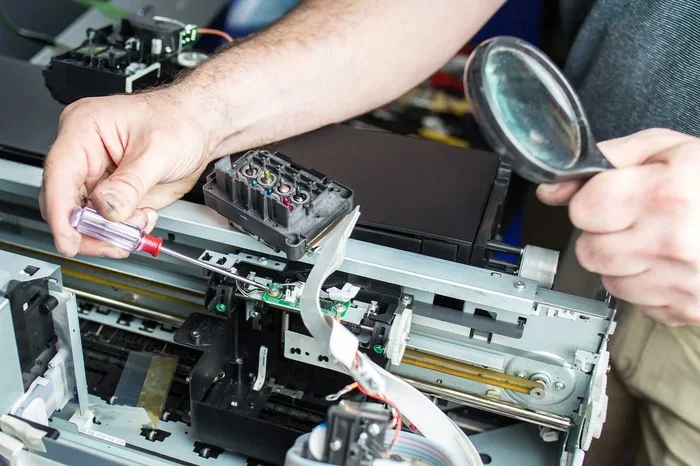
Inside your wireless printer, there are various electronic components, much like the components found on a motherboard, that manage both wireless and wired connectivity. Understanding how these parts work together helps you make the most of your printer’s USB port.
Why Would You Want to Use USB on a Wireless Printer?
There are many reasons to connect your wireless printer with a USB cable. Some reasons are practical. Others are about solving problems. Here are the most common ones:
- Initial setup: Many printers require a USB connection during the first setup. This helps install the printer driver and software correctly.
- Wi-Fi troubleshooting: If your wireless connection keeps dropping, a USB cable gives you a stable alternative.
- Large print jobs: A USB connection can handle large files without the slowdowns that sometimes happen over Wi-Fi.
- Network-free printing: You do not need a router or network. Just plug the cable and print.
- Driver reinstallation: A USB link makes it easier to reinstall or update your printer driver.
Each of these reasons shows that a USB cable is not just an afterthought. It is a real, useful tool for anyone who owns a wireless printer.
Types of USB Cables for Printers
Not all USB cables are the same. When you are looking for a printer cable, you need to know which type fits your device. The wrong cable will not work, no matter how good your USB connection setup is.
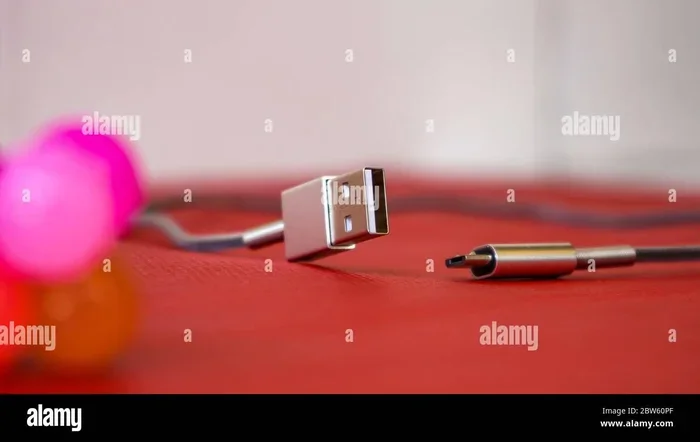
USB-A to USB-B Cable
This is the most common printer cable type. The USB-A end plugs into your computer. The USB-B end plugs into the printer. Most older and mid-range wireless printers use this type of cable. It is reliable and widely available. You can find one at almost any electronics store or online.
USB-C Cable
Newer printers are starting to use USB-C. This cable is smaller and reversible, which makes it easier to plug in. If your computer and printer both support USB-C, this is a great option. It also tends to support faster data transfer speeds, which helps with large print jobs.
USB Mini or Micro (Older Printers)
Some older printers use USB Mini-B or Micro-B connectors. These are less common today. If you have an older wireless printer, check the port type before buying a cable. Using the wrong connector can damage your port.
How to Connect a USB Cable to a Wireless Printer
Setting up a USB connection with your wireless printer is straightforward. Follow these steps to get started.
Step 1: Gather Your Equipment
Before you begin, make sure you have the right items:
- Your wireless printer
- The correct USB cable (USB-A to USB-B or USB-C, depending on your printer)
- A computer or laptop
- The printer driver software (usually available on the manufacturer’s website)
Step 2: Turn Off the Printer
Always turn off your printer before connecting the cable. This protects both your printer and your computer from potential USB interface issues. Wait a few seconds after powering it down.
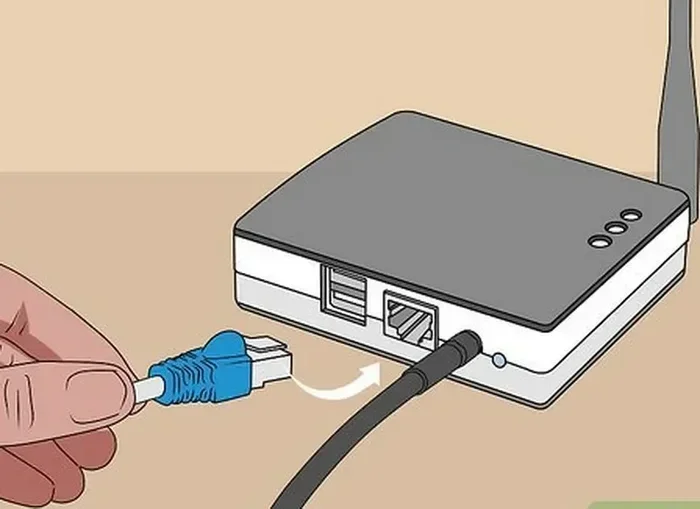
Step 3: Plug In the Cable
Connect the USB-A end to your computer. Then connect the USB-B or USB-C end to the printer. Make sure each end is firmly seated. You should feel a slight click when the connector locks in place.
Step 4: Turn On the Printer
Power on your printer after the cable is connected. Your computer should recognize the device within a few seconds. You may see a notification that new hardware has been detected.
Step 5: Install the Printer Driver
Even with a USB connection, you need the right driver. The driver tells your computer how to communicate with the printer. If the driver does not install automatically, visit the printer manufacturer’s website and download the latest version for your model.
USB vs Wireless: Which Connection Is Better?
Both USB connection and wireless printing have their strengths. Let us compare them so you can decide which works best for your needs.
| Feature | USB Cable | Wireless (Wi-Fi) |
|---|---|---|
| Stability | Very stable, no signal drops | Can drop with interference |
| Speed | Fast and consistent | Depends on network strength |
| Convenience | Requires a physical cable | Print from anywhere in range |
| Setup | Simple plug-and-play | Requires network configuration |
| Multiple Devices | One device at a time | Multiple devices can connect |
| Cable Management | Needs cable routing | No cables needed |
As you can see, each option has its place. A USB connection wins when you need reliability and speed. Wireless printing wins when you need flexibility and convenience. Many people use both, switching between them depending on the situation.
Common Problems When Using USB with a Wireless Printer
Even though a USB connection is simple, you can run into issues. Here are the most common ones and how to fix them.
Computer Does Not Recognize the Printer
This is the most common problem. It usually happens because the driver is missing or outdated. Try uninstalling the current driver and reinstalling it from the manufacturer’s website. Also, try a different USB port on your computer.
Printer Shows Offline
If your printer shows as offline, the USB interface might not be communicating properly. Check the cable first. A loose or damaged cable causes many offline issues. If the cable is fine, restart both your computer and printer.
Slow Printing Over USB
USB printing is usually fast. If it is slow, the cable might be damaged or too long. Use a shorter, high-quality cable for the best results. Also, check that you are using USB 2.0 or higher for faster data transfer.
Driver Conflicts
Sometimes, old printer drivers conflict with new ones. This can cause the USB printer cable connection to fail. Go to your device manager and remove any old or duplicate printer entries. Then reinstall the fresh driver.
Quick Tips for the Best USB Printing Experience
Want to get the most out of your USB connection with your wireless printer? Here are some quick tips:
- Use a short, high-quality USB cable to avoid signal loss.
- Always plug the cable directly into your computer, not through a hub.
- Keep your printer driver updated for the best printer compatibility.
- Avoid bending or pinching the cable near the connectors.
- Restart both devices if you notice any printer connectivity issues.
- Label your cables so you always know which one is for your printer.
These small habits can make a big difference. They keep your USB printer cable connection smooth and trouble-free.
Can You Use USB and Wireless at the Same Time?
Yes, in most cases you can. Many modern wireless printers support both USB connection and wireless printing at the same time. However, the computer connected via USB will usually take priority for that specific session. Other devices on the same network can still print wirelessly.
This dual-mode capability is very useful. It means you can set up your printer with a USB cable and then switch to wireless once everything is working. You do not have to choose just one method. Your printer gives you the flexibility to use both whenever you need.
Expert Insights on USB Printing
According to printer experts, using a USB cable for initial setup is still one of the most reliable methods available. Even though wireless printing has improved a lot over the years, a direct USB connection removes variables like router settings, IP conflicts, and network interference. This makes it the go-to method for resolving stubborn printer connectivity issues.
Experts also recommend keeping a spare USB cable specifically for your printer. Cables wear out over time, and having a backup means you are never stuck without a way to print. Look for cables that are rated for data transfer, not just charging, to ensure the best performance.
Common Mistakes to Avoid
- Using the wrong cable type: Not all USB cables work for printers. Make sure you have the right connector for your printer model.
- Skipping driver installation: Plugging in the cable alone is not enough. You need the correct printer driver installed on your computer.
- Using a damaged cable: Frayed or bent cables can cause connection drops and slow printing speeds.
- Plugging into a USB hub: For the best results, plug the cable directly into your computer’s USB port.
- Ignoring firmware updates: Outdated printer firmware can cause printer compatibility issues with USB connections.
Avoiding these mistakes saves you time and frustration. It also helps your wireless printer last longer and perform better.
Final Thoughts
So, can you use a USB cable on a wireless printer? The answer is a clear yes. Whether you are setting up your printer for the first time, troubleshooting a connection issue, or just prefer the reliability of a wired link, a USB cable works great with wireless printers. It gives you a stable, fast, and straightforward printer connection that never depends on Wi-Fi.
Now that you know how to connect, which cable to use, and how to troubleshoot common issues, you are ready to make the most of your printer. Keep your driver updated, use the right cable, and enjoy the flexibility of both wired and wireless printing. Your wireless printer is more versatile than you think, and the USB port is proof of that.
Take a few minutes today to check your cable and driver setup. A small effort now can save you hours of frustration later. Happy printing!
Frequently Asked Questions
Do I need a special USB cable for my wireless printer?
Most wireless printers use a standard USB-A to USB-B cable. Some newer models use USB-C. Check your printer’s manual or look at the port on the back of the printer to find the right cable type. You do not need a special or expensive cable for basic printing.
Can I use a USB cable instead of Wi-Fi on my wireless printer?
Yes, you can. A USB cable provides a direct connection between your computer and the printer. This bypasses the need for Wi-Fi entirely. It is a great option when your wireless network is not working or when you need a more stable connection for important print jobs.
Why does my wireless printer not show up when I plug in the USB cable?
This usually happens because the printer driver is missing or not installed correctly. Try uninstalling the current driver and downloading the latest version from the manufacturer’s website. Also, make sure the cable is fully inserted and try a different USB port on your computer.
Is USB printing faster than wireless printing?
Yes, USB printing is generally faster and more consistent. A wired USB connection does not depend on Wi-Fi signal strength or network traffic. This means no delays, no dropped print jobs, and more reliable performance, especially for large documents or photo printing.
Can multiple computers use a wireless printer via USB?
No, a USB cable connects one computer to the printer at a time. If you need multiple computers to print, use the wireless connection instead. You can also use a print server device to share a USB printer over a network, but that adds extra setup steps.
Will using a USB cable affect my printer’s wireless features?
No, using a USB cable does not disable your printer’s wireless capabilities. Most wireless printers support both USB and Wi-Fi at the same time. You can switch between them easily depending on your needs. Your wireless printing will work again as soon as you unplug the cable.