Can I Use An HDMI Splitter For Dual Monitors Step by Step
Yes, you can use an HDMI splitter for dual monitors, but the results depend on your splitter type and what you want to achieve. A basic HDMI splitter mirrors the same image on both screens, while some advanced models can extend your display. In this guide, we walk you through every step, from choosing the right splitter to fixing common issues. You will learn the differences between mirroring and extending, what hardware you need, and how to get the best results.
So you want to run two monitors from one computer. Maybe you are tired of squinting at a single screen while juggling spreadsheets and emails. Or perhaps you just want to share your screen with a colleague during a meeting. Whatever the reason, the question can I use an HDMI splitter for dual monitors comes up a lot. And the answer is yes, but with some important caveats.
Setting up a second monitor can completely change how you work. You get more screen space, better multitasking, and a smoother workflow. But before you rush out and buy a splitter, you need to understand what it does and what it does not do. This guide will walk you through everything you need to know, step by step.
We will cover how HDMI splitters work, the difference between mirroring and extending, the best splitters to buy, and how to set everything up. By the end, you will know exactly what to do and what to expect. Let us dive in.
Key Takeaways
- An HDMI splitter duplicates your screen: It sends the same signal to two monitors, which is great for presentations and shared viewing.
- Mirroring and extending are different: A basic splitter mirrors, while extending usually requires a graphics card with multiple outputs.
- Choose the right splitter: Look for ones that support your resolution, refresh rate, and HDCP content.
- Setup is simple: Plug in the splitter, connect your monitors, and adjust your display settings in Windows or macOS.
- Common issues have easy fixes: Problems like no signal or blurry images are usually solved by checking cables or updating drivers.
- An HDMI switch may be a better choice: If you want to switch between sources rather than duplicate them, a switch is the way to go.
📑 Table of Contents
- What Is an HDMI Splitter and How Does It Work?
- Can You Use an HDMI Splitter for Dual Monitors?
- Step-by-Step Guide to Setting Up an HDMI Splitter for Dual Monitors
- HDMI Splitter vs HDMI Switch: What Is the Difference?
- Common Problems and How to Fix Them
- Expert Tips for the Best Dual Monitor Experience
- Key Takeaways
- Conclusion
What Is an HDMI Splitter and How Does It Work?
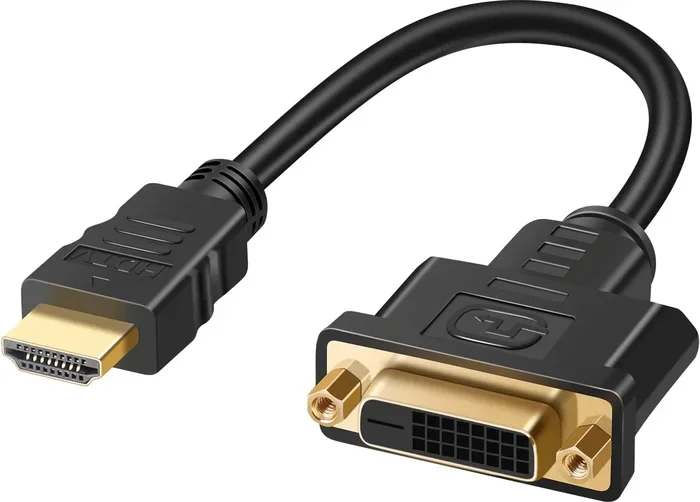
An HDMI splitter is a small device that takes one HDMI input and sends it to two or more outputs. Think of it like a water pipe splitter. Water goes in one end and comes out of two taps. An HDMI splitter does the same thing with video and audio signals.
How the Signal Travels
When you plug your laptop or desktop into an HDMI splitter, the device receives the video signal from your computer. It then duplicates that exact signal and sends it out through two separate HDMI cables to your two monitors. Both screens show the same image at the same time. This is called screen mirroring.
Most HDMI splitters also pass through audio. So if you are watching a video or giving a presentation, the sound will come from both monitors if they have built-in speakers, or from your computer’s audio output. The whole process is plug and play in most cases.
Types of HDMI Splitters
Not all splitters are the same. Here are the most common types you will come across:
- Basic HDMI splitter: Takes one input and splits it into two or more outputs. All screens show the same content.
- HDMI splitter with EDID management: These handle display resolution better and avoid common handshake problems between devices.
- HDMI switch: This is different from a splitter. A switch lets you connect multiple sources and switch between them on one screen.
- Active vs. passive splitters: Active splitters have a power source and boost the signal. Passive splitters do not need power but may lose signal quality over long cable runs.
For dual monitor setups, a basic active HDMI splitter is usually the best starting point. Make sure it supports the resolution you need, such as 1080p or 4K.
Can You Use an HDMI Splitter for Dual Monitors?
The short answer is yes. But the longer answer depends on what you mean by “dual monitors.” Many people assume that plugging a splitter into their laptop will give them an extended desktop. That is not quite how it works.
Mirroring vs. Extending
When you use an HDMI splitter, both monitors display the same image. This is mirroring. It is like looking at the same window from two different angles. Everything you do on one screen appears on the other.
Extending your desktop is different. With extending, your left monitor shows one thing and your right monitor shows something else. You can drag windows between screens. This gives you a massive workspace. Unfortunately, a standard HDMI splitter cannot do this.
To extend your desktop, you need your computer’s graphics card to have two separate video outputs. Most modern laptops and desktops have at least two options, such as HDMI and DisplayPort, or HDMI and USB-C. You do not need a splitter for that.
When Mirroring Is Perfectly Fine
Mirroring is actually great for many situations. Here are some examples where an HDMI splitter shines:
- Presentations: You can show your screen on a projector while still seeing it on your laptop.
- Digital signage: Running the same content on two TVs in a store or office.
- Gaming on the big screen: Duplicate your game to a TV while using your monitor for chat or guides.
- Teaching: Students at the back of a classroom can see the same content as those in the front.
- Video calls: Share your screen on a second monitor while keeping your main screen for notes.
So if mirroring fits your needs, an HDMI splitter is a simple and affordable solution. Just make sure you pick one that supports your desired resolution and refresh rate.
Step-by-Step Guide to Setting Up an HDMI Splitter for Dual Monitors
Setting up an HDMI splitter is straightforward. You do not need to be a tech expert. Follow these steps and you will be up and running in minutes.
Step 1: Gather Your Equipment
Before you start, make sure you have everything you need:
- An HDMI splitter (one input, two outputs)
- Two HDMI cables
- Two monitors with HDMI inputs
- Your computer or laptop
- A power source for the splitter (if it is an active model)
Tip: Choose a splitter that supports at least 1080p resolution. If you have a 4K monitor, get a 4K-compatible splitter. Cheap splitters sometimes only support 720p or 1080i, which will look blurry on modern screens.
Step 2: Connect the Splitter to Your Computer
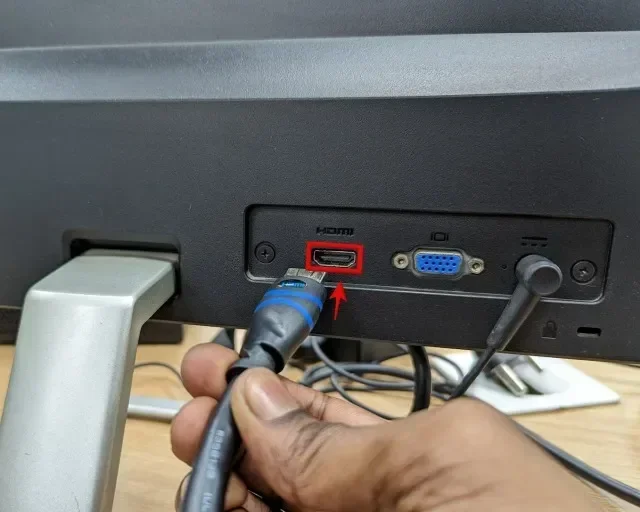
Plug one end of an HDMI cable into your computer’s HDMI output. Connect the other end into the input port on the HDMI splitter. If your splitter has a power cable, plug it into a wall outlet or USB port now.
Some splitters work without external power. These are passive splitters. Active splitters need power because they amplify the signal. Active splitters generally give better results, especially over longer cable distances.
Step 3: Connect Both Monitors
Take two HDMI cables and plug one end of each into the output ports on the splitter. Run the other ends to your two monitors. Plug each monitor into a power source and turn them on.
Make sure the cables are fully inserted. A loose connection is the most common reason for a “no signal” error. If the monitor says “no signal,” try unplugging and replugging the cable.
Step 4: Configure Display Settings
Once both monitors are connected, you may need to adjust your display settings. Here is how to do it on Windows:
- Right-click on your desktop and select Display Settings.
- You should see two display icons labeled 1 and 2.
- Click Detect if you do not see them.
- Under Multiple Displays, choose Duplicate these displays.
- Click Keep Changes to save.
On macOS, go to System Settings, then Displays. Hold the Option key and click Detect Displays. Choose Mirror Displays from the dropdown menu.
If both screens show the same image, you are all set. Congratulations, you have successfully used an HDMI splitter for dual monitors.
Step 5: Adjust Resolution and Orientation
You can fine-tune your setup by adjusting the resolution and screen orientation. In Windows Display Settings, click on each display icon and choose the recommended resolution. Make sure both monitors are set to the same resolution for the best mirroring experience.
If one monitor is turned sideways or upside down, you can fix that in the display settings too. Just drag the display icons to match the physical layout of your monitors.
HDMI Splitter vs HDMI Switch: What Is the Difference?
People often confuse HDMI splitters with HDMI switches. They are not the same thing, and choosing the wrong one can lead to frustration.
| Feature | HDMI Splitter | HDMI Switch |
|---|---|---|
| Inputs | One | Two or more |
| Outputs | Two or more | One |
| Function | Duplicates signal to multiple screens | Switches between sources on one screen |
| Use Case | Mirroring to two monitors | Connecting a PS5, laptop, and Blu-ray player to one TV |
| Price Range | 10 to 40 dollars | 15 to 60 dollars |
So if you want to show the same content on two screens, go with a splitter. If you want to connect multiple devices to a single monitor, buy a switch. Some combo devices even offer both splitting and switching, but they cost more.
When shopping for an HDMI splitter, look for key specs like resolution support, HDCP compatibility, and refresh rate. HDCP (High-bandwidth Digital Content Protection) matters if you plan to watch Netflix or play copy-protected Blu-ray content. A splitter without HDCP support will show a black screen when you try to play protected content.
Common Problems and How to Fix Them
Even with a simple setup like this, things can go wrong. Here are the most common issues and how to solve them.
No Signal on One or Both Monitors
This is the most frequent problem. Usually, it is caused by a loose cable or an incompatible splitter. Try these fixes:
- Unplug and replug all HDMI cables firmly.
- Check that the splitter is powered on (if it is an active model).
- Try a different HDMI cable.
- Test each monitor individually to rule out a monitor problem.
- Update your graphics card drivers.
Sometimes the splitter simply cannot handle the resolution or refresh rate your computer is outputting. Lower the resolution in your display settings and see if that fixes the issue.
Blurry or Low-Quality Image
If the image looks fuzzy, your splitter may not support the resolution you are using. Cheap splitters often cap out at 1080p or even lower. Invest in a quality splitter that supports 4K if you have 4K monitors.
Also, check the HDMI cable length. Very long cables (over 15 feet) can degrade the signal. Use shorter cables or add a signal booster if needed.
No Audio Through HDMI
If your video works but there is no sound, check your audio output settings. In Windows, go to Settings, then System, then Sound. Make sure your HDMI output is set as the default audio device. Some splitters also need their own firmware update to handle audio properly.
flickering or Intermittent Signal
A flickering screen usually points to a loose connection or a low-quality splitter. Try a different splitter or a powered HDMI hub. Also, make sure your HDMI cables are not damaged or bent at sharp angles.
Expert Tips for the Best Dual Monitor Experience
Want to get the most out of your setup? Here are some tips from people who use dual monitors every day.
Invest in a Good Splitter
Do not buy the cheapest splitter you can find. A poor-quality splitter can cause signal loss, audio sync issues, and resolution problems. Look for splitters from reputable brands that support your resolution and include EDID management. EDID stands for Extended Display Identification Data, and it helps your computer communicate properly with your monitors.
Match Your Resolution and Refresh Rate
Make sure your splitter supports the resolution and refresh rate you need. If you have a 144Hz gaming monitor, a splitter that only supports 60Hz will limit your experience. Check the product specs carefully before buying.
Keep Cables Short and Quality
Shorter HDMI cables carry a stronger signal. If you need longer runs, consider using high-quality certified cables or adding an HDMI repeater. Cheap, long cables are a common source of signal problems.
Update Your Graphics Drivers
Outdated graphics drivers can cause all sorts of display issues. Visit your GPU manufacturer’s website (NVIDIA, AMD, or Intel) and download the latest drivers. This alone fixes many display problems.
Consider a Docking Station Instead
If you want to extend your desktop rather than mirror it, an HDMI splitter will not help. Instead, consider a USB-C docking station or a DisplayLink adapter. These devices can add multiple outputs to your laptop and let you extend your display across two or more monitors.
Use Quick Tips for Everyday Use
- Label your cables so you always know which is which.
- Keep your splitter in a well-ventilated area if it has a power adapter.
- Restart your computer after making display changes if things look odd.
- Use keyboard shortcuts like Windows key plus P to quickly switch between display modes.
Key Takeaways
- An HDMI splitter duplicates your screen: It sends the same signal to two monitors, which is great for presentations and shared viewing.
- Mirroring and extending are different: A basic splitter mirrors, while extending usually requires a graphics card with multiple outputs.
- Choose the right splitter: Look for ones that support your resolution, refresh rate, and HDCP content.
- Setup is simple: Plug in the splitter, connect your monitors, and adjust your display settings in Windows or macOS.
- Common issues have easy fixes: Problems like no signal or blurry images are usually solved by checking cables or updating drivers.
- An HDMI switch may be a better choice: If you want to switch between sources rather than duplicate them, a switch is the way to go.
- Invest in quality equipment: A good splitter with EDID management and proper resolution support saves you headaches down the road.
Conclusion
Using an HDMI splitter for dual monitors is a simple and effective way to duplicate your screen across two displays. Whether you are giving a presentation, setting up a digital sign, or just want to see your screen from across the room, a splitter gets the job done. The setup process is quick and requires no technical expertise. Just plug in, configure your display settings, and you are good to go.
Remember that a splitter mirrors your display, it does not extend it. If you need an extended desktop, you will need to use your computer’s built-in multiple video outputs or invest in a docking station. But for mirroring, an HDMI splitter is hard to beat in terms of simplicity and cost.
Choose a quality splitter that supports your resolution, check your cables, and do not be afraid to tweak your display settings. With the right setup, you can double your screen real estate in minutes. Now that you know the answer to the question can I use an HDMI splitter for dual monitors, you are ready to get started. Happy setup!
Frequently Asked Questions
Can an HDMI splitter extend my desktop instead of mirroring it?
No, a standard HDMI splitter only mirrors your display. It sends the same signal to both screens. To extend your desktop, you need your computer to have two separate video outputs, such as HDMI and DisplayPort or HDMI and USB-C.
Do I need a powered HDMI splitter or will a passive one work?
For most setups, an active (powered) HDMI splitter works better. It boosts the signal and supports longer cable runs. Passive splitters work fine for short distances but may lose signal quality over time.
Will an HDMI splitter support 4K resolution?
It depends on the splitter. Many HDMI splitters on the market now support 4K at 30Hz or even 4K at 60Hz. Always check the product specs before buying to make sure it matches your monitor’s resolution.
Can I use an HDMI splitter with a laptop?
Yes, you can. Most laptops with an HDMI output work perfectly with an HDMI splitter. Just plug the splitter into your laptop, connect two monitors, and adjust your display settings to duplicate the screens.
Why is there no sound when I use an HDMI splitter?
Check your audio output settings in Windows or macOS. Make sure HDMI is set as the default audio device. Also, make sure your splitter supports audio passthrough, as some very cheap models may not.
What is the difference between an HDMI splitter and an HDMI switch?
An HDMI splitter takes one input and sends it to multiple screens. An HDMI switch takes multiple inputs and sends them to one screen. They serve opposite purposes, so make sure you buy the right one for your needs.