Can You Check Wi Fi Strength On Iphone Step By Step
You can easily check Wi-Fi strength on your iPhone using built-in settings, hidden field test codes, and third-party apps. Whether you want to see signal bars, decode hidden network numbers, or diagnose slow internet, this guide covers every method. Knowing your Wi-Fi signal strength helps you troubleshoot connectivity issues and get faster internet on your iPhone. Follow our step-by-step instructions to monitor, measure, and improve your wireless connection with confidence.
Key Takeaways
- Built-in Wi-Fi indicator: Your iPhone shows signal bars in the status bar, giving you a quick visual of your wireless connection strength.
- Field test mode: You can access hidden network details on your iPhone using a simple dialer code that reveals exact signal numbers.
- Third-party apps: Apps like Wi-Fi Analyzer and Network Analyzer provide detailed signal strength data and help with network troubleshooting.
- Signal strength numbers: Understanding dBm readings helps you know if your Wi-Fi connection is strong, moderate, or weak.
- Improvement tips: Router placement, reducing interference, and updating settings can significantly boost your Wi-Fi signal on iPhone.
- Common mistakes: Avoiding simple errors like ignoring router placement and outdated firmware can prevent weak wireless connection issues.
📑 Table of Contents
- Why Checking Wi-Fi Strength on iPhone Matters
- How to Check Wi-Fi Strength Using iPhone Settings
- Using Third-Party Apps to Check Wi-Fi Signal
- Understanding Wi-Fi Signal Strength Numbers
- Tips to Improve Your Wi-Fi Signal on iPhone
- Common Mistakes That Weaken Your Wi-Fi on iPhone
- When to Seek Professional Help
- Conclusion
Why Checking Wi-Fi Strength on iPhone Matters
Your iPhone connects to the internet through a wireless router in your home or office. The strength of that connection affects everything from streaming videos to video calls. Weak signal means slow internet speed, dropped calls, and frustrating buffering.
Knowing how to check Wi-Fi signal strength on your iPhone gives you power. You can diagnose problems fast. You can find the best spot in your house for streaming. You can even decide if you need a new router or a signal booster. Network troubleshooting starts with understanding what your iPhone is telling you about its wireless connection.
Most people ignore their Wi-Fi bars until something goes wrong. By then, they have already lost time and patience. This guide changes that. You will learn every way to check your signal, understand what the numbers mean, and take action to improve it.
Whether you are a casual user or someone who depends on Wi-Fi connectivity for work, this guide has you covered. Let us dive in and explore every method available on your iPhone.
How to Check Wi-Fi Strength Using iPhone Settings
The simplest way to check your Wi-Fi strength is right from your iPhone settings. Apple built this feature into every iOS device. You do not need any extra apps or technical skills. Here is how to do it step by step.
Using the Built-In Wi-Fi Indicator
Look at the top right corner of your iPhone screen. You will see small bars next to the Wi-Fi icon. More bars mean a stronger wireless signal. Fewer bars mean a weaker connection.
This is the most basic method. It works instantly. However, it does not give you exact numbers. It only gives you a rough idea of your Wi-Fi coverage in that moment. Here is what the bars typically mean:
- 4 bars: Excellent signal. Your download speed should be fast and stable.
- 3 bars: Good signal. Most activities work without any issues.
- 2 bars: Fair signal. You might experience slower speeds during peak hours.
- 1 bar: Weak signal. Expect buffering, lag, and possible disconnections.
- No bars: No connection. Your iPhone is not connected to the Wi-Fi network.
While this method is quick, it has limitations. The bars do not tell you exactly how far you are from your router. They do not show interference from other devices. For deeper insight, you need to explore the hidden settings.
Accessing Hidden Network Details
Apple hides detailed network information behind a field test mode. This feature reveals exact signal numbers in dBm (decibel-milliwatts). It is a powerful tool for network troubleshooting.
Here is how to access it:
- Open the Phone app on your iPhone.
- Type
3001#12345#into the dialer. - Press the Call button.
- Field Test Mode will open automatically.
- Look for the RSSI or signal indicator number.
The number you see represents your Wi-Fi signal strength. The closer the number is to zero, the stronger your signal. A reading of -30 dBm is excellent. A reading of -80 dBm is very weak. Numbers between -50 and -60 dBm are good for most activities.
This hidden feature is not widely known. Most iPhone users never see it. But it is incredibly useful when you need precise data about your wireless connection. You can use this information to decide where to place your router or whether you need a Wi-Fi range extender.
Quick Tips
- Exit Field Test Mode by holding the power button and swiping to restart your iPhone.
- The signal number changes as you move around your home. Walk around and note the differences.
- Use this method alongside the visual bars for a complete picture of your Wi-Fi connectivity.
Using Third-Party Apps to Check Wi-Fi Signal
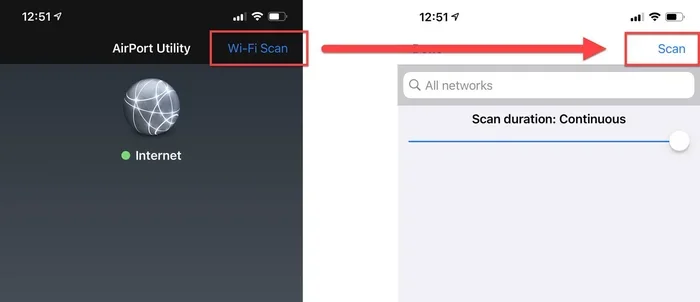
Apple’s built-in tools are helpful, but they have limits. Third-party apps give you much more detail about your wireless network. They can show you channel congestion, signal interference, and even suggest the best Wi-Fi channel for your router.
Top Apps for Checking Wi-Fi Strength
Several apps on the App Store can help you measure your Wi-Fi signal strength in detail. Here are some of the best options:
- Wi-Fi Analyzer: This app shows signal strength, channel usage, and network congestion. It is perfect for network troubleshooting at home or in the office.
- Network Analyzer: This tool provides detailed information about your wireless connection, including ping times and bandwidth usage.
- Speedtest by Ookla: While not a signal analyzer, it measures your internet speed and helps you understand if your signal strength is affecting performance.
- Fing: This app scans your entire network and shows all connected devices. It helps identify devices that might be slowing down your bandwidth.
Most of these apps are free or offer free versions with basic features. You can download them directly from the App Store. Once installed, they give you real-time data about your Wi-Fi coverage and signal quality.
Using a Wi-Fi analyzer app is especially helpful if you live in an apartment building. Many routers in one area can cause interference. These apps help you find the clearest channel for your wireless connection.
Understanding Wi-Fi Signal Strength Numbers
When you check your Wi-Fi strength on iPhone, you will see numbers. These numbers can seem confusing at first. But once you understand them, they become a powerful tool for improving your internet experience.
What the Numbers Mean
The signal strength on your iPhone is measured in dBm, which stands for decibel-milliwatts. This is a logarithmic scale. That means the numbers work differently than you might expect.
Here is a simple breakdown of what the numbers mean:
- -30 dBm: Perfect signal. You are right next to the router. This is the best possible Wi-Fi connectivity.
- -50 dBm: Excellent signal. You can stream, game, and video call without any issues.
- -60 dBm: Good signal. Most activities work smoothly. This is the ideal range for everyday use.
- -70 dBm: Fair signal. You may notice slower speeds when downloading large files.
- -80 dBm: Weak signal. Connections may drop frequently. Streaming will be difficult.
- -90 dBm and below: Very weak signal. You are likely too far from the router or facing heavy interference.
The key thing to remember is that the closer the number is to zero, the stronger your signal. A reading of -30 is much better than -80. Understanding this simple scale helps you make smart decisions about your wireless connection.
Comparing Signal Strength Ratings
Different iPhones may show slightly different readings. This depends on the model and the antenna design. Newer iPhones generally have better signal indicators and can pick up weaker signals more effectively.
Here is a quick comparison of what to expect across different scenarios:
| Signal Level | dBm Range | Visual Bars | Experience |
|---|---|---|---|
| Excellent | -30 to -50 | 4 bars | Fast and stable connection |
| Good | -50 to -60 | 3 bars | Reliable for most tasks |
| Fair | -60 to -70 | 2 bars | Some slowdowns possible |
| Weak | -70 to -80 | 1 bar | Frequent issues and drops |
| Very Weak | -80 and below | No bars or disconnected | Unusable for most activities |
This table helps you quickly assess your Wi-Fi signal strength. If your numbers fall in the weak or very weak range, it is time to take action. You can move closer to the router, reduce interference, or consider upgrading your equipment.
Expert Insights
Networking experts recommend keeping your signal above -67 dBm for reliable Wi-Fi performance. If your numbers consistently fall below -75 dBm, you should investigate the cause. It could be distance, walls, interference, or an outdated router. A simple Wi-Fi speed test can confirm whether your signal strength is actually affecting your internet experience.
Tips to Improve Your Wi-Fi Signal on iPhone
Now that you know how to check your Wi-Fi strength, the next step is improving it. A weak wireless connection can slow down your entire day. Fortunately, there are many practical steps you can take to boost your signal.
Router Placement and Distance
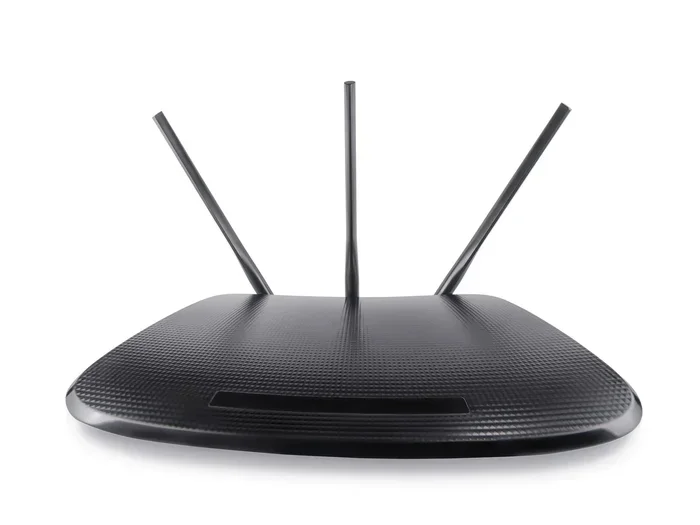
The location of your Wi-Fi router matters more than most people realize. A router placed in a corner or behind furniture will weaken your Wi-Fi coverage. Here are some placement tips:
- Place your router in a central location in your home.
- Keep it elevated, such as on a shelf or mounted on a wall.
- Avoid placing it near thick walls, metal objects, or large appliances.
- Keep it away from microwaves and cordless phones, which cause interference.
- Position the antennas vertically for the best horizontal coverage.
Distance is the biggest enemy of Wi-Fi signal strength. The further you are from the router, the weaker your signal becomes. If your bedroom is far from the router, you may experience poor Wi-Fi connectivity in that room.
Network Settings Optimization
Your iPhone settings can also affect how well it connects to Wi-Fi networks. Here are some settings to check and optimize:
- Go to Settings and tap Wi-Fi. Make sure Wi-Fi is turned on.
- Forget the network and reconnect. This refreshes your Wi-Fi connection.
- Turn on Auto-Join for your preferred network.
- Disable Wi-Fi Assist if it causes unexpected cellular signal switching.
- Update your iPhone to the latest iOS version. Apple regularly improves wireless performance through software updates.
These simple steps can make a noticeable difference in your daily Wi-Fi experience. They take only a few minutes and require no technical expertise.
Reduce Interference from Other Devices
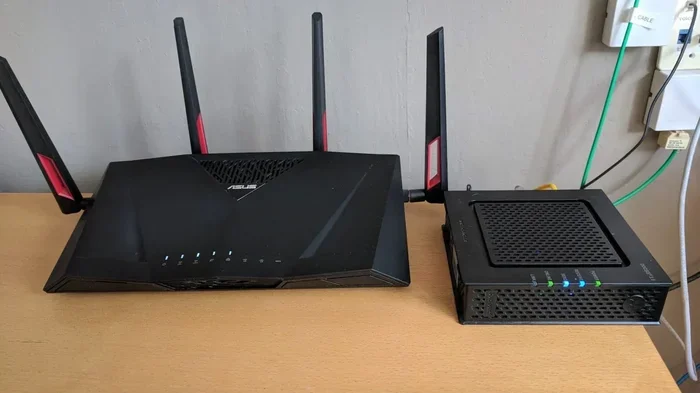
Many household devices can interfere with your wireless connection. Baby monitors, Bluetooth devices, and even neighboring routers can cause signal degradation. If you notice your Wi-Fi strength drops at certain times, interference might be the cause.
Try switching your router to a less crowded channel. Most modern routers support both 2.4 GHz and 5 GHz bands. The 5 GHz band typically offers faster speeds and less interference. However, it has a shorter Wi-Fi range than 2.4 GHz. Choose the band that best fits your needs.
Common Mistakes That Weaken Your Wi-Fi on iPhone
Many iPhone users unknowingly make mistakes that weaken their Wi-Fi signal. Avoiding these common errors can significantly improve your wireless connection and overall internet experience.
- Ignoring router updates: Outdated router firmware can cause slow speeds and connectivity issues. Check for updates regularly.
- Too many connected devices: Every device on your network uses bandwidth. Too many devices slow down the connection for everyone.
- Placing the router on the floor: Signals spread outward and downward. Placing the router on the floor reduces coverage.
- Not restarting the router: A simple restart can fix many network troubleshooting issues. Restart your router at least once a month.
- Using old equipment: Older routers may not support the latest Wi-Fi standards. Upgrading can dramatically improve your signal.
- Overlooking iPhone settings: Sometimes the problem is not the router. Your iPhone settings might be limiting your Wi-Fi performance.
By avoiding these mistakes, you can enjoy a stronger and more reliable wireless connection on your iPhone. Small changes often lead to big improvements in Wi-Fi connectivity.
When to Seek Professional Help
Most Wi-Fi signal issues can be fixed at home using the methods in this guide. However, some problems need professional attention. If you have tried everything and your Wi-Fi strength is still poor, it may be time to call in an expert.
Signs that you need professional help include:
- Frequent disconnections that persist even after router restarts.
- Consistently weak signal in multiple rooms despite router placement changes.
- Internet speeds that are significantly slower than what your plan promises.
- Devices other than your iPhone also experience connectivity problems.
- Your router is more than five years old and does not support modern Wi-Fi standards.
A professional can assess your home layout, recommend the right equipment, and set up a solution that works for your specific needs. Sometimes a mesh Wi-Fi system is the best answer for large homes with thick walls and multiple floors.
Conclusion
Checking Wi-Fi strength on iPhone is easier than most people think. You can use the built-in signal bars for a quick check. You can access hidden field test mode for exact numbers. You can also download third-party apps for detailed analysis. Each method gives you valuable insight into your wireless connection.
Understanding your Wi-Fi signal strength empowers you to take control of your internet experience. You can find the best spot in your home for streaming and working. You can troubleshoot problems before they become frustrating. You can make informed decisions about router placement and equipment upgrades.
Remember to check your signal regularly. Small changes in your environment can affect your Wi-Fi coverage over time. Use the tips in this guide to keep your wireless connection strong and reliable.
Your iPhone is a powerful tool for monitoring Wi-Fi performance. Use it wisely, and you will enjoy faster speeds, fewer disconnections, and a better internet experience every day.
Frequently Asked Questions
Can I check Wi-Fi signal strength without any apps?
Yes, you can check your Wi-Fi strength on iPhone without downloading any apps. The built-in signal bars in your status bar give you a quick visual indicator. You can also use the hidden Field Test Mode by dialing 3001#12345# to see exact signal numbers in dBm.
What is a good Wi-Fi signal strength number on iPhone?
A good Wi-Fi signal strength number on iPhone is between -30 dBm and -60 dBm. Numbers in this range mean you have a strong and reliable connection. Anything below -70 dBm may cause slower speeds and occasional connectivity issues.
Do third-party Wi-Fi apps really work on iPhone?
Yes, many third-party Wi-Fi apps work well on iPhone. Apps like Wi-Fi Analyzer and Network Analyzer provide detailed information about signal strength, channel congestion, and network performance. However, Apple limits some advanced features on iOS compared to Android devices.
Why does my Wi-Fi signal weaken at night?
Your Wi-Fi signal may weaken at night because more devices are using the network. Streaming, gaming, and browsing by multiple household members can congest your wireless connection. Additionally, neighboring networks may cause more interference during peak hours.
Can I improve Wi-Fi strength without buying new equipment?
Yes, you can improve Wi-Fi strength without buying new equipment. Try moving your router to a central location, reducing interference from other devices, switching to the 5 GHz band, and restarting your router regularly. These free steps can make a significant difference in your Wi-Fi connectivity.
How often should I check my Wi-Fi signal strength on iPhone?
It is a good idea to check your Wi-Fi signal strength whenever you notice slow internet or connectivity issues. You should also check it after moving furniture, adding new devices, or making changes to your network setup. Regular checks help you maintain a strong and reliable wireless connection.