Can Thunderbolt Be Used For HDMI Display Setup Guide
Yes, Thunderbolt can absolutely be used for HDMI display connections. Thunderbolt ports support video output through adapters and cables, letting you connect external monitors and displays easily. Whether you use Thunderbolt 3 or Thunderbolt 4, you can enjoy high-resolution displays with simple setup steps. This guide walks you through everything you need to know about connecting Thunderbolt to HDMI displays.
Thunderbolt technology has changed the way we connect devices. Whether you are a creative professional or a casual user, you have probably wondered about the best way to hook up your laptop or desktop to an external monitor. The good news is that Thunderbolt can be used for HDMI display setups with relative ease. This guide breaks down everything you need to know about making that connection work flawlessly.
Many people assume Thunderbolt and HDMI are completely different worlds. In reality, they work together beautifully. With the right adapter or cable, your Thunderbolt port can send video signals to any HDMI display. This means you can use large monitors, projectors, or TVs with your Thunderbolt-equipped device. Let us walk through how this works and what you need to get started.
Key Takeaways
- Thunderbolt supports HDMI output: You can connect Thunderbolt ports to HDMI displays using the right adapter or cable.
- Thunderbolt 3 and 4 both work: Both versions carry video signals and support external monitors with ease.
- Adapter quality matters: Using a certified adapter ensures stable connections and the best display performance.
- Resolution depends on your setup: Thunderbolt can support up to 4K or even 8K displays with the right equipment.
- Docking stations simplify connections: A Thunderbolt docking station lets you connect HDMI displays and other peripherals through one port.
- Common issues are fixable: Most Thunderbolt-to-HDMI problems can be solved with basic troubleshooting steps.
📑 Table of Contents
Understanding Thunderbolt and HDMI Basics
Before you dive into setup, it helps to understand what each technology does. Thunderbolt is a hardware interface developed by Intel and Apple. It combines data, video, and power delivery into a single port. HDMI, on the other hand, is a dedicated audio and video interface. When you bridge the two with an adapter, you get the best of both worlds.
What Is Thunderbolt?
Thunderbolt is a versatile connectivity standard. It was first introduced by Apple and Intel back in 2011. Over the years, it has evolved through several versions. Each new version brings faster speeds and better capabilities.
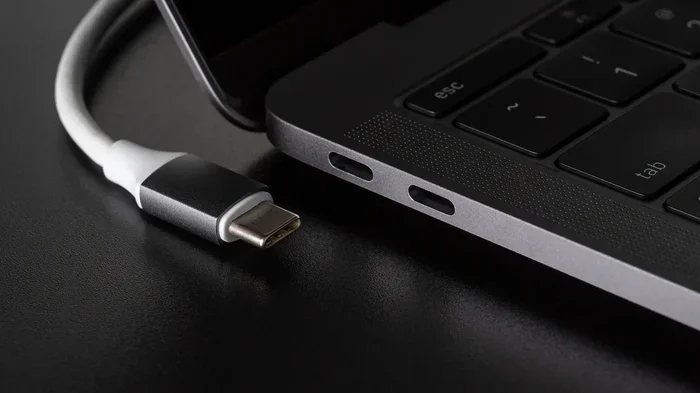
Thunderbolt uses the USB-C connector shape in its newer versions. This small, reversible connector packs a punch. It can handle data transfer, video output, and charging all at the same time. That is why many modern laptops now feature Thunderbolt ports instead of traditional USB or HDMI ports.
What Is HDMI?
HDMI stands for High-Definition Multimedia Interface. It has been the standard for connecting devices to displays for over two decades. You will find HDMI ports on TVs, monitors, projectors, and even some older laptops.
HDMI carries both audio and video signals through a single cable. This makes it incredibly convenient for home theaters and office setups alike. Most people already own HDMI cables, which is another reason Thunderbolt-to-HDMI setups are so appealing.
How Thunderbolt Connects to HDMI Displays
The connection between Thunderbolt and HDMI relies on a simple principle. Thunderbolt ports can output video signals. When you use an adapter, that signal converts to HDMI format. Your external display then receives it just like it would from a standard HDMI source.
The Role of Adapters and Cables
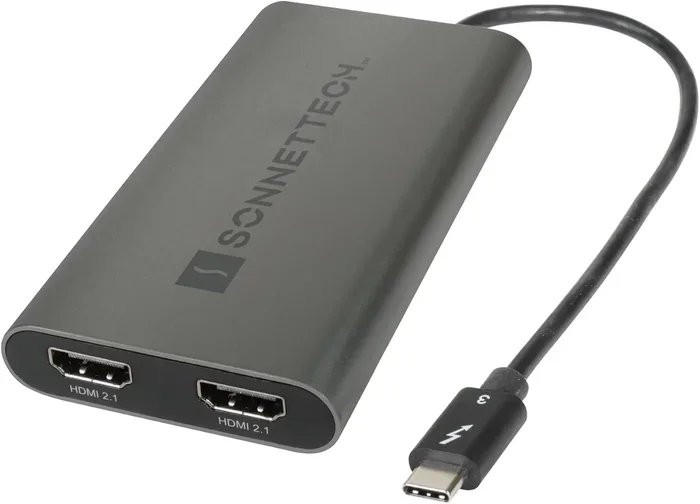
You cannot plug a Thunderbolt cable directly into an HDMI port. You need an adapter or a Thunderbolt-to-HDMI cable. These adapters do the conversion work for you. They take the digital signal from Thunderbolt and translate it into the HDMI format your display understands.
There are two main types of adapters you can use:
- Active adapters: These have built-in chips that process the signal conversion. They work reliably with most displays and setups.
- Passive adapters: These are simpler and cheaper. They work best with Thunderbolt 4 and certain high-end monitors that support DisplayPort over USB-C natively.
Always choose a certified adapter from a reputable brand. Cheap, uncertified adapters can cause flickering, resolution issues, or even damage your device. The small extra cost is worth the peace of mind.
Thunderbolt 3 vs. Thunderbolt 4 for HDMI Output
Both Thunderbolt 3 and Thunderbolt 4 support HDMI display output. However, there are some differences worth noting:
- Thunderbolt 3: Supports up to 4K at 60Hz or dual 4K at 30Hz. It uses the USB-C connector and is widely compatible.
- Thunderbolt 4: Supports up to 4K at 120Hz or dual 4K at 60Hz. It also offers improved security features and better docking compatibility.
If you want the best display experience, Thunderbolt 4 is the way to go. But Thunderbolt 3 is still more than capable for most everyday tasks. Either version will handle office work, video editing, and casual media consumption with ease.
Step-by-Step Setup Guide
Setting up a Thunderbolt-to-HDMI display is straightforward. Follow these steps to get your external monitor running in minutes.
Step 1: Check Your Thunderbolt Port
First, confirm your device has a Thunderbolt port. Look for the lightning bolt icon next to the port. Not all USB-C ports are Thunderbolt ports. Some are standard USB-C only, which may not support video output the same way.
If you are unsure, check your device specifications online or in the user manual. This small step saves a lot of frustration later on.
Step 2: Choose the Right Adapter
Next, pick an adapter that matches your needs. Consider these factors:
- Resolution support: Make sure the adapter supports your desired resolution (1080p, 4K, etc.).
- Refresh rate: If you need smooth motion for gaming or video editing, look for adapters that support higher refresh rates.
- Build quality: Go with metal-bodied adapters for better durability and heat management.
Popular brands like Belkin, CalDigit, and Anker make reliable Thunderbolt adapters. Investing in a quality adapter pays off in the long run.
Step 3: Connect the Adapter
Plug the Thunderbolt end of the adapter into your device’s Thunderbolt port. Then connect an HDMI cable from the adapter to your display. Make sure both connections are firm and secure.
Most devices will automatically detect the external display. If nothing happens, move to the next step.
Step 4: Configure Display Settings
On Windows, go to Settings > System > Display. On macOS, go to System Settings > Displays. From there, you can choose how your external monitor works:
- Extend: Use the external display as a second screen with more workspace.
- Mirror: Show the same image on both your laptop screen and the external display.
- Primary display: Choose which screen shows your main desktop and taskbar.
Adjust the resolution and orientation until everything looks right. You should now have a working Thunderbolt-to-HDMI display setup.
Common Uses for Thunderbolt HDMI Setups
Thunderbolt-to-HDMI connections serve many practical purposes. Here are some of the most common use cases.
Home Office and Productivity
Many remote workers use Thunderbolt docks to connect multiple monitors to their laptops. A single Thunderbolt port can support two or even three external displays through a docking station. This setup dramatically boosts productivity by giving you more screen space for multitasking.
You can have your email open on one screen, your work documents on another, and a video call on a third. The convenience is hard to beat.
Creative Professionals
Photographers, video editors, and graphic designers benefit greatly from Thunderbolt HDMI setups. High-resolution external monitors allow for more accurate color work and finer detail editing. Thunderbolt’s fast data transfer speeds also make it easy to move large files between devices and external storage.
Some creative professionals even use Thunderbolt to connect to specialized video equipment for live streaming or recording. The versatility of the Thunderbolt standard makes it a favorite in creative workflows.
Gaming and Entertainment
Gamers can use Thunderbolt-to-HDMI adapters to connect laptops to larger TVs or gaming monitors. While Thunderbolt is not primarily designed for gaming performance, it does handle display output well for casual and mid-range gaming setups.
For the best experience, pair your Thunderbolt setup with a high-refresh-rate HDMI monitor. This combination gives you a larger, more immersive display without sacrificing quality.
Troubleshooting Common Issues
Sometimes things do not go smoothly. Here are the most common problems and how to fix them.
No Signal on External Display
If your external monitor shows no signal, try these steps:
- Check that the adapter is firmly connected to both the device and the HDMI cable.
- Try a different HDMI cable to rule out a faulty cable.
- Restart your device and reconnect the adapter.
- Make sure the correct input source is selected on your monitor.
Sometimes simply unplugging and replugging the adapter resolves the issue. Do not overlook the basics before moving to advanced troubleshooting.
Flickering or Poor Image Quality
Flickering screens or blurry images often point to an adapter or cable problem. Try these solutions:
- Use a certified adapter from a trusted brand.
- Check that your HDMI cable supports the resolution you are trying to use.
- Update your device’s display drivers to the latest version.
- Lower the resolution temporarily to see if the issue persists.
Cheap adapters are the most common culprit for display issues. Spending a little more on a quality adapter saves you from headaches down the road.
Audio Not Working Through HDMI
Thunderbolt-to-HDMI adapters sometimes carry video but not audio. To fix this:
- Go to your system sound settings and select the HDMI display as the audio output device.
- Check the adapter specifications to confirm it supports audio transmission.
- Try a different adapter if the current one does not pass audio.
Most modern Thunderbolt adapters handle both audio and video without issues. If yours does not, a simple adapter swap usually solves the problem.
Expert Tips for the Best Thunderbolt HDMI Experience
Here are some insider tips that will help you get the most out of your Thunderbolt HDMI setup.
Use a Thunderbolt docking station for maximum flexibility. A docking station connects to your Thunderbolt port and provides multiple HDMI outputs along with USB ports, Ethernet, and charging. This is ideal for anyone who needs to connect several devices through a single port. The setup is clean and clutter-free, and you can dock or undock your laptop in seconds.
Keep your firmware and drivers updated. Both your device and your adapter may receive firmware updates that improve compatibility and performance. Check the manufacturer’s website periodically for updates. A simple update can often resolve mysterious display issues.
Mind the cable length. Longer HDMI cables can sometimes cause signal degradation. For the best results, keep your HDMI cable under 6 feet (about 2 meters). If you need a longer run, consider an active HDMI cable that boosts the signal.
Label your cables and adapters. If you use multiple Thunderbolt devices, labeling helps you stay organized. A small piece of tape with the adapter type can save you time when switching between setups.
Consider your workspace ergonomics. When setting up an external monitor, make sure the screen is at eye level and about an arm’s length away. A good monitor stand or laptop riser can make a big difference in your comfort during long work sessions.
Thunderbolt HDMI vs. Other Connectivity Options
Thunderbolt is not the only way to connect to an external display. Here is how it compares to other options.
| Connection Type | Max Resolution | Audio Support | Power Delivery |
|---|---|---|---|
| Thunderbolt to HDMI | 4K at 120Hz (TB4) | Yes (via adapter) | Yes (same port) |
| USB-C (non-Thunderbolt) | Varies by device | Sometimes | Yes |
| DisplayPort | 8K at 60Hz | Yes | No |
| HDMI Direct | 4K at 120Hz | Yes | No |
As you can see, Thunderbolt-to-HDMI offers a great balance of versatility and performance. It combines video output, data transfer, and power delivery in one connection. Few other standards can match that level of convenience.
When compared to standard USB-C without Thunderbolt, the Thunderbolt connection provides more reliable video output and higher bandwidth. This is especially important when you are driving multiple high-resolution displays or transferring large files while using an external monitor.
Final Thoughts
Can Thunderbolt be used for HDMI display? Absolutely. With the right adapter or docking station, you can connect any Thunderbolt-equipped device to an HDMI monitor or TV. The process is simple, reliable, and incredibly useful for work, creativity, and entertainment.
Thunderbolt technology continues to evolve, and each new version brings better performance and broader compatibility. Whether you are using Thunderbolt 3 or Thunderbolt 4, you have a powerful tool for connecting to external displays. The key is to invest in quality adapters and cables, keep your drivers updated, and follow the setup steps outlined in this guide.
Now that you know the ins and outs of Thunderbolt HDMI connections, you are ready to set up your own external display with confidence. Enjoy the extra screen space, the improved productivity, and the seamless connectivity that Thunderbolt makes possible.
For more insights on connectivity and electronic communication technologies, you can explore resources on advantages and disadvantages of value-added networks and how they shape modern communication. Also, to understand how computers impact various fields including display technology, check out this guide on 10 ways computers are used in medicine to see the broader impact of computing technology.
Frequently Asked Questions
Can I connect a Thunderbolt port directly to an HDMI cable?
No, you cannot connect a Thunderbolt port directly to an HDMI cable without an adapter. Thunderbolt uses a USB-C connector, while HDMI uses a different connector shape. You need a Thunderbolt-to-HDMI adapter or a Thunderbolt cable with an HDMI adapter built in. The adapter handles the signal conversion between the two formats.
What resolution can Thunderbolt support for HDMI displays?
Thunderbolt 3 can support up to 4K resolution at 60Hz for a single display. Thunderbolt 4 can push that further, supporting 4K at 120Hz or even dual 4K displays at 60Hz. The actual resolution you achieve depends on your adapter quality, cable length, and the capabilities of your external display.
Do I need a special cable for Thunderbolt-to-HDMI connections?
You need a Thunderbolt-to-HDMI adapter or a Thunderbolt cable paired with a standard HDMI cable. The adapter does the heavy lifting of converting the Thunderbolt signal to HDMI. Using certified adapters from reputable brands ensures the best performance and compatibility with your devices.
Can Thunderbolt 4 connect to older HDMI displays?
Yes, Thunderbolt 4 can connect to older HDMI displays through an adapter. However, the resolution and refresh rate you get will depend on the HDMI version supported by your older display. A Thunderbolt 4 adapter will work with HDMI 2.0, HDMI 1.4, and even older HDMI versions, though the maximum output will be limited by the display’s capabilities.
Will using a Thunderbolt-to-HDMI adapter affect my data transfer speeds?
No, using a Thunderbolt-to-HDMI adapter should not significantly affect your data transfer speeds. Thunderbolt technology is designed to handle video output and data transfer simultaneously. The adapter processes the video signal separately from the data pathway, so your file transfers and other data operations continue at full speed.
Can I use a Thunderbolt docking station to connect multiple HDMI displays?
Yes, many Thunderbolt docking stations support multiple HDMI outputs. This allows you to connect two, three, or even more external monitors through a single Thunderbolt port on your laptop. The number of supported displays depends on the docking station model and your device’s Thunderbolt version. Always check the docking station specifications before purchasing.
=== CONCLUSION ===
Setting up a Thunderbolt HDMI display is easier than most people think. With the right adapter, a simple connection process, and a few tips for troubleshooting, you can enjoy high-quality external displays in minutes. Thunderbolt technology offers incredible versatility, combining video output, fast data transfer, and power delivery in one compact connection.
Whether you are building a home office, setting up a creative workstation, or just looking for a bigger screen, Thunderbolt-to-HDMI setups deliver excellent results. Invest in quality adapters, keep your drivers updated, and follow the steps in this guide for a smooth experience every time.