Can A Printer Be On Wi Fi And Usb At The Same Time
Yes, a printer can absolutely be on Wi-Fi and USB at the same time. Running both connections simultaneously gives you the flexibility to print wirelessly from any device or plug in directly for a stable link. This dual-connection setup is common in modern printers and offers the best of both worlds for home and office use.
Key Takeaways
- Dual connectivity is supported: Most modern printers allow Wi-Fi and USB to run at the same time without conflicts.
- USB offers reliability: A USB connection provides a stable, low-latency link that never drops, even if your Wi-Fi network is busy.
- Wi-Fi gives you freedom: Wireless printing lets you send jobs from any device in your home or office without cables.
- Setup is straightforward: You can configure both connections through your printer’s control panel or software dashboard.
- Watch for IP conflicts: The most common issue when using both connections is IP address conflicts, which are easy to fix.
- Security matters: Running both connections opens more access points, so keep your printer firmware updated and use strong passwords.
📑 Table of Contents
- What Does It Mean to Have Wi-Fi and USB Active on a Printer?
- How Wi-Fi and USB Connections Work Together
- Setting Up Both Wi-Fi and USB on Your Printer
- Benefits of Running Wi-Fi and USB Simultaneously
- Common Issues When Using Wi-Fi and USB Together
- Expert Tips for Managing Dual Printer Connections
- Conclusion
What Does It Mean to Have Wi-Fi and USB Active on a Printer?
When we talk about a printer being on Wi-Fi and USB at the same time, we mean the device has two active communication paths. One path goes through your wireless network. The other path goes through a physical cable plugged into your computer or router.
This dual-connection setup is more common than you might think. Most modern Wi-Fi enabled printers come with both a wireless antenna and a USB port built right in. You do not need a special model to make this work. In fact, many wireless and wired printers support it out of the box.
The beauty of this setup is that you get the speed and stability of a cable alongside the convenience of wireless access. If your Wi-Fi signal drops, the USB link keeps working. If someone unplugs the cable, the wireless connection still runs. It is like having a backup plan built into your printer connectivity setup.
Think of it this way. Your printer becomes a bridge between the wireless world and the wired world. Any device on your network can send print jobs over the air. At the same time, a directly connected computer gets priority access through the cable. Both paths work side by side without stepping on each other.
Now, not every printer handles this equally well. Some budget models struggle when both connections are active. But most mid-range and premium printers manage dual connections smoothly. If you are unsure about your specific model, check the manufacturer’s website or user manual for printer configuration details.
Why Would Anyone Need Both Connections?
Great question. There are several real-world reasons why people run both Wi-Fi and USB on their printer simultaneously:
- Reliability: The USB connection acts as a fallback when the wireless network is unstable or congested.
- Speed: USB transfers data faster than most wireless connections, which matters for large print jobs like photos or graphics.
- Multiple users: Wi-Fi lets everyone in the office or household print, while USB gives a specific computer a dedicated, private link.
- Network troubleshooting: IT professionals often use the USB connection to manage a printer when the wireless setup has issues.
- Security: A USB-only connection keeps the printer off the network entirely, which some users prefer for sensitive documents.
As you can see, having both options open up a lot of practical possibilities. Let us now look at how these two connections actually work together under the hood.
How Wi-Fi and USB Connections Work Together
Understanding the technical side of printer connectivity helps you get the most out of your setup. When both Wi-Fi and USB are active, your printer treats them as separate communication channels. Each channel has its own printer driver and its own data path.
Here is how it works in practice. Your computer or phone sends a print job over the Wi-Fi network. The printer receives it through its wireless module. At the exact same time, another computer plugged in via USB sends a different job. The printer processes both jobs in order, handling each through its respective channel.
The print server inside the printer manages this traffic. Think of the print server as a traffic cop. It directs incoming jobs to the right queue and makes sure nothing gets lost or mixed up. Modern printers handle this incredibly well, even when both connections are busy at the same time.
One important thing to know is that the IP address assigned to your printer over Wi-Fi is different from the direct USB connection path. When you print over Wi-Fi, your computer talks to the printer using its network IP. When you print over USB, the computer talks directly to the device through the cable. These two paths do not interfere with each other.
Some printers also support ethernet connection alongside Wi-Fi and USB. This gives you three active paths at once. While that is less common, it shows how flexible modern printer hardware has become. The 5 components that are found on the motherboard of a printer include the network chip, USB controller, processor, memory, and firmware module, all working together to manage multiple connections.
The Role of the Printer Driver
Your printer driver plays a big role in managing dual connections. When you install the driver, it detects whatever connection method is available. If both Wi-Fi and USB are active, the driver usually defaults to one based on your settings.
Most drivers let you choose which connection to use for each print job. You can right-click a document, select “Print,” and then pick your preferred printer connection from the dropdown menu. This gives you full control over how each job travels to the printer.
If you are running a network with multiple printers, you might also want to look into Mac address filtering as a way to control which devices can access your printer. The advantage and disadvantage of Mac address filtering include improved security on one hand and potential connection headaches on the other. It is worth considering if you are managing a shared printer in an office setting.
Setting Up Both Wi-Fi and USB on Your Printer
Setting up dual connections is easier than most people expect. The exact steps vary by brand and model, but the general process follows a similar pattern across devices. Here is a step-by-step guide that works for most Wi-Fi enabled printers.
Step 1: Connect the USB Cable First
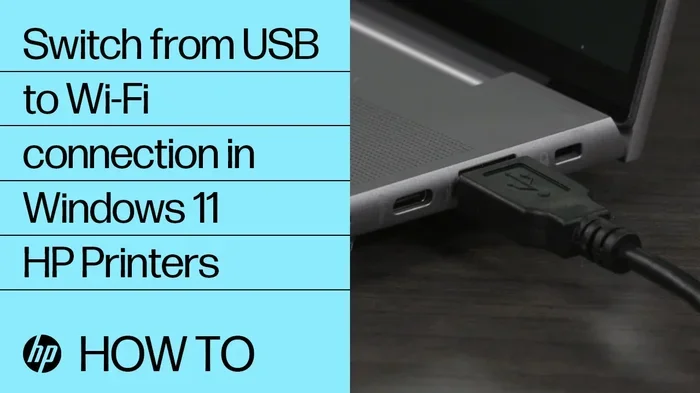
Start by plugging the USB cable into your printer and your computer. This gives you a direct, stable link right from the start. Most printer setup wizards detect the USB connection automatically and launch the installation process.
Once the cable is connected, your computer should recognize the printer within seconds. You may need to install the latest printer driver from the manufacturer’s website. Always grab the most recent version because it includes fixes for known printer troubleshooting issues.
Step 2: Set Up the Wi-Fi Connection
After the USB connection is working, you can move on to Wi-Fi. Most printers have a setup wizard built into their control panel. Navigate to the wireless settings menu and select your home network.
Enter your Wi-Fi password when prompted. The printer will search for the network, connect, and confirm the link. You should see a Wi-Fi icon light up on the printer display once the connection is established.
Some printers also support WPS push button setup, which makes connecting to Wi-Fi even faster. Simply press the WPS button on your router, then press the WPS button on the printer. The two devices pair automatically within a few seconds.
Step 3: Verify Both Connections Are Active
Once both connections are set up, you need to confirm they are both working. Print a network configuration page from the printer’s menu. This page shows the printer’s IP address, Wi-Fi signal strength, and USB status.
Look for a line that says “USB” or “USB Active.” If it shows as connected, you are good to go. Now try printing from your computer over Wi-Fi and then over USB to make sure both paths work correctly.
Quick Tip: If the printer seems confused about which connection to use, go into your computer’s printer settings and set the default connection. You can always change it later if your needs shift.
Step 4: Test Printing from Multiple Devices
The real test of dual connectivity is printing from different devices at the same time. Send a print job from your phone over Wi-Fi while your desktop computer prints over USB. If both jobs come out without errors, your setup is working perfectly.
This multi-device testing is especially important in households or offices where several people share one printer. It confirms that the print queue handles both connections without bottlenecks or dropped jobs.
Benefits of Running Wi-Fi and USB Simultaneously
Running both Wi-Fi and USB on your printer at the same time offers several clear advantages. Let us break them down so you can see exactly why this setup is worth considering.
1. Unmatched Flexibility
With both connections active, every device in your home or office can reach the printer. Phones, tablets, laptops, and desktops can all print wirelessly. At the same time, a desktop computer can use the USB cable for a faster, more reliable connection when needed.
This flexibility is a game-changer for families and small offices. No one has to wait their turn or walk over to the printer with a cable. Everyone prints from wherever they are.
2. Built-In Redundancy
Redundancy is a fancy word that means having a backup. If your Wi-Fi network goes down, the USB connection keeps the printer working. If someone unplugs the USB cable, the wireless connection takes over. This built-in safety net means you never have to deal with a completely offline printer.
For people who rely on their printer for work, this redundancy is incredibly valuable. It keeps you productive even when one connection method fails.
3. Better Print Quality for Large Jobs
USB connections transfer data at consistent speeds, which helps maintain print quality for large or complex jobs. Graphics-heavy documents, high-resolution photos, and multi-page reports all benefit from the steady data flow that a USB cable provides.
Wireless connections can sometimes slow down when the network is crowded. By having USB available as an alternative, you can switch to the cable for demanding print jobs and get better results.
4. Easier Troubleshooting
When something goes wrong with your printer setup, having both connections gives you more options for fixing the problem. You can isolate whether the issue is with the wireless network or the printer itself by switching to USB. If the USB connection works fine, you know the problem is with your Wi-Fi, not the printer.
This makes printer troubleshooting much faster and less frustrating. You can quickly narrow down the cause and get back to printing.
Common Issues When Using Wi-Fi and USB Together
While dual connectivity is generally smooth, a few common issues can pop up. Knowing what to expect helps you fix problems fast.
IP Address Conflicts
The most frequent issue is an IP address conflict. This happens when two devices on the same network try to use the same IP address. Your printer might lose its network connection or become unresponsive to wireless devices.
The fix is usually simple. Restart your router and printer, and the router will assign a new IP address to the printer. You can also set a static IP for your printer in your router settings to prevent this from happening again.
Driver Conflicts
Sometimes your computer’s printer driver gets confused when both Wi-Fi and USB are active. It might try to send a job through one connection while the printer is listening on the other. This can cause print jobs to hang or disappear.
To fix this, go to your computer’s printer settings and remove duplicate entries. Make sure only one instance of your printer is set as the default. Restart the print spooler service if needed, and the problem should clear up quickly.
Slow Wireless Performance
If your Wi-Fi network is slow or congested, print jobs sent wirelessly may take longer to reach the printer. This is especially true in offices with many devices sharing the same network.
The solution is to either switch to USB for large jobs or upgrade your router to a faster model. A dual-band router operating on 5GHz can significantly improve wireless printing speeds.
Firmware Compatibility
Older printer firmware sometimes does not handle dual connections well. The printer might disconnect from Wi-Fi when a USB cable is plugged in, or vice versa.
Always keep your printer’s firmware updated. Manufacturers release updates that fix known bugs and improve compatibility with dual-connection setups. Check the manufacturer’s website or use their printer management software to install the latest updates.
Expert Tips for Managing Dual Printer Connections
Getting the most out of your dual-connection printer requires a few smart habits. These tips come from real-world experience and will save you time and frustration.
Use the USB Connection for Critical Jobs
If you are printing something important and cannot afford any delays, use the USB connection. It is faster, more reliable, and never depends on your Wi-Fi signal strength. For urgent documents, a direct USB link is your best friend.
Keep Your Network Name and Password Handy
When setting up the Wi-Fi connection, write down your network name and password. If you ever need to reconnect the printer to Wi-Fi after a power outage or router reset, you will need this information quickly.
Monitor Your Print Queue Regularly
When both connections are active, multiple print jobs can pile up fast. Check your print queue regularly to make sure nothing is stuck or stuck in an error state. Clearing old jobs keeps the queue running smoothly.
Place Your Printer Centrally for Best Wi-Fi Signal
If you rely heavily on the wireless connection, placement matters. Keep your printer in a central location away from thick walls and electronic interference. The stronger the Wi-Fi signal, the faster and more reliable your wireless printing will be.
Update Everything Regularly
Keep your printer firmware, printer driver, and computer operating system up to date. Updates fix bugs, improve performance, and patch security holes. A well-maintained printer with updated software runs much smoother than one left on old defaults.
Secure Your Printer Network Access
Since your printer is now connected to your Wi-Fi network, treat it like any other network device. Use a strong Wi-Fi password, enable WPA3 encryption if your router supports it, and consider turning off remote access if you do not need it. These steps protect your printer from unauthorized use and potential security threats.
For more information on how your printer’s internal components support these connections, you can explore the 5 components that are found on the motherboard of a printer, which explains the hardware that makes dual connectivity possible.
Conclusion
The answer to the question “can a printer be on Wi-Fi and USB at the same time” is a clear and definite yes. Modern printers are built to handle dual connections with ease. Whether you need the speed and reliability of a USB cable or the convenience of wireless printing, your printer can do both at the same time.
Setting up both connections takes just a few minutes, and the benefits are immediate. You get flexibility, redundancy, better performance, and easier troubleshooting. These advantages make dual connectivity one of the best features of modern Wi-Fi enabled printers.
Just remember to keep your printer driver updated, monitor your print queue, and secure your network access. With these good habits, your printer will serve you reliably for years to come, no matter which connection method you choose.
So go ahead and set up both Wi-Fi and USB on your printer. You will wonder how you ever managed with just one connection. The dual setup gives you the best of both worlds, and once you experience it, you will not want to go back.
Frequently Asked Questions
Can I print wirelessly and via USB at the exact same time?
Yes, most modern printers handle both connections simultaneously. The internal print server manages incoming jobs from both Wi-Fi and USB without conflicts. Each device sends its job through its respective channel, and the printer processes them in order.
Will using both Wi-Fi and USB slow down my printer?
No, using both connections does not slow down your printer. The printer’s processor handles each connection independently. However, if your Wi-Fi network is very congested, wireless print jobs may take slightly longer to arrive.
Do I need to install separate drivers for Wi-Fi and USB?
No, you typically install one printer driver that supports both connection types. The driver automatically detects which connection is active and routes print jobs accordingly. You can select your preferred connection method in the printer settings on your computer.
What should I do if my printer disconnects from Wi-Fi when I plug in USB?
This is usually a firmware or driver issue. First, update your printer firmware to the latest version. If the problem persists, try reinstalling the printer driver. Restarting both the printer and your router can also resolve the conflict.
Can I share a USB-connected printer over Wi-Fi to other devices?
Yes, you can share a USB-connected printer over your network. Enable printer sharing in your computer’s settings, and other devices on the same Wi-Fi network can send print jobs to it. However, the host computer must be turned on for shared printing to work.
Is it safe to leave both Wi-Fi and USB connections active on my printer?
Yes, it is generally safe. Just make sure your Wi-Fi network uses strong encryption like WPA3 and has a unique, complex password. Keep your printer firmware updated to patch any security vulnerabilities. If you are concerned about unauthorized access, you can disable Wi-Fi when you only need USB printing.