Can We Add External RAM To Laptop And Boost Performance
Many laptop users wonder if they can add external RAM to laptop systems for a quick memory boost. The short answer is that traditional external RAM modules don’t plug into laptops like USB drives. However, tools like ReadyBoost and USB RAM drives can simulate some memory benefits. This guide breaks down every option, myth, and practical workaround so you can make the best decision for your laptop’s performance.
Your laptop feels slow. Apps take forever to open. Videos lag. You search the web and find products claiming you can add external RAM to laptop machines and instantly speed things up. It sounds too good to be true. And honestly? It mostly is.
But that doesn’t mean you’re stuck with a sluggish computer. There are real ways to boost your laptop’s memory and performance. Some work better than others. And understanding what actually helps — versus what’s just marketing hype — makes all the difference.
In this guide, we’ll explore every angle of external memory options. We’ll talk about ReadyBoost, USB RAM drives, virtual memory, and the one upgrade that truly changes everything: adding physical RAM inside your laptop. By the end, you’ll know exactly what works and what to avoid.
Key Takeaways
- External RAM modules don’t work like USB drives: You cannot simply plug in a RAM stick and expect it to function as system memory.
- ReadyBoost is a built-in Windows feature: It uses USB storage to cache data, offering a partial memory boost for older systems.
- USB RAM drives provide limited gains: They help with disk caching but cannot replace physical laptop RAM upgrades.
- Internal RAM upgrades deliver the best results: Adding SODIMM sticks inside your laptop gives you real, measurable performance gains.
- Virtual memory and paging files offer alternatives: These software-based solutions use your hard drive as temporary memory.
- Check your laptop specs first: Not all laptops support memory expansion, so verify upgradeability before buying anything.
- External RAM myths persist online: Many products claim to add RAM externally, but most are misleading or ineffective.
📑 Table of Contents
What Is External RAM and How Does It Work?
Let’s start with the basics. RAM stands for Random Access Memory. It’s the short-term workspace your computer uses to handle active tasks. When you open a browser, a game, or a spreadsheet, it loads into RAM. When you close the app, that space frees up.
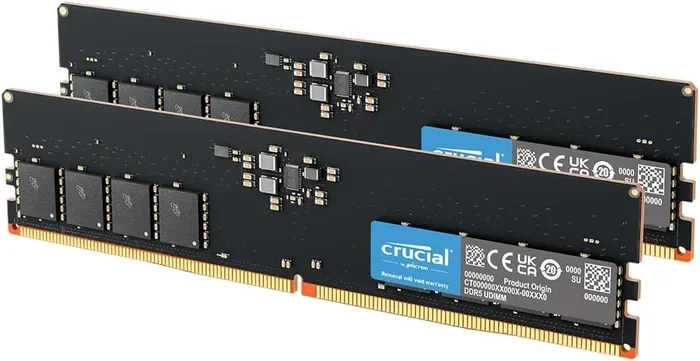
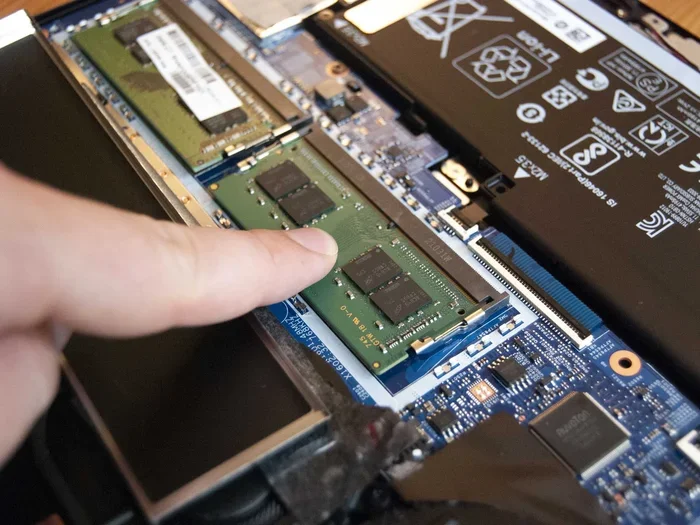
Internal RAM lives on small sticks called SODIMMs. These slide into slots on your laptop’s motherboard. They connect directly to the CPU through a high-speed bus. This direct connection is what makes RAM so fast.
External RAM would mean placing memory outside the laptop chassis. In theory, it could connect through USB or another port. In practice, this creates serious problems. The connection speed is far slower. The latency is much higher. And most operating systems don’t support treating external storage as actual system memory.
Why External RAM Isn’t Like a USB Drive
People often confuse external RAM with a USB flash drive. They look similar. Both plug into a USB port. But they work completely differently. A USB drive stores data permanently. It’s like a tiny hard drive. RAM is temporary workspace that disappears when power turns off.
Your laptop’s CPU needs RAM to be extremely fast. It checks memory billions of times per second. A USB connection simply can’t keep up. Even USB 3.2 or USB4 ports are orders of magnitude slower than DDR4 or DDR5 RAM pathways on a motherboard.
So when you see products advertising “external RAM,” approach with caution. They typically use flash storage to create a cache layer. This can help in limited scenarios. But it doesn’t replace real system memory.
Can You Actually Add External RAM to a Laptop?
The honest answer is no — not in the way most people mean. You cannot buy an external RAM module, plug it into your USB port, and watch your laptop speed up. The operating system and hardware architecture don’t support this kind of setup.
Here’s why it doesn’t work:
- RAM requires direct motherboard access: Internal memory modules connect through dedicated slots. They communicate at speeds USB ports simply cannot match.
- Operating systems treat RAM differently: Windows, macOS, and Linux all manage internal RAM through specific memory controllers. External devices don’t get this access.
- Latency would kill performance: Even if external RAM worked, the delay in data transfer would make it slower than useless.
- No driver or software support exists: There’s no standard protocol for treating USB-connected devices as system memory.
Some companies have tried to market external RAM products over the years. These typically turn out to be repackaged USB drives with misleading claims. They might help with caching in very old systems. But for modern laptops, they offer little to no benefit.
When External RAM Claims Sound Too Good to Be True
If you’ve seen ads claiming “plug in 16GB of extra RAM,” be skeptical. These products usually ship as USB flash drives with special software. They create a temporary cache that can speed up disk-heavy tasks slightly. But they don’t add actual memory to your system.
Your laptop’s Task Manager will still show the same amount of physical RAM. Apps will still use the same amount of memory. The only difference is that some data gets cached on the USB device instead of your slower hard drive. On a modern laptop with an SSD, this makes almost no difference at all.
ReadyBoost: Microsoft’s Built-In Alternative
Microsoft introduced ReadyBoost with Windows Vista in 2007. The idea was simple: use a fast USB drive to cache data and reduce reliance on the hard drive. It was designed for computers with very little RAM and slow spinning disks.
Back then, many laptops shipped with just 1GB or 2GB of RAM. Hard drives were slow. ReadyBoost offered a noticeable speed improvement in those conditions. It essentially created a fast temporary storage layer between your apps and your aging hard drive.
Does ReadyBoost Still Work Today?
The short answer: barely. Modern laptops typically come with 8GB, 16GB, or more of RAM. They use SSDs instead of mechanical hard drives. SSDs are already incredibly fast. ReadyBoost adds almost nothing on top of that.
Here’s how ReadyBoost works in simple terms:
- You plug a USB flash drive into your laptop.
- Windows asks if you want to use it to speed up the system.
- If you accept, Windows stores frequently used data on the USB drive.
- When apps need that data, Windows pulls it from the USB cache instead of the main drive.
This sounds helpful. And it was — on old hardware. But on a modern laptop, the SSD already handles caching efficiently. ReadyBoost becomes redundant. It won’t hurt your system, but it won’t boost performance in any meaningful way either.
How to Use ReadyBoost (If You Still Want To)
If you have an older laptop with a mechanical hard drive and less than 4GB of RAM, ReadyBoost might offer a small benefit. Here’s how to set it up:
- Plug a USB flash drive into an available port.
- Open File Explorer and right-click the USB drive.
- Select Properties from the menu.
- Go to the ReadyBoost tab.
- Choose “Use this device” and set the cache size.
- Click OK to apply the settings.
Use a USB 3.0 drive for best results. The faster the drive, the better the caching performance. But again, this only helps very old systems with slow hard drives and low RAM.
USB RAM Drives: Marketing Hype or Real Solution?
USB RAM drives are a specific type of flash drive that claims to improve system performance through memory caching. They often come with dedicated software that manages the caching process. Some popular brands market them as “RAM boosters” or “memory expanders.”
The truth is more nuanced. These drives use fast NAND flash storage. They can cache frequently accessed files and applications. For a system that relies heavily on disk swapping — where the computer moves data between RAM and the hard drive constantly — a USB RAM drive might reduce some bottlenecks.
Who Actually Benefits from USB RAM Drives?
These devices help in very specific situations:
- Old laptops with HDDs and 2GB RAM or less: The caching effect is noticeable because the hard drive is the biggest bottleneck.
- Systems running many lightweight apps simultaneously: Caching helps when you have lots of small programs open at once.
- Budget systems that can’t be upgraded internally: Some thin laptops have soldered RAM that can’t be replaced. A USB cache drive is the only option.
For everyone else, USB RAM drives are a waste of money. If your laptop has an SSD and 8GB+ of RAM, you won’t notice any meaningful improvement. The marketing claims far exceed the real-world benefits.
Quick Tips for Evaluating USB RAM Drive Claims
- Check independent reviews before buying any “RAM booster” product.
- Look for benchmarks that test real-world performance, not synthetic numbers.
- Remember that no USB device can match the speed of internal DDR4 or DDR5 RAM.
- Beware of products that claim to “add” RAM — they’re using cached storage, not actual memory.
Other Ways to Boost Laptop Memory and Speed
If external RAM isn’t the answer, what actually works? Fortunately, there are several proven methods to improve your laptop’s memory usage and overall speed. Some are free. Some cost a little. But all of them deliver real results.
1. Add Internal RAM (The Best Option)
The single most effective way to boost laptop performance is to upgrade internal RAM. Most laptops have one or two SODIMM slots accessible from the bottom panel. Adding a matching memory stick can double your available memory instantly.
Before you buy anything, check your laptop’s specifications:
- How much RAM does your laptop currently have?
- How many RAM slots are available?
- What type of RAM does your laptop use? (DDR4, DDR5, DDR3?)
- What’s the maximum RAM your laptop supports?
- Is the RAM soldered to the motherboard?
If your laptop has an empty slot, simply purchase a matching SODIMM module and install it. This costs between $20 and $60 for most common configurations. The performance improvement can be dramatic — especially if you were running with 4GB or 8GB before.
2. Increase Virtual Memory (Paging File)
Virtual memory is a feature built into Windows and macOS. It uses a portion of your hard drive or SSD as temporary memory when physical RAM fills up. This is called the paging file or swap space.
Virtual memory doesn’t match real RAM speed. But it prevents crashes when you run out of physical memory. You can adjust virtual memory settings manually:
- On Windows, go to Settings > System > About > Advanced system settings.
- Under Performance, click Settings.
- Go to the Advanced tab and find Virtual Memory.
- Click Change and set a custom paging file size.
Setting virtual memory to 1.5x your physical RAM is a common recommendation. This gives your system breathing room without wasting disk space.
3. Close Unnecessary Background Programs
Many laptops run dozens of background processes you never notice. Browser extensions, cloud sync apps, and startup programs all consume RAM. Simply closing unused apps can free up significant memory.
Open Task Manager (Ctrl+Shift+Esc) and sort by memory usage. You’ll often be surprised at what’s eating up your RAM. End tasks for programs you don’t need running.
4. Switch to an SSD if You Still Have an HDD
If your laptop still uses a mechanical hard drive, upgrading to a solid-state drive is one of the biggest performance improvements you can make. SSDs are 10 to 50 times faster than HDDs. They reduce disk swapping and make the entire system feel snappier.
Even with limited RAM, an SSD can make a slow laptop feel usable again. Combined with a RAM upgrade, it’s a game-changer.
5. Use Memory-Optimized Apps
Some applications are more memory-hungry than others. Switching to lighter alternatives can reduce your RAM usage significantly:
- Use Chrome alternatives like Firefox or Edge with tab sleeping enabled.
- Choose lightweight text editors instead of heavy IDEs for simple tasks.
- Use built-in photo viewers instead of heavy image editing software for quick tasks.
- Consider web apps instead of desktop applications when possible.
When Should You Upgrade Internal RAM Instead?
External RAM solutions are limited. They work in narrow scenarios and offer modest gains at best. For most laptop users, the real answer is upgrading internal memory. Here’s when that makes the most sense:
Your laptop has upgradeable RAM slots. Check your model’s specifications or use a tool like Crucial’s System Scanner. If your laptop supports memory expansion, this is always the best path forward.
You regularly run memory-heavy applications. Video editing, programming, gaming, and virtual machines all demand lots of RAM. If you find your laptop slowing down during these tasks, an internal upgrade will solve the problem directly.
Your current RAM is 8GB or less. Modern computing demands more memory every year. 8GB is the bare minimum for comfortable use in 2024. Upgrading to 16GB provides a noticeable improvement for multitasking and demanding workloads.
Your laptop is relatively new. If you bought your laptop within the last 3 to 5 years, it likely has an SSD and decent processing power. The bottleneck is almost always RAM. Adding more memory will breathe new life into the machine.
How to Check If Your Laptop RAM Is Upgradeable
Not all laptops allow RAM upgrades. Many thin and light models have soldered memory that can’t be replaced. Before you spend money, verify your laptop’s upgradeability:
- Check the manufacturer’s website for your specific model.
- Look up the service manual or teardown videos on YouTube.
- Use system information tools to see if RAM slots are occupied.
- Contact the manufacturer’s support team directly.
If your laptop has soldered RAM, your options are more limited. You’ll need to rely on software optimizations, virtual memory, and external caching solutions. But for most standard laptops, an internal RAM upgrade remains the gold standard.
Expert Insights: What Tech Professionals Recommend
Most computer technicians and IT professionals agree on one thing: internal RAM upgrades beat any external solution. The direct connection between RAM and the CPU is what makes memory fast. No external device can replicate that speed.
For older laptops with limited upgrade options, professionals recommend a combination approach:
- Max out whatever internal RAM your laptop supports.
- Install an SSD if you don’t have one already.
- Use ReadyBoost only as a last resort for very old systems.
- Optimize software and background processes regularly.
This combination delivers far better results than any single external RAM product ever could. It costs a bit more upfront. But the performance gains are real and lasting.
Key Takeaways
Let’s recap the most important points from this guide:
- External RAM doesn’t work like internal RAM: You cannot plug a RAM module into a USB port and use it as system memory.
- ReadyBoost offers limited help for old systems: It uses USB caching to reduce hard drive bottlenecks but adds nothing on modern hardware.
- USB RAM drives are mostly marketing hype: They cache data on flash storage but can’t match real RAM speed.
- Internal RAM upgrades are the real solution: Adding SODIMM sticks to your laptop delivers genuine, measurable performance gains.
- Virtual memory and SSD upgrades help too: These complementary improvements make your system faster even without adding RAM.
- Always check your laptop’s specs first: Know what your laptop supports before spending money on any upgrade.
Conclusion
The desire to add external RAM to laptop systems is completely understandable. We all want faster computers without the hassle of opening them up. But the technology simply doesn’t support it the way most people imagine.
External RAM products promise much but deliver little. ReadyBoost and USB RAM drives work in very specific, outdated scenarios. For modern laptops, they’re essentially useless. The real path to better performance lies in internal upgrades, smart software choices, and complementary hardware improvements like SSDs.
If your laptop feels slow, start by checking how much RAM it has. If it’s below 8GB, an internal upgrade will transform your experience. If your laptop already has 16GB or more, look at other bottlenecks like storage speed or background processes.
Don’t fall for products that promise magical external RAM fixes. Invest in real upgrades that actually work. Your laptop — and your patience — will thank you.
The best way to boost your laptop’s memory isn’t to look outside the machine. It’s to look inside and give it the RAM it was designed to use. That’s the proven, reliable, and genuinely effective path to better performance.
Frequently Asked Questions
Can I plug an external RAM stick into my laptop’s USB port?
No. USB ports cannot function as RAM slots. RAM requires a direct connection to the motherboard’s memory controller. A USB-connected RAM stick will not be recognized as system memory by any modern operating system.
Does ReadyBoost actually improve laptop performance?
ReadyBoost can help older laptops with mechanical hard drives and very low RAM (under 4GB). On modern laptops with SSDs and 8GB+ of RAM, ReadyBoost provides no noticeable performance improvement. It was designed for a different era of computing hardware.
What’s the difference between RAM and virtual memory?
Physical RAM is fast, temporary workspace directly accessed by the CPU. Virtual memory uses a portion of your storage drive as overflow space when RAM fills up. Virtual memory is much slower than real RAM but prevents crashes when you run out of physical memory.
How much RAM do most laptops need in 2024?
8GB is the minimum for comfortable everyday use. 16GB is recommended for multitasking, light creative work, and most modern applications. Power users running video editing, programming, or virtual machines should aim for 32GB or more.
Are there any legitimate external memory boosters for laptops?
The most legitimate option is a USB RAM drive used with ReadyBoost on older systems. However, the performance gains are modest and only apply to specific scenarios. For real improvements, internal RAM upgrades and SSD replacements are far more effective.
Can I upgrade my laptop RAM myself?
Yes, if your laptop has upgradeable RAM slots. Most laptops have a bottom panel held by screws. You can remove it, locate the RAM slots, and insert new SODIMM modules. Just make sure to match the RAM type (DDR4, DDR5) and speed with your existing memory. If you’re unsure, consult your laptop’s service manual or watch a teardown video for your specific model.