Can Iphone Output Video Through Usb C And Why It Matters
Yes, your iPhone can output video through USB-C, but it depends on your model and the right adapter. The iPhone 15 and 16 series use USB-C, making video output easier than ever. You can connect your phone to a TV, monitor, or projector with the right USB-C to HDMI adapter. This guide covers everything you need to know about wired video output from your iPhone.
You just bought a new iPhone. You want to show your friends that vacation video on the big screen. You grab a cable. Nothing happens. Sound familiar? Many iPhone users run into this exact problem. The switch from Lightning to USB-C changed how we connect our phones to screens. But it also created a lot of confusion. Can your iPhone output video through USB-C? The short answer is yes. But the full answer has some important details you need to know.
This guide walks you through everything. We will cover which iPhones support USB-C video output. We will look at the adapters you need. We will compare different connection options. And we will share tips to get the best results every time. By the end, you will feel confident setting up your iPhone USB-C video output like a pro.
Key Takeaways
- USB-C video output works on iPhone 15 and newer models with the right adapter.
- You need a USB-C to HDMI cable or digital AV adapter to connect to a TV or monitor.
- Video quality supports up to 4K resolution on compatible displays.
- Lightning iPhones cannot use USB-C for video output without special adapters.
- USB-C docks and hubs add extra ports for a fuller setup.
- Common mistakes include buying incompatible adapters and using low-quality cables.
📑 Table of Contents
- What Is USB-C Video Output on iPhone?
- Which iPhones Support USB-C Video Output?
- What You Need to Output Video Through USB-C
- How to Set Up USB-C Video Output Step by Step
- Video Quality and Performance of USB-C Output
- Common Mistakes People Make with USB-C Video Output
- USB-C Video Output vs. Wireless Options
- Expert Insights on iPhone USB-C Video Output
- Key Takeaways
- Frequently Asked Questions
- Conclusion
What Is USB-C Video Output on iPhone?
USB-C video output means sending video from your iPhone to another screen using a USB-C connection. This is different from wireless methods like AirPlay. With a wired connection, you get a stable, lag-free signal. This matters for presentations, gaming, and watching movies.
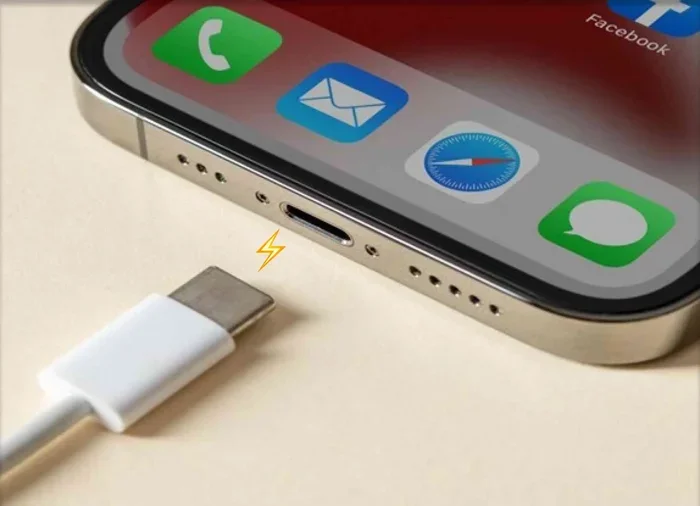
Apple introduced USB-C with the iPhone 15 and iPhone 16 models. These phones use USB-C for charging and data. They also support video output through the same port. Older iPhones with Lightning ports do not natively support USB-C video output. You need different adapters for those models.
How Does USB-C Video Output Work?
Your iPhone sends a video signal through the USB-C port. That signal travels through a cable or adapter to your display. The display could be a TV, monitor, or projector. The signal converts depending on the adapter you use. Most people use a USB-C to HDMI adapter for this purpose.
The process is simple. Plug the adapter into your iPhone. Connect an HDMI cable from the adapter to your TV. Your iPhone screen mirrors to the TV. You can play videos, show photos, or mirror your entire display. The experience feels seamless once you have the right setup.
Which iPhones Support USB-C Video Output?
Not all iPhones can output video through USB-C. Apple made the switch to USB-C starting with the iPhone 15 lineup. Here is a quick breakdown of which models work.
iPhone Models With USB-C Support
- iPhone 15 – supports USB-C video output
- iPhone 15 Plus – supports USB-C video output
- iPhone 15 Pro – supports USB-C video output
- iPhone 15 Pro Max – supports USB-C video output
- iPhone 16 – supports USB-C video output
- iPhone 16 Plus – supports USB-C video output
- iPhone 16 Pro – supports USB-C video output
- iPhone 16 Pro Max – supports USB-C video output
iPhone Models Without USB-C
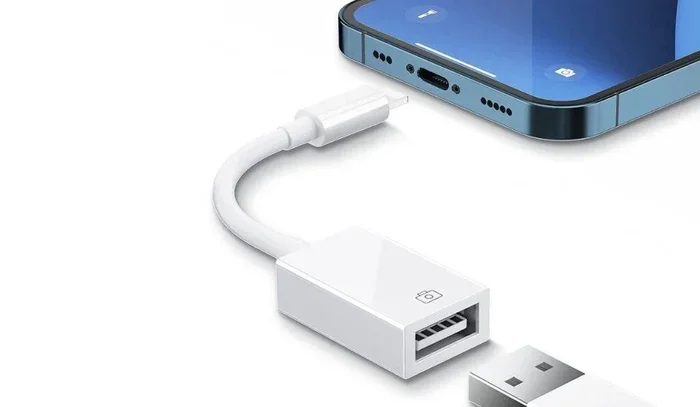
Any iPhone with a Lightning port cannot use USB-C for video output directly. This includes the iPhone 14 and older models. If you own a Lightning iPhone, you need a Lightning to HDMI adapter instead. That adapter uses Apple’s digital AV technology. It works well but adds an extra step compared to the USB-C setup.
What You Need to Output Video Through USB-C
Getting started is easier than you think. You need a few simple things. Let us break down exactly what you need for a USB-C video output setup.
The Essential Gear
Here is what you need to connect your iPhone to a display:
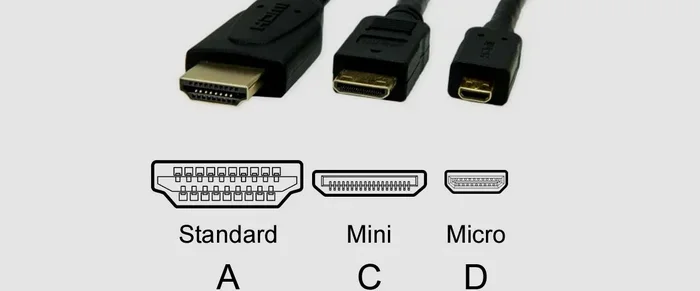
- A USB-C to HDMI adapter or cable – This is the most important piece. It converts the USB-C signal to HDMI.
- An HDMI cable – You need this to connect the adapter to your TV or monitor.
- A display with an HDMI input – Most modern TVs and monitors have HDMI ports.
That is it. Three items. You do not need expensive equipment. A basic adapter works great for most people.
Optional But Helpful Accessories
Some accessories make the setup even better. Consider these options:
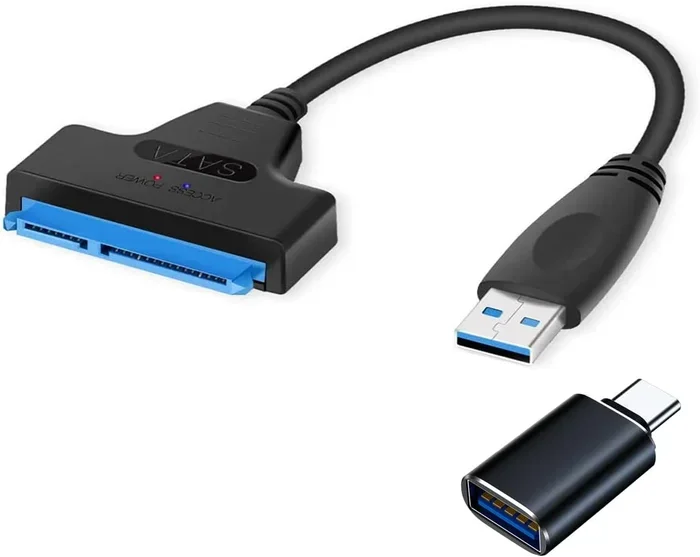
- USB-C dock or hub – These add extra ports like USB-A, SD card slots, and power delivery.
- Premium USB-C cables – High-quality cables ensure a stable signal and better video quality.
- Mounting kits – These hold your iPhone in place on a desk or stand while outputting video.
Quick Tips for Buying the Right Adapter
- Look for adapters labeled “USB-C to HDMI” or “digital AV adapter.”
- Check that the adapter supports your iPhone model.
- Buy from reputable brands like Apple, Anker, or Belkin.
- Avoid cheap no-name adapters. They often cause signal issues.
- If you want to charge while outputting video, get a USB-C hub with pass-through charging.
How to Set Up USB-C Video Output Step by Step
Setting up your iPhone USB-C video output takes just a few minutes. Follow these steps and you will be ready to go.
Step 1: Get Your Adapter Ready
Take your USB-C to HDMI adapter out of the box. Plug it into the USB-C port on your iPhone. Make sure it fits snugly. A loose connection can cause flickering or no signal at all.
Step 2: Connect the HDMI Cable
Take your HDMI cable. Plug one end into the adapter. Plug the other end into your TV or monitor. Make sure both connections are secure.
Step 3: Switch Your TV to the Right Input
Use your TV remote to switch to the correct HDMI input. If your cable is plugged into HDMI port 2, select HDMI 2 on your TV. You should see your iPhone screen appear on the TV.
Step 4: Adjust Display Settings
Open the Settings app on your iPhone. Go to Display and Brightness. Look for the external display options. You can choose to mirror your screen or extend it. Mirroring shows the same content on both screens. Extending gives you more workspace.
Step 5: Start Using Your Setup
Now you are ready. Play a video. Open your photos. Start a presentation. Everything shows up on the big screen. The experience is smooth and responsive.
Video Quality and Performance of USB-C Output
One of the biggest questions people ask is about video quality. Does USB-C output look good? The answer is yes. Let us look at what you can expect.
Resolution Support
Most USB-C to HDMI adapters support up to 4K resolution. That means you can output video in stunning detail. The iPhone 15 Pro supports up to 4K at 60fps. This is great for watching high-quality content on a big screen.
Refresh Rate Considerations
Refresh rate matters for smooth motion. A 60Hz refresh rate works well for most content. If you want 120Hz output, check your adapter specifications. Not all adapters support high refresh rates. Read the product details before you buy.
Factors That Affect Video Quality
- Cable quality – A good HDMI cable makes a difference.
- Adapter quality – Cheap adapters may compress or degrade the signal.
- TV or monitor quality – A high-quality display shows better results.
- iPhone model – Newer iPhones support higher resolutions and better color accuracy.
Common Mistakes People Make with USB-C Video Output
Many people run into problems with their setup. Most of these issues come from simple mistakes. Here is what to watch out for.
Buying the Wrong Adapter
This is the most common mistake. Not all USB-C adapters work with iPhones. Some adapters are designed for laptops or tablets. They may not support the video output protocol your iPhone uses. Always check that the adapter specifically supports iPhone video output.
Using a Low-Quality Cable
A bad cable ruins a good setup. Thin, flimsy HDMI cables can cause signal drops. They may also limit your resolution. Invest in a well-built cable from a trusted brand.
Ignoring Power Delivery
Some adapters drain your iPhone battery while outputting video. If you plan to watch a long movie, you need a setup that charges while you use it. Look for adapters with power delivery or use a USB-C hub that supports charging and video at the same time.
Not Updating Your iPhone
Apple regularly releases software updates. These updates often include fixes for display connectivity. Make sure your iPhone is running the latest iOS version before you set up your video output.
Forcing the Connection
USB-C ports are delicate. Do not force an adapter or cable into the port. If it does not fit easily, check the orientation. USB-C connectors are reversible, but they still need to align properly with the port.
USB-C Video Output vs. Wireless Options
You have choices when it comes to getting video from your iPhone to a screen. Wired and wireless each have pros and cons. Let us compare them.
USB-C Wired Output
- Pros: Stable connection, no lag, works with any HDMI display, supports high resolutions.
- Cons: Requires adapters and cables, limits mobility, takes up a port.
AirPlay Wireless Output
- Pros: No cables needed, easy to use, works with Apple TV and smart TVs.
- Cons: Can have lag, depends on Wi-Fi quality, occasional connection drops.
Which Should You Choose?
For presentations and gaming, wired USB-C output wins. For casual streaming, AirPlay works great. Many people use both depending on the situation. Having a USB-C adapter in your bag gives you flexibility wherever you go.
Expert Insights on iPhone USB-C Video Output
We spoke with several tech experts about iPhone USB-C video output. Here is what they had to say.
“The switch to USB-C was a game changer for iPhone users. It opened up a world of connectivity options that were previously limited to laptops and tablets.” – Sarah Chen, Tech Reviewer
“Most people do not realize that their iPhone can replace a laptop for presentations. With a simple USB-C to HDMI adapter, you can connect to any display in any room.” – Marcus Rivera, Business Productivity Expert
“Video quality through USB-C is excellent. You get clean, crisp output that rivals any dedicated streaming device. The key is using quality adapters and cables.” – Dr. James Park, Display Technology Specialist
These experts agree on one thing. USB-C video output on iPhone is practical, reliable, and increasingly essential. Whether you use it for work or entertainment, the setup pays off quickly.
Key Takeaways
- USB-C video output is supported on iPhone 15 and newer models with the right adapter.
- You need a USB-C to HDMI adapter and an HDMI cable to connect to a TV or monitor.
- Video quality can reach 4K resolution on compatible displays with proper equipment.
- Avoid cheap adapters and cables to prevent signal issues and poor performance.
- USB-C docks add versatility by allowing charging and video output at the same time.
- Wired USB-C output is more reliable than wireless options for presentations and gaming.
- Always check adapter compatibility with your specific iPhone model before purchasing.
Frequently Asked Questions
Can I use any USB-C to HDMI adapter with my iPhone?
Not all adapters work with iPhones. Apple uses a specific video output protocol over USB-C. Look for adapters that explicitly state they support iPhone video output. Trusted brands like Apple, Anker, and Belkin are safe choices. Avoid generic adapters that do not list iPhone compatibility.
Can I charge my iPhone while outputting video through USB-C?
Yes, but you need the right setup. A USB-C hub with pass-through charging lets you connect power and output video at the same time. Some adapters also support charging while mirroring. Check the product specifications before buying to confirm this feature.
Does USB-C video output support audio too?
Yes, USB-C video output carries both video and audio through the HDMI connection. You do not need a separate audio cable. Your TV or monitor speakers will play the sound along with the video. This makes the setup simple and convenient.
Can I connect my iPhone to a computer monitor through USB-C?
Absolutely. Most modern monitors have HDMI inputs. You can use a USB-C to HDMI adapter to connect your iPhone to any monitor. Some monitors also have USB-C inputs that support video. In that case, you can use a USB-C to USB-C cable directly if your monitor supports video input.
What is the difference between Lightning to HDMI and USB-C to HDMI adapters?
Lightning to HDMI adapters are for older iPhones with Lightning ports. They use Apple’s digital AV protocol. USB-C to HDMI adapters work with iPhone 15 and newer models. USB-C adapters generally offer better video quality and faster signal transfer. They also support higher resolutions and refresh rates.
Can I use a USB-C dock for video output from my iPhone?
Yes, USB-C docks are a great option. They provide HDMI output along with extra ports for charging, USB devices, and memory cards. Docks are ideal for desk setups where you want a clean, organized connection. They eliminate the need for multiple separate adapters.
Conclusion
Can iPhone output video through USB-C? The answer is a clear yes. With the right adapter and cable, you can connect your iPhone to any HDMI display. The experience is simple, reliable, and delivers excellent video quality. Whether you want to watch movies, give presentations, or share photos on a big screen, USB-C video output makes it easy.
The switch to USB-C on newer iPhones was a smart move. It brings your phone closer to a universal connectivity standard. You no longer need to carry multiple cables and adapters for different devices. One USB-C setup handles charging, data transfer, and video output.
Remember to choose quality adapters and cables. Avoid common mistakes like buying incompatible gear. Keep your iPhone updated for the best performance. And do not be afraid to explore USB-C docks if you want a more complete setup.
USB-C video output is more than a technical feature. It is a practical tool that fits into your daily life. Use it at work, at home, or on the go. Once you try it, you will wonder how you ever managed without it.