Can You Connect 2 Hdmi Cables Together And Not Lose Signal
Yes, you can connect 2 HDMI cables together and keep your signal strong. The key is using the right method, whether that is an HDMI coupler, extender, or active cable. This guide covers every option so you do not lose quality, resolution, or audio when joining two cables.
Have you ever been setting up your home theater or gaming desk and thought, “I need just a few more inches of HDMI cable”? It is a super common problem. You have two HDMI cables, but neither one is quite long enough. So the obvious question comes up: can you connect 2 HDMI cables together and not lose signal?
The short answer is yes. But the longer answer is that it depends on how you do it. Not every method works the same way. Some setups keep your 4K picture crystal clear. Others might give you a fuzzy screen or no signal at all. In this article, we will walk you through every option. You will learn what works, what does not, and how to avoid the mistakes that cause signal loss.
We will cover HDMI couplers, extenders, active cables, and more. By the end, you will know exactly which method to pick for your setup. Let us get into it.
Key Takeaways
- HDMI couplers are the simplest way to join two cables without signal loss if you pick a quality one.
- Signal loss depends on cable quality, length, and the method you use to connect them.
- Active HDMI extenders boost the signal over long distances better than passive couplers.
- 4K and high-resolution signals are more sensitive to poor connections and cheap couplers.
- Gold-plated connectors and HDMI 2.0 or 2.1 cables give you the best results when daisy-chaining.
- Avoid cheap adapters that do not support the bandwidth your devices need.
- Proper cable management keeps connections secure and prevents intermittent signal problems.
📑 Table of Contents
- Why Would You Need to Connect 2 HDMI Cables Together?
- Can You Connect 2 HDMI Cables Together Using a Coupler?
- Using an HDMI Extender to Connect 2 Cables Without Signal Loss
- Active vs Passive HDMI Cables for Joining Setups
- Common Mistakes When Connecting 2 HDMI Cables Together
- Best Practices for a Clean, Reliable HDMI Connection
- Can You Connect 2 HDMI Cables Together for 4K and Gaming?
- Final Thoughts on Connecting 2 HDMI Cables Together
Why Would You Need to Connect 2 HDMI Cables Together?
There are many reasons you might need to join two HDMI cables. Maybe your couch is far from the TV and one cable is not long enough. Or perhaps you are running cables through a wall and need extra length. Sometimes you just have two short cables and no longer one available.
Whatever the reason, the goal is the same. You want to connect your source device to your display without losing picture quality or audio. Understanding why signal loss happens helps you choose the right solution.
Common Scenarios That Require Joining HDMI Cables
- Running cables through walls or ceilings where the total distance exceeds one cable’s length.
- Home theater setups with the media player far from the TV or projector.
- Gaming setups where the console sits across the room.
- Office or classroom presentations that need extended cable runs.
- Temporary setups where you only have shorter cables on hand.
Can You Connect 2 HDMI Cables Together Using a Coupler?
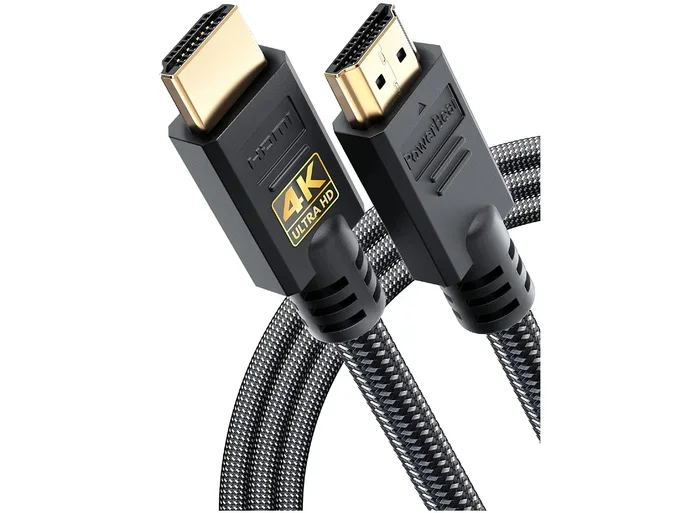
The most popular way to join two HDMI cables is with an HDMI coupler. This is a small adapter with an HDMI female port on each end. You plug one cable into each side, and it creates one continuous connection. It is simple, cheap, and easy to use.
But here is the catch. A passive HDMI coupler does not boost the signal. It just passes it through. If your cables are high quality and the total length is not too long, a coupler works great. But if you are pushing a 4K signal over 30 feet of combined cable, you might run into problems.
How HDMI Couplers Work
An HDMI coupler is basically a hollow barrel with pins inside. When you push two cables in, the electrical connection passes from one cable to the next. The signal travels through the coupler just like it would through a single long cable. In theory, there should be no loss.
In practice, every connection point adds a tiny bit of resistance. A good coupler with gold-plated connectors keeps this loss to a minimum. A cheap coupler can introduce signal degradation. That is why you should always invest in a quality coupler from a trusted brand.
When a Coupler Works Well
A coupler works best when your total cable run is under 15 feet. At that length, even a budget coupler will not cause noticeable signal loss. Here are the situations where a coupler is a solid choice:
- You are connecting a soundbar to a TV that is less than 10 feet away.
- You need to join two 6-foot cables to reach a gaming console on a shelf.
- You are using 4K HDMI cables that are rated for high bandwidth.
- You want a quick, temporary fix without buying a new long cable.
Quick Tip: Always check that your coupler supports the HDMI version you need. If you are running 4K at 60Hz, make sure the coupler is rated for HDMI 2.0 or higher.
Using an HDMI Extender to Connect 2 Cables Without Signal Loss
If your cable run is longer than 15 feet, a simple coupler might not cut it. This is where an HDMI extender comes in. An extender actively boosts the signal as it travels from one cable to the next. This means you can run much longer distances without losing picture or sound quality.
HDMI extenders come in different forms. Some are small inline boxes that sit between the two cables. Others are over-coax or fiber-optic solutions for really long runs. Let us break down the options.
Inline HDMI Extenders
An inline extender plugs directly into the HDMI cable chain. It takes the weak signal, amplifies it, and sends it on its way. These are the most common type for home use. They are small, easy to install, and do not require any power in most cases.
Inline extenders are perfect for setups where you need 30 to 50 feet of cable run. They keep your digital connection clean and support 4K resolution in most models. Just make sure the extender matches the HDMI version of your devices.
Fiber-Optic HDMI Extenders
For really long cable runs, fiber-optic HDMI extenders are the best choice. They can push a signal over 100 feet or more without any loss. These cables use light instead of copper to transmit the digital signal. The result is a flawless picture and zero latency.
The downside is price. Fiber-optic HDMI cables and extenders cost more than standard copper cables. But if you need a reliable connection over a long distance, they are worth every penny.
Active vs Passive HDMI Cables for Joining Setups
When you are connecting 2 HDMI cables together, you need to understand the difference between active and passive cables. This distinction matters more than most people realize.
A passive HDMI cable is a standard cable with no built-in electronics. It just carries the signal from point A to point B. A passive HDMI coupler works the same way. It does nothing to boost or regenerate the signal.
An active HDMI cable has a chip inside that amplifies the signal. These cables are thicker and often more expensive. They are designed to push high-bandwidth signals like 4K over longer distances without degradation.
| Feature | Passive Setup | Active Setup |
|---|---|---|
| Signal Boost | No | Yes |
| Max Recommended Length | 15 feet (coupler) | 50+ feet (extender) |
| 4K Support | Yes, at short lengths | Yes, at any length |
| Cost | Low | Moderate to High |
| Power Required | No | Sometimes |
| Best For | Short runs under 15 ft | Long runs over 15 ft |
The right choice depends on your setup. If you are keeping things short and simple, a passive coupler works fine. For anything longer, go with an active solution to protect your signal.
Common Mistakes When Connecting 2 HDMI Cables Together
Even with the right equipment, people make mistakes that cause signal problems. Here are the most common errors and how to avoid them.
Using a Cheap, Low-Quality Coupler
This is the number one mistake. A $3 coupler from an unknown brand might seem like a good deal. But it often has poor contact points and cheap plastic that does not grip the cable properly. The result is a flaky connection that drops signal randomly. Always buy couplers and adapters from reputable brands that specifically support the HDMI bandwidth you need.
Ignoring HDCP Compatibility
HDCP stands for High-bandwidth Digital Content Protection. It is a copy protection built into HDMI devices. If your coupler or extender is not HDCP compliant, you might get a black screen or no signal at all when trying to play protected content like Netflix or Blu-ray movies. Always check that every piece of hardware in your chain supports HDCP.
Over-Bending or Stress-Cracking the Cables
When you route cables through tight spaces, it is easy to bend them sharply. Over time, this damages the internal wiring and causes signal issues. Keep cable bends gentle and use cable ties or clips to manage the route. A well-managed cable run lasts much longer than a stressed one.
Mixing HDMI Versions
Plugging an HDMI 1.4 cable into an HDMI 2.1 coupler and expecting 4K at 120Hz is a recipe for disappointment. Every link in the chain is only as strong as its weakest component. Make sure all your cables, couplers, and extenders support the same HDMI version for the best results.
Expert Insight: “I always tell people to test their full chain before mounting anything on the wall. Plug everything together, play a 4K video, and check for any flickering or audio dropouts. It is much easier to fix a problem on the table than behind a TV.”
Best Practices for a Clean, Reliable HDMI Connection
Once you have chosen your method for connecting 2 HDMI cables, follow these best practices to ensure a rock-solid connection every time.
- Clean the connector pins with a dry cloth before plugging them in. Dust and lint can block the signal.
- Push the cable in firmly until you feel it click. A loose connection is the most common cause of intermittent signal loss.
- Label your cables so you know which one is which. This saves a lot of troubleshooting time later.
- Use cable management clips to keep cables secure and prevent them from pulling out accidentally.
- Test with a known-good source before finalizing your setup. Play a 4K video and check both picture and audio.
- Keep the total run as short as possible even if you are using an extender. Shorter is always better for signal quality.
Quick Tips for Long-Lasting Connections
- Wrap excess cable with velcro ties instead of tight knots.
- Avoid running HDMI cables parallel to power cables. This reduces electromagnetic interference.
- Replace any cable that shows visible damage like bent pins or frayed shielding.
- Buy cables and couplers that are slightly over-rated for your needs. A 4K cable on a 1080p setup costs almost the same and gives you room to upgrade.
Can You Connect 2 HDMI Cables Together for 4K and Gaming?
Gamers and 4K viewers have the most to lose from a bad connection. High-resolution content demands a lot of bandwidth. Even a tiny signal drop can cause artifacts, screen flickering, or audio sync issues.
If you are connecting 2 HDMI cables together for gaming, you want the cleanest possible chain. An active HDMI extender is usually the safest bet. It ensures the full bandwidth of HDMI 2.0 or HDMI 2.1 reaches your TV or monitor without compromise.
For 4K movie watching, a quality coupler works well for shorter runs. But if your setup requires more than 15 feet of total cable length, step up to an extender. You will not regret it when you see the picture quality stay sharp during a fast-paced action scene.
One more thing to keep in mind. Input lag can increase with each connection point in your chain. For competitive gaming, minimize the number of adapters and couplers in your setup. Every extra connection is a potential point of failure and added latency.
Final Thoughts on Connecting 2 HDMI Cables Together
So, can you connect 2 HDMI cables together and not lose signal? Absolutely. The secret is choosing the right method for your specific setup. For short cable runs under 15 feet, a quality HDMI coupler does the job perfectly. For longer runs, an active HDMI extender keeps your signal strong and your picture sharp.
Avoid the common mistakes we covered. Invest in quality hardware. Match your HDMI versions. And always test your setup before you finalize it. A few minutes of preparation saves hours of frustration later.
Whether you are building a home theater, setting up a gaming station, or running cables through a commercial space, the principles are the same. Take care of your connections, use the right equipment, and you will enjoy a flawless digital connection every single time.
Now you have everything you need to join those two HDMI cables with confidence. Go ahead, set up your system, and enjoy your favorite content without a single pixel out of place.
Frequently Asked Questions
Will connecting 2 HDMI cables together reduce picture quality?
Not necessarily. If you use a quality coupler or extender and keep the total cable length reasonable, you will not notice any drop in picture quality. Cheap couplers and very long cable runs are what cause signal loss and reduced quality.
What is the best HDMI coupler for joining 2 cables?
Look for a coupler that is gold-plated, supports HDMI 2.0 or higher, and is from a reputable brand. Brands like Cable Matters, UGREEN, and Kinivo make reliable couplers that maintain signal integrity without introducing noise or loss.
Can I connect 2 HDMI cables together for 4K 60Hz?
Yes, but every piece of hardware in the chain must support HDMI 2.0 or higher. This includes your cables, coupler, and any extender you use. If any component is HDMI 1.4, it will limit your setup to 4K at 30Hz or lower resolution.
Does an HDMI coupler need external power?
Most passive HDMI couplers do not need power. They simply pass the signal from one cable to the next. Active HDMI extenders, on the other hand, may require a USB power source to boost the signal over longer distances.
How long can an HDMI cable run be when connecting 2 cables?
With a passive coupler, keep the total run under 15 feet for reliable performance. With an active extender, you can push the signal to 50 feet or more. Fiber-optic HDMI extenders can handle runs of 100 feet or more without any signal degradation.
Why does my HDMI connection flicker when I join 2 cables?
Flickering usually means a poor connection at one of the joints. Check that both cables are pushed in firmly and that the coupler is clean and undamaged. It could also mean your coupler or extender does not support the bandwidth of your HDMI version. Try a different coupler or upgrade to an active extender.