Can You Connect Apple Pencil Without Adapter Right Here
Yes, you can connect Apple Pencil without adapter in most cases. Whether you own the Apple Pencil 1st generation, Apple Pencil 2nd generation, or the newer Apple Pencil USB-C, direct pairing is possible with compatible iPads. This guide walks you through every step, covers common issues, and shares expert tips to make the Bluetooth connection process smooth and hassle-free.
So you just got a new Apple Pencil and you are ready to start drawing, note-taking, or editing photos. But there is one problem. You cannot find the adapter. Maybe you lost it. Maybe it never came in the box. Or maybe someone told you that you need a special adapter to get things working.
Here is the good news. In most cases, you can connect Apple Pencil without adapter and get right to creating. The process is simpler than you might think. Whether you are using an iPad Pro, iPad Air, or iPad mini, the Bluetooth pairing process is straightforward and fast.
In this guide, we will walk you through everything you need to know. We will cover which models work without an adapter, how to pair them step by step, what to do when things go wrong, and pro tips to keep your stylus connection strong. No fluff. No confusing jargon. Just clear, practical advice you can use right now.
If you have ever searched for how to connect Apple Pencil without adapter and ended up with confusing forum threads, this article is for you. We have done the research so you do not have to. Let us dive in.
Key Takeaways
- Direct pairing works: Most Apple Pencil models connect to iPads without needing a separate adapter.
- Bluetooth is the key: Wireless pairing through Bluetooth is the standard method for all modern Apple Pencil versions.
- Model compatibility matters: Not every Apple Pencil works with every iPad, so checking compatibility first saves time.
- Troubleshooting is simple: Most connection issues can be fixed with basic steps like restarting Bluetooth or re-pairing.
- Charging options vary: Some models charge wirelessly through magnetic attachment, while others use USB-C or Lightning directly.
- No adapter needed for most users: The only time you might need an adapter is for older iPad models or specific charging scenarios.
📑 Table of Contents
Can You Connect Apple Pencil Without Adapter?
The short answer is yes. For the vast majority of users, connecting an Apple Pencil to an iPad does not require any adapter at all. The wireless pairing process happens through Bluetooth, which means your iPad and Pencil talk to each other through the air.
But the full answer depends on a few factors. Which Apple Pencil model do you have? Which iPad are you using? And what exactly are you trying to do, charge it or pair it? Let us break this down so there is no confusion.
What Does “Without Adapter” Actually Mean?
When people say they want to connect Apple Pencil without adapter, they usually mean one of two things. First, they want to pair the Pencil to the iPad wirelessly, without plugging anything into a power adapter. Second, they want to charge or use the Pencil without needing a USB adapter or dongle.
For pairing, the answer is almost always yes. For charging, it depends on your model. The Apple Pencil 2nd generation charges magnetically when attached to the side of certain iPads. The Apple Pencil USB-C plugs directly into the iPad. The older Apple Pencil 1st generation uses a Lightning connector that can plug straight into the iPad or a standard charger.
So in nearly every scenario, you do not need a special adapter to get your stylus working. The iPad itself handles most of what you need.
When Might You Actually Need an Adapter?
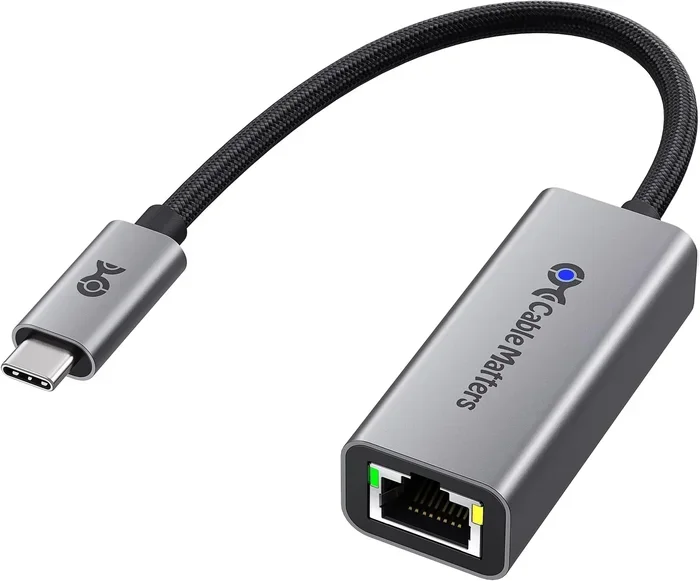
There are a few edge cases where an adapter might come in handy. If you have an older iPad with a Lightning port and your Apple Pencil USB-C, you would need a USB-C to Lightning adapter. This is rare because most people pair matching Pencil and iPad models.
Another situation is if you want to charge your Apple Pencil 1st generation using a wall outlet but only have a USB-C power brick. In that case, a simple Lightning to USB-C adapter would work. But these are not common needs for most users.
The bottom line is that for everyday use, connecting Apple Pencil without adapter is the norm, not the exception.
Which Apple Pencil Models Work Without Adapter?
Not all Apple Pencil models are created equal when it comes to adapter-free use. Let us look at each model and what you can expect.
Apple Pencil 1st Generation
The Apple Pencil 1st generation was released alongside the iPad Pro in 2015. It uses a Lightning connector for charging and pairing. To connect it, you simply plug the Lightning end into the iPad or a power source. No adapter is needed for the pairing process itself.
Once the battery has enough charge, the Pencil appears on your iPad screen as a pairing option. Tap it, and you are good to go. This model works with older iPads like the iPad Pro 1st and 2nd generation, iPad 6th through 9th generation, and iPad Air 2 and 3rd generation.
Apple Pencil 2nd Generation
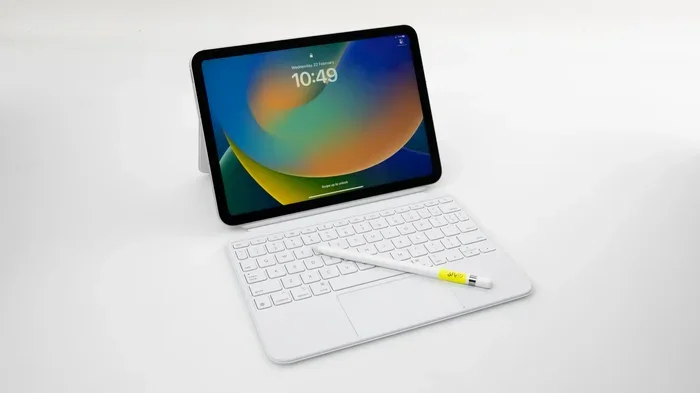
The Apple Pencil 2nd generation is even simpler. It pairs magnetically to the side of compatible iPads. You just attach it, and the pairing prompt appears automatically. No cables, no adapters, no fuss.
It also charges wirelessly this way. The magnetic attachment draws power from the iPad itself. This means you never need to hunt for a charger or adapter. Just snap it on, and it is ready to use.
This model works with iPad Pro 12.9-inch (3rd generation and later), iPad Pro 11-inch (all generations), and iPad Air (4th generation and later).
Apple Pencil USB-C
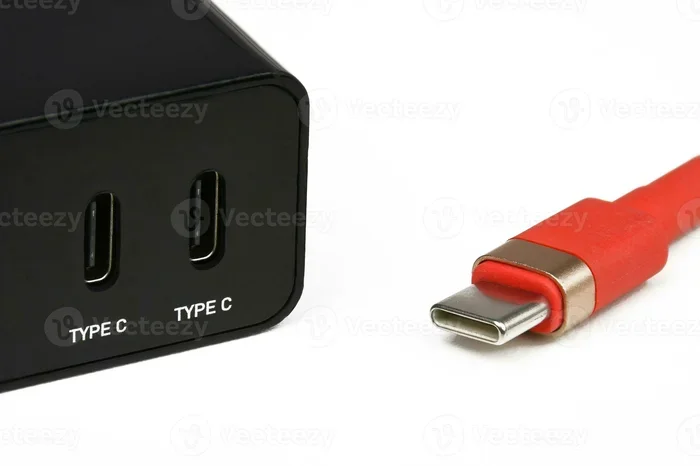
The Apple Pencil USB-C is the newest addition to the lineup. It was designed for the iPad Pro 13-inch (M4), iPad Air (M2), and iPad mini (A17 Pro). This model uses a USB-C connector for charging and pairing.
You plug it directly into the iPad. No adapter needed. The connection is fast and reliable. And when you are done, just pull it out and start creating.
Apple Pencil Pro
The Apple Pencil Pro shares the magnetic pairing and wireless charging approach of the 2nd generation. It adds squeeze gestures and haptic feedback for an even better experience. It pairs without any adapter to the same compatible iPad models as the 2nd generation.
This model is ideal for artists and professionals who want advanced features without the hassle of extra accessories. Just pair it and start working.
Step-by-Step: How to Pair Apple Pencil Without Adapter
Now that you know it is possible, let us walk through the actual pairing process. Each model has a slightly different method, so follow the one that matches your Pencil.
Pairing Apple Pencil 1st Generation
Start by removing the cap from the top of your Apple Pencil 1st generation. You will see a Lightning connector. Plug it directly into the iPad. Wait a few seconds.
A prompt should appear on your iPad screen asking if you want to pair the Pencil. Tap “Pair.” Once paired, you can unplug it and start using it immediately. The Pencil will stay paired until you unpair it manually or reset it.
Pairing Apple Pencil 2nd Generation
For the Apple Pencil 2nd generation, the process is even easier. Make sure Bluetooth is turned on in your iPad settings. Bring the Pencil close to the iPad.
Magnetically attach the Pencil to the right side of the iPad. The pairing prompt should appear within a few seconds. Tap “Pair.” That is it. Your Pencil is connected and charging at the same time.
Pairing Apple Pencil USB-C
Plug the USB-C end of the Apple Pencil USB-C directly into the iPad. Wait for the pairing prompt. Tap “Pair.” The connection is instant and stable.
Pairing Apple Pencil Pro
The Apple Pencil Pro pairs the same way as the 2nd generation. Attach it magnetically to the iPad side. The pairing prompt appears. Tap “Pair.” You are all set.
Common Problems When Connecting Apple Pencil Without Adapter
Even though the process is simple, things do not always go smoothly. Here are the most common issues people face and how to fix them.
Pencil Not Showing Up in Bluetooth
If your Apple Pencil does not appear in the Bluetooth devices list, the first thing to check is whether Bluetooth is turned on. Go to Settings, tap Bluetooth, and make sure it is enabled.
Next, try restarting your iPad. Sometimes a simple reboot clears up connection hiccups. Make sure your Pencil is charged enough to broadcast a signal. A Pencil with a dead battery will not show up.
Paired But Not Responding
If the Pencil is paired but not writing or drawing, try removing it from the iPad and re-pairing it. For 1st generation, unplug and replug the Lightning connector. For 2nd generation and Pro, detach and reattach magnetically.
You can also check for iPad software updates. Sometimes an iPadOS update fixes connection bugs. Go to Settings, General, Software Update, and install any available updates.
Pencil Keeps Disconnecting
A Pencil that keeps dropping its connection can be frustrating. This often happens when Bluetooth is overloaded with too many connected devices. Try disconnecting other Bluetooth devices temporarily to see if the connection stabilizes.
Another cause is low battery on either the Pencil or the iPad. Charge both devices and try again. If the problem persists, forget the Pencil from Bluetooth settings and pair it fresh.
Charging Issues Without Adapter
If your Apple Pencil is not charging when attached magnetically, check the magnetic strip on the iPad. Dust or debris can interfere with the connection. Wipe both the Pencil and iPad with a soft, dry cloth.
For the 1st generation Pencil, make sure the Lightning connector is clean and free of lint. A dirty connector will not charge properly.
Tips for a Smooth Apple Pencil Connection
Getting your Apple Pencil connected without an adapter is easy when you follow a few best practices. These tips will help you avoid problems and keep everything running smoothly.
Keep Bluetooth Enabled
This might sound obvious, but many connection issues happen because Bluetooth is turned off. Always make sure Bluetooth is active before trying to pair or reconnect your Pencil. You can toggle it quickly from the Control Center.
Keep Your iPad and Pencil Updated
Apple regularly releases iPadOS updates that improve Bluetooth connectivity and Pencil performance. Keeping your devices updated ensures the best experience. Turn on automatic updates so you never miss a patch.
Store Your Pencil Properly
For 2nd generation and Pro models, always attach the Pencil magnetically to the iPad when not in use. This keeps it charged and ready. For 1st generation and USB-C models, store them in a protective case to prevent damage to the connector.
Restart Before You Troubleshoot
When something goes wrong, restarting both the iPad and Pencil solves most problems. Turn off the iPad, wait 30 seconds, turn it back on. For the Pencil, just drain and recharge it slightly. Then try reconnecting.
Forget and Re-Pair if Needed
If your Pencil is acting stubborn, go to Settings, Bluetooth, find the Pencil in the device list, and tap “Forget This Device.” Then pair it again from scratch. This resets the connection and often fixes persistent issues.
Expert Tips and Final Thoughts
Connecting Apple Pencil without adapter is something most people take for granted until it stops working. The truth is, the process is designed to be simple. Apple built wireless pairing into the core experience, and it works remarkably well most of the time.
One expert tip worth sharing is to always check your iPad model before purchasing a Pencil. Compatibility is key. Buying a 2nd generation Pencil for an iPad that only supports the 1st generation will lead to frustration. Check Apple’s official compatibility list or the box your iPad came in.
Another pro tip is to keep a soft cloth handy. The magnetic connection points on both the Pencil and iPad can collect dust over time. A quick wipe before attaching the Pencil can prevent charging and pairing issues.
If you are in a situation where you do need an adapter, keep it simple. A basic USB-C to Lightning adapter costs just a few dollars and solves almost any mismatch problem. But for 95% of users, no adapter is needed at all.
The takeaway is clear. You can connect Apple Pencil without adapter easily and reliably. Whether you are a student taking notes, an artist sketching ideas, or a professional editing documents, the wireless pairing process is designed to get you creating as fast as possible.
So go ahead. Pick up your Pencil, attach it or plug it in, and start making. The creative possibilities are endless when your Apple Pencil is connected and ready to go.
Remember, if you run into any issues, the fix is usually simple. Check Bluetooth, restart your devices, and re-pair. With these steps, you will be back to creating in no time. Happy drawing, note-taking, and designing with your Apple Pencil!
Frequently Asked Questions
Can I connect Apple Pencil without any cables at all?
Yes, for 2nd generation and Apple Pencil Pro models, you can connect entirely without cables. The magnetic attachment handles both pairing and charging. Just snap the Pencil to the side of your iPad, and it pairs automatically through Bluetooth.
Why won’t my Apple Pencil connect even without an adapter?
The most common reason is a Bluetooth glitch. Try turning Bluetooth off and back on, restarting your iPad, or forgetting the Pencil from Bluetooth settings and re-pairing. Low battery on the Pencil can also prevent connection, so charge it first.
Do I need an adapter for Apple Pencil 1st generation?
No, you do not need an adapter to pair the 1st generation Apple Pencil. Simply plug the Lightning connector directly into the iPad or a power source. The pairing prompt will appear on screen automatically.
Can I use Apple Pencil with any iPad without an adapter?
No, compatibility matters. Each Apple Pencil model works with specific iPad models. Check Apple’s compatibility list before purchasing. A 2nd generation Pencil will not work with an older iPad that only supports the 1st generation.
How long does it take to pair Apple Pencil without adapter?
The pairing process takes only a few seconds. For 2nd generation and Pro models, magnetic attachment triggers an instant prompt. For 1st generation and USB-C models, plugging in the Pencil brings up the pair option within seconds.
Is it safe to connect Apple Pencil without adapter for daily use?
Absolutely. Apple designed the Pencil to work wirelessly and without adapters for daily use. The Bluetooth connection is secure, and the pairing process is stable. Millions of users connect their Pencil without any adapter every single day.
=== CONCLUSION ===
The answer to whether you can connect Apple Pencil without adapter is a clear and simple yes. For nearly all models and iPad combinations, the process is wireless, fast, and hassle-free. Whether you use Bluetooth magnetic pairing or a direct Lightning or USB-C connection, no extra adapter is required in the vast majority of cases.
Remember the key points. Check your model compatibility first. Keep Bluetooth enabled. Keep your devices updated. And if problems arise, a simple restart or re-pair usually fixes everything.
Now that you know how easy it is to connect Apple Pencil without adapter, you can focus on what really matters, creating. Start drawing, note-taking, or designing with confidence. Your Apple Pencil is ready to go, no adapter needed.