Can You Fix A Hdmi Port Without Replacing It Yourself
Yes, you can often fix a HDMI port without replacing it entirely. Simple solutions like cleaning the port, checking the cable, and reseating the connection solve most problems. This guide walks you through every method, from easy DIY fixes to advanced repairs, so you can restore your HDMI port connection quickly and save money.
You plug in your HDMI cable, hit play on your favorite show, and… nothing. The screen stays dark. Your HDMI port seems dead, and your first thought is probably, “Do I need to replace the whole thing?” The answer might surprise you. In most cases, you can fix a HDMI port without replacing it, and you do not even need to be a tech expert.
This guide covers every method you can try at home. From simple cleaning to more hands-on fixes, we walk you through each step. You will learn how to troubleshoot HDMI connection issues, identify the root cause, and apply the right fix. By the end, you will know exactly what to do and whether a professional HDMI port repair is worth the cost.
Let us get into it. Your screen is waiting.
Key Takeaways
- Most HDMI port issues are fixable without replacement: Dirt, dust, and loose connections cause the majority of problems.
- Cleaning the port is the first and easiest step: A can of compressed air or a toothpick can resolve signal loss instantly.
- Bent pins can be straightened carefully: Use a toothpick or tweezers to fix physical damage inside the port.
- Software and driver updates often solve HDMI output problems: A simple update can restore your display connection.
- Soldering is an advanced fix for severe damage: Only attempt this if you have experience and the right tools.
- Know when to call a professional: Some port damage needs expert attention or full replacement.
- Using an HDMI adapter is a quick workaround: It bypasses a damaged port while you plan a permanent fix.
📑 Table of Contents
- Understanding HDMI Port Problems
- Can You Fix A HDMI Port Without Replacing It?
- Advanced HDMI Port Repair Techniques
- When to Replace the HDMI Port Instead of Fixing It
- Cost Comparison: Repair vs Replace
- Preventing Future HDMI Port Problems
- Common Mistakes to Avoid
- Quick Tips for Faster HDMI Port Fixes
- Final Thoughts
Understanding HDMI Port Problems
Before you jump into fixing anything, it helps to understand what went wrong. HDMI port issues fall into a few common categories. Each type has a different fix. Let us break them down.
Physical Damage to the Port
The HDMI port on your device has tiny metal pins inside. These pins carry the video and audio signal. If something bumps the port or a cable gets yanked out forcefully, those pins can bend or break. You might notice the cable feels loose when plugged in. Or the port looks crooked or damaged on the outside.
Physical damage is one of the most common reasons for a broken HDMI port. But here is the good news. Minor bending does not always mean the port is ruined forever.
Dirt and Dust Buildup
This one is more common than you think. Over time, dust and lint work their way into the HDMI port. They block the connection between the cable and the pins inside. The result? Intermittent signal loss or a complete lack of display. This type of HDMI signal loss is frustrating but easy to fix.
Software and Driver Issues
Sometimes the port itself is fine. The problem lives in your device software. Outdated drivers, incorrect display settings, or a glitch in your operating system can all make it look like your HDMI port is not working. Before you open up the device, always rule out software problems first.
Cable or Adapter Problems
A damaged HDMI cable or a faulty adapter can mimic a bad port. You plug everything in, but no signal comes through. Before blaming the port, test with a different cable. This simple step saves a lot of unnecessary troubleshooting.
Can You Fix A HDMI Port Without Replacing It?
The short answer is yes. Most HDMI port problems do not require a full replacement. You can repair the port yourself or with basic tools. The method you choose depends on the type and severity of the damage. Let us go through each fix in detail.
Method 1: Clean the HDMI Port
Start here. Cleaning is the simplest fix and it solves more problems than people realize. Dust and debris inside the port block the connection. A quick clean often restores your HDMI connection immediately.
Here is how to do it:
- Unplug the device from power. Safety first.
- Use a can of compressed air. Blow gently into the port. This removes loose dust and particles.
- Take a wooden toothpick. Gently scrape around the inside of the port. Be very careful. Do not press too hard.
- Use a soft brush or a lint-free cloth to wipe away any remaining debris.
- Plug the cable back in and test the connection.
Quick Tip: Never use metal objects to clean the port. A metal tool can bend the pins or cause a short circuit. Stick to wooden toothpicks or plastic tools. This is the safest way to perform HDMI port cleaning at home.
Method 2: Reseat the HDMI Cable
This sounds too simple, but it works more often than you would expect. A loose connection can cause all the same symptoms as a damaged port. Unplug the cable, wait a few seconds, and plug it back in firmly. Make sure it clicks into place. Check if the HDMI output comes back.
Try a different port if your device has more than one. This helps you figure out whether the problem is with the cable, the port, or the device itself.
Method 3: Straighten Bent Pins
If you suspect bent pins inside the port, you can try to straighten them. This requires patience and a steady hand. Here is what you need to do:
- Look closely at the port with a flashlight. Identify any pins that look bent or misaligned.
- Take a small flat tool. A toothpick or a plastic spudger works well.
- Gently push the bent pin back into position. Move slowly. Do not force it.
- Check the alignment from multiple angles. The pins should be straight and evenly spaced.
- Plug in the cable and test the connection.
Warning: If the pins are badly damaged or broken off, this method will not work. You will need to explore other options. Forcing a pin can make the damage worse. Know your limits and move on if the pins do not respond to gentle pressure.
Method 4: Update Drivers and Software
Before you touch any hardware, check your software. A driver update can fix HDMI display problems in minutes. Here is how:
- On Windows, go to Device Manager. Find your display adapter. Right-click and select Update Driver.
- On a Mac, go to System Preferences. Click Software Update and install any pending updates.
- On a TV or monitor, check the manufacturer website for firmware updates.
After updating, restart your device and test the connection again. Many people skip this step and jump straight to hardware fixes. Do not make that mistake.
Method 5: Use an HDMI Adapter as a Workaround
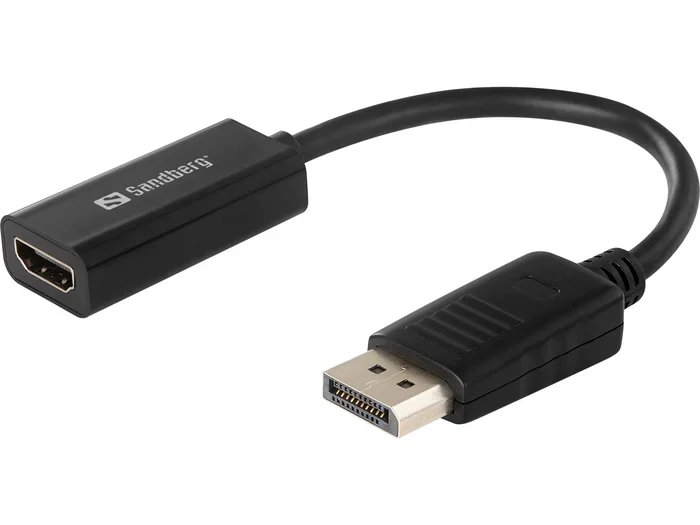
If the port is too damaged to use directly, an adapter can save the day. You can use an HDMI to DisplayPort adapter or an HDMI to USB-C adapter depending on your device. This lets you connect your display without using the damaged port.
This is not a permanent fix, but it gives you a working setup while you plan a more permanent solution. It is also a great option if you want to avoid opening the device at all.
Check out the pros and cons of proprietary systems to understand how hardware compatibility can vary across devices, which is relevant when choosing adapters.
Advanced HDMI Port Repair Techniques
Some fixes go beyond basic troubleshooting. These methods require a bit more skill and the right tools. Only attempt them if you feel comfortable working with electronics.
Soldering a New HDMI Port
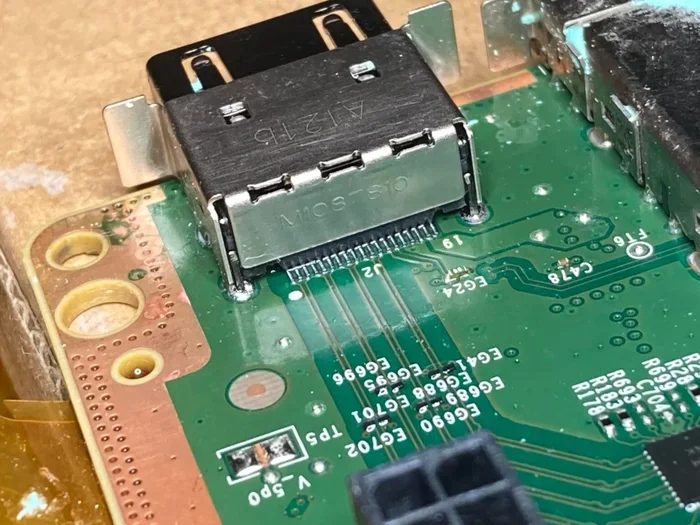
Soldering is the most advanced DIY fix for a damaged HDMI port. It involves removing the old port and soldering a new one onto the circuit board. This method works well when the port is physically broken but the rest of the device is fine.
Here is what you need:
- A replacement HDMI port (soldered or surface-mount type).
- A soldering iron with a fine tip.
- Solder wire and flux.
- A magnifying glass or microscope.
- Patience and a steady hand.
The process involves carefully desoldering the old port, cleaning the pads on the board, aligning the new port, and soldering each pin in place. This is not a beginner-level task. If you have never soldered before, practice on a cheap circuit board first.
Expert Insight: Watch a few tutorial videos before you start. Every device has a different board layout. Knowing what you are working with reduces the risk of mistakes. Many repair channels on video platforms offer step-by-step guides for specific device models.
Reflow Repair
Reflow repair is a technique used when the solder joints inside the port have cracked or weakened. You heat the area to melt the solder and reform the connections. This method works for intermittent HDMI signal loss caused by cold solder joints.
You need a heat gun or a reflow station for this. The process is delicate. Too much heat can damage nearby components. If you are not experienced with reflow techniques, it is better to leave this to a professional.
When to Replace the HDMI Port Instead of Fixing It
Not every problem can be solved with a repair. Sometimes replacement is the smarter choice. Here are the signs that you should replace rather than fix:
- The port is completely shattered or snapped off the board.
- Multiple pins are broken and cannot be straightened.
- The solder pads on the circuit board are damaged or lifted.
- The device is old and other components are also failing.
- You have tried multiple fixes and the problem persists.
In these cases, a professional HDMI port replacement makes more sense. A technician has the tools and experience to do the job safely. It costs more than a DIY fix, but it also gives you a warranty on the work.
For more context on how hardware and software interact, check out this guide on value-added networks for electronic commerce, which explains how different communication systems can affect device connectivity.
Cost Comparison: Repair vs Replace
Wondering what it costs to fix or replace an HDMI port? Here is a quick breakdown:
| Option | Cost Range | Time Required | Difficulty Level |
|---|---|---|---|
| DIY Cleaning | Free | 5-10 minutes | Very Easy |
| DIY Pin Straightening | Free | 15-30 minutes | Moderate |
| DIY Soldering | $5-$20 (parts) | 1-3 hours | Advanced |
| Professional Repair | $30-$100 | 1-2 days | N/A |
| Full Port Replacement (Device) | $100-$300+ | Varies | N/A |
As you can see, DIY fixes save you a lot of money. Even a professional repair costs a fraction of replacing the entire device. Always try the simple fixes first before spending big.
Preventing Future HDMI Port Problems
Once you fix the port, you want to keep it working. Prevention is the best strategy. Follow these simple habits:
- Always unplug cables gently. Do not yank them out. Pull the connector, not the cable.
- Keep devices covered when not in use. Dust covers prevent lint and debris from entering ports.
- Use high-quality HDMI cables. Cheap cables put more stress on the port during insertion and removal.
- Do not frequently plug and unplug. Every connection cycle creates wear on the port over time.
- Store devices in a clean, dry environment. Humidity and dust are the enemies of electronic ports.
These small habits add up. They extend the life of your HDMI port and save you from future headaches.
Common Mistakes to Avoid
People make the same mistakes over and over when troubleshooting HDMI problems. Here are the ones to watch out for:
- Skipping the cable test. Always test with a known-good cable before assuming the port is bad.
- Using metal tools inside the port. This causes more damage than it fixes. Use plastic or wooden tools only.
- Ignoring software issues. A driver update might be all you need. Do not jump to hardware fixes too quickly.
- Applying too much force. Whether cleaning or straightening pins, gentle pressure is key. Forcing anything can turn a minor issue into a major one.
- Waiting too long to act. The longer you use a damaged port, the worse the damage gets. Address the problem early.
Quick Tips for Faster HDMI Port Fixes
Here are some fast tips that make the whole process smoother:
- Keep a can of compressed air in your tech toolkit. Use it regularly to keep ports clean.
- Take a photo of the port before you open anything. It helps you remember how things go back together.
- Keep a spare HDMI cable on hand. You never know when you will need to test a different connection.
- Label your cables. Knowing which cable goes where saves confusion during troubleshooting.
- Use a flashlight or a phone light to inspect the port closely. You will spot bent pins and debris much faster.
Final Thoughts
So, can you fix a HDMI port without replacing it? Absolutely. Most problems are caused by simple issues like dust, loose connections, or minor pin damage. With the right approach, you can fix them yourself at home. Start with the easiest methods and work your way up. Cleaning and reseating the cable solve the majority of cases.
For more serious damage, soldering or professional repair are your best options. And always remember that prevention goes a long way. Treat your ports well and they will serve you for years.
Do not throw away your device just because the HDMI port stopped working. Try these fixes first. You might be surprised at what a little effort can do.
Frequently Asked Questions
Can a bent HDMI pin be fixed without soldering?
Yes, minor bends can be straightened using a toothpick or plastic spudger. Gently push the pin back into position without applying too much force. If the pin is broken off completely, soldering or professional repair becomes necessary.
How much does it cost to fix a HDMI port professionally?
Professional HDMI port repair typically costs between $30 and $100, depending on the device and the extent of the damage. This is much cheaper than replacing the entire device or paying for a full motherboard swap.
Can a loose HDMI port be tightened at home?
In some cases, yes. If the port feels loose because the screws holding it are worn, you can try tightening them. If the port itself is physically damaged, tightening will not help and you may need a replacement or repair.
Is it safe to use a HDMI adapter permanently?
Using an adapter as a permanent workaround is safe and practical. It bypasses a damaged port and provides a reliable connection. However, it is best to plan for a proper repair or replacement in the long term.
What causes HDMI port damage the most?
The most common causes are frequent plugging and unplugging, yanking cables out forcefully, dust accumulation, and physical impacts. Over time, these habits wear down the pins and weaken the solder joints inside the port.
Can software updates fix HDMI display problems?
Yes, in many cases. Outdated display drivers or firmware can cause HDMI signal loss even when the port is physically fine. Always update your software before assuming the problem is hardware-related. A simple update can restore your connection completely.
=== CONCLUSION ===
Fixing a HDMI port without replacing it is entirely possible in most situations. You have a range of options from simple cleaning to advanced soldering. Start with the easiest fixes and work your way up. You will save time, money, and frustration.
Remember to prevent future problems by treating your ports with care. A little maintenance goes a long way. Now go fix that port and get back to your screen.