Can You Play Cds Through Usb Heres Everything You Need
Yes, you can play CDs through USB by using an external disc drive or ripping your CDs into digital files. This method lets you enjoy your music collection on modern devices that lack built-in CD players. Whether you want to listen in your car, on a laptop, or on a smart speaker, converting CDs to USB is simple and affordable.
Have you ever dug out a stack of old CDs and wondered how to listen to them today? Most modern laptops, cars, and portable speakers no longer come with a disc drive. That leaves many people asking a simple question: can you play CDs through USB? The short answer is yes. But the full answer involves a few steps, some helpful tools, and a bit of know-how.
This guide walks you through everything you need to know about playing CDs through USB. Whether you want to listen in your car, on a desktop computer, or on a portable speaker, you will find clear instructions here. We will cover the methods, the best tools, common mistakes, and tips to get the best audio quality from your old discs.
USB audio has become the go-to way people listen to music. It is fast, reliable, and works with almost every device made in the last decade. By converting your CD collection into digital files stored on a USB drive, you unlock a world of portable music. No more flipping through discs. No more scratches ruining your favorite tracks. Just plug in and play.
Key Takeaways
- USB playback is possible: You can rip CDs to USB drives and play them on most modern devices.
- An external disc drive works: If your computer lacks a CD drive, a USB-connected external drive solves the problem.
- File format matters: MP3 and WAV are the most common formats for USB audio playback.
- Car stereos support USB: Most modern car audio systems accept USB drives for music playback.
- Quality varies: The audio quality depends on your ripping settings and the USB drive you use.
- It is faster than Bluetooth: USB playback offers a direct, stable connection with no signal loss.
- Ripping is a one-time process: Once your CDs are converted, you can replay them endlessly from USB.
📑 Table of Contents
- What Does It Mean to Play CDs Through USB?
- Why Play CDs Through USB Instead of Other Methods?
- How to Play CDs Through USB: Step-by-Step Guide
- Playing USB Music in Your Car
- Audio Quality: Does USB Playback Sound Good?
- Devices That Support USB Music Playback
- Frequently Asked Questions About Playing CDs Through USB
- Final Thoughts on Playing CDs Through USB
What Does It Mean to Play CDs Through USB?
Playing CDs through USB means converting the audio content from a compact disc into digital files. These files then get stored on a USB flash drive or external hard drive. You can then plug that drive into any device with a USB port and listen to your music.
Think of it like this. A CD holds music in an analog format read by a laser inside a disc player. USB holds music in a digital format that any modern device can read. The process of converting CD audio into USB-friendly files is called CD ripping. It is the key step that makes everything possible.
How CD Ripping Works
CD ripping uses software to read the tracks on a disc and save them as digital audio files. The software extracts each song and encodes it into a format like MP3, WAV, or FLAC. Once the files are saved, you simply copy them onto a USB drive.
Here is a basic overview of the ripping process:
- Insert the CD into your disc drive.
- Open your CD ripping software or media player.
- Select the tracks you want to convert.
- Choose your preferred file format.
- Start the ripping process.
- Copy the finished files to your USB drive.
That is really all there is to it. The entire process takes just a few minutes per disc. And once your files are on USB, you can listen to them anywhere, anytime.
Why Play CDs Through USB Instead of Other Methods?
You might be thinking, why not just stream music online or use Bluetooth? Both are great options. But playing CDs through USB has some clear advantages that make it worth considering.
Audio Quality
When you rip a CD to a high-quality format like WAV or FLAC, you get lossless audio. That means every bit of sound from the original disc is preserved. Streaming services compress audio to save data. USB playback gives you the full, rich sound quality of the original recording.
No Internet Required
USB music files work offline. You do not need Wi-Fi or a data connection. This makes USB playback perfect for road trips, flights, or any situation where internet access is spotty or unavailable.
Own Your Music Library
Streaming services can remove songs from their catalogs at any time. When your music lives on a USB drive, it is yours forever. You have full control over your personal music library.
Cost Savings
Ripping your existing CDs costs nothing extra. You already own the discs. Converting them to USB format saves you from buying digital versions of the same music.
Comparison: USB Playback vs. Other Methods
| Feature | USB Playback | Bluetooth | Streaming |
|---|---|---|---|
| Audio Quality | High (lossless possible) | Good (compressed) | Good to High |
| Internet Needed | No | No | Yes |
| Cost | Free (after ripping) | Free | Subscription required |
| Offline Access | Yes | Yes | Limited |
| Music Ownership | Full ownership | Full ownership | Access only |
| Setup Difficulty | Moderate | Easy | Easy |
How to Play CDs Through USB: Step-by-Step Guide
Now that you understand the basics, let us walk through the actual process. You will need a few things before you start, but the setup is straightforward.
Step 1: Gather Your Equipment
Here is what you will need to get started with USB audio playback:
- A computer with a disc drive (or an external USB disc drive)
- A USB flash drive or external hard drive
- CD ripping software (many options are free)
- The CDs you want to convert
If your laptop does not have a built-in disc drive, do not worry. A USB external CD drive costs around twenty to thirty dollars. They are small, portable, and work with most computers. Just plug them into a USB port, and they function like a built-in drive.
Step 2: Choose Your Ripping Software
Several free programs make CD ripping easy. Some popular options include:
- Windows Media Player – Built into Windows, simple to use
- iTunes – Works great on Mac and Windows
- Exact Audio Copy – Known for high-quality ripping
- dBpoweramp – Offers excellent metadata and sound quality
- VLC Media Player – Free and versatile
Each program has its own interface, but the basic steps are similar. Insert your CD, let the software read the tracks, and choose your export format.
Step 3: Select the Right File Format
The file format you choose affects both audio quality and file size. Here are the most common options:
- MP3: Small file size, widely compatible. Great for portable devices and car stereos.
- WAV: Lossless, large file size. Best for preserving original CD quality.
- FLAC: Lossless but compressed. A good balance of quality and file size.
- AAC: Good quality at smaller sizes. Works well on Apple devices.
For most people, MP3 or FLAC is the best choice. MP3 works on nearly everything. FLAC gives you studio-quality sound without taking up too much space.
Step 4: Rip Your CDs
Insert your first CD into the drive. Open your chosen software and select the tracks you want to rip. Choose your preferred format and quality settings. Then hit the rip button and let the software do its work.
Quick Tip: Most ripping software lets you set the audio quality. For MP3, choose 320 kbps for the best sound. For FLAC, the default settings give you lossless quality automatically.
Step 5: Transfer Files to USB
Once your CDs are ripped, open your file explorer and locate the audio files. Plug in your USB drive. Drag and drop the files from your computer to the USB drive. That is it. Your music is now ready to play on any USB-compatible device.
Common Mistake: Do not pull the USB drive out while files are still copying. This can corrupt your music files. Always wait for the transfer to complete before removing the drive.
Playing USB Music in Your Car
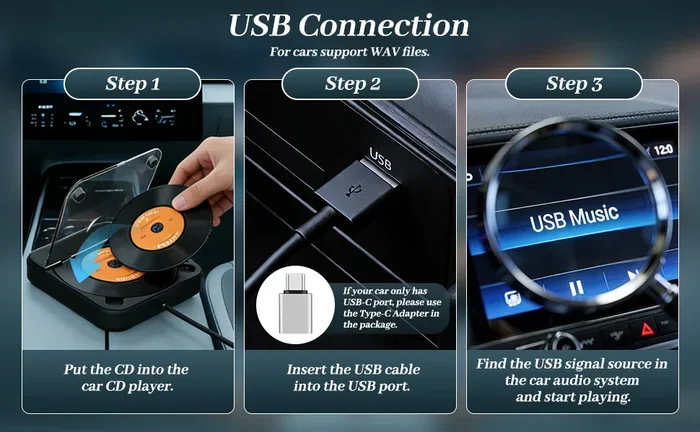
One of the most popular reasons people convert CDs to USB is for car audio. Most modern vehicles come with USB ports built into the dashboard. This makes it incredibly easy to play your ripped music collection on the road.
How to Connect USB to Your Car Stereo
Playing music from USB in your car is simple:
- Plug your USB drive into the car’s USB port.
- Use the stereo controls to select the USB input source.
- Browse your music library by artist, album, or folder.
- Select a song and enjoy.
If your car does not have a USB port, you can use a USB adapter that plugs into the cigarette lighter or auxiliary input. Some adapters also include a USB hub, so you can charge your phone and play music at the same time.
Best USB Drives for Car Audio
Not all USB drives are created equal. For the best experience with car stereos, look for these features:
- Compatibility: Choose a drive formatted as FAT32 or exFAT. These formats work with most car stereos.
- Capacity: A 32GB or 64GB drive holds hundreds of albums. That is plenty for most music collections.
- Speed: A USB 3.0 drive loads files faster. This means less waiting and smoother playback.
- Durability: Car environments get hot and vibrate. Pick a drive built to handle these conditions.
Expert Insight: Some car stereos struggle with very large libraries on a single USB drive. If you experience lag or slow browsing, try organizing your music into folders by artist or album. This helps the stereo navigate your files more efficiently.
Audio Quality: Does USB Playback Sound Good?
Many people worry that converting CDs to digital files reduces sound quality. The truth is, it depends on how you do it. With the right settings, USB playback can sound just as good as, or even better than, the original CD.
Understanding Bitrates and Sample Rates
Bitrate refers to the amount of data used to represent audio. Higher bitrates mean better sound quality but larger file sizes. Sample rate refers to how many times per second the audio is sampled during conversion.
For MP3 files, a bitrate of 320 kbps is considered the highest quality. For lossless formats like WAV or FLAC, the bitrate matches the original CD quality of 1411 kbps. This means your music sounds exactly as it did on the disc.
Quick Tip: If you want the best possible sound, rip your CDs to FLAC format. The files will be larger than MP3s, but the audio quality is identical to the original disc.
Common Mistakes That Hurt Audio Quality
Here are some errors that can degrade your digital audio quality when ripping CDs:
- Using low bitrate settings like 128 kbps for MP3 files.
- Ripping with a scratched or dirty CD, which causes errors.
- Using outdated or low-quality ripping software.
- Copying files in an incompatible format for your playback device.
- Not letting the software fully verify the rip before finishing.
Avoiding these mistakes ensures your music playback through USB sounds fantastic every time.
Devices That Support USB Music Playback
One of the biggest advantages of USB audio is its wide compatibility. Many devices can read music files from a USB drive. Here is a look at the most common ones.
Car Stereos and Head Units
Most cars manufactured after 2010 include a USB port. This includes vehicles from Ford, Toyota, Honda, Chevrolet, BMW, and many other brands. Some older cars can be upgraded with an aftermarket head unit that includes USB support.
Home Stereo Systems
Many modern home stereo systems and receivers have USB inputs. Brands like Sony, Pioneer, Yamaha, and Marantz often include USB ports on their receivers. This allows you to plug in a drive and browse your music collection directly.
Laptops and Desktop Computers
Virtually all computers made in the last ten years support USB drives. You can use any media player application to play your ripped files. Windows Media Player, VLC, iTunes, and many others work seamlessly with USB audio files.
Portable Speakers and Soundbars
Portable Bluetooth speakers with USB inputs, like those from JBL and Bose, can play music directly from a USB drive. Some soundbars also include USB ports for media playback.
Smart TVs and Media Players
Many smart TVs and streaming devices like Roku or Amazon Fire Stick can read audio files from USB drives. This is a great way to listen to your ripped CDs through your home entertainment system.
Frequently Asked Questions About Playing CDs Through USB
Do I need special software to rip CDs to USB?
No, you do not need special software. Many free programs handle CD ripping easily. Windows Media Player and iTunes come pre-installed on most computers and can rip CDs with just a few clicks. For more advanced features and better audio quality, you can try free options like Exact Audio Copy or VLC Media Player. The software you choose depends on how much control you want over the ripping process.
Can I play ripped CDs on any USB-compatible device?
Yes, you can play ripped CDs on most USB-compatible devices. The key is choosing a widely supported file format like MP3 or WAV. MP3 files work on virtually every device that accepts USB drives. If your device supports FLAC, that is even better for sound quality. Just make sure your USB drive is formatted correctly, as FAT32 and exFAT formats have the broadest compatibility across different devices.
How long does it take to rip a CD to USB?
Ripping a single CD usually takes between three and ten minutes. The exact time depends on the ripping software, the file format you choose, and your computer’s speed. MP3 files rip faster than lossless formats like WAV or FLAC because they require less processing. In most cases, you can rip an entire album and transfer it to a USB drive in under fifteen minutes.
Does playing CDs through USB affect audio quality?
Not at all. When you rip a CD at high quality settings, the audio quality is preserved fully. Formats like WAV and FLAC are lossless, meaning they retain every bit of the original recording. Even MP3 at 320 kbps delivers excellent sound that is nearly indistinguishable from the CD. The only way quality suffers is if you use low bitrate settings or a damaged disc during the ripping process.
Can I use any USB flash drive for music playback?
You can use most USB flash drives for music playback, but some work better than others. For the best results, choose a drive with at least 32GB of storage and USB 3.0 speeds. Make sure the drive is formatted as FAT32 or exFAT for maximum device compatibility. Avoid very cheap or very old drives, as they may have slower read speeds that cause choppy playback. A reliable brand-name USB drive ensures smooth, uninterrupted music listening.
Is it better to play CDs through USB or Bluetooth?
USB playback is generally better than Bluetooth for audio quality. USB sends a digital signal directly to the device, which preserves the full quality of the audio file. Bluetooth compresses the audio signal to transmit wirelessly, which can result in some loss of detail. USB also provides a more stable connection without dropouts or interference. However, Bluetooth offers more convenience because it is wireless. If audio quality is your priority, USB playback is the clear winner.
Final Thoughts on Playing CDs Through USB
Playing CDs through USB is one of the smartest ways to keep your music collection alive in a digital world. It takes just a little setup time and gives you years of portable, high-quality music playback. Whether you are loading up your car for a road trip or building a personal library at home, USB playback delivers convenience and sound quality.
The process is simpler than most people think. With an external disc drive, some free software, and a USB drive, you can convert your entire CD collection in an afternoon. Once the files are ripped and transferred, you never have to worry about scratched discs or missing cases again.
Take some time today to try it out. Start with a few of your favorite albums. Rip them to MP3 or FLAC. Load them onto a USB drive. Plug it into your car stereo or home system. The experience of hearing your favorite tracks through clear, digital audio will remind you why you loved those CDs in the first place.
USB audio is here to stay, and your CD collection deserves to be part of that future. Follow the steps in this guide, avoid the common mistakes, and enjoy your music exactly the way the artists intended. Your discs have waited long enough. Give them a new life through USB.