Can You Print From Your Phone To A Printer Without Wi Fi
Yes, you absolutely can print from your phone to a printer without Wi-Fi. You have several reliable options like Bluetooth, Wi-Fi Direct, NFC, and USB cables. This guide walks you through every method so you can print from your phone to a printer without Wi-Fi hassle-free.
This is a comprehensive guide about Can You Print From Your Phone To A Printer Without Wi Fi.
Key Takeaways
- Bluetooth printing lets you connect your phone directly to a compatible printer without any internet connection.
- Wi-Fi Direct creates a private network between your phone and printer, even when no router is available.
- USB cable printing works with the right adapter and is one of the most stable offline methods.
- NFC printing offers a quick tap-to-print experience with supported devices and printers.
- Mobile printing apps from brands like HP, Canon, and Epson often support offline printing modes.
- Knowing your printer’s capabilities helps you choose the best method for printing without Wi-Fi.
- Offline printing is useful in areas with poor internet, during travel, or in emergency situations.
[FEATURED_IMAGE_PLACEHOLDER]
How Can You Print From Your Phone Without Wi-Fi?
Ever found yourself in a spot where you need to print something but there is no Wi-Fi in sight? It happens more often than you think. Maybe you are at a cabin in the woods, at a client meeting, or simply dealing with a router that decided to take a break. The good news is that printing from your phone to a printer without Wi-Fi is totally possible. You do not need an internet connection to get your documents, photos, or emails onto paper.
Modern printers and smartphones come packed with features that make offline printing a breeze. Whether your phone uses Android or iOS, there is a solution that fits your situation. Let us walk through every option so you can pick the one that works best for you.
Before diving in, it helps to understand what mobile printing really means. Mobile printing is the process of sending print jobs from a smartphone or tablet to a printer using different connection types. Wi-Fi is just one of many ways to make that happen. Bluetooth, USB cables, Wi-Fi Direct, and NFC are all alternative paths that bypass the need for a wireless network entirely.
Think of it this way. Wi-Fi is just one road to your destination. There are several other routes you can take. Each method has its own strengths, and some work better with certain printers than others. By the end of this guide, you will know exactly which road to take.
Methods to Print From Your Phone to a Printer Without Wi-Fi
There are several tried-and-true methods for printing from your phone without a Wi-Fi connection. Each one uses a different technology to bridge the gap between your mobile device and the printer. Let us explore them one by one.
1. Bluetooth Printing
Bluetooth is one of the oldest and most reliable ways to connect two devices without a network. Many printers today come with built-in Bluetooth support. This means you can pair your phone directly with the printer and send print jobs without touching a router.
Here is how Bluetooth printing typically works:
- Turn on Bluetooth on both your phone and printer.
- Put the printer in pairing mode.
- Select the printer from your phone’s Bluetooth device list.
- Once paired, open the document or photo you want to print.
- Use the share or print option and select the Bluetooth-connected printer.
Bluetooth printing works well for short-range connections. The typical range is about 30 feet. It is perfect for home offices or small spaces. One thing to keep in mind is that not all printers support Bluetooth out of the box. Some may require a Bluetooth adapter or a firmware update. Check your printer’s manual or visit the manufacturer’s website to confirm compatibility.
Bluetooth printing is also great for proprietary operating system environments where network access is restricted. If you are working in a setup that relies on a closed ecosystem, Bluetooth offers a clean, direct connection that bypasses network dependencies entirely. Understanding the advantages and disadvantages of a proprietary operating system can help you make better decisions about which devices to pair for offline printing tasks.
2. Wi-Fi Direct Printing
Wi-Fi Direct is a powerful feature that lets two devices connect directly to each other without a central router. Think of it as creating your own mini-network on the spot. Your phone talks directly to the printer, and the print job goes through without any internet involvement.
Here is the typical process for Wi-Fi Direct printing:
- Enable Wi-Fi Direct on your printer (usually found in the printer’s settings menu).
- On your phone, go to Wi-Fi settings and look for the printer’s network name.
- Connect to the printer’s Wi-Fi Direct network.
- Open the document or photo you want to print.
- Select the printer and hit print.
Wi-Fi Direct offers a longer range than Bluetooth, often up to 650 feet in open spaces. It also supports faster data transfer speeds, which is great for printing high-resolution photos or large PDFs. Most modern printers from brands like HP, Canon, Epson, and Brother support Wi-Fi Direct. You can usually find this feature listed in the printer’s specifications or on the product box.
One of the biggest advantages of Wi-Fi Direct is that it does not require any additional hardware. No cables, no dongles, no extra software. Just two devices talking directly to each other. This makes it one of the most convenient options for printing from your phone without Wi-Fi.
3. NFC Printing
NFC stands for Near Field Communication. It is the same technology used for contactless payments and smart tags. NFC printing lets you tap your phone against a compatible printer and instantly send a print job. It is incredibly fast and almost effortless.
To use NFC printing, you need two things:
- A phone with NFC support (most modern Android phones and some iPhones have this).
- A printer with an NFC touch point (a small NFC logo or antenna on the printer).
The process is simple:
- Make sure NFC is turned on in your phone’s settings.
- Place your phone gently on the NFC spot of the printer.
- Your phone will detect the printer and prompt you to print.
- Select your print options and confirm.
NFC printing is ideal for quick, one-off print jobs. It is not the best choice for large documents or bulk printing, but for a single page or a quick photo, it is unbeatable in terms of convenience. NFC works over very short distances, usually less than 4 centimeters, so you need to physically touch your phone to the printer.
4. USB Cable Printing
If you want the most stable and reliable connection possible, USB cable printing is the way to go. This method uses a physical cable to connect your phone directly to the printer. No wireless signals, no network setup, no interference issues.
Here is what you need to know about USB printing:
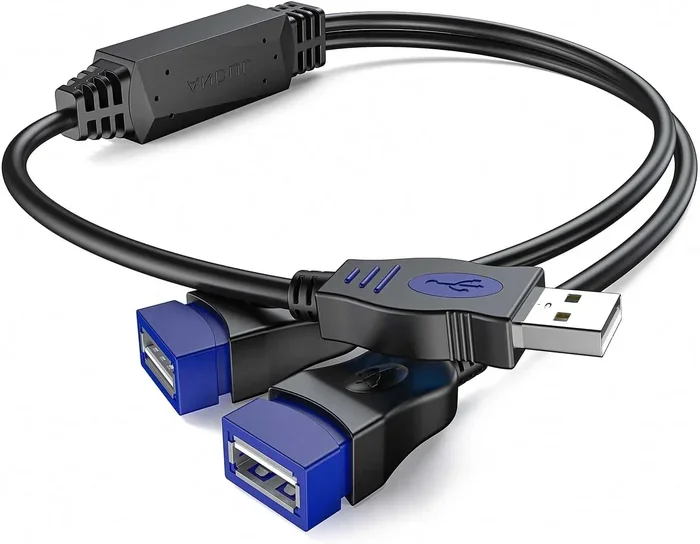
- You will need the right cable. Most printers use USB-A or USB-B connectors, while phones use USB-C or Lightning.
- You may need a USB OTG (On-The-Go) adapter for Android phones to connect to the printer.
- Some printers come with companion apps that support USB connections directly.
- iPhone users may face more limitations due to Apple’s closed ecosystem, but certain apps and adapters can help.
USB printing is especially useful in environments where wireless connections are unreliable or not allowed. It is also the go-to method for printing from your phone to a printer without Wi-Fi in professional settings where stability matters most. The connection is rock solid, and you do not have to worry about signal drops or interference from other devices.
One thing to consider is that USB printing ties you to a physical cable. You cannot move around freely while the print job is processing. But for stationary setups, this is rarely an issue.
Popular Apps That Support Offline Printing
You do not always need a special connection method to print without Wi-Fi. Many printer manufacturers offer free apps that support offline printing through various means. Here are some of the most popular options:
| App Name | Supported Platforms | Offline Methods |
|---|---|---|
| HP Smart | Android, iOS | Bluetooth, Wi-Fi Direct, USB |
| Canon Print | Android, iOS | Wi-Fi Direct, Bluetooth, USB |
| Epson iPrint | Android, iOS | Wi-Fi Direct, Bluetooth, NFC |
| Brother iPrint&Scan | Android, iOS | Wi-Fi Direct, Bluetooth, USB |
| Samsung Print Service | Android | Wi-Fi Direct, Bluetooth, NFC |
These apps make it easy to find and connect to printers in your area, even without a shared Wi-Fi network. They often include built-in features like document scanning, ink level checks, and print quality settings. Download the app that matches your printer brand, and you will be printing in minutes.
When setting up any of these apps, make sure to check the printer compatibility before you start. Not every app works with every printer model. The manufacturer’s website usually lists supported devices and operating system requirements. Taking a few minutes to verify compatibility can save you a lot of frustration later.
It is also worth noting that some of these apps rely on cloud services for certain features. However, the core printing functions often work fully offline. If you are concerned about data privacy or want to avoid using cloud services, look for apps that offer a fully offline mode. This ties into understanding how value-added networks work in electronic commerce communication, as some cloud-dependent printing solutions use similar network architectures. Learning about the advantages and disadvantages of using a value-added network for electronic commerce communication can give you insight into how cloud-based print services operate and what limitations they may have in offline scenarios.
Which Method Should You Choose?
Choosing the right method depends on your specific situation. Here is a quick guide to help you decide:
Choose Bluetooth if: You want a simple wireless connection without any setup hassle. Bluetooth is great for home use and short-range printing. It works well with most modern printers and does not require any additional hardware.
Choose Wi-Fi Direct if: You need a longer range and faster speeds. Wi-Fi Direct is ideal for larger documents, photos, and when you need to print from a bit farther away from the printer. It is also the best choice for printing multiple pages in a row without interruption.
Choose NFC if: You want the fastest and simplest setup for quick print jobs. NFC is perfect for tapping out a single page or a quick photo print. It is incredibly user-friendly and requires zero configuration.
Choose USB if: You need the most stable and reliable connection. USB printing is best for office environments, professional settings, or any situation where you cannot afford connection drops or delays. It is also the safest choice for printing sensitive documents.
Each method has its place. The best approach is to know what your printer supports and keep the right tools on hand. For example, keeping a USB OTG adapter in your bag ensures you can print even when wireless options fail. Similarly, making sure Bluetooth is enabled on both devices gives you a quick wireless backup.
Common Mistakes to Avoid When Printing Without Wi-Fi
Offline printing is straightforward, but there are a few common pitfalls that can cause frustration. Here are mistakes to watch out for:
- Assuming all printers support all methods. Not every printer has Bluetooth, NFC, or Wi-Fi Direct. Always check your printer’s specifications before assuming a method will work.
- Forgetting to enable the right settings on your phone. Bluetooth, Wi-Fi Direct, and NFC all need to be turned on in your phone’s settings. It sounds simple, but this is the most overlooked step.
- Using the wrong cable or adapter. USB printing requires the right cable and sometimes an OTG adapter. Using the wrong one will not work, no matter how good your printer is.
- Ignoring printer firmware updates. Outdated firmware can cause compatibility issues with offline printing methods. Keep your printer’s software up to date for the best experience.
- Not checking print quality settings. Offline printing sometimes defaults to lower quality to save time. Check your print settings before hitting the print button to get the best results.
- Assuming the printer is connected. Just because Bluetooth or Wi-Fi Direct is turned on does not mean the devices are actually connected. Always verify the connection status before sending a print job.
Avoiding these mistakes will save you time, paper, and frustration. A little preparation goes a long way when it comes to printing from your phone without Wi-Fi.
Quick Tips for Better Offline Printing
Here are some expert tips to make your offline printing experience smoother:
- Keep your printer close to your phone. This is especially important for Bluetooth and NFC, which have limited range.
- Use the manufacturer’s app. Third-party apps sometimes have trouble with offline connections. Official apps are optimized for their own hardware.
- Check ink levels before printing. There is nothing worse than starting a print job only to realize you are out of ink. Most apps show ink levels in real time.
- Save documents in compatible formats. PDF and JPEG are the most universally supported formats for mobile printing. Save your files in these formats whenever possible.
- Restart both devices if something goes wrong. A simple restart of your phone and printer can fix most connection issues. It is the oldest trick in the book, and it still works.
- Turn off other Bluetooth devices temporarily. If you are having trouble pairing, other Bluetooth devices nearby can interfere. Turn them off briefly to isolate the connection.
Expert Insights on Mobile Offline Printing
According to industry experts, offline mobile printing has evolved significantly over the past few years. Modern printers are designed with mobile-first connectivity in mind. This means that even without a traditional Wi-Fi network, you have multiple reliable pathways to get your documents printed.
The shift toward Wi-Fi Direct and Bluetooth capabilities in printers has been driven by consumer demand. People want to print from their phones wherever they are, not just when they are connected to a home network. This trend has made offline printing a standard feature in most mid-range and high-end printers sold today.
For business users, offline printing capabilities are especially important. Field workers, sales teams, and remote employees often find themselves in locations without reliable internet access. Having a phone-to-printer connection that does not depend on Wi-Fi ensures productivity does not stall due to network issues.
Security is another factor to consider. Offline printing methods like USB and direct Bluetooth connections are generally more secure than cloud-based printing. Your data does not travel through the internet or a shared network. For sensitive documents, this is a significant advantage.
Final Thoughts
So, can you print from your phone to a printer without Wi-Fi? The answer is a resounding yes. You have Bluetooth, Wi-Fi Direct, NFC, and USB cable options at your fingertips. Each method offers its own benefits, and the best one depends on your printer, your phone, and your specific situation.
Printing from your phone to a printer without Wi-Fi is no longer a challenge. With the right tools and a little know-how, you can print almost anything, anywhere, anytime. Whether you are at home, in the office, or on the go, offline printing keeps you connected and productive.
Take a few minutes today to explore the options on your printer and phone. Check which methods your devices support, download the right app, and try a test print. Once you see how easy it is, you will wonder how you ever managed without it.
Remember, technology is here to make your life easier. Offline printing is just one example of how modern devices work together seamlessly, even without an internet connection. Embrace the flexibility, and print with confidence no matter where you are.
Frequently Asked Questions
Can I print from my iPhone without Wi-Fi?
Yes, you can. iPhones support Bluetooth printing and USB printing through compatible apps and adapters. Some printers also support AirPrint over Wi-Fi Direct, which does not require a traditional Wi-Fi network. Check your printer’s compatibility with iOS devices before attempting offline printing.
Do I need any special app to print without Wi-Fi?
It depends on your printer brand. Most manufacturers offer free apps that support offline printing methods like Bluetooth and Wi-Fi Direct. These apps are usually available on both Android and iOS app stores. Using the official app ensures the best compatibility and the smoothest offline printing experience.
Is Bluetooth printing slower than Wi-Fi printing?
Bluetooth printing is generally slower than Wi-Fi-based methods, especially for large files or high-resolution photos. However, for everyday documents and short print jobs, the difference is barely noticeable. Wi-Fi Direct offers faster transfer speeds and a longer range, making it better suited for larger print tasks.
Can I print photos from my phone without Wi-Fi?
Absolutely. Bluetooth, Wi-Fi Direct, and NFC all support photo printing without an internet connection. Make sure your printer supports photo paper and that you have selected the right print quality settings in your app for the best results.
Why can’t my phone find the printer when printing without Wi-Fi?
This is usually because the connection method is not enabled on one or both devices. Make sure Bluetooth, Wi-Fi Direct, or NFC is turned on. Also check that your printer is in discovery or pairing mode. Restarting both devices often resolves this issue quickly.
Is USB printing better than wireless offline methods?
USB printing offers the most stable and reliable connection since it uses a physical cable. It is immune to wireless interference and signal drops. However, it lacks the convenience of wireless methods. USB is best for stationary setups where stability matters more than flexibility.