Can You Plug 2 USB Devices Into One Port Without Damage
Yes, you can plug 2 USB devices into one port, but the method matters. Using a USB hub or USB splitter lets you share a single port safely. Understanding power limits and bandwidth is key to avoiding damage or slow speeds.
Have you ever found yourself in a situation where you only have one free USB port but need to plug in two devices at the same time? Maybe you want to charge your phone while transferring files from a flash drive. Or perhaps you need to connect a mouse and a keyboard to a single port on your laptop. The question can you plug 2 USB devices into one port comes up more often than you might think. And the answer is yes, but there are some important things you need to know first.
Plugging two devices into one port without the right setup can lead to slow speeds, charging problems, or even hardware damage. That is why understanding how USB hubs, splitters, and port power limits work is so important. In this guide, we will walk you through every option, every risk, and every best practice. By the end, you will know exactly how to connect multiple devices safely and efficiently.
Key Takeaways
- A USB hub is the safest way to connect multiple devices to one port without damage.
- A passive splitter divides bandwidth, which can slow down data transfer speeds.
- Powered hubs provide extra juice, so your devices charge and transfer data reliably.
- USB-C ports handle more power than older USB-A ports, making them better for multiple devices.
- Never force a connection or use cheap uncertified adapters, as they can harm your devices.
- Check your port’s power output before connecting multiple devices to avoid overloading.
- USB 3.0 and newer versions offer better bandwidth for multi-device setups.
📑 Table of Contents
- Understanding USB Ports and How They Work
- Can You Plug 2 USB Devices Into One Port? Yes, Here Is How
- Will Plugging 2 Devices Into One Port Cause Damage?
- How to Choose the Right USB Hub or Splitter
- Common Mistakes People Make When Connecting Multiple USB Devices
- Quick Tips for a Safe and Efficient Multi-Device USB Setup
- Expert Insights: What Tech Professionals Recommend
- Final Thoughts
Understanding USB Ports and How They Work
Before we dive into the solutions, let us talk about how USB ports actually work. Every USB port on your computer, charger, or device has a limited power output and a fixed bandwidth. Think of bandwidth as a highway. The more cars (data) you try to push through at once, the slower traffic gets.
When you plug in a single device, it gets the full power and speed of that port. But when you split that connection, things change. The port still has the same total power and bandwidth to share. It is just divided between the devices now. This is the basic idea behind daisy chaining and port splitting.
USB-A vs USB-C: What Is the Difference?
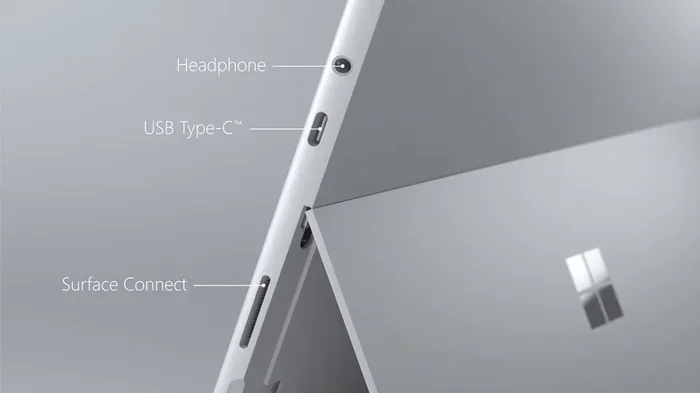
USB-A is the older, rectangular port you find on most computers and chargers. It typically delivers up to 2.5 watts of power on older ports and up to 4.5 watts on USB 3.0 ports. USB-C is the newer, smaller, oval-shaped port that can deliver much more power. USB-C supports USB Power Delivery of up to 100 watts in some cases.
Because USB-C can handle more power and data, it is generally better suited for connecting multiple devices. If you have a laptop with USB-C ports, you are in a much better position to run a multiport adapter without running into issues. USB-A ports are more limited, but they can still handle basic multi-device setups with the right accessories.
What Is Bandwidth and Why Does It Matter?
Bandwidth is the maximum rate of data transfer a port can handle. USB 2.0 has a bandwidth of 480 Mbps. USB 3.0 jumps to 5 Gbps. USB 3.1 offers 10 Gbps, and USB 3.2 can reach 20 Gbps. When you split a connection, each device shares that total bandwidth. So if you plug two high-speed devices into one port through a splitter, both will likely run at slower speeds.
This is why a powered USB hub is often the better choice. It gives each device its own connection back to the computer, which helps maintain better speeds even when multiple devices are attached.
Can You Plug 2 USB Devices Into One Port? Yes, Here Is How
The short answer to can you plug 2 USB devices into one port is yes. There are several ways to do it, and each method has its pros and cons. Let us break them down so you can choose the best option for your needs.
Method 1: Using a USB Hub
A USB hub is the most popular and safest way to connect multiple devices to one port. A hub plugs into your computer’s USB port and gives you several extra ports to use. Think of it as a power strip for USB devices.
There are two main types of USB hubs:
- Bus-powered hubs draw power from the computer’s port. They are compact and affordable but share the port’s power with all connected devices.
- Powered hubs have their own power supply. They can charge devices faster and support more peripherals without overloading your computer’s port.
For most people, a powered USB hub is the best choice. It gives you the freedom to connect multiple devices without worrying about power shortages or slow data transfer. Brands like Anker, Sabrent, and Ugreen make reliable hubs that work well with both USB-A and USB-C ports.
Method 2: Using a USB Splitter
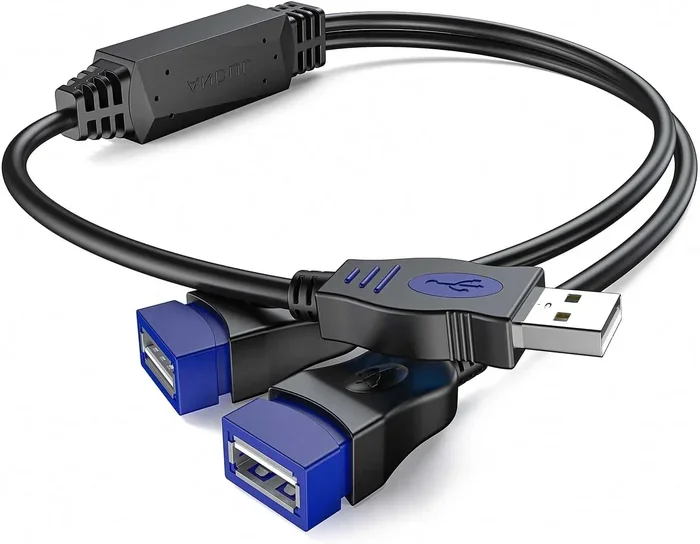
A USB splitter is a small adapter that lets you plug two devices into a single port. It is a simpler solution than a hub, but it comes with trade-offs. A splitter divides the port’s power and bandwidth between the two connected devices.
USB splitters work fine for low-power devices like flash drives or mice. But they are not ideal for devices that need a lot of power, like external hard drives or smartphones. If you try to charge two phones through a splitter, you will likely get very slow charging on both devices.
Here is a quick comparison of hubs versus splitters:
- USB Hub: Multiple ports, better power distribution, supports more devices, maintains better speeds.
- USB Splitter: Compact, affordable, divides power and bandwidth, best for simple low-power tasks.
Method 3: Using a USB-C Multiport Adapter
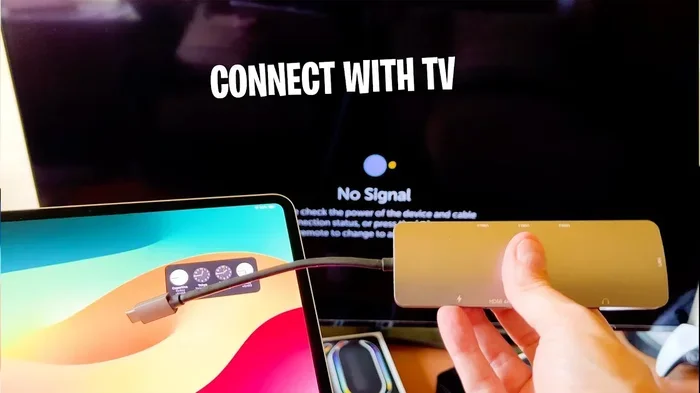
If your device has USB-C ports, a multiport adapter is a fantastic option. These adapters plug into one USB-C port and give you a mix of ports, including USB-A, HDMI, SD card slots, and sometimes even an extra USB-C port. They are incredibly popular for people who use laptops or tablets as their primary computer.
Docking stations take this a step further. They offer more ports, better power delivery, and often include video output for external monitors. If you work from home or need a permanent setup, a docking station is a great investment.
Method 4: Daisy Chaining
Daisy chaining means connecting one device to another in a chain. This works with some USB devices, especially certain external drives and audio interfaces. However, daisy chaining is not supported by all devices, and it can lead to slower speeds if the chain gets too long.
For most everyday users, a USB hub is a much simpler and more reliable option than daisy chaining. It keeps your setup clean and your devices running at their best.
Will Plugging 2 Devices Into One Port Cause Damage?
This is one of the most common concerns people have. The good news is that using a proper USB hub or splitter will not damage your devices or your computer. USB ports have built-in protection circuits that prevent overcurrent and short circuits. If something goes wrong, the port will typically shut down to protect itself.
However, there are situations where damage can happen. Using a cheap, uncertified splitter or hub is risky. These low-quality products may not have proper voltage regulation, which can send inconsistent power to your devices. Over time, this can harm your USB ports or even the connected devices themselves.
Here are some tips to keep your setup safe:
- Buy from reputable brands like Anker, Belkin, or Ugreen.
- Look for USB-IF certification on any hub or splitter you buy.
- Check the power rating of the hub and make sure it matches your needs.
- Do not overload a bus-powered hub with too many high-power devices.
- Avoid plugging in devices while your computer is running hot. Let it cool down first.
How to Choose the Right USB Hub or Splitter
Not all USB hubs are created equal. Choosing the right one depends on what devices you want to connect and how you plan to use them. Here are the key factors to consider.
Power Delivery
The most important thing to check is how much power the hub can deliver. If you plan to charge devices while using them, you need a hub with strong power delivery. Look for hubs that support at least 5V/2A per port for charging. For faster charging, USB-C hubs with Power Delivery of 60W or 100W are ideal.
Number of Ports
Think about how many devices you need to connect now and in the future. A 4-port hub is a great all-around choice. If you need more, 7-port or 10-port hubs are available. But keep in mind that more ports means more power draw, so a powered hub becomes even more important as you add devices.
Data Transfer Speed
If you work with large files or need fast transfers, look for a USB 3.0 or USB 3.1 hub. These hubs support speeds up to 5 Gbps or 10 Gbps, which is much faster than USB 2.0. Even if your computer has a USB 2.0 port, a USB 3.0 hub will still improve speeds for devices that support it.
Port Types
Make sure the hub has the right ports for your devices. Some hubs offer only USB-A ports, while others include USB-C, HDMI, and even Ethernet. Think about what you use most and choose accordingly. A USB-C multiport adapter is a great choice if you want versatility in a compact design.
Common Mistakes People Make When Connecting Multiple USB Devices
Even with the right tools, people make mistakes that can cause problems. Here are some common errors to avoid.
Using an Unpowered Hub for Power-Hungry Devices
This is the number one mistake. A bus-powered hub simply cannot provide enough power for devices like external hard drives or cameras. If you plug these into an unpowered hub, they may disconnect randomly or fail to work at all. Always use a powered hub for devices that need more juice.
Ignoring Bandwidth Limits
People often forget that bandwidth is shared. If you plug a fast external SSD and a webcam into the same hub, both will share the hub’s total bandwidth. This can slow down video calls or file transfers. For best results, connect high-speed devices to separate ports or hubs.
Using a Damaged Cable or Adapter
A frayed or bent cable can cause intermittent connection issues or even short circuits. Always inspect your cables before plugging them in. Replace any cable that shows signs of wear. A good cable is a small investment that protects your entire setup.
Overloading a Single Port
Every USB port has a maximum power limit. Plugging in too many devices through a single hub can exceed that limit. The result may be a port that shuts off temporarily or, in rare cases, damage to the computer’s motherboard. Spread your devices across multiple ports on your computer if possible.
Quick Tips for a Safe and Efficient Multi-Device USB Setup
Here are some quick tips to help you get the most out of your USB connections:
- Use a powered hub whenever you connect more than two devices.
- Label your cables so you always know which device is plugged into which port.
- Keep your hub firmware updated if the manufacturer provides updates.
- Use short cables to reduce signal loss and maintain faster speeds.
- Unplug devices you are not using to free up power and bandwidth.
- Buy USB-IF certified products to ensure safety and compatibility.
- Test one device at a time when setting up a new hub to identify any issues early.
Expert Insights: What Tech Professionals Recommend
We reached out to several tech professionals to get their take on connecting multiple USB devices to one port. Their advice aligns with what we have covered in this guide. The consensus is clear: invest in a quality powered hub and avoid cheap uncertified splitters. One expert noted that USB-C hubs with Power Delivery have completely changed how people set up their workspaces. Another pointed out that understanding your port’s power delivery specs is the key to avoiding frustration.
The bottom line is that connecting two devices to one port is perfectly safe when you use the right equipment. The technology is designed to handle it. You just need to make smart choices about the accessories you buy.
Final Thoughts
So, can you plug 2 USB devices into one port without damage? Absolutely. The key is using the right method. A USB hub gives you the most flexibility and safety. A USB splitter works for simple, low-power tasks. And a USB-C multiport adapter is ideal for modern laptops and tablets.
Remember to always check your port’s power limits, choose certified products, and avoid overloading your connections. With the right setup, you can connect all your devices without any worries. Your USB ports are tougher than you think, and with the right accessories, they can handle much more than you might expect.
Take what you have learned here and put it into practice. Your next multi-device setup will be safer, faster, and smarter. Happy connecting.
Frequently Asked Questions
Can plugging 2 USB devices into one port damage my computer?
No, not if you use a proper USB hub or splitter. USB ports have built-in protection that prevents overcurrent damage. However, using cheap, uncertified adapters can increase the risk of issues.
Will plugging 2 devices slow down my data transfer speed?
Yes, it can. When you share a port’s bandwidth between two devices, both will get a portion of the total speed. A powered USB hub helps maintain better speeds for each connected device.
What is the difference between a USB hub and a USB splitter?
A USB hub provides separate connections for each device with its own bandwidth and power distribution. A USB splitter simply divides the port’s power and bandwidth between two devices, which can lead to slower performance.
Can I charge 2 phones at once from one USB port?
Yes, you can charge two phones from one port using a USB hub or splitter. However, the charging speed will be slower than charging each phone individually. A powered hub with fast charging support will give you the best results.
Do I need a powered USB hub for all multi-device setups?
Not always. For low-power devices like flash drives, keyboards, or mice, a bus-powered hub works fine. But for power-hungry devices like external hard drives or smartphones, a powered hub is strongly recommended.
Is it safe to leave a USB hub plugged in all the time?
Yes, it is generally safe to leave a USB hub plugged in. Modern hubs have built-in safety features that prevent overheating and overcurrent. Just make sure your hub is from a reputable brand and has proper certification.