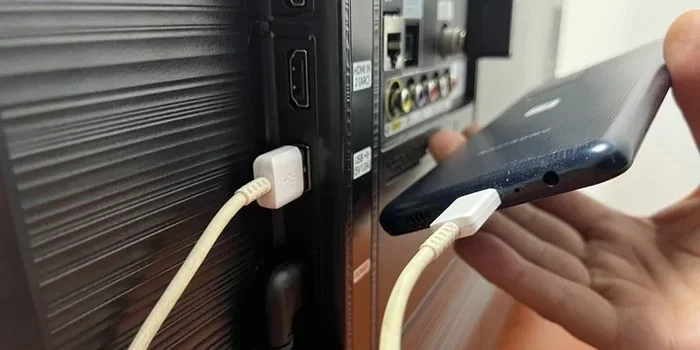
Can You Screen Mirror Through Usb The Ultimate Guide
Yes, you can screen mirror through USB using the right adapter and cable setup. This method offers a stable, lag-free connection compared to wireless options. Whether you want to share your phone, tablet, or laptop screen on a TV or monitor, a USB-based connection can make it happen. Let us walk you through every method, device, and tip you need to know.
Have you ever wanted to share your phone or laptop screen on a bigger display and thought, “Can I just plug it in with a USB cable?” It is a really common question. A lot of people assume screen mirroring is only possible through Wi-Fi or Bluetooth. But the truth is, you can screen mirror through USB in many situations. This guide will show you exactly how it works, what you need, and what to watch out for.
Screen mirroring through a USB connection is not just a gimmick. It is a practical solution for people who want a reliable, high-quality display without relying on a wireless network. Whether you are giving a presentation, gaming, or just watching a movie, a wired USB connection can deliver a smooth experience. Let us dive into everything you need to know about screen mirroring through USB.
Key Takeaways
- USB screen mirroring is possible: You can mirror your device screen to a TV or monitor using a USB adapter or cable connection.
- Wired connections are more stable: A USB-based setup delivers fewer lags and drops than wireless screen mirroring methods.
- You need the right adapter: USB-C to HDMI or USB-A to HDMI adapters are the most common tools for this task.
- Compatibility matters: Not all devices support USB screen mirroring. Check your phone, laptop, or tablet specs before buying an adapter.
- Wireless and wired both have pros: This guide compares both methods so you can pick the best option for your needs.
- Common issues are fixable: Most problems with USB screen mirroring come down to cable quality, driver issues, or device settings.
📑 Table of Contents
- What Is Screen Mirroring Through USB?
- How Screen Mirroring Through USB Works
- Devices and Adapters You Need for USB Screen Mirroring
- Step-by-Step: How to Screen Mirror Through USB
- Wireless vs Wired Screen Mirroring: Which Is Better?
- Common Problems and How to Fix Them
- Final Thoughts on Screen Mirroring Through USB
What Is Screen Mirroring Through USB?
Screen mirroring through USB means sending your device’s display to another screen using a USB cable and an adapter. Instead of going through Wi-Fi, the signal travels through the physical cable. This gives you a direct, stable connection between your source device and the display.
You might hear people call this by different names. Some say USB display, others call it wired screen sharing or USB-C video output. They all mean the same basic thing: you plug your device into a screen using a USB-based connection and see your device’s screen on the bigger display.
How Is This Different from Wireless Mirroring?
Wireless screen mirroring uses your home Wi-Fi network or a technology like Miracast or Chromecast to send video over the air. It is convenient, but it can suffer from lag, stuttering, or quality drops. USB mirroring, on the other hand, sends the signal through a cable. That means less interference, lower latency, and a more reliable picture.
Think of it like this. Wireless mirroring is like streaming music over Wi-Fi. Sometimes it buffers. Wired mirroring is like plugging in headphones directly. The connection is instant and steady. That is the big advantage of using a USB cable for screen mirroring.
Who Can Benefit from USB Screen Mirroring?
Lots of people can use this method. Here are some common use cases:
- Professionals giving presentations: Plug your laptop into a projector or TV in a conference room without worrying about Wi-Fi signal strength.
- Gamers: Connect your phone or tablet to a monitor for a bigger, smoother gaming experience.
- Students and teachers: Share notes or videos from a tablet on a classroom display.
- Home entertainment users: Cast your phone screen to a TV for watching videos or browsing photos on a larger screen.
- Content creators: Use a second display as an extended desktop while working on a laptop.
As you can see, the uses are pretty wide. The key is knowing which method and adapter work best for your specific device.
How Screen Mirroring Through USB Works
Understanding the basics of how USB screen mirroring works helps you troubleshoot problems and choose the right gear. The process is simpler than you might think.
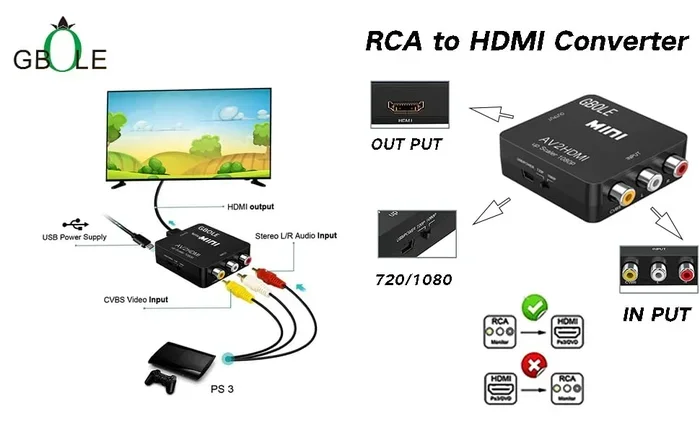
When you connect your device to a display through USB, the cable carries both data and video signals. Your device recognizes the external screen and sends the display output through the connection. The adapter or dock converts the USB signal into a format the TV or monitor can read, usually HDMI.
The Role of Display Protocols
Your device uses a display protocol to communicate with the external screen. Different devices and operating systems use different protocols:
- DisplayPort Alt Mode: Found on many USB-C devices. It carries video signals directly through the USB-C port.
- HDMI Alt Mode: Also found on USB-C devices. This sends an HDMI signal through the USB-C port without needing a separate adapter in some cases.
- USB DisplayLink: A technology that uses USB to deliver display output. It requires a driver or software on your computer.
- MHL (Mobile High-Definition Link): An older standard that allowed some Android phones to output video through a micro-USB or USB-C connection.
Each protocol has its own strengths. DisplayPort Alt Mode and HDMI Alt Mode offer the best quality for most users. DisplayLink is great for desktop extension but may add a small amount of lag. MHL is becoming outdated but still works on some older devices.
Does Every USB Port Support Video Output?
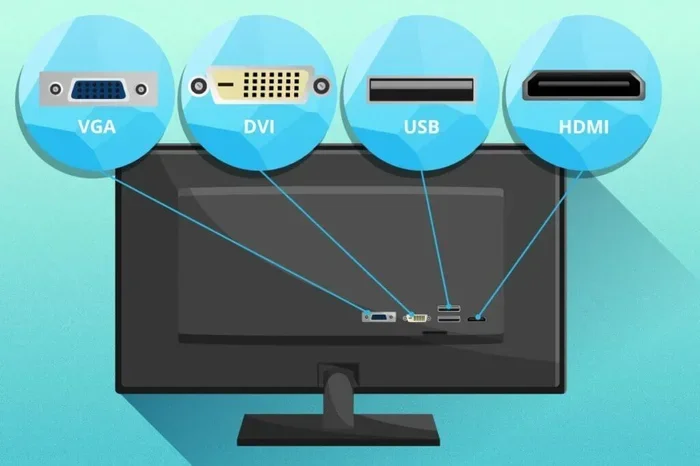
No, not every USB port can carry video. Standard USB-A ports on older computers usually cannot output video on their own. However, USB-C ports on modern laptops and phones often can. The key is to check if your device supports video output over USB. You can usually find this information in your device specifications or settings menu.
Devices and Adapters You Need for USB Screen Mirroring
Getting the right gear is the most important step. Without the correct USB adapter, you will not be able to mirror your screen no matter what you try. Let us break down what you need for different devices.
For Android Phones and Tablets
Most modern Android devices use USB-C. To mirror your screen to a TV or monitor, you need a USB-C to HDMI adapter. Here is what to look for:
- Active adapters: These have their own chip and work with most Android phones. They are the safest choice.
- Passive adapters: Cheaper but only work with devices that support HDMI Alt Mode. Check your phone specs first.
- USB-C docking stations: These give you HDMI output plus extra USB ports and even charging capability.
Some older Android phones with micro-USB ports might need an MHL adapter. However, MHL support is fading fast, so check compatibility before buying.
For iPhones and iPads
Apple devices are a bit different. iPhones and iPads use Lightning or USB-C connectors (on newer models). Here are your options:
- Lightning to HDMI adapter: Apple sells its own version, and there are many third-party options. Make sure to get one that is MFi certified.
- USB-C to HDMI adapter: For newer iPads and iPhone 15 models that use USB-C.
- Apple USB-C Digital AV Multiport Adapter: A premium option that gives you HDMI, USB-A, and USB-C charging in one unit.
Keep in mind that Apple’s AirPlay wireless mirroring is very popular, but a USB connection gives you a wired, stable alternative when Wi-Fi is not an option.
For Laptops and Computers
Most modern laptops have USB-C ports that support video output. Here is what you need:
- USB-C to HDMI cable or adapter: The simplest option for most Windows and Mac laptops.
- USB-C docking station: Great if you want multiple displays and ports.
- USB-A to HDMI adapter: For older laptops with only USB-A ports. These usually require a driver or software like DisplayLink.
If your laptop has a full-size HDMI port, you can skip the adapter entirely and just use an HDMI cable. But for those without one, a USB adapter is your best friend.
Quick Comparison Table
| Device Type | Best Adapter | Wired Support | Wireless Alternative |
|---|---|---|---|
| Android Phone (USB-C) | USB-C to HDMI | Yes | Miracast, Chromecast |
| iPhone / iPad (Lightning) | Lightning to HDMI | Yes | AirPlay |
| iPhone / iPad (USB-C) | USB-C to HDMI | Yes | AirPlay |
| Windows Laptop (USB-C) | USB-C to HDMI | Yes | Miracast, Wi-Fi Direct |
| MacBook (USB-C/Thunderbolt) | USB-C to HDMI | Yes | AirPlay |
| Older Laptop (USB-A) | USB-A to HDMI (DisplayLink) | Yes (with software) | Wi-Fi casting |
Step-by-Step: How to Screen Mirror Through USB
Now that you know what gear you need, let us walk through the actual setup process. The steps are pretty straightforward for most devices.
Step 1: Check Your Device Compatibility
Before you buy anything, check if your device supports video output through USB. On Android, go to Settings and look for “Cast” or “HDMI output” options. On iPhone, check if your model supports wired display output. For laptops, look up your model’s specifications online to confirm USB video output support.
Step 2: Get the Right Adapter or Cable
Buy a high-quality adapter that matches your device’s port. Look for adapters from reputable brands. Cheap, no-name adapters often cause flickering, no signal, or poor quality. A good adapter usually costs between $10 and $30.
Step 3: Connect the Adapter to Your Device
Plug the USB end of the adapter into your phone, tablet, or laptop. If the adapter requires power, you may need to plug it into a USB charging port or use a separate power source. Some adapters draw power from the host device, which can drain your battery faster.
Step 4: Connect the HDMI Cable to Your TV or Monitor
Take an HDMI cable and plug one end into the adapter and the other into your TV or monitor. Make sure both ends are fully seated. Use a good quality HDMI cable for the best picture.
Step 5: Switch Your TV to the Correct Input
On your TV or monitor, switch to the HDMI input that you plugged the cable into. Use your remote control to select the right HDMI port. Your device screen should now appear on the TV.
Step 6: Adjust Display Settings
Once connected, you may want to adjust how your screen appears. You can usually choose between mirroring (same screen on both devices) or extending your desktop (using the TV as a second screen). On Windows, go to Display Settings. On Android, pull down the notification shade and look for display options.
Pro Tip: If your screen looks stretched or cut off, go to your display settings and adjust the resolution to match your TV’s native resolution. This usually fixes most display issues.
Quick Tips for a Smooth Setup
- Always use a short, high-quality HDMI cable for the best signal.
- Keep your device plugged in during long mirroring sessions to avoid battery drain.
- Restart your device before connecting if you run into any issues.
- Update your device software to the latest version for best compatibility.
- Test your setup before an important presentation or event.
Wireless vs Wired Screen Mirroring: Which Is Better?
Both wireless and wired screen mirroring have their place. Let us compare them so you can decide which method fits your needs best.
Wired USB Mirroring Advantages
- Zero lag: The signal travels through the cable instantly. This is perfect for gaming or presentations where timing matters.
- Stable connection: No dropped frames or stuttering caused by Wi-Fi congestion.
- High quality: Wired connections often deliver sharper, more consistent picture quality.
- No network needed: You do not need Wi-Fi at all. Great for conferences or events with poor internet.
- Security: A wired connection is harder to intercept than a wireless one.
Wireless Mirroring Advantages
- Convenience: No cables to manage. You can mirror from across the room.
- Flexibility: Move around freely without being tethered to a cable.
- Multiple devices: Many wireless solutions allow multiple users to share the screen easily.
- No extra hardware: If you have a smart TV with built-in casting, you may not need any adapter at all.
When to Choose Wired Over Wireless
Choose USB wired mirroring when you need reliability and quality. If you are giving a business presentation, playing a competitive game, or working in an environment with a lot of Wi-Fi interference, a wired USB connection will give you the best results. It is also ideal when you need to use your laptop to TV connection for extended periods without any interruptions.
When to Choose Wireless Over Wired
Choose wireless mirroring when convenience matters most. If you are casually sharing photos with family, streaming a movie occasionally, or moving around a lot, wireless is the way to go. Technologies like AirPlay and Miracast make wireless mirroring very easy for everyday use.
Can You Use Both at the Same Time?
Yes, some setups allow you to use both wired and wireless mirroring simultaneously. For example, you can mirror your phone to a TV via USB while also casting content to another device over Wi-Fi. However, this is an advanced setup and may not be necessary for most users.
Common Problems and How to Fix Them
Even with the right gear, you might run into some issues when trying to screen mirror through USB. Here are the most common problems and their solutions.
No Signal on the TV
If your TV shows no signal, try these steps:
- Check that the HDMI cable is firmly connected at both ends.
- Make sure your TV is on the correct HDMI input.
- Unplug the adapter, wait 10 seconds, and plug it back in.
- Restart your device and try again.
- Try a different HDMI port on your TV.
Flickering or Poor Picture Quality
A flickering screen is usually caused by a bad cable or adapter. Replace your HDMI cable with a high-quality one. Also, make sure your adapter supports the resolution of your display. Cheap adapters often struggle with 4K or high refresh rates.
Device Not Recognizing the Adapter
If your device does not recognize the adapter, try these fixes:
- Clean the USB port on your device. Dust and lint can block the connection.
- Try a different USB port if your device has multiple.
- Update your device firmware or operating system.
- For USB-A to HDMI adapters on Windows, install the DisplayLink driver from the manufacturer’s website.
- Test the adapter with a different device to rule out a defective adapter.
Audio Not Working
Sometimes the video comes through but the audio does not. This is usually a simple fix:
- Go to your device’s sound settings and select the HDMI output as the audio device.
- On Windows, right-click the speaker icon in the taskbar and choose the HDMI output.
- On Android, go to Settings, then Sound, and select the HDMI or USB output.
Battery Drains Quickly
USB screen mirroring uses a lot of power. To prevent fast battery drain, keep your device plugged into a charger while mirroring. If you are using a USB-C adapter, a powered USB hub can help deliver enough power to both the adapter and your device.
Expert Insight: Why Wired USB Mirroring Is Underrated
“Many people overlook USB screen mirroring because they assume it is complicated or limited to certain devices. In reality, modern USB-C adapters make it incredibly easy. The stability and quality of a wired connection are hard to beat, especially in professional or gaming environments where every millisecond counts.”
Final Thoughts on Screen Mirroring Through USB
Screen mirroring through USB is a practical, reliable, and high-quality way to share your device screen on a bigger display. It might not be as flashy as wireless casting, but it gets the job done without any of the headaches that come with Wi-Fi-based methods. Whether you are using a USB-C to HDMI adapter, a docking station, or a Lightning to HDMI cable, the wired connection gives you peace of mind.
The key is to get the right adapter for your device, check compatibility before you buy, and follow the setup steps carefully. Once you have it working, you will wonder why you ever relied solely on wireless mirroring. A USB connection is fast, stable, and works in situations where Wi-Fi simply cannot compete.
Now that you know the answer to “can you screen mirror through USB,” you are ready to set up your own wired mirroring experience. Grab the right adapter, plug in, and enjoy your screen on the big display. You will not regret it.
Frequently Asked Questions
Can all phones screen mirror through USB?
Not all phones support USB screen mirroring. Most modern Android phones with USB-C and newer iPhones with USB-C or Lightning can do it. However, older phones or budget models may not support video output over USB. Always check your phone’s specifications before buying an adapter.
Do I need a special adapter to screen mirror through USB?
Yes, you typically need a USB to HDMI adapter. The exact type depends on your device. USB-C to HDMI adapters are the most common today. iPhones need a Lightning to HDMI or USB-C to HDMI adapter. Make sure the adapter is compatible with your specific device model.
Is USB screen mirroring better than wireless mirroring?
For most users, USB wired mirroring is better in terms of stability, lag, and picture quality. Wireless mirroring is more convenient and does not require cables. If you need a rock-solid connection for presentations or gaming, USB is the way to go. For casual everyday use, wireless works great too.
Can I extend my desktop using a USB connection?
Yes, you can extend your desktop through USB using adapters that support display extension. USB-C to HDMI adapters and DisplayLink adapters both allow you to use an external monitor as a second screen. On Windows, go to Display Settings and choose “Extend” instead of “Duplicate” to use the TV or monitor as an extended display.
Why is there no sound when I mirror through USB?
This usually happens because your device is not set to output audio through the HDMI connection. Check your sound settings and select the HDMI or USB display as the audio output device. On most phones and laptops, this is a quick toggle in the sound or display settings menu.
Can I use a USB hub with my screen mirroring adapter?
Yes, you can use a powered USB hub to connect your mirroring adapter along with other USB devices. This is especially helpful if your laptop has limited USB ports. Just make sure the hub is powered, as unpowered hubs may not deliver enough current for reliable mirroring.
=== CONCLUSION ===
Screen mirroring through USB is a simple, effective, and reliable way to share your device screen on a larger display. With the right adapter and a basic understanding of how it works, anyone can set it up in minutes. Whether you are a professional, a student, a gamer, or just someone who wants a bigger screen for streaming, USB mirroring delivers a quality experience that wireless methods often cannot match.
Remember to check your device compatibility, invest in a good-quality adapter, and follow the setup steps carefully. If you run into issues, the troubleshooting tips in this guide should help you get back on track. Now go ahead and try it for yourself. Once you experience the stability and quality of a wired USB connection, you will never go back to wireless-only mirroring again.