Can You Transfer Sd Card To Usb In Three Simple Steps
Yes, you can easily transfer your SD card to USB in just three simple steps. Whether you want to move photos, documents, or videos, the process is quick and straightforward. You will need the right adapter or card reader, and this guide shows you exactly how to do it. Transferring files from an SD card to a USB drive saves time and keeps your data safe. Read on to learn the easiest method for your needs.
Have you ever needed to move files from an SD card to a USB drive? Maybe you have a camera full of vacation photos, or your phone has a full memory card. Whatever the reason, transferring data from an SD card to a USB flash drive is one of the most useful skills you can learn. It is simple, fast, and does not require any tech expertise. In this guide, we walk you through the entire process in three easy steps.
Many people wonder, can you transfer SD card to USB without buying expensive equipment? The answer is a big yes. You probably already own most of the tools you need. A basic card reader, a USB flash drive, or a simple SD card adapter can get the job done. Let us break it all down so you can do it today.
Before we start, let us talk about what you need. An SD card is a small memory card used in cameras, phones, and tablets. A USB drive plugs into any computer or laptop. The goal is to move your files from one to the other. This process is called data transfer, and it works on almost every device out there.
Key Takeaways
- Simple Process: You can move files from an SD card to a USB drive in just three easy steps.
- No Special Skills Needed: Anyone can do this with a basic card reader or adapter.
- Multiple Methods Work: You can use a USB adapter, a card reader, or even your phone as a bridge.
- Fast and Safe: File transfers are quick and your data stays intact when done correctly.
- Works on All Devices: Laptops, desktops, and even some tablets can handle this transfer.
- Affordable Tools: Most card readers and adapters cost under $15.
📑 Table of Contents
Why Transfer SD Card Files to USB?
There are many good reasons to move files from an SD card to a USB drive. Let us look at the most common ones.
Free Up Space on Your Devices
SD cards fill up fast. Cameras, phones, and action cams store lots of photos and videos. When your card is full, you cannot take any more pictures. Moving files to a USB drive frees up space right away. You can keep shooting without worrying about running out of room.
Create a Backup Copy
Accidents happen. SD cards can get lost, broken, or corrupted. Having a backup copy on a USB drive means your files are safe. If something goes wrong with the SD card, you still have your photos, documents, and videos on the USB stick.
Share Files Easily
USB drives are small and portable. You can carry them anywhere. Want to share a folder of vacation photos with a friend? Plug the USB drive into their computer. Done. No need for internet connections or cloud uploads.
Work on Files Without the Original Device
Sometimes you need to edit photos or documents but do not have the camera or phone nearby. Transferring files to a USB drive lets you work on any computer. This is especially helpful for people who edit videos or photos for work.
What You Need to Get Started
Before you begin the transfer, gather a few items. The good news is you likely already have them at home. Here is a simple list of what you need.
- SD card with files you want to move
- USB flash drive with enough space for your files
- SD card reader or USB SD card adapter
- A computer or laptop with a USB port
Choosing the Right SD Card Reader
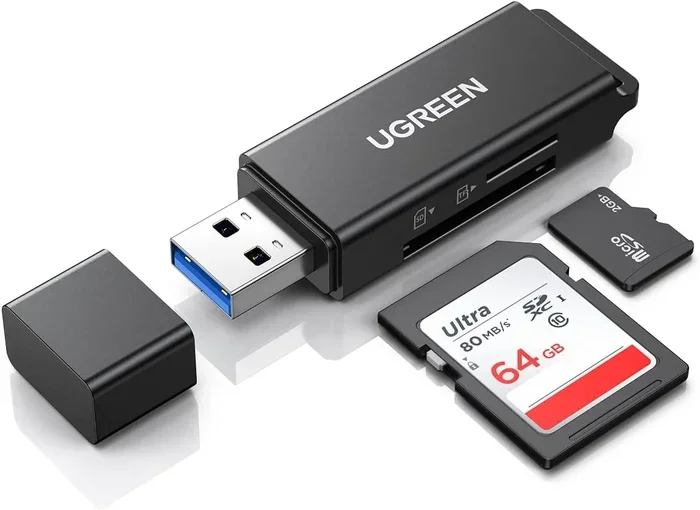
A card reader is a small device that plugs into your computer. It has a slot for your SD card. Most card readers cost between $5 and $15. You can find them at any electronics store or online. Look for one that supports the size of your SD card. Standard SD cards and micro SD cards need different readers. A micro SD card adapter can help if you have a smaller card.
Picking the Right USB Flash Drive
Your USB drive needs enough space to hold all your files. If you are moving 32 gigabytes of photos, you need a drive with at least 32 GB. Most USB drives come in 16 GB, 32 GB, 64 GB, and 128 GB sizes. USB 3.0 drives transfer files much faster than older USB 2.0 drives. If speed matters to you, pick a USB 3.0 or USB 3.1 drive.
Quick Tip
Check your files before you start. Make sure your SD card is not write-protected. A small switch on the side of the card can lock it. If the switch is in the lock position, you cannot copy files from it. Flip the switch to unlock it first.
Three Simple Steps to Transfer SD Card to USB
This is the core part of the guide. Follow these three steps carefully, and your files will be on the USB drive in minutes.
Step 1: Connect the SD Card to Your Computer
Insert your SD card into the card reader. Plug the card reader into an open USB port on your computer. Most computers have at least two USB ports on the front or back. If you are using a laptop, check both sides. Wait a few seconds for the computer to recognize the card.
On Windows, you will see a notification that says a new device is ready. On Mac, the card may appear on your desktop or in the Finder sidebar. If nothing happens, try a different USB port or a different card reader.
Once the card shows up, open it. You should see your folders and files inside. This confirms the computer can read the SD card. Now you are ready for the next step.
Step 2: Plug in the USB Flash Drive
Take your USB flash drive and plug it into another USB port on the same computer. If your computer only has one USB port, you can use a USB hub. A hub splits one port into several. This lets you connect both the card reader and the USB drive at the same time.
Wait for the computer to recognize the USB drive. You should see it pop up on your screen, just like the SD card did. Open the USB drive window so you can see its empty space.
Step 3: Copy and Paste Your Files
Now comes the easiest part. Open the SD card window and the USB drive window side by side. Select the files you want to move. You can click and drag to select multiple files. Right-click and choose Copy, or press Ctrl+C on Windows or Command+C on Mac.
Click inside the USB drive window and press Paste, or Ctrl+V / Command+V. The computer starts copying your files. A progress bar shows you how long it will take. Larger files like videos take longer. Smaller files like documents copy in seconds.
Once the copy is complete, do not pull out the drives yet. On Windows, click the safe remove icon in the taskbar. On Mac, drag the drive icon to the trash can. This ensures all files are saved properly before you disconnect.
Different Methods for Transferring SD Card to USB
There is more than one way to move files from an SD card to a USB drive. Let us explore the most common methods.
Method 1: Direct Connection with a Card Reader
This is the method we covered above. It works for most people and most devices. You need a card reader and a USB drive. Both plug into your computer. You copy files from the SD card to the USB drive. This method is fast, reliable, and does not need any extra software.
Method 2: Using a USB SD Card Adapter
A USB SD card adapter is a small device that fits directly into a USB port. You insert the SD card into the adapter, and it acts like a USB drive itself. This is great for people who do not want to carry a separate card reader. These adapters are cheap and easy to find online.
Method 3: Transfer Through a Phone or Tablet
If you have a phone with an SD card slot, you can use it as a middleman. Insert the SD card into the phone. Connect the phone to the computer using a USB cable. The computer will see the phone storage. Copy files from the phone to the USB drive. This works well when you do not have a card reader handy.
Method 4: Wireless Card Readers
Some modern card readers connect through Wi-Fi or Bluetooth. You do not need a cable at all. These wireless readers are great for travel. They are a bit slower than wired options, but they offer more convenience.
| Method | Speed | Cost | Best For |
|---|---|---|---|
| Card Reader | Fast | $5-$15 | Most users |
| USB SD Adapter | Fast | $5-$12 | Travel and simplicity |
| Phone as Bridge | Medium | Free | No card reader available |
| Wireless Reader | Medium-Slow | $15-$30 | Frequent travelers |
Common Mistakes to Avoid
Even though this process is simple, people make mistakes that can cause problems. Here are the most common ones and how to avoid them.
- Forgetting to safely eject the drive. Always use the safe remove option. Pulling out a drive while files are copying can corrupt your data.
- Using a USB drive with not enough space. Check the size of your files before you start. If the USB drive is too small, the transfer will fail halfway through.
- Ignoring file formats. Some files may not open on certain devices after transfer. Keep your original file formats when possible.
- Using a damaged SD card or USB drive. If either device is physically damaged, the transfer may fail or files may become corrupted. Inspect your devices before starting.
- Not making a backup. Always keep a copy of your files on the original SD card until you have verified the USB copy works correctly.
Tips for Faster and Safer Transfers
Want to make your file transfers even better? Follow these quick tips.
- Use USB 3.0 or higher for much faster copy speeds.
- Close other programs on your computer while transferring. This frees up processing power and speeds things up.
- Organize your files into folders before copying. It makes finding them on the USB drive much easier later.
- Label your USB drives. Use a marker or label maker so you know what is on each drive without plugging it in.
- Scan your SD card for viruses before transferring. This keeps your computer and USB drive safe from malware.
Expert Insights on SD Card and USB Transfers
Technology experts recommend a few best practices for anyone who regularly transfers files between SD cards and USB drives. First, always format your USB drive before use if you are using it for the first time. This ensures the drive is clean and ready for data. Second, keep your SD card adapter and card reader in a safe place. These small devices are easy to lose but essential for the transfer process. Finally, consider encrypting sensitive files before moving them to a USB drive. This adds a layer of security, especially if you carry the USB drive around with you.
Experts also suggest checking your SD card format before transferring. Most SD cards use the FAT32 or exFAT file system. Both work well with USB drives and most computers. If your card uses a different format, you may need to reformat it first. However, reformatting erases all data, so make a backup before doing this.
Key Takeaways
- Simple Process: You can move files from an SD card to a USB drive in just three easy steps.
- No Special Skills Needed: Anyone can do this with a basic card reader or adapter.
- Multiple Methods Work: You can use a USB adapter, a card reader, or even your phone as a bridge.
- Fast and Safe: File transfers are quick and your data stays intact when done correctly.
- Works on All Devices: Laptops, desktops, and even some tablets can handle this transfer.
- Affordable Tools: Most card readers and adapters cost under $15.
Conclusion
Can you transfer SD card to USB? Absolutely yes. The process is simpler than most people think. With just three steps, you can move all your important files from an SD card to a USB flash drive. Whether you want to back up photos, share documents, or free up space on your camera, this method works every time.
All you need is a card reader or adapter, a USB drive, and a computer. The entire process takes just a few minutes. No special software is required, and no tech skills are needed. Once you do it the first time, you will find it easy and fast every time after that.
Start today. Gather your SD card, grab a USB drive, and follow the three steps in this guide. You will wonder why you did not do it sooner. File transfers from SD card to USB are one of the simplest and most useful tech skills you can have. Keep your data safe, keep your devices running smoothly, and enjoy the peace of mind that comes with a proper backup.
Remember to safely eject your drives, keep your files organized, and make copies of important data. A little care goes a long way in protecting your files. Now you have everything you need to transfer your SD card to USB like a pro.
Frequently Asked Questions
Do I need any special software to transfer files from an SD card to a USB drive?
No special software is needed. Your computer handles the transfer automatically using built-in file management tools. Just plug in both devices, copy the files, and paste them to the USB drive. It works the same way as moving files between folders on your computer.
Can I transfer files from a micro SD card to a USB drive?
Yes, you can. Micro SD cards are smaller than standard SD cards, but they work the same way. You will need a micro SD card adapter or a card reader that supports micro SD cards. The adapter makes the micro card fit into a standard SD card reader or USB port.
How long does it take to transfer files from an SD card to a USB drive?
The time depends on the file size and the speed of your devices. Small files like documents copy in seconds. Large video files may take several minutes. USB 3.0 drives and card readers transfer files much faster than older USB 2.0 versions.
Will transferring files reduce the quality of my photos or videos?
No, file transfers do not reduce quality. Copying files is like making a photocopy of a document. The original stays the same, and the copy is identical. Your photos and videos will look exactly the same on the USB drive as they did on the SD card.
Can I use a phone to transfer files from an SD card to a USB drive?
Yes, you can use your phone as a middleman. Put the SD card in your phone, connect the phone to the computer with a USB cable, and then copy the files from the phone to the USB drive. Some phones also support OTG adapters that let you connect a USB drive directly to the phone.
What should I do if my computer does not recognize the SD card?
Try a different USB port first. If that does not work, check that the card reader is working properly. You can also try restarting your computer. On Windows, go to Disk Management to see if the card appears there. If the SD card is damaged or locked, it may not be recognized by any device.