Can You Turn Usb C To Usb A Heres What You Need To Know
Yes, you can turn USB C to USB A using a simple adapter or cable. The USB-C to USB-A adapter lets you connect newer devices with USB-C ports to older USB-A devices. This guide covers everything you need to know about USB adapter types, compatibility, speed, and power delivery.
You just bought a shiny new laptop with a USB-C port. But your favorite flash drive, printer, or charger has a USB-A connector. What do you do? The answer is simpler than you think. You can turn USB C to USB A with the right adapter or cable. This guide breaks down everything you need to know. We will cover how these adapters work, what to look for, and common mistakes to avoid. By the end, you will feel confident choosing the right USB-C to USB-A adapter for your needs.
The shift from USB-A to USB-C has been one of the biggest changes in tech accessories. USB-A has been around for decades. It is the classic rectangular plug you have probably used hundreds of times. USB-C is smaller, reversible, and much more versatile. But the two are not the same. They need a bridge to work together. That bridge is the adapter. Let us dive into the details.
Key Takeaways
- USB C to USB A adapters are widely available: You can find them in many forms, from simple cables to full docking stations.
- Backward compatibility is real: USB-C is designed to work with older USB-A devices using the right adapter or cable.
- Speed and power depend on the adapter: Not all adapters support USB 3.0 or USB Power Delivery, so check specs before buying.
- Not all USB-C ports are the same: Some support Thunderbolt 3 or USB4, which affects what you can do with an adapter.
- Common mistakes cost money: Buying cheap, uncertified adapters can damage your devices or slow data transfer.
- Future-proof your setup: USB-C is becoming the universal standard, so investing in good adapters now makes sense.
📑 Table of Contents
- What Is the Difference Between USB C and USB A?
- Can You Turn USB C to USB A?
- How Do USB C to USB A Adapters Work?
- When Do You Need a USB C to USB A Adapter?
- Things to Watch Out For
- Expert Tips for Choosing the Right USB C to USB A Adapter
- The Future of USB Connectivity
- Common Mistakes People Make With USB Adapters
- Quick Tips for Everyday USB C to USB A Use
- Final Thoughts
What Is the Difference Between USB C and USB A?
Before we talk about adapters, it helps to understand what makes these two connector types different. They look different, work differently, and serve different generations of tech.
USB-A: The Classic Connector
USB-A is the flat, rectangular connector you have seen on computers, TVs, and chargers for years. It has been the standard since the late 1990s. USB-A connectors come in several versions. USB 2.0 is the most common and offers speeds up to 480 Mbps. USB 3.0 brought faster speeds at 5 Gbps. USB 3.1 pushed that to 10 Gbps. USB 3.2 and USB 4 have pushed the limits even further. But the physical connector has stayed mostly the same. It is big, and it only plugs in one way.
USB-A is still everywhere. Printers, external hard drives, keyboards, and many other devices still use USB-A. This is why the need for a USB adapter remains strong. Even as newer devices move to USB-C, the older standard is not going away anytime soon.
USB-C: The Modern Standard
USB-C is the newer connector type. It is small, oval-shaped, and reversible. That means you can plug it in either way. No more flipping it three times to get it right. USB-C supports much faster data transfer speeds. USB 3.1 Gen 2 offers 10 Gbps. USB 3.2 Gen 2×2 doubles that to 20 Gbps. And USB4 can reach speeds up to 40 Gbps.
USB-C also supports USB Power Delivery, which means it can charge devices much faster than older USB standards. Some USB-C ports can deliver up to 100 watts of power. That is enough to charge a laptop. USB-C can also carry video signals, which is why many laptops now use a single USB-C port for charging, display output, and data transfer.
Can You Turn USB C to USB A?
The short answer is yes. You can turn USB C to USB A using an adapter or a special cable. But the details matter. Not all adapters are created equal. Some support fast data transfer. Others only work for charging. And some cheap ones can cause problems. Let us look at the different ways you can make this connection work.
USB-C to USB-A Adapter Cables
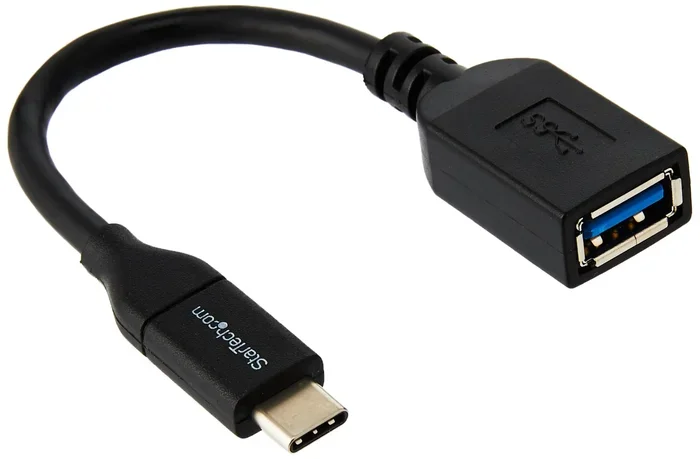
The most common solution is a USB-C to USB-A cable. One end has a USB-C plug. The other end has a USB-A plug. You plug the USB-C end into your newer device and the USB-A end into your older device. These cables are great for simple tasks like transferring files from a USB-A flash drive to a USB-C laptop.
These cables come in different versions too. A USB-C to USB-A cable with USB 3.0 support can transfer data at up to 5 Gbps. Cheaper versions may only support USB 2.0 speeds. Always check the specifications before buying.
USB-C to USB-A Adapters (Dongles)
Adapters, sometimes called dongles, are small plug-in devices. You plug the adapter into your USB-C port. Then you plug your USB-A device into the adapter. Adapters are great because they do not take up a cable slot when not in use. They are also easy to carry in a bag or pocket.
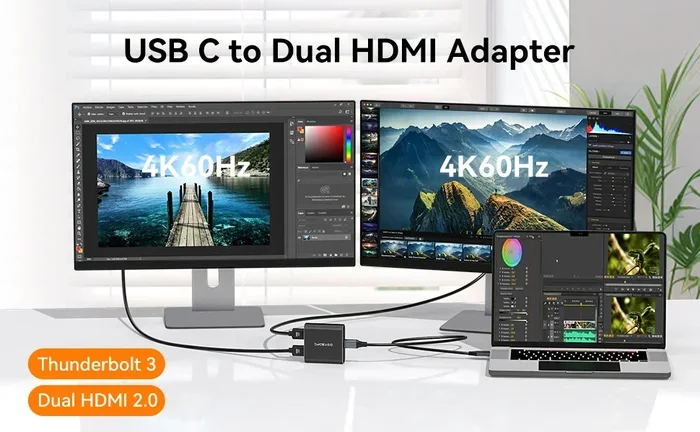
Some adapters are simple. They just convert the connector type. Others offer extra features like additional USB-A ports, SD card slots, or even HDMI outputs. These multi-port adapters are often called USB-C hubs or docking stations. They are very useful for people who need to connect many older devices to a new laptop.
USB-C Adapters with Power Delivery
If you need to charge your device while using a USB-A connection, look for an adapter that supports USB Power Delivery. These adapters pass power through while also handling data transfer. This is important because some basic adapters only support data or power, not both at the same time.
For example, if you plug in a USB-A printer to a USB-C laptop using a basic adapter, the printer might not get enough power to function. A power-delivery adapter solves this problem. It ensures your connected devices get the power they need.
How Do USB C to USB A Adapters Work?
Understanding how adapters work helps you make better buying decisions. The process is simpler than it sounds.
A USB-C to USB-A adapter contains a small chip that translates signals between the two connector types. The USB-C port sends data and power using a different pin layout than USB-A. The adapter bridges this gap. It routes the correct pins from the USB-C side to the correct pins on the USB-A side.
There are two main types of adapters:
- Passive adapters: These do not need power. They simply route the signals and power from one connector to the other. They work well for basic tasks like file transfers and charging.
- Active adapters: These have built-in circuitry. They can boost signals, convert protocols, or add extra ports. Active adapters are more expensive but offer more features.
The quality of the adapter matters a lot. A well-made adapter will not slow down your data transfer or cause connection issues. A poor-quality adapter might. This is why you should always buy from reputable brands and look for certifications like USB-IF certification.
When Do You Need a USB C to USB A Adapter?
You might need an adapter more often than you think. Here are some common situations where a USB-C to USB-A adapter comes in handy.
Using Older Flash Drives and External Drives
Many people still have USB-A flash drives lying around. If your new phone, tablet, or laptop only has USB-C, you need an adapter to access those drives. A simple USB-C to USB-A cable or adapter solves this instantly.
Connecting Legacy Printers and Scanners
Not everyone has upgraded to wireless printers. Many offices and homes still use USB-A printers. If your computer has moved to USB-C, an adapter lets you keep using your existing printer without buying a new one.
Charging Older Devices
Some devices still use USB-A for charging. Think of older Bluetooth speakers, fitness trackers, or USB-A battery packs. If all you have is a USB-C charger, an adapter can bridge the gap. Just make sure the adapter supports the right power level.
Gaming Controllers and Peripherals
Many gaming controllers use USB-A. If you want to connect a wired controller to a USB-C laptop or tablet, an adapter makes it possible. This works well for PC gaming on the go.
Business and E-Commerce Connectivity
In the world of electronic commerce, reliable connectivity is essential. Businesses that rely on wired connections for payment terminals, inventory scanners, and point-of-sale systems often use USB-A devices. As companies upgrade their hardware to USB-C, adapters become critical tools for maintaining smooth operations. The shift in connectivity standards also mirrors broader changes in how devices communicate, including the role of value-added networks in electronic commerce communication, where stable and compatible connections ensure data flows without interruption.
Similarly, the way devices handle proprietary systems and standards affects how adapters perform across different platforms. Understanding the advantages and disadvantages of proprietary systems helps explain why USB-C adoption has been uneven across different brands and operating systems. Some manufacturers stick with their own connector ecosystems, while others embrace the universal USB-C standard. This landscape directly impacts how well USB-C to USB-A adapters work in real-world scenarios.
Things to Watch Out For
Not all adapters are equal. Here are some common pitfalls to avoid when shopping for a USB adapter.
Buying Cheap, Uncertified Adapters
This is the biggest mistake people make. Cheap adapters from unknown brands may not work properly. They might overheat, fail to transfer data, or even damage your devices. Always look for USB-IF certification on the product. This certification means the adapter has been tested and meets industry standards.
Assuming All USB-C Ports Are the Same
Not every USB-C port supports the same features. Some USB-C ports only support USB 2.0 speeds. Others support USB 3.1 or USB 3.2. Some support Thunderbolt 3 or Thunderbolt 4. Your adapter can only work as fast as the slowest device in the chain. If your laptop has a USB-C port that supports USB 3.1, but your adapter only supports USB 2.0, your data transfer will be limited to USB 2.0 speeds.
Ignoring Power Delivery Limits
If you plan to charge devices through your adapter, pay attention to power ratings. A basic adapter might only support 2.5 watts of charging power. That is fine for a keyboard or mouse. But it will not charge a phone or tablet quickly. If you need fast charging, look for adapters that support USB Power Delivery at 60 watts or higher.
Forcing the Connection
USB-C and USB-A connectors are different sizes. A USB-C plug will not fit into a USB-A port and vice versa. Never force a connector. If it does not fit, you are using the wrong adapter or cable. Forcing the connection can damage the port or the device.
Using the Adapter in Harsh Environments
Adapters are small and delicate. Dust, moisture, and extreme temperatures can affect their performance. If you use adapters in demanding environments, look for ones with protective casings or waterproof ratings.
Expert Tips for Choosing the Right USB C to USB A Adapter
Not sure which adapter to buy? Here are some tips from people who know their tech.
- Check your device specifications first. Know what USB standard your device supports before buying an adapter. Look for USB 3.0, USB 3.1, or USB 3.2 support for the best speeds.
- Choose a reputable brand. Brands like Anker, Belkin, and Cable Matters are known for quality adapters. They may cost a bit more, but they last longer and perform better.
- Consider a USB-C hub if you need multiple ports. A hub gives you USB-A ports, HDMI outputs, SD card slots, and more all in one device. This is ideal for professionals who connect many peripherals.
- Read user reviews. Before you buy, check what other users say. Look for feedback on speed, durability, and compatibility.
- Test your adapter right away. When you get a new adapter, test it with your devices immediately. If it does not work, return it right away while it is still under warranty.
These tips will save you time, money, and frustration. A good adapter should feel solid, work reliably, and support the speeds you need.
The Future of USB Connectivity
The tech world is moving toward USB-C as the universal connector. Most new phones, laptops, tablets, and even some desktop computers now use USB-C. The European Union has even mandated USB-C as the standard charging port for many devices. This trend means USB-A will slowly become less common.
But USB-A is not disappearing overnight. Millions of USB-A devices are still in use. Printers, external drives, and peripherals with USB-A connectors will remain relevant for years to come. That is why USB-C to USB-A adapters will continue to be essential accessories.
New standards like USB4 and Thunderbolt 4 are built on the USB-C connector. These technologies offer incredible speeds and versatility. As more devices adopt these standards, the role of adapters will shift. Instead of converting old to new, adapters will help different USB-C devices talk to each other using different protocols.
For now, if you have a mix of USB-C and USB-A devices, a good adapter is your best friend. It keeps your existing devices working with your new ones. It saves you money. And it keeps your tech setup running smoothly.
Common Mistakes People Make With USB Adapters
Even with the best intentions, people make mistakes when using USB-C to USB-A adapters. Here are some to watch out for.
- Using an adapter for data and power without checking compatibility: Some adapters only support data or power, not both. Always check the product description.
- Assuming speed is automatic: Just because your laptop supports USB 3.1 does not mean your adapter does. Both ends of the connection need to support the same standard for full speed.
- Buying the shortest cable for convenience: Short cables can cause strain on the connector and port. Use a cable length that gives you some slack.
- Ignoring the adapter’s build quality: Flimsy adapters break easily. Look for sturdy construction and good reviews.
- Not updating device drivers: Sometimes connection issues are not the adapter’s fault. Outdated drivers can cause problems. Keep your device software up to date.
Avoiding these mistakes will help you get the most out of your USB adapter setup. A little care goes a long way.
Quick Tips for Everyday USB C to USB A Use
- Keep a spare adapter in your laptop bag. You never know when you will need one.
- Label your adapters if you have several. It saves confusion.
- Clean your USB ports regularly. Dust can cause connection problems.
- Use a USB-C hub with built-in power delivery if you charge and transfer data often.
- Buy adapters with braided cables for extra durability.
These small habits make a big difference. Your adapters will last longer and work better.
Final Thoughts
So, can you turn USB C to USB A? Absolutely. With the right USB-C to USB-A adapter, you can connect your modern USB-C devices to all your older USB-A peripherals. Whether you need a simple cable for file transfers or a full docking station for your office setup, there is an adapter for every need.
The key is to buy quality, check compatibility, and understand what your devices support. Do not fall for the cheapest option on the shelf. A certified adapter from a trusted brand will serve you well for years.
The world of connectivity is changing fast. USB-C is here to stay. But USB-A is not going anywhere soon. Bridging the gap between these two standards is what good adapters do best. Keep one handy, and you will never have to worry about incompatible ports again.
Now that you know how to turn USB C to USB A, you are ready to buy the right adapter for your setup. Check your devices, pick a quality adapter, and enjoy seamless connectivity between old and new tech.
Frequently Asked Questions
Do I need a special adapter to connect USB C to USB A?
Yes, you need a USB-C to USB-A adapter or cable. These are widely available online and in electronics stores. They are simple plug-and-play devices. Just make sure the adapter supports the speed and power level you need.
Will a USB C to USB A adapter slow down my data transfer?
It depends on the adapter. A high-quality adapter that supports USB 3.0 or higher will not slow down your transfer speeds. A cheap adapter that only supports USB 2.0 will limit your speed. Always check the specifications before buying.
Can I charge my phone using a USB C to USB A adapter?
Yes, but it depends on the adapter. Some adapters support USB Power Delivery, which allows faster charging. Basic adapters may only support low-power charging. Check the power rating of the adapter to make sure it meets your charging needs.
Are USB C to USB A adapters safe to use?
Yes, adapters from reputable brands are safe to use. Look for USB-IF certification. Avoid cheap, uncertified adapters from unknown sellers. Poor-quality adapters can overheat or damage your devices.
Can I use a USB C to USB A adapter for a printer?
Yes, you can connect a USB-A printer to a USB-C laptop using an adapter. Make sure the adapter supports data transfer and not just charging. Most basic USB-C to USB-A adapters handle printing just fine.
Will USB A become obsolete?
USB-A is slowly being phased out in favor of USB-C. However, millions of USB-A devices are still in use today. It will take many years before USB-A disappears completely. That is why USB-C to USB-A adapters remain essential accessories for years to come.
=== CONCLUSION ===
The world of USB connectivity keeps evolving. The shift from USB-A to USB-C has changed how we connect our devices. But the transition does not mean you need to throw away your older gadgets. A simple USB-C to USB-A adapter bridges the gap between old and new technology.
Whether you need to transfer files, connect a printer, or charge an older device, the right adapter makes it easy. Just remember to buy quality, check your specs, and avoid the common mistakes we discussed. With the right USB adapter, your setup will work seamlessly no matter what connector type your devices use.
Keep learning, keep connecting, and make the most of your tech gear. The future is USB-C, but the past and present still matter. And with the right tools, they all work together perfectly.