Can You Use Any Hdmi For A Monitor And How To Choose
Not all HDMI cables are the same. Using the wrong HDMI cable for your monitor can lead to poor picture quality, no signal, or missing features. This guide shows you exactly how to pick the right HDMI cable for your monitor and avoid common mistakes.
You plug in an HDMI cable, and nothing happens. Or maybe the screen flickers, the colors look dull, or the monitor simply won’t display anything at all. Sound familiar? This happens more often than you think, and the culprit is usually a cable that doesn’t match what your monitor actually needs.
The question can you use any HDMI for a monitor seems simple on the surface. But the answer is more nuanced than most people realize. Not every HDMI cable works the same way. Different cables carry different amounts of data, support different resolutions, and handle different refresh rates. Using the wrong one can completely limit what your monitor can do.
In this guide, we walk you through everything you need to know about choosing the right HDMI cable for your monitor. We cover cable types, versions, speeds, and the mistakes most people make. By the end, you will know exactly which cable to buy and why.
Let us start with the basics so you understand what HDMI actually does and why it matters for your display setup.
Key Takeaways
- HDMI cables are not universal: Different versions support different resolutions, refresh rates, and features.
- HDMI 2.1 is the latest standard: It supports 4K at 120Hz and 8K, making it ideal for gaming and high-end monitors.
- Cable length matters: Longer cables can cause signal loss and reduced quality.
- Check your monitor and source device: Both must support the same HDMI version for full performance.
- Gold-plated connectors improve durability: They resist corrosion and maintain a solid connection over time.
- Buying the wrong cable wastes money: Always match the cable to your actual needs before purchasing.
📑 Table of Contents
- What Is HDMI and Why Does It Matter for Monitors?
- Types of HDMI Connectors and Ports
- HDMI Versions and What They Mean for Your Monitor
- How To Choose the Right HDMI Cable for Your Monitor
- Common HDMI Mistakes and How To Avoid Them
- Comparing HDMI Cable Types at a Glance
- Final Thoughts on Choosing HDMI for Your Monitor
- Frequently Asked Questions
What Is HDMI and Why Does It Matter for Monitors?
HDMI stands for High-Definition Multimedia Interface. It is a standard cable that carries both audio and video signals from a source device to a display. Your laptop, gaming console, Blu-ray player, or desktop PC might use an HDMI connection to send content to your monitor.
Here is why this matters. A single HDMI cable replaces multiple older cables. Before HDMI, you needed separate cables for video and audio. HDMI combined both into one simple connection. This made setup easier and reduced cable clutter on your desk.
But not all HDMI cables are built the same. A basic cable from 2010 cannot handle the demands of a modern 4K monitor. And a top-tier HDMI 2.1 cable might be overkill if you only need to connect a basic office display. Understanding this difference is the first step to making the right choice.
The technology behind HDMI has evolved significantly over the years. Each new version brought higher bandwidth, better resolution support, and new features. When you choose an HDMI cable for your monitor, you are really choosing which version of this technology you want to use.
Types of HDMI Connectors and Ports
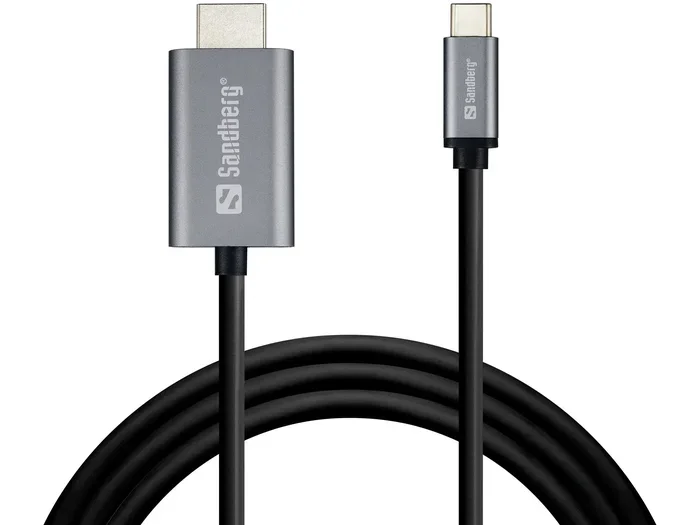
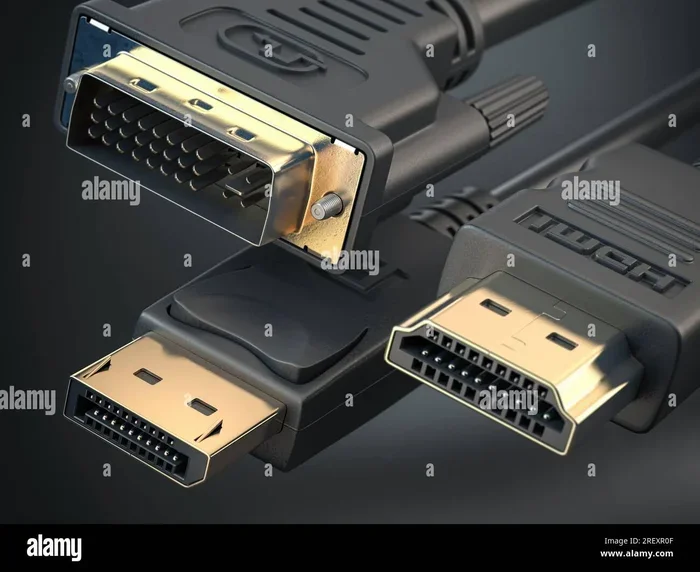
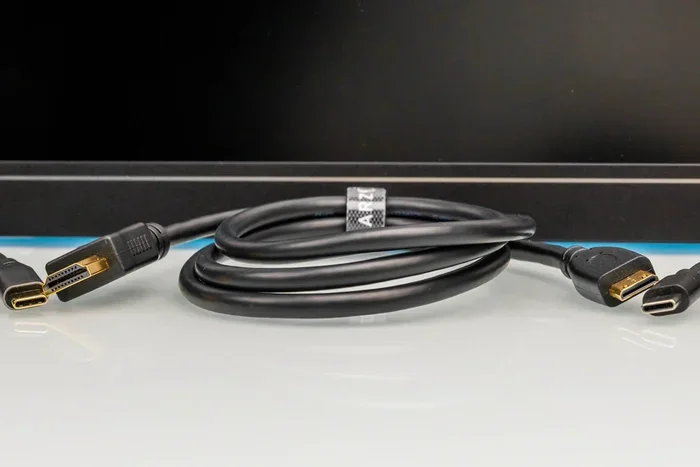
HDMI connectors come in several shapes and sizes. Knowing which one your monitor uses is essential before buying any cable. Here are the main types you will encounter.
Standard HDMI (Type A)
This is the most common connector. You will find it on TVs, desktop monitors, and most home entertainment devices. It has 19 pins and measures about 13.9 millimeters wide. If you are asking yourself, can you use any HDMI for a monitor, and your monitor has a standard HDMI port, then Type A is what you need.
Mini HDMI (Type C)
Mini HDMI is smaller than the standard version. It is common on some tablets, digital cameras, and older laptops. It also has 19 pins but is much more compact. If your device uses a Mini HDMI port, you need a cable with a Mini HDMI connector on one end.
Micro HDMI (Type D)
Micro HDMI is even smaller than Mini HDMI. You will find it on some smartphones and action cameras. It has the same 19 pins but in a much tinier package. These cables are less common but still important to know about.
Dual-Link HDMI
Some high-resolution monitors use a dual-link configuration. This provides extra pins for higher bandwidth. Dual-link HDMI supports resolutions like 2560 x 1440 and above at higher refresh rates. Not all cables support dual-link, so check your specifications carefully.
Quick Tip: Always check the port type on both your source device and your monitor before buying a cable. Mismatched connectors will not work, no matter how good the cable is.
HDMI Versions and What They Mean for Your Monitor
This is where things get important. HDMI has gone through several versions, and each one supports different capabilities. The version of HDMI your cable and ports support determines what resolution, refresh rate, and features you can use.
HDMI 1.4
HDMI 1.4 was a big step forward. It introduced support for 4K resolution at 30Hz. It also added the ARC (Audio Return Channel) feature, which lets your TV send audio back to a soundbar or receiver. For basic office work and casual media viewing, HDMI 1.4 is still functional.
HDMI 2.0
HDMI 2.0 brought a major upgrade. It supports 4K at 60Hz, which is the sweet spot for most modern monitors. The bandwidth increased to 18 gigabits per second. Most mid-range monitors and gaming setups work well with HDMI 2.0 cables. If you want smooth visuals on a 4K display, this is the version you need.
HDMI 2.0a and 2.0b
These are minor updates to HDMI 2.0. HDMI 2.0a added support for HDR (High Dynamic Range) content. HDMI 2.0b expanded HDR metadata support. If you watch HDR movies or play HDR games, look for cables labeled with these versions.
HDMI 2.1
HDMI 2.1 is the latest and most powerful version. It supports bandwidth up to 48 gigabits per second. This means 4K at 120Hz, 8K at 60Hz, and even higher resolutions for professional displays. It also supports features like Variable Refresh Rate (VRR), Auto Low Latency Mode (ALLM), and Enhanced Audio Return Channel (eARC).
If you are building a gaming monitor setup or working with 4K content creation, HDMI 2.1 is the way to go. But for everyday office use, HDMI 2.0 is often more than enough.
How To Choose the Right HDMI Cable for Your Monitor
Now that you understand the basics, let us talk about how to actually choose the right cable. The answer to can you use any HDMI for a monitor depends on several factors. Let us break them down.
Check Your Monitor’s Maximum Resolution
What resolution does your monitor support? If it is a 1080p monitor, almost any HDMI cable will work. But if you have a 4K monitor, you need at least an HDMI 2.0 cable for smooth performance. A 4K monitor at 120Hz or higher requires HDMI 2.1.
Consider Your Refresh Rate Needs
Refresh rate matters a lot for gaming and video editing. A 60Hz monitor works fine with HDMI 2.0. But if you have a 144Hz or 240Hz gaming monitor, you need the higher bandwidth of HDMI 2.1 to take full advantage of those refresh rates.
Think About Cable Length
Cable length affects signal quality. A short cable (under 6 feet) usually works fine. But longer cables can suffer from signal degradation. If you need a cable longer than 15 feet, consider an active HDMI cable or a fiber optic HDMI cable. These use built-in technology to boost the signal over longer distances.
Look for the Right Certification
The HDMI Licensing Authority certifies cables with specific labels. Look for cables labeled “Ultra High Speed” for HDMI 2.1. “Premium High Speed” indicates HDMI 2.0 capability. “High Speed” covers HDMI 1.4 and below. Using a certified cable ensures you get what you pay for.
Match Your Source Device
Your source device matters too. A modern gaming console or graphics card might output 4K signals. If your cable cannot handle that bandwidth, you will not get the best quality. Always make sure both your source device and monitor support the same HDMI version.
Quick Tip: When in doubt, buy an HDMI 2.1 cable. They are backward compatible, meaning they work with older HDMI ports too. You get future-proofing without any downside.
Does Cable Quality Really Matter?
Yes, it does. Cheap, unbranded cables often use thinner wiring and lower-quality connectors. This leads to intermittent signal loss, flickering screens, and audio dropouts. A well-built cable with gold-plated connectors and proper shielding delivers a clean, stable signal every time.
You do not need to spend a fortune. But avoid the absolute cheapest options. A quality HDMI cable for monitor typically costs between $10 and $30 for most setups. Premium cables for 8K or long-distance runs may cost more, and that is okay.
Common HDMI Mistakes and How To Avoid Them
Even experienced tech users make mistakes with HDMI cables. Here are the most common ones and how to avoid them.
Assuming All HDMI Cables Are the Same
This is the biggest mistake. People buy a random HDMI cable and expect it to work perfectly with a 4K monitor. It might work at 1080p but fail at 4K. Always check the cable version before purchasing.
Ignoring HDR Support
If your monitor supports HDR, your cable must too. Standard HDMI cables do not carry HDR metadata properly. Look for cables that explicitly support HDR and HDMI 2.0 or higher.
Using Too Long a Cable Without Active Boosting
A 30-foot passive HDMI cable will lose signal quality. The data rate drops, and you may see artifacts or a blank screen. Use an active cable or a signal booster for runs over 15 feet.
Forcing a Connector That Does Not Fit
Mini HDMI and Micro HDMI look similar but are not interchangeable. Forcing the wrong connector can damage both the cable and the port. Always double-check the connector type before plugging anything in.
Not Updating Device Firmware
Sometimes the problem is not the cable at all. Older devices may need firmware updates to properly negotiate HDMI connections. Check for updates on your source device and monitor before troubleshooting the cable.
Expert Insight: When you troubleshoot display issues, always start with the cable. Replace it with a known-good cable first. This eliminates the simplest and most common cause of display problems before you dig into deeper technical issues.
Comparing HDMI Cable Types at a Glance
Not sure which cable fits your needs? Here is a quick comparison of the main HDMI cable types and what they support.
- Standard HDMI (High Speed): Supports 1080p. Good for basic office monitors and older devices.
- Premium High Speed (HDMI 2.0): Supports 4K at 60Hz. Ideal for most modern monitors and gaming setups.
- Ultra High Speed (HDMI 2.1): Supports 4K at 120Hz, 8K at 60Hz. Best for high-end gaming and professional displays.
- Active/Fiber Optic HDMI: Supports long-distance runs without signal loss. Great for home theater setups.
The right choice depends on your monitor, your source device, and what you want to do. For most people, a Premium High Speed or Ultra High Speed cable covers everything they need.
Final Thoughts on Choosing HDMI for Your Monitor
So, can you use any HDMI for a monitor? The short answer is no. The right cable depends on your monitor’s resolution, refresh rate, and features. A basic cable works fine for simple tasks. But for 4K gaming, HDR content, or high refresh rate displays, you need a cable that matches those demands.
Take a few minutes to check your monitor specifications. Look at the HDMI version your monitor supports. Then choose a cable that meets or exceeds those requirements. This small step saves you from frustration, poor image quality, and wasted money.
The world of display connectivity keeps evolving. New standards emerge. New features arrive. But the fundamentals remain the same. A good cable, matched to your setup, delivers the best possible picture and sound. Invest in quality, check your compatibility, and enjoy your monitor the way it was meant to be used.
Whether you are setting up a home office, building a gaming rig, or upgrading your entertainment center, the right HDMI cable makes all the difference. Do not let a simple cable limit what your expensive monitor can do. Choose wisely, and your display will thank you.
Frequently Asked Questions
Can I Use an Old HDMI Cable with a New 4K Monitor?
It depends on the cable version. An old HDMI 1.4 cable can carry a 4K signal, but only at 30Hz. This feels laggy and is not ideal for most uses. For a smooth 4K experience, you need an HDMI 2.0 or HDMI 2.1 cable. Check the labeling on your old cable or replace it with a certified modern cable.
Does HDMI Cable Length Affect Image Quality?
Yes, it can. Shorter cables carry a clean signal without issues. But cables longer than 15 to 20 feet may experience signal loss. This can cause flickering, low resolution, or no signal at all. For long runs, use an active HDMI cable or a fiber optic option to maintain quality.
What Is the Difference Between HDMI 2.0 and HDMI 2.1?
HDMI 2.0 supports 4K at 60Hz with 18 Gbps bandwidth. HDMI 2.1 supports 4K at 120Hz, 8K at 60Hz, and up to 48 Gbps bandwidth. HDMI 2.1 also adds features like VRR, ALLM, and eARC. If you have a high-refresh-rate monitor or next-gen gaming setup, HDMI 2.1 is the better choice.
Do Gold-Plated HDMI Cables Make a Difference?
Gold-plated connectors resist corrosion and provide a more reliable connection over time. They do not magically improve picture quality. But they do reduce the chance of signal loss caused by oxidized or dirty connectors. For durability and long-term use, gold-plated cables are a smart investment.
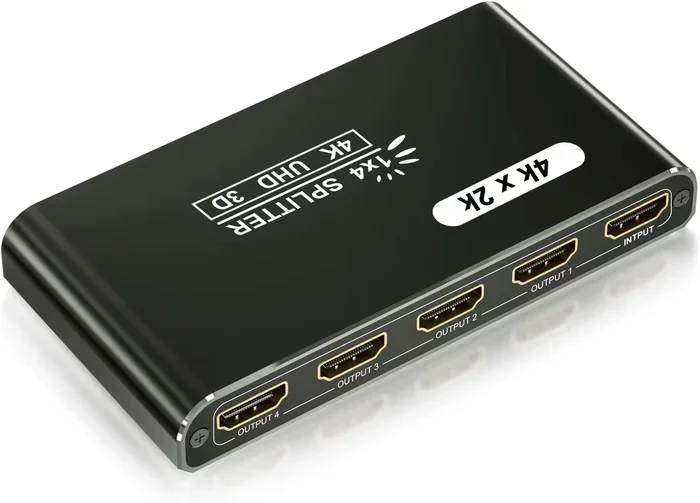
Can I Use an HDMI Splitter with My Monitor?
Yes, but with limitations. An HDMI splitter duplicates the same signal to multiple displays. It does not upgrade the signal or add features your cable does not support. Make sure the splitter supports the HDMI version and resolution you need. A cheap splitter can limit your quality.
Why Does My Monitor Show No Signal When I Plug in HDMI?
This usually happens for one of three reasons. The cable might be faulty or incompatible with your resolution. The source device might not be outputting a signal. Or the monitor input might be set to the wrong source. Try a different cable first, then check your device and monitor settings before assuming hardware failure.