How Do I Adjust The Bass On My Bose Soundlink Color Ii
Adjusting the bass on your Bose Soundlink Color II is simple and can transform your listening experience. You can use the Bose Connect app, the speaker buttons, or your connected device’s equalizer settings to boost or reduce low-end frequencies. This guide covers every method so you can customize your sound perfectly.
If you own a Bose Soundlink Color II, you already know this little speaker packs a punch. But sometimes the sound feels a bit flat, especially in the low-end frequencies. Maybe you want deeper bass for hip-hop or tighter bass for podcasts. Whatever your reason is, adjusting the bass on this speaker is easier than you might think.
There are several ways to get that perfect bass balance. You can use the Bose Connect app, tweak settings on your phone, or even use the buttons right on the speaker. Each method gives you a different level of control. In this guide, we will walk you through every option step by step. By the end, you will know exactly how to make your Bose Soundlink Color II sound the way you want it to.
Key Takeaways
- Use the Bose Connect App: The easiest way to fine-tune bass and overall sound settings on your Soundlink Color II.
- Adjust via Your Phone or Tablet: Most devices have built-in equalizer settings that let you boost bass without extra apps.
- Speaker Button Controls: You can make quick bass adjustments directly from the speaker itself.
- Avoid Common Mistakes: Over-boosting bass can distort sound and drain your battery faster.
- Pair with Other Bose Speakers: Connecting multiple Bose speakers can enhance your bass experience even further.
- Try Different Music Genres: Testing with various music types helps you find the perfect bass balance.
📑 Table of Contents
- Why Bass Adjustment Matters on the Bose Soundlink Color II
- Method 1: Using the Bose Connect App
- Method 2: Adjusting Bass Through Your Phone or Tablet
- Method 3: Using the Speaker Buttons
- Tips for Getting the Best Bass from Your Bose Soundlink Color II
- Common Mistakes When Adjusting Bass
- Expert Tips for Advanced Users
- How to Maintain Your Bose Soundlink Color II for Optimal Bass
- Comparing Bass Performance With Other Methods
- Final Thoughts on Adjusting Bass on Your Bose Soundlink Color II
Why Bass Adjustment Matters on the Bose Soundlink Color II
Bass is the foundation of almost every music genre. Without enough low-end frequencies, your music can sound thin and lifeless. Too much bass, though, and everything gets muddy. Finding the sweet spot makes a huge difference in how your favorite tracks sound.
The Bose Soundlink Color II delivers solid sound out of the box. But the default settings do not work for everyone. Room size, music genre, and personal preference all play a role. A small bedroom needs less bass than a large living room. EDM fans want more bass than classical music listeners. This is why having the ability to adjust bass on your speaker is so important.
Also, the Soundlink Color II is a Bluetooth speaker, which means it connects wirelessly to your phone, tablet, or computer. The audio quality you get depends partly on the source device. So adjusting bass is not just about the speaker. It is about the whole audio chain from your device to your ears.
Method 1: Using the Bose Connect App
Downloading and Setting Up the App
The Bose Connect app is the official way to control your Soundlink Color II. It is free and available for both iPhone and Android. Once you download it, the app discovers your speaker automatically if it is powered on and in pairing mode.
Here is how to get started:
- Open the App Store or Google Play Store on your phone.
- Search for “Bose Connect” and download the app.
- Turn on your Bose Soundlink Color II.
- Open the app and let it find your speaker.
- Tap on your speaker when it appears on the screen.
Once connected, you will see a range of sound settings. The app gives you access to volume control, volume leveling, and stereo pairing. While the app does not have a dedicated bass slider, it does let you adjust the overall sound profile. You can also update your speaker firmware through the app, which can improve audio performance.
Using the App to Shape Your Sound
Inside the Bose Connect app, you will find the volume leveling feature. This keeps the volume consistent across different tracks. It does not directly change bass, but it does make the overall listening experience smoother. When the volume stays even, bass hits feel more consistent too.
Another great feature in the app is stereo pairing. If you have two Bose Soundlink speakers, you can pair them together. This creates a wider soundstage and can make bass feel more immersive. It is a fantastic trick if you want to fill a room with rich, deep sound.
For more advanced bass control, you will need to use your phone or tablet’s built-in equalizer. The Bose Connect app works hand in hand with your device’s audio settings. Together, they give you a lot of flexibility over how your music sounds.
Method 2: Adjusting Bass Through Your Phone or Tablet
iPhone and iPad Settings
If you use an iPhone or iPad, you have built-in equalizer settings. These let you boost or reduce bass without downloading anything extra. Here is how to find them:
- Open the Settings app on your iPhone.
- Go to Music and then tap on EQ.
- You will see a list of presets like Bass Booster, Pop, Rock, and Flat.
- Select Bass Booster for maximum low-end power.
- Choose Flat if you want no changes to the original sound.
The Bass Booster preset is perfect for people who love deep, rumbling bass. It works especially well with hip-hop, trap, and electronic music. You can also download equalizer apps from the App Store if you want even more control. Apps like EQP4 or Boom give you custom bands to adjust.
Android Settings
Android phones are a bit different. Some brands include built-in equalizers, while others do not. Samsung phones, for example, have a great equalizer built into the Music app. Here is how to access it:
- Open the Music app on your Samsung phone.
- Tap the three dots and go to Settings.
- Look for Equalizer or Sound Quality.
- Choose a preset or create a custom setting.
- Boost the lower frequencies for more bass.
If your Android phone does not have a built-in equalizer, do not worry. Apps like Equalizer FX or Bass Booster are free on the Google Play Store. They work with any Bluetooth speaker, including the Bose Soundlink Color II. These apps give you a visual interface with sliding bars for different frequency ranges.
Windows and macOS Settings
You can also adjust bass from your computer. Windows has a built-in equalizer through the Sound settings. Right-click the speaker icon in your taskbar, go to Sound Settings, and look for Equalizer. On a Mac, you can use the built-in equalizer in iTunes or Apple Music preferences. These computer-based settings affect all audio output, including Bluetooth connections to your Bose speaker.
Method 3: Using the Speaker Buttons
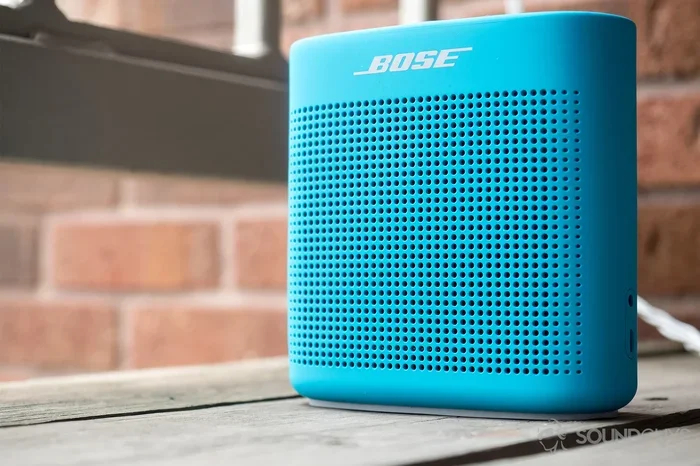
The Bose Soundlink Color II has physical buttons on top. These let you make quick adjustments without touching your phone. The buttons control volume up, volume down, play/pause, and Bluetooth pairing. While there is no dedicated bass button, you can still use the speaker in clever ways.
For quick sound changes, try pressing the volume buttons while a track with heavy bass is playing. This helps you gauge how the speaker handles low frequencies. If the bass sounds distorted at high volumes, try lowering the volume a bit. The Soundlink Color II sounds best when you keep the volume around 70 to 80 percent for bass-heavy tracks.
You can also power cycle the speaker if the sound feels off. Turn it off, wait 10 seconds, and turn it back on. This resets the audio output and can fix temporary sound issues. It is a simple trick that many people overlook.
Tips for Getting the Best Bass from Your Bose Soundlink Color II
Place the Speaker on a Hard Surface
Where you put your speaker matters a lot for bass performance. Placing it on a soft surface like a bed or couch can absorb low frequencies. This makes bass sound weaker than it actually is. Instead, put your Bose Soundlink Color II on a hard table or the floor. Hard surfaces reflect bass waves and make them sound fuller.
Keep the Speaker Away from Corners
Corners can cause bass to build up too much. This creates a boomy, muddy sound. If you notice your bass sounds too heavy, move the speaker away from walls and corners. A few feet of distance can make a surprising difference. Try placing it in the center of the room for the most balanced sound.
Use High-Quality Audio Files
The quality of your music files affects bass performance. MP3 files compress audio and can lose low-end detail. If you want the best bass, use FLAC or WAV files. Streaming services like Tidal and Apple Music also offer high-quality audio that brings out more bass detail. Even Spotify’s highest quality setting makes a difference compared to low-bitrate streams.
Charge Your Speaker Fully
This might sound surprising, but battery level affects sound quality. A low battery can cause the speaker to produce weaker bass. For the best performance, keep your Bose Soundlink Color II charged above 50 percent. If you are listening at high volumes, keep it plugged in to avoid power drops.
Experiment with Different Music Genres
Not all music has the same bass profile. Test your settings with different genres. Try classical, rock, jazz, hip-hop, and electronic music. Each genre reveals different aspects of your speaker’s sound. This helps you find the perfect bass balance for your personal taste.
Common Mistakes When Adjusting Bass
Over-Boosting the Bass
The biggest mistake people make is cranking the bass all the way up. This causes distortion and makes the sound unpleasant. It also drains your battery faster because the speaker works harder to produce low frequencies. A little bass goes a long way. Start with a small boost and increase gradually until you find the sweet spot.
Ignoring the Source Device
Your phone or tablet plays a big role in audio quality. If your source device has poor audio output, no amount of speaker adjustment will fix it. Make sure your device is not in low-power mode, as this can limit audio performance. Also, keep your Bluetooth connection stable. A weak signal causes audio dropouts and affects bass quality.
Forgetting to Update Firmware
Bose releases firmware updates that can improve sound quality. These updates sometimes include audio tweaks that affect bass performance. Always check the Bose Connect app for updates. Keeping your speaker updated ensures you get the best possible sound.
Not Considering Room Acoustics
The room you are in affects how bass sounds. Bare walls create echo, while soft furnishings absorb sound. A room with lots of furniture sounds different from an empty room. If your bass sounds too loud or too weak, try moving to a different room. This simple change can reveal a lot about your speaker’s true capabilities.
Expert Tips for Advanced Users
If you want to take your bass game to the next level, try these advanced tips. First, download a third-party equalizer app with a graphic EQ. These apps let you adjust individual frequency bands. You can boost the 60Hz to 250Hz range specifically for bass without affecting other frequencies. This gives you precise control over your sound.
Second, consider pairing your Soundlink Color II with another Bose speaker. The Bose Connect app supports stereo pairing. When two speakers work together, the bass response improves significantly. It fills the room with richer, more powerful low-end sound. This is a great trick for outdoor parties or large gatherings.
Third, if you want even more bass, you can connect your speaker to a bluetooth transmitter for your car or home stereo system. This expands your audio setup beyond the speaker alone. You can also explore connecting your phone to other audio devices using usb cables or hdmi connections for even richer sound output.
Finally, if you have older Bose speakers at home, you might want to make them Bluetooth compatible. This lets you create a multi-room bass setup. Check out our guide on making old Bose speakers Bluetooth for tips on expanding your audio system.
How to Maintain Your Bose Soundlink Color II for Optimal Bass
Keeping your speaker in good shape ensures the bass stays strong over time. Dust can accumulate on the speaker grille and affect sound quality. Wipe your speaker regularly with a soft, dry cloth. Avoid using liquids or harsh cleaners on the surface.
Store your speaker in a cool, dry place. Extreme heat or cold can damage the internal components and affect audio performance. If you are traveling, use a protective case. The speaker is water-resistant but not waterproof, so keep it away from standing water.
Also, update the firmware whenever a new version is available. Firmware updates often include audio improvements and bug fixes. A well-maintained speaker delivers better bass and overall sound quality for years.
Comparing Bass Performance With Other Methods
Here is a quick comparison of the different bass adjustment methods for the Bose Soundlink Color II:
- Bose Connect App: Easy to use, no extra downloads needed, but limited to volume leveling and stereo pairing.
- Phone Equalizer Settings: Gives you more control over bass frequencies, works with any Bluetooth speaker.
- Third-Party EQ Apps: Most precise control, allows custom frequency adjustments, but requires extra app download.
- Speaker Buttons: Quick and simple, but no direct bass control, only volume adjustments.
- Multi-Speaker Setup: Enhances overall bass response, best for larger rooms and gatherings.
Each method has its strengths. For most users, combining the Bose Connect app with phone equalizer settings gives the best results. This approach is free, easy, and gives you plenty of control over your bass levels.
Final Thoughts on Adjusting Bass on Your Bose Soundlink Color II
Getting the perfect bass on your Bose Soundlink Color II does not require expensive equipment or technical skills. You have multiple options at your fingertips. Whether you use the Bose Connect app, your phone’s equalizer, or a third-party app, you can customize your sound to match your preferences.
Start with small adjustments and listen carefully. Bass is all about balance. Too little and your music sounds thin. Too much and it gets muddy. The goal is to find the setting that makes your favorite tracks sound their best. Once you find that balance, you will wonder how you ever listened without it.
Remember, your speaker placement, music file quality, and source device all contribute to the final sound. Take the time to experiment with different settings and positions. You will be amazed at how much better your music can sound with just a few simple tweaks. Now go enjoy that deep, rich bass on your Bose Soundlink Color II!
For more tips on getting the most from your Bluetooth speaker setup, check out our guide on using a Bluetooth adapter on your TV to expand your audio experience across multiple rooms.
Frequently Asked Questions
Can I adjust the bass on my Bose Soundlink Color II without the app?
Yes, you can use your phone or tablet’s built-in equalizer settings to adjust bass without the Bose Connect app. Both iPhone and Android devices have EQ settings that affect Bluetooth audio output. You can also use third-party equalizer apps for even more control.
Why does my Bose Soundlink Color II bass sound distorted?
Distorted bass usually happens when the volume is too high or the bass is over-boosted. Try lowering the volume and reducing the bass boost slightly. Also check that your audio files are high quality, as compressed files can cause distortion at higher bass levels.
Does placing the speaker in a corner affect the bass?
Yes, corners can make bass sound too loud and boomy because sound waves bounce off the walls and build up. For the most balanced bass, place your speaker away from corners and walls in the center of the room.
Can I pair two Bose Soundlink speakers for better bass?
Yes, the Bose Connect app supports stereo pairing with two compatible Bose speakers. This creates a wider soundstage and enhances bass response. It is a great option for larger rooms or outdoor gatherings.
How do I update the firmware on my Bose Soundlink Color II?
Open the Bose Connect app, connect to your speaker, and check for available updates. The app will notify you if a firmware update is available. Keeping your speaker updated ensures optimal sound quality and bass performance.
Can I use an equalizer app with my Bose Soundlink Color II?
Yes, you can use third-party equalizer apps with your Soundlink Color II. These apps work through your phone’s audio output and apply EQ settings to the Bluetooth stream. Popular options include EQP4, Boom, and Equalizer FX for both iPhone and Android.