Can You Use An Optical Cable With Hdmi For Better Sound
You can’t plug an optical cable directly into HDMI, but you can still get amazing sound. This guide shows how optical cables and HDMI work together using ARC, eARC, and audio extractors. Learn the best ways to connect your devices for cinematic audio without any hassle.
You want better sound from your TV, and you’ve heard about optical cables. But can you use an optical cable with HDMI? The short answer is no, not directly. Can you use an optical cable with HDMI to send both picture and sound? HDMI handles video and audio in one wire. An optical cable, also called Toslink, only carries digital audio. They are different tools for different jobs. Still, you can make them work together with the right setup. This guide explains exactly how. You’ll learn the best connections, common mistakes, and pro tips for cinematic sound at home.
Many people own a soundbar, AV receiver, or home theater system. They want rich, room-filling audio. They also want to keep cables simple. The world of audio connections can feel confusing. You see HDMI, optical, coaxial, and ARC. What does it all mean? Don’t worry. We’ll break it down in plain language. By the end, you’ll know exactly which cable to use and why. You’ll also know how to get the best possible audio from your gear. Let’s dive in.
Key Takeaways
- Optical cables don’t plug directly into HDMI ports – they carry digital audio only, not video.
- HDMI ARC and eARC let audio travel back to your receiver using a single HDMI cable.
- An audio extractor can split HDMI into video and optical audio for older gear.
- eARC supports lossless formats like Dolby Atmos over HDMI, while optical is limited to compressed audio.
- Keep optical cables under 5 meters to avoid signal loss and audio dropouts.
- Check your TV and soundbar settings – the wrong output mode ruins sound quality.
📑 Table of Contents
- What Is an Optical Cable and How Does It Work?
- Why You Can’t Plug an Optical Cable Directly into HDMI
- HDMI ARC and eARC: The Best Way to Send Audio Back
- Optical vs. HDMI: Which Connection Gives Better Sound?
- When to Use an Optical Cable with HDMI and How to Set It Up
- Common Mistakes That Hurt Your Audio Quality
- Expert Tips for Getting the Best Sound Possible
What Is an Optical Cable and How Does It Work?
The Toslink Connector and Optical Fiber
An optical cable uses thin glass or plastic fibers to carry sound. Light pulses travel through the fiber. They encode your music and movie audio. This is called digital audio. The most common type is called Toslink. It uses a square-shaped connector. You’ll find it on TVs, soundbars, and older receivers. The cable looks like a clear or red plastic strand. It’s fragile compared to a copper HDMI cable. But it’s great at sending a clean digital signal without interference.
How Light Carries Your Music
Inside the cable, a tiny LED or laser sends light. The light flashes on and off very fast. These flashes represent ones and zeros. Your device reads those ones and zeros as audio. Because it’s light, there’s no electrical interference. You won’t hear a hum or buzz. That’s a big plus. Optical cables can carry uncompressed stereo sound and compressed surround formats. They support Dolby Digital and DTS. But they cannot carry the newest, high-bandwidth formats like Dolby Atmos or DTS:X. That’s where HDMI steps in.
Why You Can’t Plug an Optical Cable Directly into HDMI
The Difference Between Audio and Video Signals
Think of HDMI as a superhighway. It carries video and many types of audio all at once. An optical cable is a narrow side road. It only carries audio. You can’t merge them with a simple plug. The shapes are different too. An HDMI connector is a wide, flat rectangle. An optical connector is a small, rounded plastic tab. They don’t fit together. So you can’t just join them and expect sound. Trying to force a connection can damage your ports.
What Happens If You Try to Connect Them Directly?
If you plug an optical cable into an HDMI port, nothing happens. The port won’t accept it. There’s no adapter that simply converts an optical plug into an HDMI plug. Some cheap gadgets claim to do this, but they don’t work properly. They might only carry stereo sound. They strip away surround channels. You’d lose the whole point of using optical. So, what’s the solution? You need an intermediary device or a different port on your TV. That’s where HDMI ARC comes in.
HDMI ARC and eARC: The Best Way to Send Audio Back
What Is HDMI ARC?
ARC stands for Audio Return Channel. It’s a special feature built into HDMI. It lets your TV send audio back to your soundbar or receiver through the same HDMI cable. You only need one cable to control everything. You change the volume with your TV remote. You switch inputs on your TV. The audio flows back to your sound system. This is a huge convenience. Most TVs and sound systems made after 2009 support ARC. Look for the ARC label on your HDMI ports.
Why eARC Is a Game Changer
eARC stands for Enhanced Audio Return Channel. It’s the newer, better version. eARC has much more bandwidth. It can carry uncompressed audio and lossless formats. That means Dolby Atmos and DTS:X can travel back from your TV to your receiver over HDMI. Optical cables simply can’t do this. They max out at compressed 5.1 surround. If you want the best home theater sound, eARC over HDMI is the way to go. It’s the gold standard today.
Optical vs. HDMI: Which Connection Gives Better Sound?
Bandwidth and Audio Format Support
HDMI has far more bandwidth than optical. Bandwidth is like the width of a pipe. A wider pipe can carry more water. In audio terms, it carries more data. HDMI can handle high-resolution, uncompressed audio. Optical can only handle compressed formats. Here’s a quick look at what each supports.
| Feature | Optical Cable | HDMI (ARC/eARC) |
|---|---|---|
| Max Audio Channels | 5.1 Surround | 7.1 Surround or more |
| Dolby Atmos Support | No (only Dolby Digital Plus at best) | Yes (via eARC) |
| Uncompressed Audio | No | Yes (via eARC) |
| Cable Length Limit | About 5 meters | Up to 15 meters (with good cable) |
| Interference Risk | Very low (light signal) | Low (shielded copper) |
| Video Support | None | 4K, 8K, HDR |
Real-World Listening Differences
In a blind test, most people can’t tell the difference between a good HDMI audio feed and an optical feed for standard stereo or 5.1 Dolby Digital. The difference shows up with advanced formats. If you have a Dolby Atmos movie, an optical cable will downmix it. You lose the height channels. The sound becomes flat. With HDMI eARC, you get the full, immersive Atmos experience. So for basic sound, optical is fine. For the best possible audio, HDMI is superior.
When to Use an Optical Cable with HDMI and How to Set It Up
Setting Up an Audio Extractor
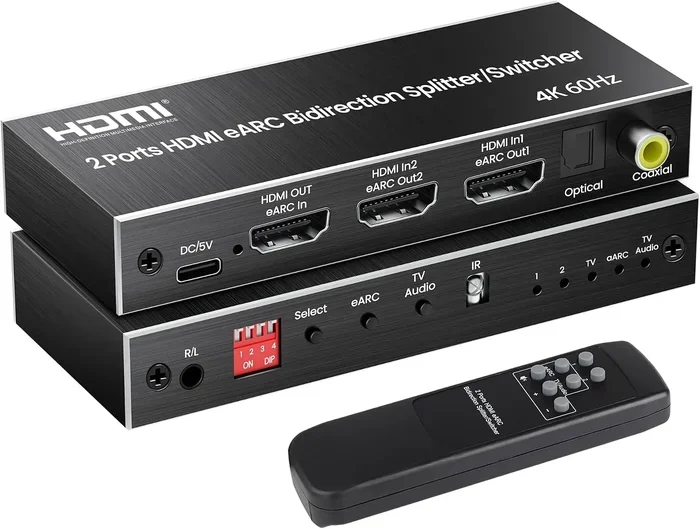
Sometimes you must use an optical cable with HDMI gear. Maybe your TV has only one HDMI port left. Maybe your sound system is older and only has optical in. An audio extractor solves this. It’s a small box. You plug your HDMI source into it. A TV comes out of the extractor. You plug an optical cable from the extractor into your soundbar or receiver. The box splits the HDMI signal. It sends video to your TV and audio out through optical. This works well. Just make sure the extractor supports the audio formats you need.
Connecting a Soundbar to an Older TV
Older TVs might not have HDMI ARC. They might only have a single optical output. In that case, you can use an optical cable directly from the TV to your soundbar. This is a very common setup. It’s simple and reliable. Just remember that you’re limited to Dolby Digital or DTS stereo. You won’t get Atmos. But for everyday TV shows and music, it sounds great. Keep the optical cable short. A long cable can weaken the light signal and cause dropouts.
Common Mistakes That Hurt Your Audio Quality
Using the Wrong Cable Length
Optical cables are sensitive to length. A standard cable works fine up to about 3 to 5 meters. Beyond that, the light signal fades. You might hear crackling, dropouts, or no sound at all. Don’t run a 10-meter optical cable through your walls. If you need a long run, use an HDMI cable with ARC instead. Or use an active optical cable that has a built-in signal booster. Cheap, long passive optical cables are a common reason for poor sound.
Forgetting to Change Your TV Audio Settings
This is the number one mistake. You hook everything up, but you get no sound or bad sound. Check your TV’s audio output setting. It might be set to “PCM” or “Auto.” Change it to “Bitstream” or “Passthrough” if you want your soundbar or receiver to decode the audio. If your TV is set to PCM, it downmixes everything to stereo before sending it out. You lose surround sound. Always match the output setting to what your sound system supports.
Expert Tips for Getting the Best Sound Possible
Upgrade Your Audio Formats in the TV Menu
Go into your TV’s audio settings. Look for “Digital Out” or “Audio Output.” Set it to “Auto” or “Bitstream.” This lets your external device handle the audio decoding. If your sound system supports Dolby Atmos, make sure the TV is set to pass through Atmos. Some TVs have a setting called “Enhanced Bitstream” or “Dolby Digital Plus.” Enable it if you see it. This small change makes a big difference.
Keep Your Cables Short and High Quality
A short, quality cable always beats a long, cheap one. For optical, stay under 5 meters. For HDMI, use a certified Premium High Speed cable if you have 4K HDR content. A bad HDMI cable can cause audio sync issues or flickering. Don’t buy the longest cable you can find. Buy the shortest one that reaches comfortably. This reduces signal degradation and keeps your audio signal clean.
Can you use an optical cable with HDMI to get better sound? Yes, but only as part of a smart setup. Direct connection is impossible. You must use ARC, eARC, or an audio extractor. Understand your gear. Check your ports. Choose the right cable for the job. Optical cables are great for simple, interference-free digital audio. HDMI ARC and eARC are the future of home audio. Use both wisely, and you’ll enjoy rich, clear sound every time you watch a movie or listen to music.
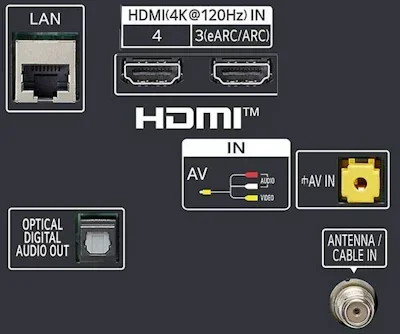
Take a look at your current setup tonight. Check the cables on the back of your TV. See if you have an optical port or an HDMI ARC port. Experiment with the audio settings. You might be surprised by how much better your sound can be with a small change. Better audio doesn’t always mean buying expensive new gear. Sometimes it just means using the right connection. Now you have the knowledge to do exactly that. Enjoy your upgraded sound.
Frequently Asked Questions
Can I connect an optical cable directly to an HDMI port?
No, you cannot. HDMI and optical cables have different connectors and carry different signals. HDMI carries video and audio together. Optical only carries digital audio. They will not fit into each other’s ports.
Does an optical cable support Dolby Atmos?
Standard optical cables do not support Dolby Atmos. They can carry Dolby Digital and DTS, which are compressed 5.1 formats. To get Dolby Atmos, you need an HDMI eARC connection or a high-end audio extractor that supports Atmos over optical, which is rare.
What is the difference between HDMI ARC and optical audio?
HDMI ARC sends audio back to your soundbar or receiver using a single HDMI cable. It supports more audio channels and formats than optical. Optical is a dedicated audio-only cable that uses light. It’s simple and immune to electrical interference but has lower bandwidth.
How long can an optical cable be before sound quality drops?
Keep optical cables under 5 meters (about 16 feet) for best results. Longer cables can cause light signal loss. This may lead to crackling, dropouts, or no sound at all. If you need a longer run, use an active optical cable or switch to HDMI.
Do I need an audio extractor if my TV has HDMI ARC?
No, you don’t need one if your TV and sound system both have HDMI ARC. ARC lets audio travel from the TV back to the soundbar using the same HDMI cable. An extractor is only needed when your TV lacks ARC or your sound system only has optical input.
What setting should my TV audio output be on?
Set your TV’s audio output to “Bitstream” or “Passthrough” if your sound system decodes audio. This sends the raw audio format to your receiver or soundbar. If you set it to PCM, the TV downmixes everything to stereo, and you lose surround sound.