Can Mini Hdmi Connect To Monitor Everything You Must Know
Yes, a Mini HDMI cable can connect to a monitor with the right adapter or cable setup. Many laptops, tablets, and cameras use Mini HDMI ports, and you can easily hook them up to external displays. This guide covers adapters, compatibility, setup steps, and common mistakes so you can get your Mini HDMI connection working fast.
Have you ever tried plugging a Mini HDMI cable into your monitor and wondered if it would work? You are not alone. Many people own devices with Mini HDMI ports and need a simple way to connect them to a bigger screen. The good news is that Mini HDMI can connect to a monitor with the right setup. Whether you want to use a laptop, a camera, or a tablet on a larger display, this guide has you covered. Let us walk through everything you need to know step by step.
Connecting your device to a monitor opens up a world of possibilities. You can present slideshows, watch movies, or extend your workspace with ease. But before you grab any cable, it helps to understand what Mini HDMI is and how it differs from other port types. A little knowledge goes a long way in avoiding frustration. This article breaks it all down in plain, simple language.
Key Takeaways
- Mini HDMI Can Connect to Monitors: You just need the correct adapter or a Mini HDMI to HDMI cable.
- Two Main Port Types Exist: Mini HDMI (Type C) and Micro HDMI (Type D) are different and need different adapters.
- Quality Matters: A high-speed HDMI adapter ensures you get the best picture and sound.
- Setup Is Simple: Plug in the adapter, connect the cable, and your monitor should detect the signal right away.
- Common Issues Are Fixable: Most connection problems come from wrong adapters or loose cables.
- Audio and Video Work Together: Mini HDMI carries both audio and video through one cable.
- Check Your Device First: Always confirm your device has a Mini HDMI port before buying an adapter.
📑 Table of Contents
- What Is Mini HDMI and Why Do People Use It?
- Can Mini HDMI Connect to a Monitor?
- What You Need to Set Up a Mini HDMI Connection
- Common Issues When Connecting Mini HDMI to a Monitor
- Mini HDMI vs Other Connection Types
- Best Adapters and Cables for Mini HDMI to Monitor
- Can You Use Mini HDMI for 4K Monitors?
- Key Takeaways
- Conclusion
What Is Mini HDMI and Why Do People Use It?
Mini HDMI, also known as HDMI Type C, is a smaller version of the standard HDMI port. It was designed for compact devices like cameras, tablets, and some laptops. The standard HDMI port is bigger and found on most TVs and desktop monitors. Mini HDMI fits the same job but takes up less space on your device. This makes it perfect for portable gear where every millimeter counts.
Many people wonder whether Mini HDMI connect to monitor setups are reliable. The answer is a firm yes. You can use a Mini HDMI to standard HDMI cable or an adapter to bridge the gap. The signal stays digital and high quality from start to finish. That means you get crisp video and clear audio without any loss. It is one of the simplest ways to share your screen on a bigger display.
Mini HDMI vs Micro HDMI
People often confuse Mini HDMI with Micro HDMI, but they are not the same. Micro HDMI, or Type D, is even smaller than Mini HDMI. You will find Micro HDMI on some smartphones and action cameras. Mini HDMI is slightly bigger and more common on devices like DSLR cameras and small tablets. Using the wrong adapter can cause problems, so always check your device first.
Here is a quick comparison to help you tell them apart:
- Mini HDMI (Type C): Used on tablets, cameras, and some laptops. Slightly larger than a USB port.
- Micro HDMI (Type D): Used on smartphones and compact action cameras. Much smaller than Mini HDMI.
- Standard HDMI (Type A): The regular HDMI port found on monitors, TVs, and projectors.
Knowing which port your device has saves you time and money. You do not want to buy the wrong adapter and end up with a useless cable.
Can Mini HDMI Connect to a Monitor?
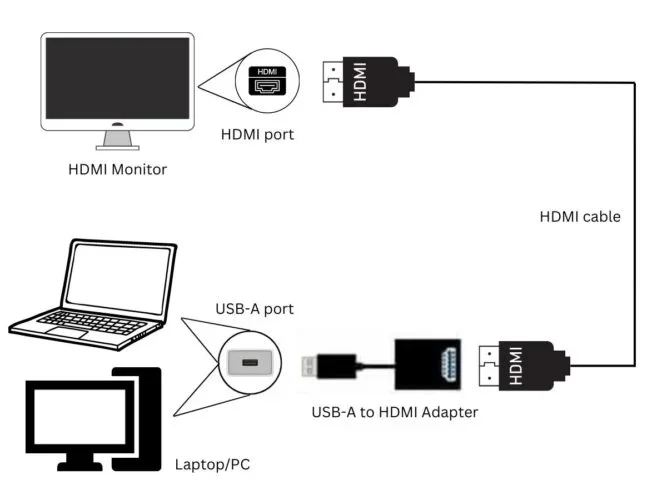
The short answer is yes. Mini HDMI can connect to a monitor without any hassle, as long as you use the right adapter or cable. Most monitors today have standard HDMI Type A ports. You need a way to go from the smaller Mini HDMI port on your device to the larger HDMI port on your monitor. This is where adapters and special cables come in handy.
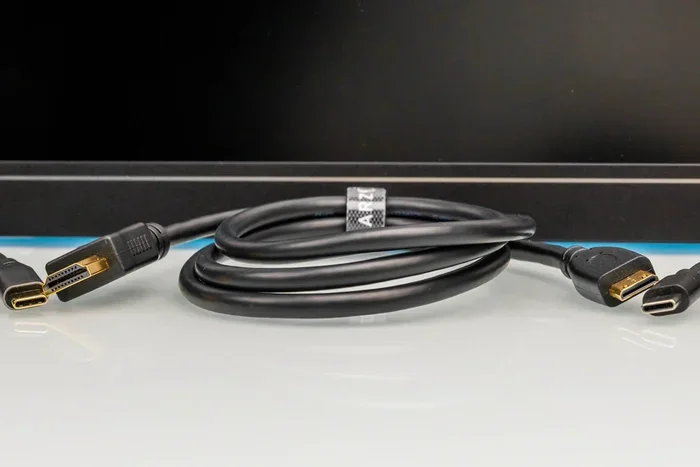
There are two main ways to make this connection work. The first is a Mini HDMI to HDMI adapter. You plug the Mini HDMI end into your device and the standard HDMI end into your monitor. The second option is a Mini HDMI to HDMI cable. This is a single cable with a Mini HDMI plug on one end and a standard HDMI plug on the other. Both methods work great, but the cable option is often cleaner because it has fewer connection points.
How the Connection Works
When you plug in a Mini HDMI adapter or cable, the digital signal passes through from your device to the monitor. The monitor reads the signal and displays the image. Audio travels along the same cable, so you get sound and picture in one go. This is a big advantage over older connection types that needed separate cables for audio and video.
Most monitors will detect the new input automatically. You may need to press the source or input button on your monitor to select the correct HDMI port. Once selected, your screen should mirror or extend right away. The whole process takes less than a minute.
What You Need to Set Up a Mini HDMI Connection
Setting up a Mini HDMI monitor connection is straightforward. You need a few things before you start. Having the right gear makes the process smooth and fast. Here is what you will need.
- A device with a Mini HDMI port: This could be a camera, tablet, or laptop.
- A Mini HDMI to HDMI adapter or cable: Make sure it supports the resolution you need.
- A monitor with a standard HDMI port: Most modern monitors have this.
- A high-speed HDMI cable (if using a separate adapter): This ensures the best quality signal.
Once you have these items, the setup is simple. Plug the Mini HDMI end into your device, connect the HDMI end to your monitor, and switch the monitor input. You should see your screen on the monitor within seconds.
Quick Setup Tips
Here are a few tips to make your setup even easier:
- Check your cable quality: A cheap cable can cause flickering or no signal at all. Invest in a reputable brand.
- Match your resolution: Make sure your adapter supports the resolution of your monitor, whether it is Full HD or 4K.
- Update your display drivers: If your device does not detect the monitor, updating drivers can fix the issue.
- Use an active adapter for audio: Some adapters only pass video. Check that yours handles both audio and video.
- Keep cables short: Longer cables can sometimes weaken the signal. Keep your setup as short as possible for the best results.
Common Issues When Connecting Mini HDMI to a Monitor
Even with the right gear, you might run into a few hiccups. Most of these problems are easy to fix. Knowing what to look for saves you time and stress.
No Signal on the Monitor
The most common issue is the monitor showing no signal. This usually happens when the monitor is set to the wrong input source. Press the input or source button on your monitor and select the HDMI port you plugged into. If that does not work, try unplugging the adapter and plugging it back in firmly.
Flickering or Poor Picture Quality
A flickering screen often points to a cable or adapter problem. A low-quality Mini HDMI cable may not handle the data transfer well. Upgrade to a high-speed HDMI cable or a better-rated adapter. Also, check that your monitor and device support the same resolution.
No Audio Through the Monitor
Sometimes you get video but no sound. This can happen if the adapter does not support audio passthrough. Make sure your adapter is rated for both audio and video. You can also check your device sound settings to ensure HDMI output is selected as the audio device.
Adapter Not Recognized
If your device does not recognize the adapter, try a different port if available. Some devices have multiple Mini HDMI ports. Also, a loose connection can cause this issue. Push the adapter in firmly until it clicks into place.
Mini HDMI vs Other Connection Types
Mini HDMI is not the only way to connect a device to a monitor. Understanding your options helps you choose the best one for your needs. Here is how Mini HDMI compares to other popular connection types.
| Connection Type | Port Size | Common Devices | Audio Support | Max Resolution |
|---|---|---|---|---|
| Mini HDMI | Small | Cameras, tablets, small laptops | Yes | 4K |
| Micro HDMI | Very Small | Smartphones, action cameras | Yes | 1080p |
| USB-C to HDMI | Small | Modern laptops, tablets | Yes | 4K or higher |
| DisplayPort | Medium | Desktop PCs, gaming monitors | Yes | 8K |
| VGA | Large | Older computers and projectors | No | Up to 2048×1536 |
As you can see, Mini HDMI holds its own against other connection types. It supports high resolutions and carries both audio and video. USB-C to HDMI adapters are becoming popular too, but Mini HDMI remains a reliable choice for many devices. VGA is outdated and does not carry audio, so it is not a fair comparison for modern setups.
Best Adapters and Cables for Mini HDMI to Monitor
Choosing the right adapter makes all the difference. Not all adapters are created equal, and some are much better than others. Here are a few things to look for when shopping.
- High-speed HDMI certification: This ensures the adapter can handle high resolutions and refresh rates.
- Gold-plated connectors: These resist corrosion and provide a more reliable connection.
- Compact design: A small adapter is easier to carry if you travel often.
- Audio and video support: Always check that the adapter passes both audio and video signals.
- Brand reputation: Stick with well-known brands like Cable Matters, UGREEN, or CableCreation for quality.
A good Mini HDMI adapter costs between $10 and $25. You do not need to spend a fortune, but avoid the cheapest options. They often lack proper shielding and can cause signal interference. A mid-range adapter gives you the best balance of price and performance.
Expert Insight
According to display technology experts, the quality of the adapter matters more than people think. A poor adapter can degrade your signal, even if your cable is high quality. Always buy from reputable sellers and read reviews before purchasing. A small investment in a good adapter protects your entire setup.
Can You Use Mini HDMI for 4K Monitors?
Many people ask whether Mini HDMI connect to monitor setups can handle 4K resolution. The answer depends on your adapter and cable. HDMI 1.4 supports 4K at 30Hz, while HDMI 2.0 supports 4K at 60Hz. Most modern adapters and cables are HDMI 2.0 or higher, which means you can enjoy smooth 4K output.
Check the specifications of your adapter before buying. Look for terms like “4K support” or “HDMI 2.0” on the packaging. If you want the smoothest experience on a 4K monitor, make sure your entire chain supports it. This includes your device’s output capability, the adapter, and the cable.
For most everyday uses like presentations or watching videos, even HDMI 1.4 works fine. But if you need smooth motion for gaming or video editing, go for HDMI 2.0 or higher. The difference is noticeable, especially on larger 4K monitors.
Key Takeaways
- Mini HDMI Can Connect to Monitors: You just need the correct adapter or a Mini HDMI to HDMI cable to make it work.
- Two Main Port Types Exist: Mini HDMI (Type C) and Micro HDMI (Type D) are different and need different adapters.
- Quality Matters: A high-speed HDMI adapter ensures you get the best picture and sound.
- Setup Is Simple: Plug in the adapter, connect the cable, and your monitor should detect the signal right away.
- Common Issues Are Fixable: Most connection problems come from wrong adapters, loose cables, or wrong input settings.
- Audio and Video Work Together: Mini HDMI carries both audio and video through one cable, unlike older connection types.
- Check Your Device First: Always confirm your device has a Mini HDMI port before buying an adapter or cable.
Conclusion
So, can Mini HDMI connect to a monitor? Absolutely. With the right adapter or cable, you can connect almost any device with a Mini HDMI port to any standard HDMI monitor. The process is simple, fast, and reliable. You get high-quality video and audio through a single digital connection.
Whether you are a student giving a presentation, a photographer reviewing photos on a big screen, or a professional extending your workspace, Mini HDMI makes it possible. Just remember to check your port type, buy a quality adapter, and follow the setup tips in this guide.
Do not let a small port stop you from using a big monitor. With the right Mini HDMI connection, your device and your display work together seamlessly. Grab the right adapter, plug it in, and enjoy your expanded screen today.
Frequently Asked Questions
Can I plug a Mini HDMI cable directly into a monitor?
Most monitors have standard HDMI Type A ports, which are larger than Mini HDMI. You cannot plug a Mini HDMI cable directly into a standard monitor. You need either a Mini HDMI to HDMI adapter or a Mini HDMI to HDMI cable that has the right plugs on each end. Once you have the correct adapter, the connection works perfectly.
Is Mini HDMI the same as Micro HDMI?
No, they are not the same. Mini HDMI, or Type C, is larger than Micro HDMI, or Type D. Micro HDMI is found on smartphones and some action cameras, while Mini HDMI is common on tablets and cameras. Always check your device port before buying an adapter to make sure you get the right one.
Does Mini HDMI support audio?
Yes, Mini HDMI supports both audio and video. The digital signal carries sound and picture together through one cable. This is a big advantage over older connection types like VGA, which only carry video. Make sure your adapter also supports audio passthrough for the best experience.
Can I use a Mini HDMI adapter with a 4K monitor?
Yes, you can use a Mini HDMI adapter with a 4K monitor, but your adapter must support 4K resolution. Look for adapters rated as HDMI 2.0 or higher for smooth 4K at 60Hz. Older HDMI 1.4 adapters can also handle 4K, but only at 30Hz, which may look less smooth for fast-moving content.
Why is my monitor showing no signal when I connect Mini HDMI?
The most common reason is that the monitor is set to the wrong input source. Press the source or input button on your monitor and select the HDMI port you plugged into. If that does not work, try a different adapter or cable, as a faulty adapter is often the culprit. Also, make sure the adapter is fully seated in both the device and the monitor.
What is the best Mini HDMI adapter brand?
Several brands are well-regarded for Mini HDMI adapters. Cable Matters, UGREEN, and CableCreation are popular choices that offer reliable performance. Look for adapters with high-speed HDMI certification and gold-plated connectors for the best results. Reading user reviews before buying also helps you find a quality product that fits your needs.