Do All HDMI Work The Same Here Is What You Need To Know
Do All HDMI Work The Same? No, they really do not. Different HDMI versions support different resolutions, refresh rates, and features. Choosing the wrong cable can mean poor picture quality or no signal at all. This guide breaks down everything you need to know about HDMI cables and ports.
Have you ever plugged in an HDMI cable and wondered if it really matters which one you use? The answer might surprise you. Do All HDMI Work The Same? The short answer is no. Not even close.
HDMI cables come in different versions, speeds, and types. Each one handles video and audio differently. Some cables support 4K resolution. Others handle high refresh rates for gaming. And some older cables simply cannot keep up with modern devices. Using the wrong cable can lead to poor picture quality, no sound, or even no signal at all.
In this guide, we will walk you through everything you need to know. We will cover HDMI versions, cable types, connector sizes, and how to pick the right one for your setup. By the end, you will never buy the wrong HDMI cable again.
Key Takeaways
- HDMI cables are not all the same: Different versions support different speeds and features.
- HDMI 2.1 is the latest standard: It supports 4K at 120Hz and 8K resolution.
- Using the wrong cable can cause problems: You may get no signal, low resolution, or no HDR support.
- Connector types matter too: Standard, Mini, and Micro HDMI serve different devices.
- Cable length affects signal quality: Longer cables may lose signal strength over distance.
- Always check your device specs: Know what your TV, monitor, or console supports before buying.
📑 Table of Contents
What Is HDMI and Why Does It Matter?
HDMI stands for High-Definition Multimedia Interface. It is a digital connection that carries both video and audio through a single cable. Almost every modern TV, monitor, gaming console, and streaming device uses HDMI. It replaced older cables like VGA and composite cables because it delivers much better quality in a simpler way.
The HDMI cable standard has evolved over the years. New versions bring faster speeds, better resolution support, and extra features. This means an HDMI cable from 2010 may not work the same way as one from 2023. The version of the cable determines what it can do.
Understanding this matters because your devices are only as good as the connection between them. A great 4K TV will look terrible if you use an old HDMI cable that cannot handle display resolution properly. The cable is the bridge, and a weak bridge limits everything on both sides.
How HDMI Carries Signals
HDMI uses a digital signal to transfer data. This is different from older analog cables. Digital signals are more reliable and carry clearer pictures. The HDMI bandwidth determines how much data can pass through the cable each second. More bandwidth means higher resolution and smoother motion.
Think of it like a highway. A wider highway allows more cars to pass at once. A higher bandwidth HDMI cable allows more data to flow. This directly affects the picture and sound quality you experience.
Different HDMI Versions Explained
The HDMI standard has gone through several major updates. Each version added new capabilities. Here is a simple breakdown of the main versions you will encounter.
HDMI 1.4
HDMI 1.4 was a big step forward when it came out. It introduced support for 4K resolution at 30Hz. It also brought the HDMI ARC feature, which lets audio travel back from your TV to a soundbar or receiver. This means fewer cables cluttering your setup.
HDMI 1.4 cables are still common in many homes. They work fine for basic 4K content and everyday streaming. But they have limits when it comes to gaming or high-frame-rate content.
HDMI 2.0
HDMI 2.0 doubled the bandwidth compared to version 1.4. This allowed for 4K at 60Hz, which makes motion look much smoother. It also added support for deeper color depths and HDR support. HDR brings brighter highlights and richer colors to your screen.
If you have a 4K TV and watch Netflix or play console games, HDMI 2.0 is likely what you need. Most modern devices use this standard or better.
HDMI 2.1
HDMI 2.1 is the newest and most powerful version. It supports up to 10K resolution and frame rates of up to 120Hz at 4K. This is a game-changer for serious gamers and home theater fans.
HDMI 2.1 also introduced features like Variable Refresh Rate (VRR) and Auto Low Latency Mode (ALLM). These reduce screen tearing and input lag. If you play on a PlayStation 5 or Xbox Series X, you want an HDMI 2.1 cable to get the full experience.
HDMI 2.0 vs HDMI 2.1 Comparison
| Feature | HDMI 2.0 | HDMI 2.1 |
|---|---|---|
| Max Resolution | 4K at 60Hz | 8K at 60Hz or 4K at 120Hz |
| Bandwidth | 18 Gbps | 48 Gbps |
| HDR Support | Yes | Yes, with dynamic HDR |
| VRR Support | No | Yes |
| eARC Support | No | Yes |
| Best For | Casual viewing, streaming | Gaming, home theater |
HDMI Cable Types and Connectors
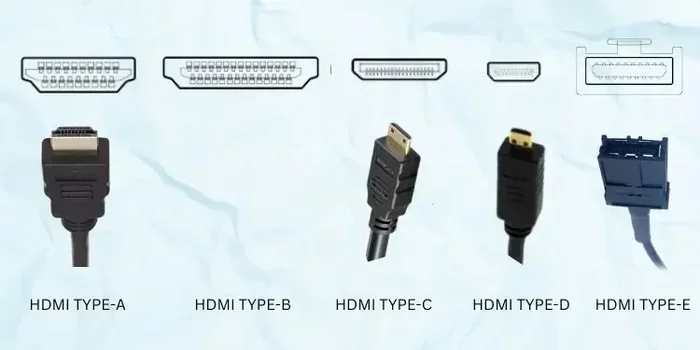
Not all HDMI connectors look the same either. There are three main sizes you will find on devices. Each one serves a different purpose.
Standard HDMI (Type A)
This is the most common HDMI connector. It is the full-size plug you see on TVs, monitors, and Blu-ray players. Almost every device you own uses a standard HDMI port. The cable itself is rigid and sturdy, designed for permanent or semi-permanent connections.
Mini HDMI (Type C)
Mini HDMI is a smaller version of the standard connector. You will find it on some tablets, digital cameras, and smaller laptops. It carries the same signal as a standard HDMI but in a more compact form. You will need a Mini HDMI to Standard HDMI cable or adapter to connect it to a TV.
Micro HDMI (Type D)
Micro HDMI is even smaller. It is found on some smartphones and action cameras. Like Mini HDMI, it needs an adapter to connect to a standard display. These cables are less common but still important to know about if you use mobile devices for media.
Ethernet and ARC HDMI Cables
Some HDMI cables include an Ethernet channel. This lets devices share an internet connection without a separate network cable. The audio return channel is another special feature. It sends audio from your TV back to a sound system. Both features depend on the HDMI version, not just the cable type.
When shopping, look for cables labeled “High Speed” or “Premium High Speed.” These terms indicate the cable meets current standards for 4K HDMI and HDR content. Avoid cables that do not list their version or speed rating.
Do All HDMI Cables Support 4K?
This is one of the most common questions people ask. The answer is no. Not every HDMI cable can handle 4K content. The ability to support 4K depends on the cable version and its bandwidth capacity.
HDMI 1.4 cables can support 4K, but only at 30Hz. This means the picture updates 30 times per second. For movies, this is usually fine. But for gaming or fast action, 30Hz feels choppy and laggy. You need HDMI 2.0 or higher for smooth 4K at 60Hz.
For 4K at 120Hz, you need an HDMI 2.1 cable. This is important for next-gen gaming. The PS5 and Xbox Series X both output at 120Hz in 4K for supported games. A regular cable will not deliver this experience.
Here is a quick look at what different cables can handle:
- HDMI 1.4: 4K at 30Hz, basic HDR
- HDMI 2.0: 4K at 60Hz, full HDR support
- HDMI 2.1: 4K at 120Hz, 8K at 60Hz, VRR, ALLM
When in doubt, always check the cable label. A high-speed HDMI cable rated for 18 Gbps or higher will handle most modern setups. If you want future-proofing, go for a 48 Gbps HDMI 2.1 cable.
How to Choose the Right HDMI Cable
Picking the right cable does not have to be confusing. Follow these simple steps and you will get the right cable every time.
Step 1: Check Your Device Capabilities
Look at your TV, monitor, or console manual. Find out what HDMI version it supports. This tells you what the cable needs to handle. A TV that supports HDMI 2.1 will not give you 4K 120Hz with an HDMI 1.4 cable.
Step 2: Decide What You Need the Cable For
Are you just streaming movies? A basic HDMI 2.0 cable works great. Are you a serious gamer? Invest in an HDMI 2.1 cable. Are you running long cable runs across a room? Look for active cables or signal boosters that maintain quality over distance.
Step 3: Buy from Reputable Brands
Cheap, no-name cables often fail to meet their stated specifications. Stick with trusted brands or cables that carry the HDMI Certification. This ensures the cable actually delivers the cable quality it promises.
Quick Tips for HDMI Shopping
- Look for “Premium High Speed” or “Ultra High Speed” labels
- Shorter cables usually give better signal quality
- Avoid cables longer than 15 feet without a signal booster
- Flat cables are easier to route behind furniture
- Brass connectors last longer than plated ones
Common HDMI Problems and How to Fix Them
Even with the right cable, you can run into issues. Here are the most common problems and simple fixes.
No Signal or Blank Screen
This is the most frustrating problem. Usually, it means the cable is not fully seated or it is the wrong type. Try unplugging both ends and plugging them back in firmly. If that does not work, try a different cable. Sometimes cables fail without any visible damage.
Flickering or Intermittent Picture
A flickering screen often points to a loose connection or a damaged cable. Check the ports on both devices for dust or debris. A can of compressed air works wonders. If the cable is bent or frayed, replace it. Damaged cables cause intermittent signal loss.
No Sound
HDMI carries both video and audio. If you have picture but no sound, check your TV audio settings. Make sure the HDMI ARC or eARC setting is enabled if you are using a soundbar. Also, ensure the cable supports audio return channel if your device requires it.
Poor Picture Quality
If your picture looks blurry or colors look washed out, the cable may not support the resolution your device is outputting. This often happens when using an older cable with a newer device. Upgrading to a higher-speed cable usually fixes this immediately.
HDCP Errors
HDCP stands for High-bandwidth Digital Content Protection. It is a copy protection system built into HDMI. If you see an HDCP error, the cable or a port may not be HDCP compliant. Try a different cable or a different port on your device. Certified cables always include HDCP support.
When comparing different connectivity options, it is worth noting that not all connection types work the same way. Just as WiFi antennas vary in design and performance, HDMI cables also differ in their capabilities and signal handling. Each type of connection has its own standards and limitations.
The Role of HDMI Ports on Your Devices
The HDMI port on your device is just as important as the cable. The port on your TV or motherboard determines what signals it can receive. The components found on the motherboard include the HDMI controller, which manages the video output through the HDMI port. If this controller is older, it may limit what resolution and refresh rate you can achieve, even with a modern cable.
Some devices have multiple HDMI ports with different capabilities. For example, a TV might have three HDMI 2.0 ports and one HDMI 2.1 port. The HDMI 2.1 port will support 4K 120Hz while the others max out at 4K 60Hz. Always plug your most demanding device into the right port.
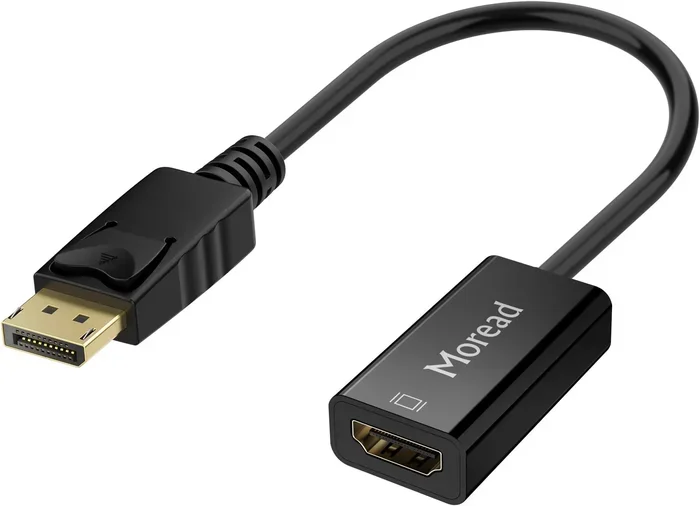
Adapters and splitters also play a role. An HDMI adapter lets you connect different connector types. An HDMI splitter sends the same signal to multiple displays. Both can reduce signal quality if they are not high-quality. Always choose adapters and splitters that match your HDMI version.
Do You Need Expensive HDMI Cables?
Marketing tries to convince you that expensive cables sound better or look better. The truth is, once a cable meets the standard for your device, the price does not matter. A $10 HDMI 2.1 cable performs the same as a $100 HDMI 2.1 cable. The signal is digital, so it either works perfectly or it does not work at all.
Save your money for the device itself, not the cable. Buy a certified cable that meets the version you need and you will be just fine. The best HDMI cable is the one that matches your setup without overpaying.
Final Thoughts
Do All HDMI Work The Same? Absolutely not. HDMI cables vary by version, speed, connector type, and features. Choosing the right cable ensures you get the best picture and sound from your devices. Whether you are watching movies, gaming, or setting up a home theater, the right HDMI cable makes all the difference.
Take a few minutes to check your devices and understand what you need. It is a small step that saves you from frustration, poor quality, and wasted money. A simple cable upgrade can transform your entire viewing experience. Start with the basics, match the cable to your devices, and enjoy a clear, crisp connection every time.
Frequently Asked Questions
Can I use any HDMI cable for 4K TV?
Not all HDMI cables support 4K. You need at least an HDMI 2.0 cable for 4K at 60Hz. For 4K at 120Hz, you need an HDMI 2.1 cable. Check the cable label for its speed rating and version before buying.
Does HDMI cable length affect quality?
Yes, longer cables can lose signal strength. For runs under 10 feet, standard cables work fine. For longer distances, look for active HDMI cables or signal boosters that maintain quality over distance.
What is the difference between HDMI ARC and eARC?
HDMI ARC (Audio Return Channel) sends audio from your TV to a sound system. eARC (Enhanced Audio Return Channel) supports higher-quality audio formats like Dolby Atmos. eARC is only available on HDMI 2.1 and some HDMI 2.0 devices.
Do gold-plated HDMI cables perform better?
Gold plating helps prevent corrosion and ensures a good connection over time. It does not improve signal quality. The cable version and bandwidth matter far more than the connector material.
Can an HDMI 2.0 cable work with an HDMI 2.1 device?
Yes, it will work but it will be limited to HDMI 2.0 speeds. You will not get 4K 120Hz or VRR features. Both the cable and the device must support HDMI 2.1 for full functionality.
Are all HDMI ports on a TV the same?
No, different ports on the same TV can support different HDMI versions. Some ports may be HDMI 2.0 while others are HDMI 2.1. Check your TV manual to find which ports support the features you need.