Do I Have Wi Fi 5 Or 6 Learn How To Check Right Now
Are you unsure if your wireless network runs on WiFi 5 or WiFi 6? Finding out is easier than you think, and it matters a lot for your internet speed. This guide walks you through every method to check your wireless standard, explains the key differences between the two generations, and helps you decide if an upgrade makes sense. You will learn how to identify your router, check your device specs, and run speed tests like a pro.
Have you ever wondered, “Do I Have Wi Fi 5 Or 6”? It is a really common question, and honestly, most people have no idea what standard their wireless network is running on. You might be paying for fast internet, but your router could be holding you back without you even knowing it.
The difference between WiFi 5 and WiFi 6 is not just a number. It affects how fast your pages load, how smoothly your videos stream, and how well your smart home devices all play nice together. Whether you are a casual browser or a hardcore gamer, knowing your wireless standard helps you get the most out of your internet plan.
In this guide, I will show you exactly how to check your WiFi standard right now. No tech degree required. I will break down the differences, explain what the numbers mean, and help you figure out if it is time to upgrade your router. Let us get into it.
Key Takeaways
- Quick Check Method: You can find out your WiFi standard in seconds by checking your router label or device settings.
- WiFi 5 vs WiFi 6 Speed: WiFi 6 offers significantly faster speeds and better performance in crowded spaces.
- OFDMA and MU-MIMO: WiFi 6 uses advanced technologies like OFDMA and MU-MIMO that WiFi 5 does not have.
- Device Compatibility: Both your router and your device need to support WiFi 6 for you to get the benefits.
- Upgrade Worth It: If you have many smart home devices or gamers in your household, WiFi 6 is a big improvement.
- Backward Compatible: WiFi 6 routers work with older WiFi 5 devices, but you will not get the new features without WiFi 6 hardware.
📑 Table of Contents
What Is the Difference Between WiFi 5 and WiFi 6?
Before you can check which one you have, it helps to understand what sets them apart. WiFi 5 and WiFi 6 are both wireless networking standards, but they belong to different generations of technology. Think of it like comparing a 4G phone to a 5G phone. Both work, but one is noticeably better.
WiFi 5, also known as 802.11ac, came out in 2013. It was a huge step forward at the time. WiFi 6, or 802.11ax, arrived in 2019 and brought some serious upgrades to the table. Here is a simple breakdown of what makes them different.
Speed and Performance
WiFi 5 tops out at theoretical speeds of about 3.5 Gbps. That sounds fast, and it is. But WiFi 6 pushes that limit to around 9.6 Gbps. In real-world use, you will not always hit those top numbers. Still, WiFi 6 delivers noticeably faster speeds, especially when multiple devices are connected at once.
Here is something that really matters for everyday users. When your family is all streaming, gaming, and video calling at the same time, WiFi 6 handles that traffic much better. WiFi 5 can get overwhelmed. WiFi 6 was built for the modern smart home with dozens of connected devices.
Key Technologies That Set WiFi 6 Apart
WiFi 6 introduced two big technologies that WiFi 5 simply does not have. The first is called OFDMA, which stands for Orthogonal Frequency Division Multiple Access. This lets your router talk to many devices at the same time instead of one at a time. It is like switching from a single-lane road to a multi-lane highway.
The second technology is MU-MIMO, or Multi-User Multiple Input Multiple Output. WiFi 5 supported MU-MIMO too, but only for sending data. WiFi 6 improved this so it works for both sending and receiving. This means your devices get a more efficient and responsive connection.
WiFi 6 also uses something called BSS Coloring, which reduces interference from nearby networks. If you live in an apartment building or a neighborhood with lots of wireless networks, this is a game changer. Your signal stays cleaner and your connection stays more stable.
Latency and Battery Life
Latency is the delay between sending a request and getting a response. Lower is better. WiFi 6 reduces latency significantly compared to WiFi 5. This matters for online gaming, video calls, and anything that needs real-time responsiveness.
Another cool feature is Target Wake Time, or TWT. This lets your router schedule when your devices wake up to send or receive data. The result? Your phone and IoT devices use less battery. If you have smart home gadgets everywhere, this is a nice bonus.
How to Check if You Have WiFi 5 or WiFi 6
Now for the part you have been waiting for. How do you actually find out which WiFi standard you are using? There are several easy ways to check, and you do not need any special tools. Let me walk you through each method.
Check Your Router Label and Manual
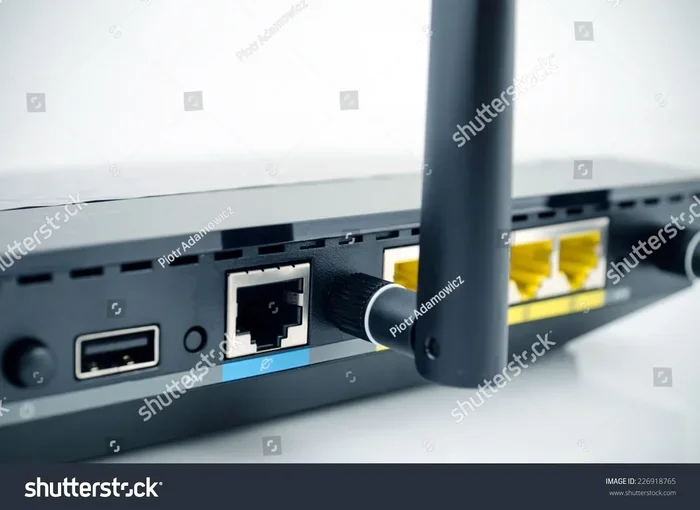
The fastest way is to look at your router itself. Flip it over or look at the bottom or back panel. Most routers have a sticker that lists the model number and the WiFi standard it supports. Look for “802.11ac” or “Wi-Fi 5.” If you see “802.11ax” or “Wi-Fi 6,” you are good to go.
If you threw away the manual, no worries. Just search the model number online. You can type it into Google and find the product page. The specifications will clearly state the WiFi standard. This works for brands like Netgear, ASUS, TP-Link, Linksys, and Google Nest.
Check Your Device Settings
You can also check from your phone or computer. On an iPhone or iPad, go to Settings, then Wi-Fi, and tap the info icon next to your connected network. Look for the connection type. It will say something like “802.11ac” or “802.11ax.”
On a Windows PC, click the Wi-Fi icon in your taskbar, then click on the network you are connected to. Look for the “Protocol” or “Network band” information. On a Mac, hold the Option key and click the Wi-Fi icon in the menu bar. It will show you detailed connection info including the standard.
Check Your Router Admin Panel
For a more detailed look, you can log into your router’s admin panel. Type your router’s IP address into your web browser. Common addresses are 192.168.1.1 or 192.168.0.1. Log in with your admin username and password, which are often printed on the router itself.
Once inside, look for wireless settings or wireless status. You should see the WiFi standard listed there. Some routers even show which standard each connected device is using. This is really helpful if you want to see how all your devices are connecting.
Use a WiFi Analyzer App
If you want a more technical view, download a WiFi analyzer app on your phone. Apps like WiFi Analyzer for Android or NetSpot for Mac and Windows can show you detailed information about your wireless network. They display the WiFi standard, signal strength, channel usage, and more.
These apps are free or low-cost and give you a much deeper understanding of your wireless environment. They are especially useful if you are trying to troubleshoot slow speeds or interference issues.
Why Does Your WiFi Standard Matter?
You might be thinking, “Does it really matter which standard I have?” The short answer is yes, it really does. Here is why your WiFi standard affects your everyday internet experience more than you might realize.
Internet Speed and Throughput
Your WiFi standard determines the maximum speed your wireless devices can reach. If you pay for a 500 Mbps internet plan but your router only supports WiFi 5, you might not be getting the full speed. WiFi 6 can handle faster plans much more efficiently, especially when multiple devices are connected.
Think of it this way. Your internet plan is like a water pipe. Your WiFi standard is the faucet. Even if the pipe is big, a small faucet limits how much water comes out. Upgrading to WiFi 6 opens up the faucet wider.
Smart Home and IoT Devices
Most modern smart home devices use wireless connections. Smart speakers, security cameras, smart plugs, and thermostats all compete for bandwidth. WiFi 6 handles this much better thanks to OFDMA and its ability to manage many devices at once.
If you have a smart home setup with 15 or more devices, WiFi 5 will start to slow down. WiFi 6 keeps everything running smoothly. This is one of the biggest reasons people upgrade their routers.
Gaming and Streaming
For online gamers, latency is everything. WiFi 6 reduces latency, which means smoother gameplay and fewer lag spikes. If you stream 4K videos or host video calls while others game, WiFi 6 makes a noticeable difference.
Even for casual streaming, WiFi 6 delivers a more consistent experience. Buffering happens less often, and the connection stays stable even when someone else in the house is downloading a large file.
How to Upgrade to WiFi 6
If you discovered that you are still on WiFi 5, you might be wondering how to upgrade. The good news is that switching to WiFi 6 is straightforward. Here is what you need to know.
Buy a WiFi 6 Router
The first step is to buy a WiFi 6 router. Look for routers that support the 802.11ax standard. Popular options include the ASUS RT-AX series, Netgear Nighthawk AX series, and TP-Link Archer AX series. These routers are widely available and come in a range of prices.
You do not need to spend a fortune. There are great WiFi 6 routers at reasonable price points. Focus on one that fits your home size and the number of devices you have.
Check Your Device Compatibility
Here is something important. To get WiFi 6 speeds, both your router and your device need to support WiFi 6. Newer phones, laptops, and tablets from the last few years likely already have WiFi 6 built in. But older devices will still connect to a WiFi 6 router, just at WiFi 5 speeds.
You can check your device specs by looking up the model number online. Search for the wireless specifications section. If it lists “802.11ax” or “Wi-Fi 6,” your device is compatible.
Set Up Your New Router
Setting up a new router is usually simple. Unplug your old router, connect the new one, and follow the setup instructions. Most modern routers have a companion app that walks you through everything step by step.
Once set up, make sure to update the router firmware. Manufacturers release updates that improve performance and fix bugs. Keeping your firmware current ensures you get the best possible experience.
Consider a WiFi 6 Mesh System
If you have a large home or one with thick walls, a single router might not cover everything. In that case, consider a WiFi 6 mesh system. Mesh systems use multiple units placed around your home to create one seamless wireless network.
Popular mesh options include the Google Nest WiFi Pro, Eero Pro 6, and TP-Link Deco X series. These systems are designed to eliminate dead zones and give you strong coverage everywhere.
Common Mistakes People Make with WiFi
There are a few mistakes that hold people back from getting the best wireless performance. Avoiding these can make a big difference, even if you already have WiFi 6.
Placing the Router in a Bad Spot
One of the most common mistakes is hiding the router in a closet or behind a TV. Walls, furniture, and appliances block wireless signals. Place your router in a central, open location for the best coverage.
Not Updating Firmware
Router manufacturers release firmware updates regularly. These updates fix bugs, improve security, and sometimes boost performance. If you never update your router, you are missing out. Check for updates in your router admin panel or companion app.
Using the Wrong Channel
Wireless channels can get crowded, especially in apartment buildings. If your router is set to a default channel, it might overlap with your neighbor’s network. Using a WiFi analyzer app can help you find the least congested channel and switch to it.
Ignoring the 5 GHz Band
Many routers broadcast two bands: 2.4 GHz and 5 GHz. The 2.4 GHz band reaches farther but is slower and more congested. The 5 GHz band is faster but has a shorter range. For the best speeds, connect your devices to the 5 GHz band whenever possible.
Is WiFi 6 Worth the Upgrade?
This is the question everyone wants answered. The honest answer depends on your situation. If you have a WiFi 5 router and it works fine for you, you might not need to rush out and buy a new one. But if you are experiencing slow speeds, buffering, or connection drops, WiFi 6 can make a real difference.
Here are a few signs that an upgrade makes sense. You have more than 10 wireless devices in your home. You notice slow speeds during peak hours. You are a gamer who needs low latency. You have a smart home with many IoT devices. You pay for a high-speed internet plan but do not get the speeds you expect.
For most people in 2024 and beyond, WiFi 6 is the smart choice. It is the current standard, and prices have come down significantly. WiFi 6 routers are now very affordable, and they future-proof your home network for years to come.
If you are still on WiFi 5, the upgrade is well worth it. The performance improvements are real and noticeable. You will wonder how you ever managed without it.
Final Thoughts
So, do I have WiFi 5 or WiFi 6? Now you know exactly how to find out. Checking your router label, device settings, or admin panel takes just a few minutes. And once you know your standard, you can make a smart decision about whether to stick with what you have or upgrade to WiFi 6.
The wireless technology world moves fast, and staying informed helps you get the best performance from your internet connection. Whether you are a casual user or a power user, understanding your WiFi standard gives you the power to troubleshoot, optimize, and upgrade with confidence.
Take a few minutes right now to check your setup. You might be surprised by what you find. And if it is time for an upgrade, you will know exactly what to look for. Your faster, more reliable wireless experience is just a few clicks away.
Frequently Asked Questions
How can I tell if my router supports WiFi 6?
Look for “802.11ax” or “Wi-Fi 6” on the router label or in the product specifications. You can also log into your router admin panel and check the wireless settings for the standard information.
Can WiFi 5 devices connect to a WiFi 6 router?
Yes, WiFi 6 routers are backward compatible. WiFi 5 devices will connect, but they will not get the speed and performance benefits of WiFi 6. Both the router and the device need to support WiFi 6 for the full experience.
What internet speed do I need to benefit from WiFi 6?
You will see the biggest benefits with internet plans of 300 Mbps or higher. WiFi 6 can handle faster speeds much more efficiently than WiFi 5, especially when multiple devices are connected at the same time.
Do I need a new modem to get WiFi 6?
Not necessarily. The modem and the router are separate devices. You only need a WiFi 6 router to get WiFi 6 speeds. Your existing modem can still work as long as it supports your internet plan’s speed.
Is WiFi 6 better for smart homes?
Absolutely. WiFi 6 was designed to handle many devices at once using OFDMA technology. If you have a smart home with lots of connected gadgets, WiFi 6 provides a much smoother and more reliable experience.
How much does a WiFi 6 router cost?
WiFi 6 routers are now very affordable. You can find solid options starting around $50 to $100. Higher-end models with mesh capabilities or more features will cost more, but the prices have dropped significantly in recent years.