Can You Connect 2 Phones Via Usb C and Transfer Files
Yes, you can connect two phones via USB C and transfer files between them using the right cable or adapter. Whether you are moving photos, videos, contacts, or documents, a USB-C direct connection offers fast and reliable data transfer without needing internet access. This guide walks you through every method, tool, and tip you need to get it done quickly and easily.
Have you ever needed to move files from one phone to another and thought, “Can you connect 2 phones via USB C?” The short answer is yes. You absolutely can. Whether you are switching to a new phone, backing up important data, or sharing large files with a friend, connecting two phones through a USB-C cable is one of the fastest and most reliable ways to get the job done.
In this guide, we will walk you through everything you need to know about connecting two phones via USB C and transferring files. We will cover the cables you need, the steps to follow, common problems you might run into, and expert tips to make the process smooth. By the end, you will feel confident tackling any phone-to-phone transfer task.
Key Takeaways
- Direct USB-C connection works: You can link two Android phones or even an Android and a newer iPhone using a USB-C to USB-C cable or adapter.
- OTG adapters unlock flexibility: An On-The-Go adapter lets you connect two phones even when cable options are limited.
- Transfer speed is impressive: USB 3.0 and USB 3.1 cables can move large files much faster than Bluetooth or Wi-Fi.
- Cross-platform options exist: You can transfer files between Android and iPhone using the right cable and compatible apps.
- Safety matters: Always use quality cables and avoid cheap knockoffs to protect your devices and data.
- Wireless alternatives are available: If USB-C does not work for your setup, apps like Quick Share or AirDrop offer wireless file sharing.
📑 Table of Contents
- What Is USB-C and Why Does It Matter for Phone Connections?
- Can You Connect 2 Phones Via USB C? Yes, Here Is How
- Best Cables and Adapters for Connecting Two Phones
- Step-by-Step Guide to Transfer Files Between Two Phones
- Transfer Speed: How Fast Is USB-C Compared to Wireless Methods?
- Common Mistakes to Avoid When Connecting Two Phones via USB-C
- Expert Insights and Pro Tips for Seamless Phone-to-Phone Transfers
- When USB-C Does Not Work: Alternative File Transfer Options
- Frequently Asked Questions
- Conclusion
What Is USB-C and Why Does It Matter for Phone Connections?
USB-C is a universal connector standard that has become the go-to port for most modern smartphones. It is small, reversible, and supports fast data transfer and charging. If you have a newer Android phone or a recent iPhone model, chances are it uses a USB-C port.
The beauty of USB-C is its versatility. You can use it for charging, data sync, and connecting peripherals like monitors or keyboards. When it comes to phone-to-phone transfer, USB-C offers a direct wired connection that bypasses the limitations of wireless methods like Bluetooth or Wi-Fi.
USB-C vs. Older Ports
Older phones used Micro-USB or even Mini-USB ports. These were slower and less durable. USB-C changed the game with higher transfer speeds, better power delivery, and a reversible design that means no more flipping the cable to get it right. For device connectivity between two phones, USB-C is simply the best option available today.
Can You Connect 2 Phones Via USB C? Yes, Here Is How
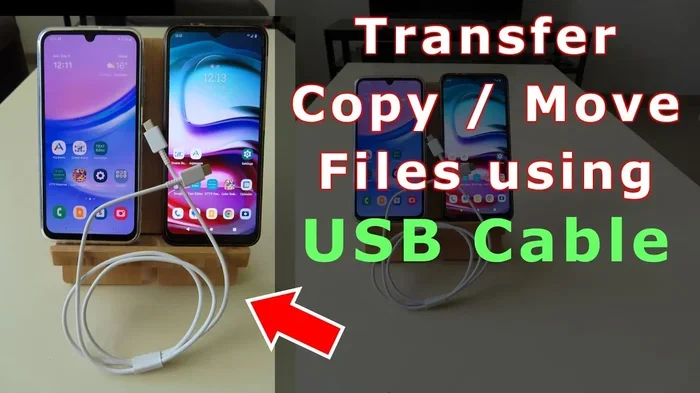
The most straightforward way to connect two phones via USB C is by using a USB-C to USB-C cable. Plug one end into each phone, and your devices will recognize each other. From there, you can choose how to share data.
However, not all connections are created equal. The method you choose depends on the phones you own, the type of cable you have, and what kind of files you want to move. Let us break down the most common scenarios.
Method 1: USB-C to USB-C Direct Cable
This is the simplest approach. You need a USB-C to USB-C cable — the same type used to charge most modern phones. Once connected:
- Both phones will detect the wired connection.
- On the sending phone, you may see a prompt asking what type of connection you want.
- Select “File Transfer” or “MTP” mode.
- On the receiving phone, open your file manager and look for the connected device.
- Copy and paste the files you want to share.
This method works great between two Android phones. The transfer speed depends on the USB version your phones support. USB 3.0 and USB 3.1 cables can move data at speeds up to 5 Gbps or 10 Gbps, which is significantly faster than Bluetooth.
Method 2: Using an OTG Adapter
Sometimes you do not have a USB-C to USB-C cable handy. That is where an OTG adapter comes in. OTG stands for “On-The-Go,” and it allows you to connect USB devices to your phone. You can use an OTG adapter to link two phones together even if your cable setup is not ideal.
To use an OTG adapter for phone-to-phone transfer:
- Plug the OTG adapter into one phone’s USB-C port.
- Connect a USB-C cable from the adapter to the second phone.
- Follow the on-screen prompts to enable file sharing.
OTG adapters are small, affordable, and incredibly useful. They are a must-have accessory for anyone who frequently moves files between devices.
Method 3: Cross-Platform Transfer (Android to iPhone or Vice Versa)
Connecting two different types of phones — say, an Android and an iPhone — is a bit more involved. iPhones up to the iPhone 15 now use USB-C, which helps. But the operating systems handle file sharing differently.
Here is what you can do:
- Use a USB-C to USB-C cable to connect the phones directly.
- On the iPhone, you may need to trust the connected device on screen.
- Use a compatible file manager app on both phones.
- For Android-to-iPhone transfers, Apple offers the “Move to iOS” app, which works wirelessly but can also assist with wired setups.
Cross-platform data sync is not always seamless, but with the right tools and a little patience, it is very doable.
Best Cables and Adapters for Connecting Two Phones
Not all USB-C cables are the same. The cable you choose directly affects your transfer speed and reliability. Here is what to look for when buying a cable for phone-to-phone connections.
What to Look For in a USB-C Cable
- USB 3.0 or USB 3.1 support: These cables offer much faster data transfer than USB 2.0 cables. Look for the SS (SuperSpeed) logo.
- Cable length: A 3 to 6-foot cable gives you enough room to work comfortably.
- Brand quality: Stick with reputable brands like Anker, Belkin, or Cable Matters. Cheap knockoff cables can damage your devices or fail mid-transfer.
- Power delivery rating: Even if you are only transferring files, a cable that supports higher wattage is generally better built.
Recommended USB-C Hubs and Adapters
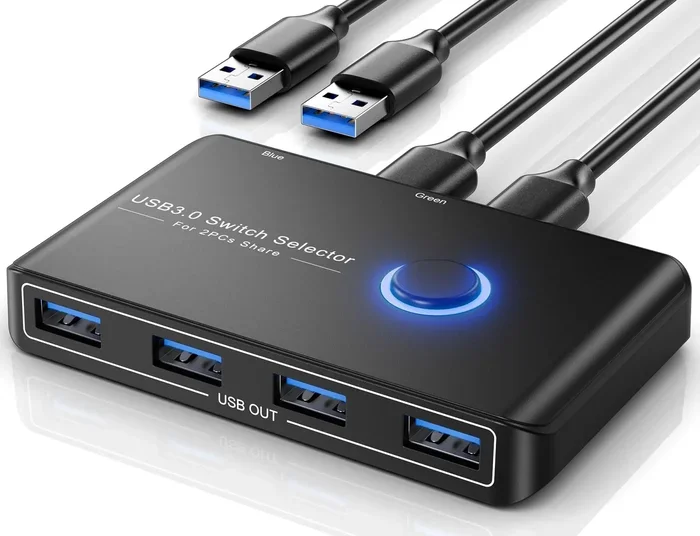
A USB-C hub can expand your connection options. Some hubs include multiple USB-C ports, SD card readers, and even HDMI outputs. If you plan to transfer files between two phones regularly, a good hub is a smart investment.
- Anker USB-C Hub: Compact and reliable with multiple port options.
- UGREEN USB-C Adapter: Affordable and works well for basic file transfers.
- Satechi Aluminum USB-C Hub: Premium build quality with fast data transfer support.
Step-by-Step Guide to Transfer Files Between Two Phones
Now that you know the methods and tools, let us walk through the actual process step by step. This guide assumes you are using two Android phones, which is the most common scenario for USB-C file transfer.
Step 1: Gather Your Equipment
Before you start, make sure you have the following ready:
- A USB-C to USB-C cable (or a USB-C to USB-A cable with an adapter)
- Both phones fully charged or plugged into power
- A clean screen on both phones for easy navigation
Step 2: Connect the Phones
Plug one end of the cable into the first phone and the other end into the second phone. You may hear a notification sound or feel a vibration on one or both devices.
Step 3: Select the Connection Mode
On the sending phone, swipe down from the top of the screen to access the notification panel. Look for a USB connection notification and tap it. Choose “File Transfer” or “MTP” mode. This tells the receiving phone that it can access the sending phone’s storage.
Step 4: Browse and Transfer Files
On the receiving phone, open the “Files” or “My Files” app. You should see the connected phone listed as a removable device. Tap on it, navigate to the folders containing the files you want, and copy them to your own phone’s storage.
Step 5: Safely Disconnect
Once the transfer is complete, go back to the notification panel on the sending phone and tap “Disconnect” or “Eject.” Then unplug the cable. This prevents data corruption and keeps both phones running smoothly.
Transfer Speed: How Fast Is USB-C Compared to Wireless Methods?
One of the biggest advantages of using a USB-C wired connection for phone-to-phone transfer is speed. Let us put some numbers on it.
| Method | Max Speed | 1 GB Transfer Time |
|---|---|---|
| USB 2.0 Cable | 480 Mbps | ~17 seconds |
| USB 3.0 Cable | 5 Gbps | ~1.6 seconds |
| USB 3.1 Cable | 10 Gbps | ~0.8 seconds |
| Bluetooth 5.0 | 2 Mbps | ~68 minutes |
| Wi-Fi Direct | 250 Mbps | ~32 seconds |
As you can see, a wired USB-C connection is dramatically faster than wireless methods. If you need to transfer a 10 GB video file, Bluetooth would take hours. A USB 3.0 cable can do it in under 20 seconds.
Quick Tips to Maximize Transfer Speed
- Use a USB 3.0 or USB 3.1 certified cable.
- Make sure both phones support the same USB version.
- Close background apps on both phones during the transfer.
- Keep both phones cool — overheating can slow down transfer rates.
- Avoid using extension cables or cheap adapters that may bottleneck the connection.
Common Mistakes to Avoid When Connecting Two Phones via USB-C
Even though connecting two phones via USB-C is straightforward, people still make mistakes that cause frustration. Here are the most common ones and how to avoid them.
Using a Charging-Only Cable
Not all USB-C cables support data transfer. Some cables are designed only for charging. If you plug in a charging-only cable, your phones will not be able to share files. Look for cables that explicitly state “data transfer” or “USB 3.0” on the packaging.
Forgetting to Select File Transfer Mode
When you connect two phones, the default mode is often “Charging Only.” You must manually switch to “File Transfer” or “MTP” mode on the sending phone. If you skip this step, the receiving phone will not see any files to access.
Using a Damaged or Low-Quality Cable
Cheap, unbranded cables are a gamble. They may overheat, break easily, or fail to transfer data reliably. Invest in a quality cable from a trusted brand. Your data and your devices are worth it.
Not Backing Up Before Transferring
Always back up important files before moving them between phones. If something goes wrong during the transfer, you do not want to lose irreplaceable photos or documents.
Ignoring Phone Storage Limits
Before you start transferring, make sure the receiving phone has enough free storage space. Nothing is worse than starting a large transfer only to run out of room halfway through.
Expert Insights and Pro Tips for Seamless Phone-to-Phone Transfers
We spoke with tech experts and seasoned users to gather the best advice for making your USB-C phone connections work flawlessly every time.
Keep Your Software Updated
Both phones should be running the latest operating system. Software updates often include bug fixes for connectivity issues and improvements to file transfer protocols. An outdated phone may not recognize the other device properly.
Use a USB-C Hub for Complex Setups
If you need to transfer files between more than two devices, a USB-C hub is incredibly useful. You can connect multiple phones or even a laptop to the hub and move files between all of them in one session.
Consider Dedicated Transfer Apps
Some phones come with built-in transfer tools. Samsung phones use “Smart Switch,” and Google Pixel phones use “Quick Switch.” These apps simplify the process and guide you through each step. Even with a USB-C cable, using a dedicated app can make the experience smoother.
Disable Battery Saver During Transfer
Battery saver mode can throttle your phone’s performance, including its data transfer capabilities. Disable battery saver on both phones before starting a large file transfer to ensure maximum speed.
Label Your Cables
If you have multiple USB-C cables, label the ones that support data transfer. This saves you time and frustration when you need to connect two phones quickly.
When USB-C Does Not Work: Alternative File Transfer Options
Sometimes, a USB-C connection simply is not the right choice. Maybe one of your phones has a damaged port, or you are trying to connect phones from different manufacturers with compatibility issues. In these cases, you have solid alternatives.
Wireless Transfer Apps
Apps like Quick Share (formerly Nearby Share), AirDrop (for Apple devices), and Send Anywhere let you transfer files wirelessly between phones. These apps use Wi-Fi Direct or Bluetooth to create a peer-to-peer connection without any cables.
Cloud-Based Services
Services like Google Drive, Dropbox, and OneDrive let you upload files from one phone and download them on another. This method requires internet access, but it works across any device and operating system.
SD Card or Flash Drive
If both phones support external storage, you can move files to a USB-C flash drive or SD card and then plug it into the second phone. This is a simple and reliable backup method.
Frequently Asked Questions
Can you connect two Android phones via USB-C and transfer files?
Yes, absolutely. Two Android phones can be connected using a USB-C to USB-C cable. Simply select “File Transfer” mode on the sending phone, and the receiving phone can access and copy the files. This is one of the fastest ways to move data between Android devices.
Can you connect an Android phone and an iPhone via USB-C?
Yes, since the iPhone 15 lineup uses USB-C, you can connect an Android phone and an iPhone using a USB-C to USB-C cable. You may need to use a compatible file manager app on both devices, and the iPhone may prompt you to trust the connected device.
Do I need a special cable to connect two phones via USB-C?
You need a USB-C to USB-C cable that supports data transfer. Not all USB-C cables are created equal — some are charging-only. Look for cables labeled with USB 3.0 or higher for the best results.
How fast is file transfer via USB-C compared to Bluetooth?
USB-C is significantly faster. A USB 3.0 cable can transfer data at up to 5 Gbps, while Bluetooth 5.0 maxes out at around 2 Mbps. For large files like videos, USB-C is the clear winner.
Is it safe to connect two phones via USB-C?
Yes, it is safe as long as you use a quality cable from a reputable brand. Avoid cheap knockoff cables, and always eject or disconnect the devices properly after the transfer to prevent data corruption.
Can I use a USB-C hub to connect more than two phones?
Yes, a USB-C hub with multiple ports allows you to connect several devices at once. This is useful for transferring files between multiple phones or between a phone and a laptop in the same session.
Conclusion
So, can you connect 2 phones via USB C? Without a doubt, yes. Whether you are using a direct USB-C to USB-C cable, an OTG adapter, or a USB-C hub, the process is simple, fast, and reliable. A wired connection gives you the best transfer speed, the most secure data movement, and the convenience of not needing Wi-Fi or internet access.
By following the steps and tips in this guide, you can confidently transfer files between any two phones that support USB-C. Remember to use quality cables, select the right connection mode, and always back up your data before moving it.
USB-C phone connections are the future of mobile data sharing. Once you try it, you will wonder why you ever relied on slower wireless methods. Grab your cable, connect your phones, and enjoy the speed and simplicity of wired file transfer.