Can A Virus Cause Your Laptop To Freeze And Shut Down
Yes, a virus can definitely cause your laptop to freeze and shut down unexpectedly. Malware can overload your system, corrupt vital files, and trigger random crashes that disrupt your work. Understanding these virus symptoms helps you protect your device and recover lost data quickly.
You are working on an important project, and suddenly, your screen goes blank. The cursor stops moving. You try the keyboard, but nothing happens. Your laptop has frozen again. If this has happened to you, you might wonder, can a virus cause laptop to freeze?
The short answer is yes. A malicious program can wreak havoc on your device. These security threats are designed to disrupt normal operations. They can consume massive amounts of memory and processing power. When your system resources are drained, everything slows down or stops entirely.
Dealing with a frozen computer is frustrating. However, understanding the root cause can save you time and money. This guide will explore the link between malware and system crashes. We will look at common virus symptoms and how to fix them. By the end, you will know exactly what to do when your laptop freezes.
Key Takeaways
- Malware causes system crashes: A computer virus can overload your CPU and freeze your laptop.
- Watch for virus symptoms: Slow performance, pop-ups, and random shutdowns are red flags.
- Boot into safe mode: This stops third-party malware and lets you fix the freeze.
- Use trusted antivirus software: A full scan removes the security threat causing the crash.
- Prevent data loss: Regular backups protect your files if a hard drive fails due to malware.
📑 Table of Contents
What Happens When A Virus Attacks Your Laptop?
How Malware Interacts With Your Operating System
When a computer virus enters your laptop, it attaches itself to legitimate files. It then begins executing malicious code in the background. Your operating system might not even notice at first. But over time, the virus consumes more and more resources.
Think of it like a cold that slows you down. At first, you feel a bit tired. Then, your whole body aches. A malware infection works similarly. It starts small but can quickly grow out of control. The virus modifies system files, changes settings, and opens backdoors for hackers.
One of the most common results is a severe drop in performance. You might notice slow performance when opening basic apps. The virus is secretly running in the background, using your hard drive and processor. This hidden activity often leads to a complete system crash. Your laptop struggles to keep up with the demands of the virus and your normal tasks.
Some viruses are programmed to launch attacks at specific times. They might wait until you are in the middle of an important meeting. Then, they strike, causing a sudden freeze or shutdown. This unpredictability makes malware especially dangerous for everyday users. It disrupts your workflow and can cause immense stress.
Common Virus Symptoms You Should Never Ignore
Your laptop gives you warnings before a total breakdown. Recognizing these virus symptoms early can prevent data loss. Here are signs your device might be infected:
- Constant pop-up ads: Random windows appearing everywhere is a classic sign of adware.
- Slow performance: If your laptop takes forever to boot, malware might be loading too.
- Unfamiliar programs: Apps you did not install suddenly appear on your desktop.
- Overheating: The fan runs loudly even when you are doing simple tasks.
- Random shutdowns: Your device turns off without warning, often with a blue screen.
- Missing files: Documents or photos disappear without you deleting them.
If you notice these signs, act fast. Ignoring them can lead to permanent damage to your hard drive. A simple virus scan can often catch these issues before they get worse. Early detection is the key to protecting your personal information.
Can A Virus Actually Cause Your Laptop To Freeze?
The Mechanics Of A System Freeze
So, how exactly does a virus cause a freeze? When a malicious program runs, it demands a lot of attention from your central processing unit. The CPU handles every command you give your laptop. If a hidden program is hogging all the power, your legitimate tasks get pushed aside.
This creates a traffic jam. Your operating system tries to process your click or keystroke. But the virus is using all the available memory. Soon, the system has no choice but to pause. This pause is what you experience as a freeze.
Some viruses are designed specifically to cause this chaos. They flood the system with endless requests. Other malware targets specific drivers or core Windows files. When these files become corrupted, your laptop simply cannot respond. The result is a frozen screen that requires a hard reset.
Memory leaks are another common culprit. A poorly written virus might accidentally use up all your RAM. As the memory fills up, your system slows to a crawl. Eventually, the laptop freeze becomes permanent. You cannot open new tabs or run any programs at all.
Random Shutdowns And The Blue Screen Of Death
Freezing is not the only problem. A severe virus can cause random shutdowns. Your laptop might work fine for ten minutes, then turn off instantly. This happens when the virus damages critical system files.
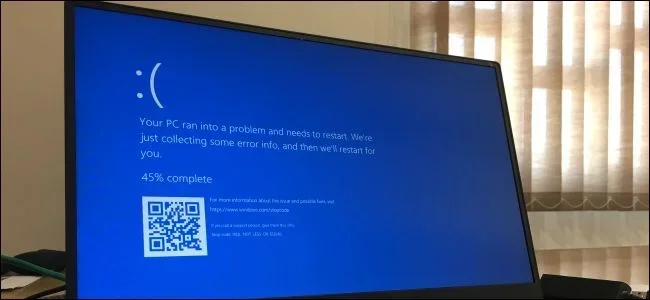
In some cases, you might see the blue screen of death. This error screen means your operating system has encountered a fatal problem. While not every blue screen is caused by a virus, malware is a common culprit. The virus corrupts essential drivers, forcing the system to shut down to prevent further harm.
These sudden power-offs can also lead to data loss. If you were working on a document, you might lose everything. This is why protecting your device from a security threat is so important. Regular backups can save you from this nightmare scenario.
Types Of Viruses That Trigger Freezes And Crashes
Boot Sector Viruses
A boot sector virus is one of the most dangerous types of malware. It infects the part of your hard drive that starts your computer. When you turn on your laptop, the virus loads before your operating system even begins.
Because it loads so early, it is very hard to detect. You might experience a laptop freeze right at the startup screen. The virus can prevent your device from booting properly. It can also replicate itself very quickly, spreading to other drives on your computer.
Removing a boot sector virus requires specialized tools. Standard antivirus software might struggle to clean the infection. If you suspect this type of threat, you should seek professional help immediately. These viruses often hide in the master boot record, making them difficult to eradicate completely.
Ransomware And System Lockups
Ransomware is a type of malware that locks your files. It demands payment to restore access. While the main goal is extortion, ransomware often causes severe system lockups.
As the virus encrypts your files, it uses massive amounts of processing power. Your laptop will freeze during this process. The screen might become unresponsive for hours. Some variants even prevent you from opening your task manager.
Task manager is a tool that shows what is running on your computer. If a virus blocks this tool, you cannot see what is causing the freeze. This makes the laptop freeze even more terrifying for users. You are left with no way to close the malicious program manually.
Trojans And Worms
Trojans disguise themselves as helpful software. You might download a free game or a video player. Hidden inside is a trojan that installs itself silently. Once inside, it opens your system to other threats.
Worms are different. They do not need a host file. They spread across networks automatically. A worm can infect your laptop simply by being connected to the internet. It scans for vulnerabilities and copies itself to other devices. This rapid spreading can overwhelm your network and cause constant freezing.
How To Fix A Laptop Frozen By A Virus
Step One: Boot Into Safe Mode
When your laptop is frozen by a virus, your first step should be to restart in safe mode. Safe mode loads only the essential drivers and software. It stops third-party programs, including most malware, from running.
To enter safe mode, you need to force a restart. Press and hold the power button until the laptop turns off. Turn it back on and tap the F8 or Shift key repeatedly. This should bring up the advanced startup options.
Once in safe mode, your laptop should run much smoother. If it does, you have confirmed a malware infection. Now you can safely remove the threat without the virus interfering. Safe mode gives you a clean environment to diagnose the problem.
Quick Tips For A Frozen Laptop
Here are some quick tips to keep in mind when your laptop freezes:
- Wait a few minutes: Sometimes the system just needs a moment to catch up.
- Check for overheating: Feel the bottom of your laptop. If it is very hot, let it cool down.
- Do not force restart too often: Frequent hard resets can damage your hard drive.
Step Two: Run A Full Antivirus Scan
Next, you need to run a full antivirus scan. Do not just run a quick scan. A full scan checks every file on your hard drive. It looks for hidden malware that might be causing the freeze.
Make sure your antivirus software is up to date. New security threats appear every day. Updated virus definitions help the software recognize the latest malware. Let the scan run completely, even if it takes several hours.
When the scan finishes, delete or quarantine any threats found. Restart your laptop normally and check if the freezing has stopped. Sometimes, one scan is not enough. You might need to run a second scan to catch dormant threats that activated after the first restart.
Step Three: Use System Restore
If the virus is still causing problems, try a system restore. This feature rolls back your operating system to a previous date. It undoes recent changes that might have introduced the malware.
To use system restore, go to the start menu and search for “Create a restore point.” Select your drive and click the System Restore button. Choose a date when you know your laptop was working fine.
Keep in mind that system restore does not delete your personal files. However, it will remove apps and drivers installed after the chosen date. This is a great way to eliminate a security threat without losing your photos or documents. It effectively rewinds your computer to a healthy state.
Step Four: Check The Task Manager
If you can still open your task manager, use it to spot the problem. Look for programs using an unusually high amount of CPU or memory. Sort the list by CPU usage to find the culprit.
Right-click on the suspicious program and select End Task. This stops the process immediately. However, be careful not to end system processes. Ending the wrong task can cause more problems. If you are unsure, search the process name online first.
Step Five: Use The Command Prompt
For advanced users, the command prompt offers powerful tools. You can use it to stop malicious processes that cause a laptop freeze. This method requires careful typing and exact commands.
First, open the command prompt as an administrator. Type specific commands to kill suspicious processes. You can also use the System File Checker tool. This command scans your operating system for corrupted files and repairs them.
Type sfc /scannow and press enter. The tool will check your hard drive for errors. It can fix many issues caused by a virus. However, be very careful with command prompt. Typing the wrong command can cause system problems.
Step Six: Reset Your PC
If the virus is too stubborn, resetting your PC might be the only option. This removes everything and gives your laptop a fresh start. It is like turning your computer into a brand new machine.
Go to settings and choose the reset option. You can keep your personal files or remove everything. Removing everything is safer if you have a severe malware infection. It ensures no traces of the virus remain.
After the reset, reinstall your operating system updates. Then, install your antivirus software immediately. Change all your passwords as well. A virus might have stolen your login credentials during the infection.
Preventing Future Virus Infections
Install Reliable Antivirus Software
The best defense against a computer virus is a strong offense. Installing reliable antivirus software is the first step in protecting your laptop. A good program scans your device in real time. It blocks malicious files before they can cause damage.
There are many options available, from free versions to premium suites. Look for software that offers malware removal tools and firewall protection. Make sure the program updates automatically. This ensures it can fight the newest security threats. A good antivirus is your first line of defense.
Practice Safe Browsing Habits
Software alone cannot stop every infection. You must also practice safe browsing habits. Many viruses enter laptops through risky websites and email attachments.
Avoid clicking on links from unknown senders. If an email looks suspicious, delete it immediately. Do not download software from unofficial sources. Stick to trusted app stores and official websites.
Additionally, keep your operating system updated. Software updates often include patches for security vulnerabilities. Hackers love to exploit outdated systems. By updating regularly, you close the doors that viruses try to enter through. Prevention is always easier than cure.
Common Mistakes People Make
Many users make mistakes that leave their laptops vulnerable. Avoid these common errors:
- Ignoring update notifications: Updates patch security holes that viruses exploit.
- Clicking on every pop-up: Fake virus alerts are often malware in disguise.
- Using the same password everywhere: One breach can compromise all your accounts.
Use Strong Passwords And Two-Factor Authentication
Weak passwords are an open invitation to hackers. Use complex passwords that include letters, numbers, and symbols. Better yet, use a password manager to keep track of them.
Enable two-factor authentication wherever possible. This adds an extra layer of security. Even if a virus steals your password, the hacker still cannot access your account. These simple steps drastically reduce your risk of a malware infection.
When To Seek Professional Help
Signs Of Hardware Damage From Malware
Sometimes, a virus does more than just freeze your screen. It can physically damage your hardware. Overheating caused by malware can wear out your hard drive faster than normal. If your laptop makes strange clicking noises, the hard drive might be failing.
Other signs include a completely black screen that will not turn on. Or, your device might boot up but instantly freeze again. These are serious virus symptoms that require expert attention.
Do not try to fix severe hardware issues on your own. Taking your laptop to a certified technician is the safest choice. They have the tools to recover your data and replace damaged parts. Acting fast can save you from permanent data loss.
Expert Insights On Malware Recovery
According to cybersecurity experts, early intervention is key. The longer a virus stays on your laptop, the deeper it burrows into your system. Professionals recommend disconnecting from the internet immediately if you suspect an infection. This stops the virus from sending your data to hackers.
Experts also stress the importance of regular backups. Cloud storage and external drives are your best friends. Even if your hard drive fails, your data remains safe. A good backup strategy is the ultimate defense against data loss.
When To Consider A Full Reset
If the virus has completely taken over, a full reset might be necessary. This reinstalls your operating system and wipes all data. It is the ultimate way to remove a stubborn malware infection.
Before you reset, make sure you have backed up your important files. A reset removes everything, including your personal documents. If you cannot boot into safe mode to back up, use a rescue disk on another computer.
While a reset is drastic, it is often the fastest way to regain control. Once your laptop is clean, install your antivirus software immediately. This ensures you start fresh with the best possible protection.
So, can a virus cause laptop to freeze and shut down? The answer is a definitive yes. Malware can disrupt your entire system, from causing annoying pop-ups to triggering complete system crashes. Understanding how these threats operate is the first step toward protecting your device.
By recognizing the early virus symptoms, you can act before the damage becomes severe. Booting into safe mode, running a full scan, and using system restore are your best tools for recovery. Always keep your antivirus software updated and practice safe browsing habits to stay protected.
Do not ignore the warning signs. A frozen laptop is often a cry for help from your operating system. Take action today to secure your device and prevent future infections. Your data and your peace of mind are worth the effort.
Frequently Asked Questions
Can A Virus Cause A Laptop To Freeze Without Any Warning?
Yes, some viruses are programmed to strike suddenly. They can consume all your system resources in seconds, leaving you with no time to save your work. This is why having real-time antivirus protection is so important.
How Do I Know If My Laptop Freeze Is Caused By A Virus?
Look for other virus symptoms like pop-up ads, slow performance, and unfamiliar programs. If your laptop freezes randomly and you see these signs, a malware infection is likely. Running a full antivirus scan will confirm the cause.
Is It Safe To Turn Off A Laptop That Keeps Freezing?
Yes, it is generally safe to force a shutdown if your laptop is completely frozen. Holding the power button is the quickest way to stop the system crash. However, frequent hard resets can sometimes lead to data loss or file corruption.
Can A Virus Damage My Hard Drive Permanently?
While most viruses target software, some can damage hardware. Overheating caused by malware can wear out your hard drive over time. In rare cases, a virus can corrupt the master boot record, making the drive inaccessible.
What Is The Best Antivirus Software For Removing Malware?
Look for antivirus software that offers real-time protection and malware removal tools. Both reputable free and paid options can handle most infections. The most important thing is to keep the software updated and run regular scans.
Will Resetting My Laptop Remove The Virus Completely?
Resetting your PC is one of the most effective ways to remove a stubborn virus. It reinstalls the operating system and wipes out most malware. However, always back up your important files first, as a reset deletes everything on the drive.