Does Eero Have To Be Connected To Your WiFi Router
Eero does not always need a separate WiFi router. In most cases, the Eero system replaces your router entirely and connects directly to your modem. However, you can also set up Eero in bridge mode behind an existing router if you prefer. Understanding how Eero mesh WiFi works helps you choose the best setup for your home.
Does Eero Have To Be Connected To Your WiFi Router? Here Is Everything You Need To Know
If you just got an Eero mesh WiFi system, you might be wondering whether you need to keep your old router or if you can ditch it. The short answer is that Eero can work as a standalone system in most cases. But the full picture depends on your internet setup, your provider, and what you want to achieve.
Eero mesh WiFi systems are designed to simplify your home network. They replace the need for a traditional router in most situations. That said, there are a few different ways to set things up, and each has its own benefits.
In this guide, we will walk through every possible way to connect Eero. You will learn whether Eero needs a router, what bridge mode means, and how to get the best performance from your mesh network. Let us dive in.
How Eero Works With Your Internet Setup
Before you set up Eero, it helps to understand how it talks to your internet source. Most homes get internet through a modem provided by an internet service provider. The modem brings the signal into your home. A traditional router then spreads that signal to your devices.
Eero changes this setup. When you connect Eero directly to your modem, it takes over the job of the router. It becomes the main hub for your home network. Your Eero unit creates a mesh WiFi network that covers every corner of your house.
Eero as a standalone system means you do not need a separate router. The Eero unit handles routing, switching, and WiFi broadcasting all on its own. This is the most common and recommended setup for most users.
However, some internet setups require a router. For example, if your internet service provider uses IPTV or has special routing requirements, you might need to keep your router. In those cases, you can set Eero to work alongside your existing router.
Setting Up Eero Without a Router
Setting up Eero without a separate router is straightforward. Here is how it works step by step.
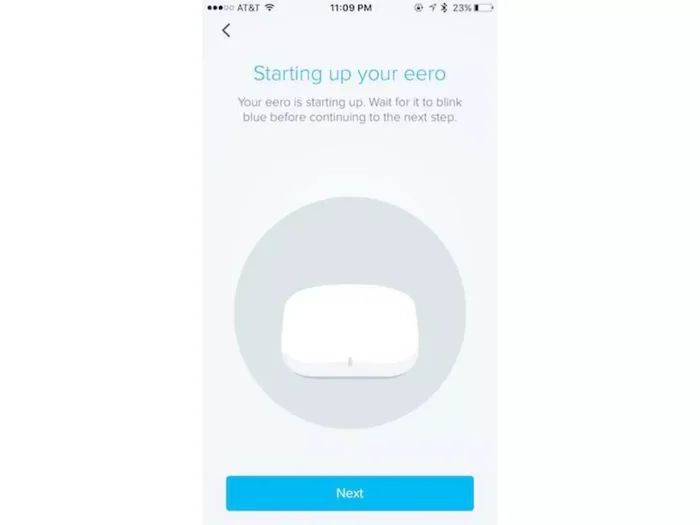
First, connect your modem to the Eero unit using an Ethernet cable. Plug one end into the modem and the other into the Eero port labeled WAN or Internet. Then, plug in the Eero unit and wait for the light to turn solid white.
Next, download the Eero app on your phone. The app walks you through the entire setup process. You will create an account, name your network, and set a password. The whole process takes about 10 to 15 minutes.
Once the main Eero unit is online, you can add satellite nodes around your home. These nodes create a mesh network that extends your WiFi coverage. Each node connects wirelessly to the main unit and to each other.
You do not need to touch any router settings. Eero handles everything automatically. This is one of the biggest reasons people choose mesh systems over traditional routers.
If you want to learn more about how mesh systems connect to existing equipment, check out our guide on Can I Connect A Mesh Router To An Existing Router.
Using Eero in Bridge Mode Behind an Existing Router
Sometimes you want to keep your existing router. Maybe you need specific features it offers, or your internet provider requires it. In these situations, you can put Eero into bridge mode.
Bridge mode changes how Eero operates. Instead of creating its own network, Eero passes the existing network signal through to your devices. It acts more like a WiFi extender than a router.
To set up bridge mode, open the Eero app. Go to Network Settings and look for the Bridge Mode option. Turn it on, and Eero will stop acting as a DHCP server. It will simply extend the WiFi signal from your existing router.
This setup is useful when you want the coverage of Eero but need to keep your current router for specific features. For instance, some routers offer better parental controls or advanced QoS settings.
Keep in mind that running Eero behind another router can sometimes create a double NAT issue. Double NAT can cause problems with gaming, port forwarding, and some smart home devices. If you run into issues, bridge mode usually fixes them.
If you are also managing multiple WiFi networks at home, you might find our article on Can I Change The Ssid On My Router helpful for managing network names across devices.
Eero Gateway: The All-In-One Option
Eero offers a special device called the Eero Gateway. This unit combines a modem and a router into one device. It eliminates the need for a separate modem entirely.
The Eero Gateway plugs directly into your wall ethernet jack. It handles both the modem and router functions. This makes it the simplest possible setup for Eero users.
With the Eero Gateway, you do not need to buy or rent a separate modem from your internet provider. The Gateway works with most major ISPs. It supports DOCSIS 3.1 for fast cable internet speeds.
The Gateway also includes a built-in Eero router. So you get the modem and the mesh WiFi system all in one box. This reduces cable clutter and simplifies your setup.
However, the Eero Gateway is not available in all areas. It works best with cable internet providers. If you have fiber internet, you may need to stick with a separate modem and Eero setup.
If you are exploring other mesh WiFi options, you might be curious how competing systems like Google Wifi work. Check out our article on Can Google Wifi Be An Access Point for a comparison of mesh system capabilities.
Extending Your WiFi Coverage With Eero
One of the main reasons people choose Eero is to fix weak WiFi signals. A single Eero unit can cover about 1,000 to 2,000 square feet, depending on your home layout. But larger homes need more nodes.
You can add up to several Eero satellites to extend coverage. Each satellite connects to the main unit and creates a seamless mesh network. Your devices automatically switch to the strongest signal as you move around your home.
For the best performance, place your Eero nodes strategically. Avoid putting them in closets or behind furniture. Ideally, each node should be within 30 to 50 feet of the next one.
If you need to cover a very large area, you might wonder about extending WiFi beyond the standard range. Our guide on Can I Extend My Wi Fi To 200 Feet Away covers techniques for pushing your signal further.
Wired backhaul is another way to boost performance. Instead of using wireless connections between nodes, you can run Ethernet cables between them. This gives you the fastest possible speeds between Eero units.
Most Eero models support Ethernet backhaul. Simply plug an Ethernet cable from one Eero node to another. The system will automatically prioritize the wired connection for better speed and stability.
Eero vs Traditional Router: Which Setup Is Better?
Many people wonder whether Eero is better than a traditional router. The answer depends on your needs and home setup.
Eero shines in homes with multiple floors or thick walls. The mesh network ensures consistent coverage everywhere. Traditional routers often struggle with dead zones in these situations.
Traditional routers are simpler for small spaces. If you live in a studio apartment or a single-story home, a single router might be all you need. Eero adds complexity and cost that may not be necessary for small spaces.
Eero also offers easier management through its app. You can pause the internet for kids, run speed tests, and update firmware all from your phone. Traditional routers often require logging into a web interface, which can be confusing.
Here is a quick comparison of the two setups:
- Setup complexity: Eero is simpler. Traditional routers require more manual configuration.
- Coverage: Eero scales easily with additional nodes. Traditional routers have fixed coverage.
- Management: Eero uses a user-friendly app. Traditional routers use web interfaces.
- Cost: Eero costs more upfront. Traditional routers are cheaper but may need extenders.
- Performance: Both can deliver fast speeds. Eero with wired backhaul performs best.
If you are deciding between options, consider how many devices you have and how large your home is. For most modern households with multiple devices, Eero provides a smoother experience.
Common Eero Setup Mistakes To Avoid
Even though Eero is designed to be simple, some mistakes can cause problems. Here are the most common ones to watch out for.
First, placing the main Eero unit too far from your modem. The connection between the modem and Eero should be as short as possible. Use a short Ethernet cable to keep the signal strong.
Second, putting Eero nodes in enclosed spaces. Walls and doors block WiFi signals. Keep your Eero units in open areas where they can broadcast freely.
Third, skipping firmware updates. Eero releases updates that improve performance and security. The app will notify you when updates are available. Always install them promptly.
Fourth, not using Ethernet backhaul when possible. If you can run cables between nodes, do it. Wireless backhaul works fine for most homes, but wired backhaul is always better.
Fifth, ignoring the Eero app settings. The app has features like network naming, device prioritization, and guest access. Taking a few minutes to explore these settings can greatly improve your experience.
Avoiding these mistakes will help you get the most out of your Eero system. A little planning goes a long way toward a fast, reliable home network.
Troubleshooting Eero Connectivity Issues
Even with the best setup, you might run into connectivity issues from time to time. Here are some quick fixes that work for most problems.
If your Eero is not connecting to the internet, check the modem first. Make sure the modem is online and all lights are normal. A simple reboot of the modem often fixes the issue.
If your WiFi is slow, try moving closer to the nearest Eero node. Distance and obstacles reduce WiFi speed. You can also check the Eero app for a speed test to see what speeds you are actually getting.
If devices keep disconnecting, firmware might be outdated. Update all Eero nodes through the app. Also check if any new devices have been added that might be causing interference.
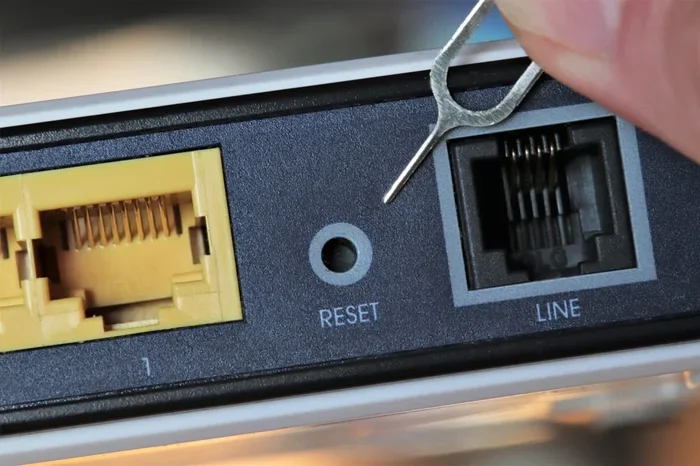
For persistent issues, a factory reset often helps. Hold the reset button on the back of the main Eero unit for about 10 seconds. The unit will restart and return to its original setup state. You will need to set it up again through the app.
If you are dealing with specific connectivity challenges, our article on Can I Force My Phone To Use 2 4 Ghz Wifi explains how to manage WiFi bands, which can help resolve connection problems.
Expert Tips For Getting The Most From Eero
Experienced network users have shared several tips for optimizing Eero performance. Here are the best ones to follow.
Use the Eero app to run regular speed tests. This helps you track your network performance over time. If you notice a drop in speed, it might be time to reposition a node or update firmware.
Enable the Eero Secure feature for added protection. It includes antivirus, ad blocking, and network threat detection. This keeps all your connected devices safe from online threats.
Set up a separate guest network. This lets visitors use your WiFi without accessing your main network. You can manage guest access easily through the Eero app.
Consider using Eero with a VPN for privacy. Some users install VPN software directly on their Eero system. This encrypts all traffic across your home network.
Finally, keep your Eero nodes on the same electrical circuit if possible. Power strips and surge protectors can sometimes interfere with the connection between nodes.
These tips will help you squeeze every bit of performance out of your Eero system. A well-configured mesh network feels invisible and just works.
Frequently Asked Questions
Do I Need A Router If I Have Eero?
No, in most cases you do not need a separate router. Eero replaces your router and handles all the routing functions. You simply connect Eero directly to your modem and you are good to go.
Can Eero Work With Any Modem?
Eero works with most standard modems. It is compatible with cable, DSL, and fiber internet connections. Check the Eero website for a full list of supported modems and ISPs to make sure yours is compatible.
What Is Bridge Mode On Eero?
Bridge mode lets Eero work behind an existing router. Instead of creating its own network, Eero extends the signal from your current router. This is useful when you need to keep specific router features while still getting Eero mesh coverage.
Can I Use My Old Router With Eero?
Yes, you can use your old router alongside Eero by putting Eero in bridge mode. However, this is not the recommended setup for most users. Using Eero as a standalone system is simpler and usually performs better.
Does Eero Replace My Internet Service Provider Equipment?
Eero replaces the router function of your ISP equipment. If your ISP provided a modem-router combo, you may be able to put it in bridge mode and let Eero handle the routing. Check with your ISP before making changes to avoid service interruptions.
How Many Eero Nodes Do I Need For My Home?
The number of nodes depends on your home size and layout. A single Eero covers about 1,000 to 2,000 square feet. For larger homes, add one node for every 1,000 to 1,500 square feet. Thick walls and multiple floors may require additional nodes.
Key Takeaways
- Eero can replace your router: In most setups, Eero connects directly to your modem and acts as the primary router.
- Bridge mode is an option: You can connect Eero behind an existing router if you want to keep both devices.
- Eero Gateway combines modem and router: Some Eero models include a built-in modem for even simpler setup.
- Mesh WiFi eliminates dead zones: Eero nodes work together to extend coverage across your entire home.
- Setup is simple through the Eero app: You do not need technical expertise to get started.
- Wired backhaul boosts performance: Connecting Eero nodes with Ethernet cables improves speed and stability.
Frequently Asked Questions
What is Does Eero Have To Be Connected To Router?
Does Eero Have To Be Connected To Router is an important topic with many practical applications.