Does Msi Pro B550 Vc Have Wi Fi or Do You Need an Adapter
The MSI PRO B550 V WIFI does come with built-in wireless connectivity, so you do not need a separate adapter in most cases. This motherboard features Wi-Fi 5 and Bluetooth right out of the box. However, if you are building a system and want to confirm every detail, this guide covers everything you need to know about wireless capability, setup, and alternatives.
Are you building or upgrading a PC and wondering whether the MSI PRO B550 V WIFI comes with wireless built in? You are not alone. Many people want to skip the hassle of buying and installing a separate Wi-Fi adapter. The good news is that this motherboard has you covered in most situations.
In this guide, we will walk through everything you need to know about the MSI PRO B550 V WIFI and its wireless features. You will learn whether it has built-in Wi-Fi, how to set it up, what speeds you can expect, and what to do if you need a backup plan. Let us get into it.
Key Takeaways
- Built-In Wi-Fi Included: The MSI PRO B550 V WIFI comes with Wi-Fi 5 and Bluetooth already integrated on the board.
- No Extra Adapter Needed: Most users can connect to wireless networks right away without buying anything extra.
- Check Your Exact Model: Not all B550 boards are the same, so always verify the “V WIFI” version before purchasing.
- Setup Is Simple: Installing drivers and connecting to a network takes only a few minutes.
- Alternatives Exist: If your board lacks Wi-Fi, you can add one via PCIe or USB options easily.
- Performance Is Solid: The built-in wireless handles everyday tasks and moderate gaming without issues.
📑 Table of Contents
- Does the MSI PRO B550 V Have Wi-Fi Built In?
- What Wireless Standards Does It Support?
- How to Set Up Wi-Fi on the MSI PRO B550 V
- Can You Improve the Wireless Performance?
- Factors That Can Affect Your Wi-Fi Signal
- What If Your Board Does Not Have Built-In Wi-Fi?
- Common Mistakes People Make With Motherboard Wi-Fi
- Expert Tips for Getting the Best Wireless Experience
- How the MSI PRO B550 V WIFI Compares to Other Boards
- Final Thoughts
Does the MSI PRO B550 V Have Wi-Fi Built In?
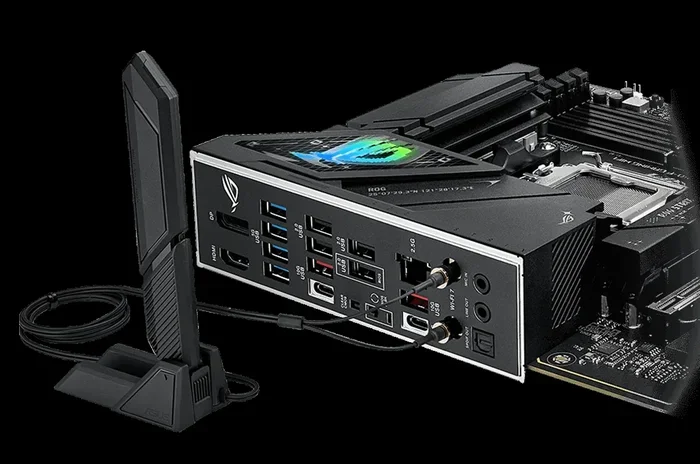
The short answer is yes. The MSI PRO B550 V WIFI model comes with wireless connectivity right out of the box. Unlike some budget boards that leave you hunting for an adapter, this one includes a Wi-Fi 5 module and Bluetooth support directly on the circuit board.
This means you can connect to your wireless network the moment you power on the system. There is no need to open the case and slide in a PCIe Wi-Fi card or plug in a USB dongle. Everything works straight from the factory.
What Makes This Different From Other B550 Boards?
Not all MSI B550 motherboards include wireless features. MSI makes several versions of the B550 chipset boards, and some are non-Wi-Fi models. The “V WIFI” designation tells you that wireless is part of the package. Always double-check the product name before you buy.
If you accidentally order the non-WIFI version, you will need to add your own wireless adapter. That is where things get tricky for some builders. So always confirm the exact model number on the box or the MSI website before making a purchase.
What Wireless Standards Does It Support?
The MSI PRO B550 V WIFI supports the 802.11ac wireless standard, which is commonly known as Wi-Fi 5. This is a reliable and fast standard that handles most home and office tasks with ease.
Here is a quick look at what you can expect from the wireless module on this board:
- Wi-Fi 5 (802.11ac) – The primary wireless standard supported.
- Dual-Band Support – Works on both 2.4 GHz and 5 GHz bands.
- Bluetooth 5.0 – Allows you to connect wireless peripherals like keyboards and mice.
- Speeds up to 867 Mbps – On the 5 GHz band under ideal conditions.
For most users, these speeds are more than enough. You can stream videos, browse the web, and even game online without any noticeable lag. The dual-band capability is especially useful because it lets you switch between bands depending on your needs.
How to Set Up Wi-Fi on the MSI PRO B550 V
Setting up wireless on this board is straightforward. Even if you are a beginner, you can get connected in just a few steps. Here is how to do it from start to finish.
Step 1: Install the Motherboard and Power On
First, install the MSI PRO B550 V WIFI into your PC case like you would with any other motherboard. Connect your CPU, RAM, storage, and power supply. Once everything is plugged in, turn on the system and enter the BIOS.
In the BIOS, you should see the wireless adapter listed under the integrated peripherals section. Make sure it is enabled. Some BIOS versions may have it turned off by default, though this is rare for the WIFI version.
Step 2: Install the Network Drivers
After booting into Windows, go to the MSI support website and download the latest drivers for the onboard wireless LAN module. Install them and restart your PC. This step is important because Windows may not recognize the adapter properly without the correct drivers.
Step 3: Connect to Your Network
Once the drivers are installed, click on the network icon in your taskbar. You should see available wireless networks in the list. Select yours, enter the password, and you are connected.
That is it. Three simple steps and you are online. No extra hardware, no complicated setup, no headaches.
Can You Improve the Wireless Performance?
While the built-in Wi-Fi on the MSI PRO B550 V WIFI works great for most situations, some users want to push the wireless performance further. Maybe you have a large home or experience dead zones in certain rooms. Here are some ways to boost your signal.
Position Your Router Strategically
The simplest way to improve your connection is to place your router in a central location. Walls, metal objects, and large appliances can all weaken your signal. Try to keep the router elevated and away from obstructions.
If you have thick walls or multiple floors, you might notice the signal drops on the far side of your home. This is where range extenders and boosters come in handy.
Use a Wi-Fi Booster or Extender
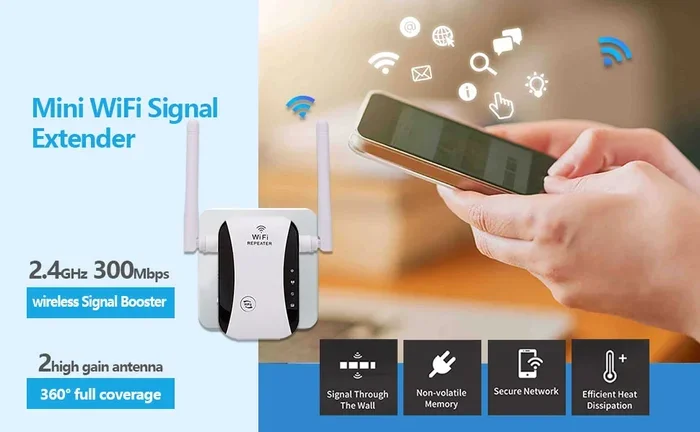
If you find that your signal does not reach every corner of your house, consider adding a Wi-Fi booster. These devices amplify your existing signal and extend coverage to areas that normally have weak or no connection.
You can also look into Wi-Fi extenders that plug directly into a wall outlet. They are affordable and easy to set up. For more information on extending your range, check out this guide on extending Wi-Fi to 200 feet away.
Consider a USB Wi-Fi Adapter as a Backup
Some users prefer to use a USB Wi-Fi adapter instead of relying on the onboard module. These adapters can offer better antennas and stronger signal reception. They are especially useful if you have an older router or if you need to connect from a desk far away from your router.
Keep in mind that the onboard Wi-Fi on the MSI PRO B550 V WIFI is already quite capable. A USB adapter is really only needed in specific situations where range or speed is a major concern.
Factors That Can Affect Your Wi-Fi Signal
Even with a great motherboard and built-in wireless, several factors can impact your Wi-Fi signal strength. Understanding these can help you troubleshoot slow speeds or dropped connections.
Physical Obstacles
Walls, floors, furniture, and even large fish tanks can block or weaken your wireless signal. The more obstacles between your router and your PC, the weaker the connection will be. Try to keep a clear line of sight whenever possible.
Interference from Other Devices
Microwaves, baby monitors, cordless phones, and even neighboring Wi-Fi networks can cause interference. The 2.4 GHz band is especially prone to this because it is crowded. Switching to the 5 GHz band can often solve this problem.
Environmental Factors
Believe it or not, moisture in the air can affect your wireless signal. High humidity levels can slightly weaken the Wi-Fi signal over distance. This is not something most people notice in everyday use, but it is worth knowing if you live in a very humid climate.
For more details on this topic, you can read about how humidity affects Wi-Fi signals.
What If Your Board Does Not Have Built-In Wi-Fi?
Not every B550 motherboard comes with wireless features. If you have a non-WIFI version or are looking at a different board altogether, you still have options. Adding wireless capability to a board without it built in is easy and affordable.
There are two main ways to add Wi-Fi to a desktop motherboard. The first is a PCIe Wi-Fi card, which slides into an expansion slot on the board. The second is a USB Wi-Fi adapter, which plugs into a USB port. Both methods work well, but they have different advantages.
A PCIe card generally offers better speeds and more stable connections because it connects directly to the motherboard. A USB adapter is more portable and easier to install, making it a great choice for temporary setups or rentals.
For a deeper look at adding wireless to a board that does not have it, check out this guide on adding Wi-Fi to a non-Wi-Fi motherboard.
Quick Comparison: PCIe vs USB Wi-Fi Adapters
| Feature | PCIe Wi-Fi Card | USB Wi-Fi Adapter |
|---|---|---|
| Installation | Requires opening the case | Plug and play |
| Speed | Usually faster | Good, but slightly slower |
| Portability | Fixed to the board | Easy to move between PCs |
| Cost | Mid-range to high | Budget-friendly |
| Signal Quality | Stable and consistent | Depends on antenna placement |
Both options are valid, and your choice depends on your needs and budget. For most users, the onboard Wi-Fi on the MSI PRO B550 V WIFI is all you will ever need.
Common Mistakes People Make With Motherboard Wi-Fi
Even though setting up wireless on a modern motherboard is simple, some common mistakes can cause problems. Here are a few things to watch out for.
- Forgetting to install drivers: Windows might not recognize the wireless adapter without the proper drivers. Always download them from the manufacturer’s website.
- Confusing model numbers: The MSI B550 V and the MSI B550 V WIFI are different boards. Make sure you have the correct one.
- Ignoring BIOS updates: Sometimes a BIOS update can improve wireless compatibility and performance. Check for updates regularly.
- Placing the PC too far from the router: Distance matters. The farther you are, the weaker the signal will be.
- Using outdated wireless standards: If your router only supports older standards, your speeds will be limited no matter what motherboard you have.
Avoiding these mistakes will save you time and frustration. A little preparation goes a long way when setting up your wireless connection.
Expert Tips for Getting the Best Wireless Experience
Want to squeeze every bit of performance out of your onboard Wi-Fi? Here are some expert tips that make a real difference.
- Keep your drivers updated. Manufacturers release driver updates that improve performance and fix bugs. Check the MSI website monthly.
- Use the 5 GHz band for streaming and gaming. It is faster and less congested than the 2.4 GHz band.
- Position your PC near a window. This reduces the number of walls between your PC and the router, improving signal strength.
- Restart your router regularly. A simple reboot can clear up connectivity issues and improve speeds.
- Consider a mesh network for large homes. If your house is big, a single router may not be enough. Mesh systems spread the signal throughout the entire home.
These small changes can lead to noticeable improvements in your daily wireless experience. You do not need expensive equipment to get better results.
How the MSI PRO B550 V WIFI Compares to Other Boards
When you are shopping for a B550 motherboard, it helps to understand how the MSI PRO B550 V WIFI stacks up against the competition. Here are a few things that set it apart.
First, the built-in Wi-Fi is a major convenience. Many competing boards in the same price range require you to add a separate wireless card. Second, the Bluetooth 5.0 support means you can connect wireless headphones, controllers, and other peripherals without any extra hardware.
The board also offers solid build quality, multiple USB ports, and support for AMD Ryzen processors. It is a well-rounded choice for anyone who wants a reliable wireless desktop experience without spending extra on adapters.
If you are comparing options, make sure to check whether the board you are looking at includes Wi-Fi. The MSI website and product listings make this very clear. Look for the “WIFI” suffix in the model name, and you will know it has built-in wireless.
Final Thoughts
The MSI PRO B550 V WIFI is a solid choice for anyone who wants built-in wireless connectivity without the hassle of buying and installing a separate adapter. It supports Wi-Fi 5, Bluetooth 5.0, and dual-band networking right out of the box.
Whether you are a casual user, a student, or a gamer, this motherboard handles wireless needs with ease. Setup takes only a few minutes, and performance is reliable for everyday tasks and moderate gaming.
If you are in the market for a B550 board and wireless is a must-have, this model delivers. Just remember to confirm the exact model name before you buy, and you will be enjoying a seamless wireless connection in no time.
For anyone who needs to boost their signal further, a Wi-Fi booster or range extender can help fill in the gaps. And if you ever move to a board that does not have wireless built in, adding one is always an option. The world of desktop Wi-Fi has never been more accessible.
Frequently Asked Questions
Do I need to buy a Wi-Fi adapter for the MSI PRO B550 V WIFI?
No, you do not need a separate adapter. This motherboard comes with built-in Wi-Fi 5 and Bluetooth 5.0 already installed on the board. You can connect to wireless networks right after installing your drivers.
What is the difference between the MSI B550 V and the B550 V WIFI?
The main difference is wireless capability. The B550 V WIFI includes an onboard Wi-Fi module and Bluetooth, while the standard B550 V does not. Always check the full model name before purchasing to make sure you get the version you need.
Can I upgrade the Wi-Fi on this motherboard to Wi-Fi 6?
Yes, you can replace the onboard Wi-Fi module with a PCIe Wi-Fi 6 card if you want faster wireless speeds. However, for most users, the built-in Wi-Fi 5 is more than sufficient for everyday use and streaming.
How do I know if my MSI motherboard has Wi-Fi?
Look for the “WIFI” suffix in the model name. MSI clearly labels its wireless-capable boards with this designation. You can also check the product specifications on the MSI website to confirm whether the board includes a wireless module.
Does the MSI PRO B550 V WIFI support Bluetooth?
Yes, it supports Bluetooth 5.0. This allows you to connect wireless peripherals like keyboards, mice, headsets, and speakers without needing any additional hardware or adapters.
What should I do if my Wi-Fi signal is weak on this motherboard?
Start by updating your wireless drivers and switching to the 5 GHz band. If the signal is still weak, try moving your PC closer to the router or using a Wi-Fi extender. You can also check for interference from other electronic devices in your home.
=== CONCLUSION ===
The MSI PRO B550 V WIFI is a solid motherboard that comes with built-in wireless connectivity, making it a great choice for users who want to skip external adapters. With Wi-Fi 5, Bluetooth 5.0, and dual-band support, it handles everyday tasks and moderate gaming with ease. The setup process is simple, the performance is reliable, and the board offers great value for the price.
If you are building a new PC or upgrading an existing one, this motherboard delivers a seamless wireless experience right out of the box. Just confirm the model name, install your drivers, and you are good to go. For tips on improving your wireless setup further, check out guides on Wi-Fi extenders and Wi-Fi boosters to get the best coverage in your home.